Windows 7 Forums Search
Welcome to Windows 7 Forums. Our forum is dedicated to helping you find solutions with any problems, errors or issues you are experiencing with Windows 7. The Windows 7 forum also covers news and updates and has an extensive Windows 7 tutorial section that covers a wide range of tips and tricks.


Windows 7 - Internet Explorer Context Menu - Enable or Disable


Internet Explorer Context Menu - Enable or Disable

How to Enable or Disable Internet Explorer Web Page Context Menu
Published by Brink
05-15-2010
Default Internet Explorer Context Menu - Enable or Disable

How to Enable or Disable Internet Explorer Web Page Context Menu

information   Information
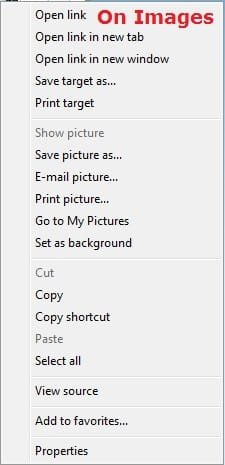
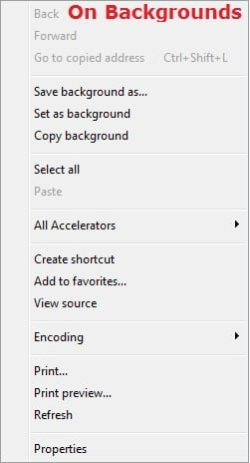
This will show you how to enable or disable the context menu from displaying when users right click on either a link, image, or background on a webpage in Internet Explorer.

EXAMPLE: Sample Context Menus in Internet Explorer
Name:  Links.jpg
Views: 1301
Size:  18.9 KBInternet Explorer Context Menu - Enable or Disable-images.jpgInternet Explorer Context Menu - Enable or Disable-backgrounds.jpg


OPTION ONE

Using a REG File Download
1. To Enable Context Menu in Internet Explorer
A) Click on the Download button below to download the file below.
Enable_Internet_Explorer_Context_Menu.reg
download
B) Go to step 3.
2. To Disable Context Menu in Internet Explorer
A) Click on the Download button below to download the file below.
Disable_Internet_Explorer_Context_Menu.reg
download
3. Click on Save, and save the .reg file to the desktop.

4. Right click on the downloaded .reg file and click on Merge.

5. Click on Run, Yes, Yes, and OK when prompted.

6. Close and reopen Internet Explorer if already opened.

7. When done, you can delete the downloaded .reg file if you like.


OPTION TWO

Through the Local Group Policy Editor
1. Open the all users, specific users or groups, or all users except administrators Local Group Policy Editor for how you want this policy applied.
2. In the left pane, click on to expand User Configuration, Administrative Templates, Windows Components, Internet Explorer, and Browser menus. (see screenshot below)
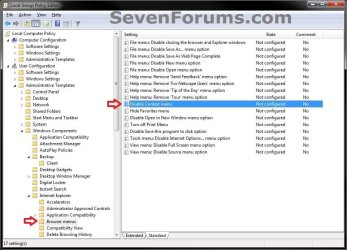
Internet Explorer Context Menu - Enable or Disable-gpedit-1.jpg
3. In the right pane, right click on Disable Context menu and click on Edit. (see screenshot above)

4. To Enable Context Menu in Internet Explorer
A) Select (dot) either Not Configured or Disabled. (see screenshot below step 6)
B) Go to step 6.
5. To Disable Context Menu in Internet Explorer
A) Select (dot) Enabled. (see screenshot below step 6)
6. Click on OK. (see screenshot below)
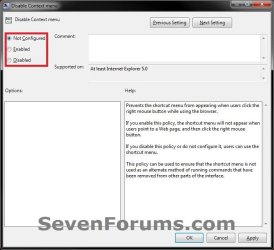
Internet Explorer Context Menu - Enable or Disable-gpedit-2.jpg
7. Close the Local Group Policy Editor window.

8. Close and reopen Internet Explorer if already opened.
That's it,
Shawn
Published by
Administrator

Join Date: Oct 2008
Location: Texas
Posts: 34,826
Brink has a reputation beyond reputeBrink has a reputation beyond reputeBrink has a reputation beyond repute
Brink has a reputation beyond reputeBrink has a reputation beyond reputeBrink has a reputation beyond reputeBrink has a reputation beyond reputeBrink has a reputation beyond reputeBrink has a reputation beyond reputeBrink has a reputation beyond reputeBrink has a reputation beyond reputeBrink has a reputation beyond reputeBrink has a reputation beyond reputeBrink has a reputation beyond reputeBrink has a reputation beyond reputeBrink has a reputation beyond reputeBrink has a reputation beyond repute

Tutorial Tools
Comment

Internet Explorer Context Menu - Enable or Disable problems?


Tutorial Tools


Similar Threads for: Internet Explorer Context Menu - Enable or Disable
Windows 7 Tutorial Category
Start Menu Context Menus and Dragging and Dropping - Disable or Enable Tutorials
Internet Explorer 8 and 9 - Enable or Disable First Run Set Up Pop-up Tutorials
Internet Explorer Add-ons - Enable or Disable Add-On Manager Tutorials
Internet Explorer Zoom - Enable or Disable Tutorials
Windows Explorer Context Menu - Enable or Disable Tutorials


All times are GMT -5. The time now is 06:30 AM.


Windows 7 Forums is an independent web site and has not been authorized,
sponsored, or otherwise approved by Microsoft Corporation.
"Windows 7" and related materials are trademarks of Microsoft Corp.
© Designer Media Ltd
  

1 2 3 4 5 6 7 8 9 10 11 12 13 14 15 16 17 18 19 20 21 22 23 24 25 26 27 28 29 30