
Windows 7 Forums


Windows 7: Run Commands - Create


Run Commands - Create

How to Create Custom Run Commands
Published 26 May 2010
Published by

Featured Tutorial

User Profile - Customize During Installation

How to Customize Default User Profile in Audit Mode

Microsoft Account "Two-step Verification" - Turn On or Off

How to Turn "Two-step Verification" On or Off for your Microsoft Account

Online Scanners - Scan Suspicious Files on your PC

How to Scan Suspicious Files using Online Scanners

System Preparation Tool - Use to Customize Windows

How to Use Sysprep to Customize Windows 7 and Windows 8

Bootmgr - Move to C:\ with EasyBCD

How to Move Bootmgr to C:\ with EasyBCD

Troubleshooting Windows 7 Failure to Boot


How to Create Custom Run Commands


Note   Note
Using the Run / Start Search command in Windows you can use certain pre-defined commands to open up applications like we open MSCONFIG etc.


Here are the Steps


1. Go to Start under Start Search type in Regedit and Hit Enter


warning   Warning
Ensure to make a backup before you modify any Registry Entry


2.Follow this Link for help in backing up Registry :- Registry - Backup and Restore

3. Then go to

Code:
HKEY_LOCAL_MACHINE\SOFTWARE\Microsoft\Windows\CurrentVersion\App Paths
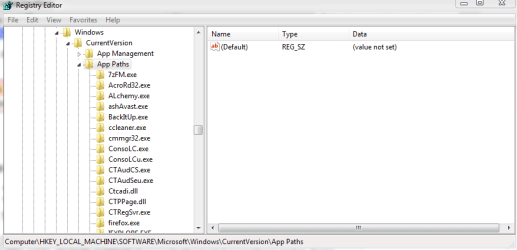
Run Commands - Create-reg1.png


4. In the left panel, right click this App Paths key and choose New | Key and Type the Application name

Note: Don't forget to type the extension as well


For Example: CCleaner.exe
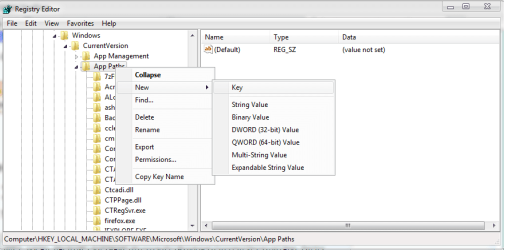

Run Commands - Create-reg2.png


5. In the right panel, double click on the Default string value and in the Value and in the box which opens, enter the path of the executable i.e. C:\Program Files\CCleaner\CCleaner.exe
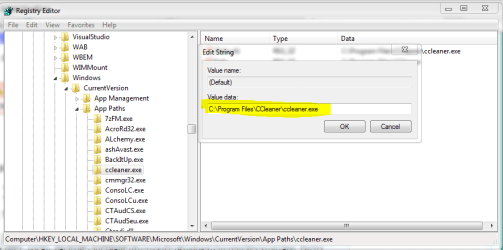

Run Commands - Create-reg3.png


6. Now in the right side empty space again Right click | Select New | String Value. Name the key as Path. Double click and give it the value as the folder path i.e. C:\Program Files\CCleaner\
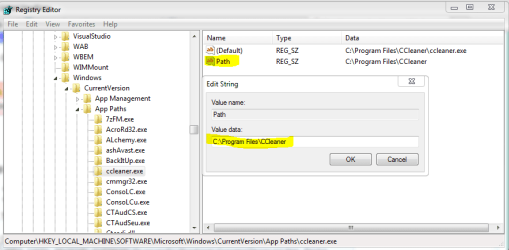

Run Commands - Create-reg4.png


7. Now you can close the Registry Editor and from Start | Run type in Application name i.e. CCleaner it would open the Application.


Hope this helps,

Captain


Need more help? Try searching our extensive help and support site.
Loading
26 May 2010   #1
Loki

Windows 7 Ultimate x64
West Palm Beach


Nice.


You could also add the path the the Environment Variables: Path, if you'd rather not mess with the Registry directly.
My System SpecsSystem Spec

26 May 2010   #2
Bare Foot Kid

W 7 64-bit Ultimate
The Lowcountry


Looks good Cap'n!
My System SpecsSystem Spec
26 May 2010   #3
Capt.Jack Sparrow

Windows 7 Ultimate - 64-bit | Windows 8 Pro - 64-bit


Thank You Ted !!
My System SpecsSystem Spec
.


26 May 2010   #4
CarlTR6

Windows 7 Ultimate 32 bit
Orlando, Florida


Very good, Captain - and useful. Good job.
My System SpecsSystem Spec
26 May 2010   #5
Capt.Jack Sparrow

Windows 7 Ultimate - 64-bit | Windows 8 Pro - 64-bit


Thanks Carl !!
My System SpecsSystem Spec
26 May 2010   #6
zzz2496

Windows7 Ultimate 64bit


Very good, Capt'n... Btw, as Loki said earlier, there is another way to do this. All you need to do is add the "Path" of the corresponding program to "Path" environment variable, it's under "Advanced system settings"->"Environment Variables" button.

zzz2496
My System SpecsSystem Spec
27 May 2010   #7
kucing13

window's 7
bermuda triangle


another tweak.!!. thanks Capt .
My System SpecsSystem Spec
27 May 2010   #8
Kari

Windows 7 x64 Ultimate
A Finnish immigrant in Leipzig, Germany


Nice work, Mr. Sparrow!
My System SpecsSystem Spec
27 May 2010   #9
Capt.Jack Sparrow

Windows 7 Ultimate - 64-bit | Windows 8 Pro - 64-bit


Quote   Quote: Originally Posted by zzz2496 View Post
Very good, Capt'n... Btw, as Loki said earlier, there is another way to do this. All you need to do is add the "Path" of the corresponding program to "Path" environment variable, it's under "Advanced system settings"->"Environment Variables" button.

zzz2496
Yes we can do it that way. Also another easy way is to just Create a shortcut of the application or program. Rename it to any short name and place this shortcut in the Windows folder.
My System SpecsSystem Spec
Comment

 Run Commands - Create problems?


Tutorial Tools


Similar help and support threads for: Run Commands - Create
Windows 7 Tutorial Category
Batch Files - Create a Menu to Execute Commands Tutorials
Solved Bat commands.. General Discussion
Solved Windows Run Commands General Discussion
Shortcut commands? Gaming
Cmd line commands General Discussion


All times are GMT -5. The time now is 06:48 PM.


Seven Forums Android App Seven Forums IOS App Follow us on Facebook

Windows 7 Forums is an independent web site and has not been authorized,
sponsored, or otherwise approved by Microsoft Corporation.
"Windows 7" and related materials are trademarks of Microsoft Corp.
© Designer Media Ltd
  

1 2 3 4 5 6 7 8 9 10 11 12 13 14 15 16 17 18 19 20 21 22 23 24 25 26 27 28 29 30 31 32