
User Profile - Change Default Location

How to Change the Default Location of a User Profile in Vista and Windows 7


   Information
A user profile is the main C:\Users\(user-name) folder of a user account that contains all of the account's settings, shortcuts, information, and user folders (ex: My Music) with the files in them.

This will show you how to Move the default location of a user profile in Windows 7 and Vista to another location of your choice so it will be stored and used from the new location instead.

This can be handy if you are low on free space on your C: drive.

You must be logged in as an administrator to be able to do the steps in this tutorial.

   Warning
Before doing this, you should create a system image to be safe. This way you can do a system image recovery to undo any mistake you might make in the instructions below that could result in the user profile you are moving, or Windows, to no longer work.
   Note
The drive or partition that you move the user profile folder(s) to, will now be included in a system image if created since it will now be considered a system drive.
   Tip
If you are just wanting to save HDD space from the files in your user folders, then you might consider this below to be able to access the files from your libraries with the files actually located where you like instead. This way you will not have to worry about any potential issues that come with moving user folder locations.


OPTION ONE

For Already Existing User Accounts


   Warning
Some of the programs you have installed may not work properly after moving your user profile folder since they are still looking for their information in the user profile folder's original AppData folder location which of course no longer exists.

If you have this problem afterwards, then you may be able to uninstall and reinstall these programs, or use OPTION TWO in the tutorial to create a new user account and create new shortcuts for the programs to fix this.


Method One

To Change the Default Location of an Existing User Profile


1. Log on to the user account that you want to move. In Windows Explorer, navigate to it's C:\Users\(user-name) folder, right click on the user folder, click on Share with and Nobody.

2. Log off.

3. Log on to an administrator account that you are not moving it's user folder for.
NOTE: If you do not have another administrator account to use, then you will need to create a new account first and log in to it. When done with the tutorial, you can delete the new account.

4. In Windows Explorer, navigate to the C:\Users\(user-name) folder (ex: C:\Users\User account to move) that you want to move. Right click on it and click on Copy. (see screenshot below)
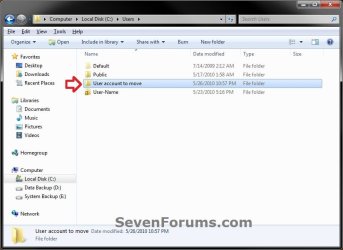
Step1.jpg
5. In Windows Explorer, navigate to the new location (ex: E: drive) that you want to move the C:\Users\(user-name) folder to. Right click on a empty space in the main window (middle), and click on Paste. (see screenshot below)
NOTE: This should be another internal hard drive or partition.
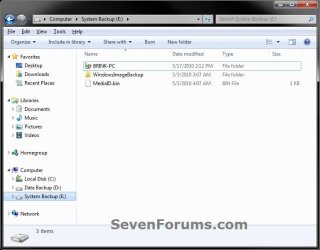
Step2.jpg
6. If prompted, click on Continue. (see screenshot below)
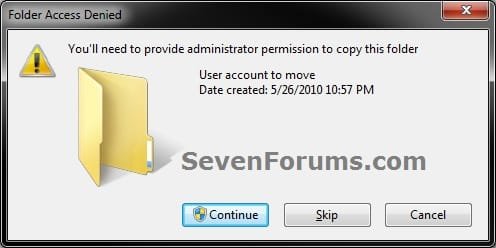
Step3-UAC.jpg
7. If prompted by UAC, then click on Yes (Windows 7) or Continue (Vista).

8. The C:\Users\(user-name) folder (step 4) is now copied over to the new location (ex: E:\User account to move). You can close Windows Explorer. (see screenshot below)
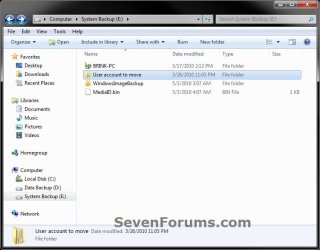
Step4.jpg
9. Open the Start Menu, then type regedit in the search box and press enter.

10. If prompted by UAC, then click on Yes (Windows 7) or Continue (Vista).

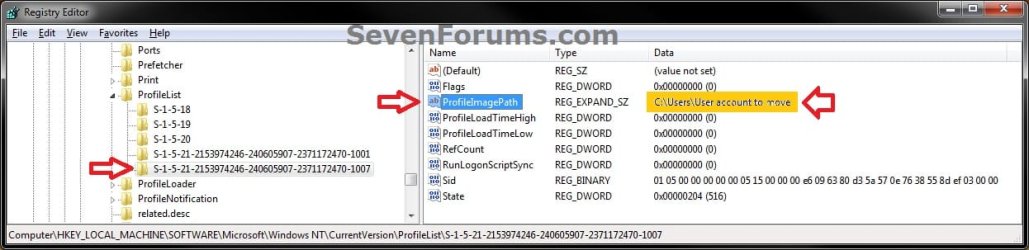
11. In regedit, navigate to the location below. (see screenshot below)

Code:
HKEY_LOCAL_MACHINE\SOFTWARE\Microsoft\Windows NT\CurrentVersion\ProfileList
Step5.jpg
12. In the left pane under the Profilelist key, select and look at each S-1-5 key with the long number until you see the user account name and path (step 3) that you want to move in the value Data column of ProfileImagePath in the right pane. When the correct user name is found, right click on ProfileImagePath, and click on Modify. (see screenshot above)

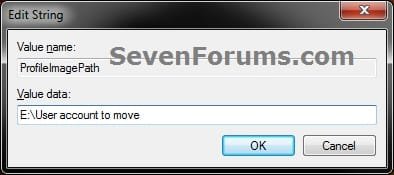
13. Type in the full path of the location (ex: E:\User account to move) that you copied the user profile folder to in step 7, and click on OK. (see screenshot below)
Step6.jpg
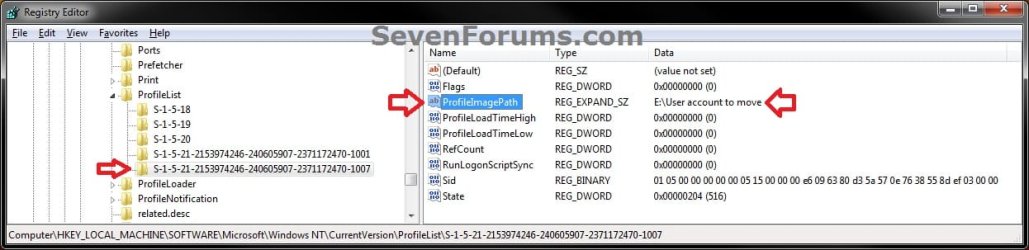
14. Regedit will now look similiar to this with the new location now. Close regedit. (see screenshot below)
Step7.jpg
15. To Verify that the User Profile has been Moved Successfully
A) Log off or Switch User, then log in to the user account that you moved the user profile folder of.

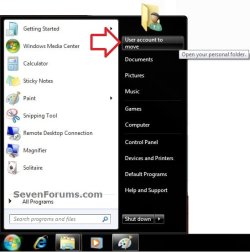
B) Open the Start Menu and open the user profile folder from this location. (see screenshot below)
Log-in-1.jpg
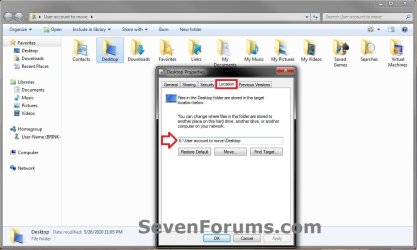
C) Right click on one of the user folders (ex: Desktop), click on Properties, and click on the Location tab. (see screenshot below)
Log-in-2.jpg
D) You should see the new location (ex: E:\User account to move\Desktop) from step 8 as the now new default location. Click on OK. (see screenshot above)
16. To Delete the User Profile from the Old Location
NOTE: Once you have verified (step 15) that the moved user profile has been moved successfully, you can now safely delete the user profile folder from the old location (ex: C:\Users\User account to move) from step 4.
A) Log off of the user account that you moved if you are logged into it from step 15.

B) Log on to an administrator account that you did not move it's user folder for.

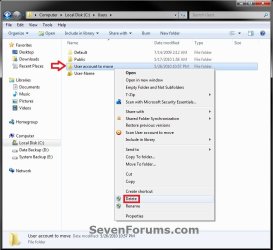
C) In Windows Explorer, navigate to the old C:\Users\(user-name) folder (ex: C:\Users\User account to move) that you had copied (step 4). Right click on it and click on Delete. (see screenshot below)
Delete-1_UAC.jpg
D) If prompted by UAC, then click on Yes (Windows 7) or Continue (Vista).

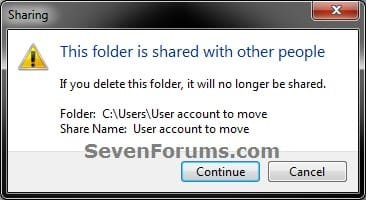
E) If prompted, click on Continue. (see screenshot below)
Delete-2.jpg
F) You can now empty the Recycle Bin to finish deleting the old user profile folder from the old location.
NOTE: You will need to approve emptying the Recycle Bin.
17. The existing user profile folder has now been completely moved to the new default location where Windows 7 or Vista will now run it from when logged on to it.


Method Two

To Restore the Existing User Profile's Default Location


1. Repeat OPTION ONE, but move the new default User Profile folder (ex: E:\User account to move) and registry entries back to the original C:\Users folder location (ex: C:\Users\User account to move).


OPTION TWO

For All New User Accounts Created


   Note
This will change where all newly created user accounts will have their user profile folder created at in a default location of your choice instead of the old default C:\Users location.

Thank you to Alain for pointing this out.

1. To Change the Default User Profile Location of New User Accounts
A) Open the Start Menu, then type regedit in the search box and press enter.
B) If prompted by UAC, then click on Yes (Windows 7) or Continue (Vista).

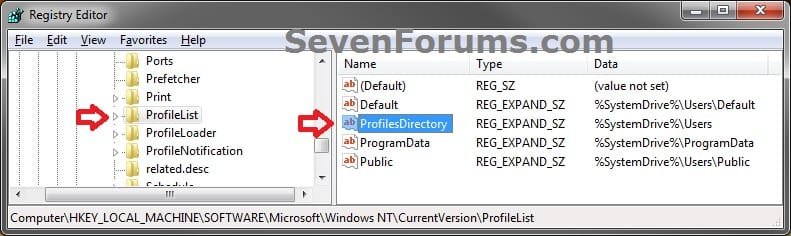
C) In regedit, navigate to the location below. (see screenshot below)

Code:
HKEY_LOCAL_MACHINE\SOFTWARE\Microsoft\Windows NT\CurrentVersion\ProfileList
New-1.jpg
D) In the right pane of ProfileList, right click on ProfilesDirectory and click on Modify. (see screenshot above)

E) Type in the full path (ex: E:\Users) of where you want new user accounts to be created at, and click on OK. (see screenshot below)
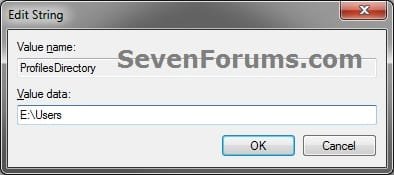
New-2.jpg
F) The registry will now look similar to this. (see screenshot below)
New-3.jpg
G) When you create a new user account, it's user profile folder will now be created at the location you specified in step 1E.
2. To Restore the Default User Profile Location of New User Accounts
A) Repeat step 1, but type %SystemDrive%\Users at step 1E instead.
NOTE: This step only changes the user profile folder location of any newly created user accounts back to this default location, and not any existing user accounts.

B) If you wish to change an already existing new account's user profile folder location, then you will need to do Method Two in OPTION ONE above to change it back to C:\Users.
3. Close regedit.

That's it,
Shawn


Last edited:
You're most welcome Karel. :)
 

My Computer

Computer type
PC/Desktop
Computer Manufacturer/Model Number
Self built custom
OS
64-bit Windows 11 Pro for Workstations
CPU
Intel i7-8700K OC'd to 5 GHz
Motherboard
ASUS ROG Maximus XI Formula Z390
Memory
64 GB (4x16GB) G.SKILL TridentZ RGB DDR4 3600 MHz
Graphics Card(s)
ASUS ROG-STRIX-GTX1080TI-O11G-GAMING
Sound Card
Integrated
Monitor(s) Displays
2 x Samsung Odyssey G7 27"
Screen Resolution
2560x1440
Hard Drives
1TB Samsung 990 PRO M.2,
4TB Samsung 990 PRO PRO M.2,
TerraMaster F8 SSD Plus NAS
PSU
Seasonic Prime Titanium 850W
Case
Thermaltake Core P3
Cooling
Corsair Hydro H115i
Keyboard
Logitech wireless K800
Mouse
Logitech MX Master 4
Internet Speed
2 Gb/s Download and 100 Mb/s Upload
Antivirus
Malwarebyte Anti-Malware Premium
Browser
Google Chrome
Other Info
Logitech Z625 speaker system,
Logitech BRIO 4K Pro webcam,
HP Color LaserJet Pro MFP M477fdn,
APC SMART-UPS RT 1000 XL - SURT1000XLI,
Galaxy S23 Plus phone
That's a beautiful note about moving USERs to another drive will now have THAT drive included in a system image. I'd never have thought of that.
 

My Computer

Computer type
PC/Desktop
Computer Manufacturer/Model Number
Custom
OS
Windows 7
CPU
AMD Phenom II X2 (dual-core)
Motherboard
GA-MA785GM-US2H
Memory
4G
Graphics Card(s)
integrated ATI HD 4200
Sound Card
integrated
Monitor(s) Displays
Samsung 24"
Screen Resolution
1920x1080
Hard Drives
1 SSD - Samsung 840 - 500 GB - OS and DATA partitions
1 SSD - Intel 320 - 120 GB (used for backups) - Misc/BACKUP
1 SATA HD - WD, 500 GB - BACKUP
PSU
Ultra X4 500W
Case
Ultra X-blaster
Keyboard
Microsoft Digital Media Pro
Mouse
Logitech WIRED!
Internet Speed
15 Mbps FIOS
Hello Jim,

Yeah, that would stink to find out the hard way. IMO, if one has the space on the Windows HDD, it would be best to keep the user folders on it. :)
 

My Computer

Computer type
PC/Desktop
Computer Manufacturer/Model Number
Self built custom
OS
64-bit Windows 11 Pro for Workstations
CPU
Intel i7-8700K OC'd to 5 GHz
Motherboard
ASUS ROG Maximus XI Formula Z390
Memory
64 GB (4x16GB) G.SKILL TridentZ RGB DDR4 3600 MHz
Graphics Card(s)
ASUS ROG-STRIX-GTX1080TI-O11G-GAMING
Sound Card
Integrated
Monitor(s) Displays
2 x Samsung Odyssey G7 27"
Screen Resolution
2560x1440
Hard Drives
1TB Samsung 990 PRO M.2,
4TB Samsung 990 PRO PRO M.2,
TerraMaster F8 SSD Plus NAS
PSU
Seasonic Prime Titanium 850W
Case
Thermaltake Core P3
Cooling
Corsair Hydro H115i
Keyboard
Logitech wireless K800
Mouse
Logitech MX Master 4
Internet Speed
2 Gb/s Download and 100 Mb/s Upload
Antivirus
Malwarebyte Anti-Malware Premium
Browser
Google Chrome
Other Info
Logitech Z625 speaker system,
Logitech BRIO 4K Pro webcam,
HP Color LaserJet Pro MFP M477fdn,
APC SMART-UPS RT 1000 XL - SURT1000XLI,
Galaxy S23 Plus phone
Hello Brink,


I followed your tutorial to move the User Profile to my large HDD from my 120GB SSD C: drive and it worked perfectly. Actually it worked better than expected. But I do have some suggestions to eliminate a few small hickups that I had and I wanted to share the results of my test on making a system image backup after moving the User Folder.

Thanks for creating such a good website for learning the details of Windows 7. I have been holding out for over a year to convert from XP. I don't think I could have gotten my system to work the way I wanted without all the tutorials on this site.


I did not understand why you had the warning that the new User Location on the HDD would become part of a
system image of the boot drive. An image is normally a bit-by-bit copy of the drive. It does not care what data is on it. A file level backup would include the relocated files but not an image. To test this, I made a system image using EaseUS Todo Backup 3.5 on the system as Windows installed itself on a clean C: SSD. I then moved the User Profile loaction to my 2 TB HDD. Followed by copying all my previous data (~300 GB) from another HDD to the new "allencar" locations on the 2 TB drive. I then made a second system image of C: Drive. It was approximately the same size (~27GB in the backup folder) as the original image. So my test shows that the moved User Profile does not affect the ability to make a system image for backup purposes.

I also suggest that the move of the User Profile be done BEFORE any of the system utilities from the motherboard, graphics, or other equipment manufacturers are installed. Originally I installed everything first; then moved the User Profile. I got a warning that some of the programs would not work correctly because of the move. So I reformated the SSD and started over; performing the User Profile move just after Windows 7 install completed and before any of the equipment specific drivers were installed. Everything worked perfect this time. I started over with formating the SSD because I like having a system without any errors during the initial install.

The final hickup I had was in adding new Favorites in IE; which were moved with the profile to the allencar location on the HDD. Before I could add a new Favorite in IE; I had to go to Properties of the Favorites folder and share it with Everybody. Since then everything has workd great.

Thanks for all the work you and your partners at this website have done to make things easier for others.

Allen
 

My Computer

OS
Windows Home Premium 64-bit
CPU
Intel i5 - 2500K
Motherboard
Gigabyte Z68X-UD3H-B3
Memory
G.Skill Ripjaw 2 x 4Gb DDR3-1866
Graphics Card(s)
Sapphire Vapor-X HD6850 1Gb GDDR5
Monitor(s) Displays
Dell Ultrasharp U2410, HP LP2275W, Acer G235H
Hard Drives
SSD - Kingston Hyper-X 120Gb
HD - Hitachi 7200 RPM 2 Tb
PSU
Corsair TX750-V2
Case
NZXT - H2 Classic
Cooling
CPU - Corsair A70
You're most welcome Allen, and welcome to Seven Forums. :)

Yes indeed it would always be better to move the user profile on a new install instead to avoid issues with already installed programs.

The warning was only for the built-in system image feature of Windows 7 instead. The issue is that when you move the whole user profile folder, it makes the partition that you moved it to a system drive. The built-on system image feature of Windows 7 will automatically include all system drives/partitions when creating a image and cannot be unselected.
 

My Computer

Computer type
PC/Desktop
Computer Manufacturer/Model Number
Self built custom
OS
64-bit Windows 11 Pro for Workstations
CPU
Intel i7-8700K OC'd to 5 GHz
Motherboard
ASUS ROG Maximus XI Formula Z390
Memory
64 GB (4x16GB) G.SKILL TridentZ RGB DDR4 3600 MHz
Graphics Card(s)
ASUS ROG-STRIX-GTX1080TI-O11G-GAMING
Sound Card
Integrated
Monitor(s) Displays
2 x Samsung Odyssey G7 27"
Screen Resolution
2560x1440
Hard Drives
1TB Samsung 990 PRO M.2,
4TB Samsung 990 PRO PRO M.2,
TerraMaster F8 SSD Plus NAS
PSU
Seasonic Prime Titanium 850W
Case
Thermaltake Core P3
Cooling
Corsair Hydro H115i
Keyboard
Logitech wireless K800
Mouse
Logitech MX Master 4
Internet Speed
2 Gb/s Download and 100 Mb/s Upload
Antivirus
Malwarebyte Anti-Malware Premium
Browser
Google Chrome
Other Info
Logitech Z625 speaker system,
Logitech BRIO 4K Pro webcam,
HP Color LaserJet Pro MFP M477fdn,
APC SMART-UPS RT 1000 XL - SURT1000XLI,
Galaxy S23 Plus phone
Thanks

Hello Brink,

Thanks for explaining that the Windows 7 system image is not a true disk image. I feel better now bacause your warning caused me a lot of concern.

I don't understand why MS has not already incorporated this option into the installation process. My installation with a fast drive for the operating system/application programs and a 2nd large data drive has been common even when using HDDs. I have done it for years and it has saved me a lot of grief because the data is located on another drive and not on the operating system drive which can get corrupted. MS could make the installation completely clean if it would detect the small and large drives; and then ask if where the data show be located.

Thanks again.:D

Allen
 

My Computer

OS
Windows Home Premium 64-bit
CPU
Intel i5 - 2500K
Motherboard
Gigabyte Z68X-UD3H-B3
Memory
G.Skill Ripjaw 2 x 4Gb DDR3-1866
Graphics Card(s)
Sapphire Vapor-X HD6850 1Gb GDDR5
Monitor(s) Displays
Dell Ultrasharp U2410, HP LP2275W, Acer G235H
Hard Drives
SSD - Kingston Hyper-X 120Gb
HD - Hitachi 7200 RPM 2 Tb
PSU
Corsair TX750-V2
Case
NZXT - H2 Classic
Cooling
CPU - Corsair A70
Allen,

The included system image feature is a true disk image. It's a complete copy/clone of the selected HDD's. It's just that it includes all system disks by default when creating it, unlike 3rd party programs, to help make sure that Windows 7 will work properly when doing a system image recovery.

See the links below for more details though:

http://www.sevenforums.com/tutorials/663-backup-complete-computer-create-image-backup.html

http://www.sevenforums.com/tutorials/675-system-image-recovery.html
 

My Computer

Computer type
PC/Desktop
Computer Manufacturer/Model Number
Self built custom
OS
64-bit Windows 11 Pro for Workstations
CPU
Intel i7-8700K OC'd to 5 GHz
Motherboard
ASUS ROG Maximus XI Formula Z390
Memory
64 GB (4x16GB) G.SKILL TridentZ RGB DDR4 3600 MHz
Graphics Card(s)
ASUS ROG-STRIX-GTX1080TI-O11G-GAMING
Sound Card
Integrated
Monitor(s) Displays
2 x Samsung Odyssey G7 27"
Screen Resolution
2560x1440
Hard Drives
1TB Samsung 990 PRO M.2,
4TB Samsung 990 PRO PRO M.2,
TerraMaster F8 SSD Plus NAS
PSU
Seasonic Prime Titanium 850W
Case
Thermaltake Core P3
Cooling
Corsair Hydro H115i
Keyboard
Logitech wireless K800
Mouse
Logitech MX Master 4
Internet Speed
2 Gb/s Download and 100 Mb/s Upload
Antivirus
Malwarebyte Anti-Malware Premium
Browser
Google Chrome
Other Info
Logitech Z625 speaker system,
Logitech BRIO 4K Pro webcam,
HP Color LaserJet Pro MFP M477fdn,
APC SMART-UPS RT 1000 XL - SURT1000XLI,
Galaxy S23 Plus phone
This didn't work with me on Windows 7 Home Premium 64-bit (current Windows updates to 2011-12-22).

I should have written down the exact error message, but like a fool I didn't. It was about a conflict with local policies.
 

My Computer

Computer Manufacturer/Model Number
Dell Studio XPS 435T (aka Dell 9000)
OS
Windows Home Premium 64-bit
CPU
Core i7-960
Motherboard
Dell 0x501h (a03) BIOS A16
Memory
12 GB triple channel DDR3 PC3-8500F (7-7-7-20)
Graphics Card(s)
MSI N460GTX Hawk (nVidia 460GTX)
Sound Card
Integrated Realtek HD Audio
Monitor(s) Displays
LG E2350 digital
Screen Resolution
1920 X 1028 (DPI Medium - 125%)
Hard Drives
Intel SSD 520 with 240 GB
Samsung HD745JJ - 700 GB
WDC Caviar Black WD1502FAEX
Case
Dell full desktop
Cooling
Fan and air
Keyboard
Microsoft Natural Ergonomic Keyboard 4000
Mouse
Logitech Performance Mouse MX
Internet Speed
10 Gbps
Other Info
I also have an old Dell Dimension 8200.
Hello Keith,

I'm sorry, but we'll need some more information to be able to try and help you better. For example, which option did you use, at what point/step did you get an error, what was the exact full error message, and any screenshots that may help show what happened.
 

My Computer

Computer type
PC/Desktop
Computer Manufacturer/Model Number
Self built custom
OS
64-bit Windows 11 Pro for Workstations
CPU
Intel i7-8700K OC'd to 5 GHz
Motherboard
ASUS ROG Maximus XI Formula Z390
Memory
64 GB (4x16GB) G.SKILL TridentZ RGB DDR4 3600 MHz
Graphics Card(s)
ASUS ROG-STRIX-GTX1080TI-O11G-GAMING
Sound Card
Integrated
Monitor(s) Displays
2 x Samsung Odyssey G7 27"
Screen Resolution
2560x1440
Hard Drives
1TB Samsung 990 PRO M.2,
4TB Samsung 990 PRO PRO M.2,
TerraMaster F8 SSD Plus NAS
PSU
Seasonic Prime Titanium 850W
Case
Thermaltake Core P3
Cooling
Corsair Hydro H115i
Keyboard
Logitech wireless K800
Mouse
Logitech MX Master 4
Internet Speed
2 Gb/s Download and 100 Mb/s Upload
Antivirus
Malwarebyte Anti-Malware Premium
Browser
Google Chrome
Other Info
Logitech Z625 speaker system,
Logitech BRIO 4K Pro webcam,
HP Color LaserJet Pro MFP M477fdn,
APC SMART-UPS RT 1000 XL - SURT1000XLI,
Galaxy S23 Plus phone
Step 14 a of Option 1 Method 1, moving an existing userid. So everything goes fine up to trying to long on with the user whose files I moved.

I feel bad, I should have at least gotten the exact text of the error message.

It is a bit busy around here this week, but after Christmas I'll get some screen shots.

I appreciate the time you put in on these tutorials Brink, these are some of the best.
 

My Computer

Computer Manufacturer/Model Number
Dell Studio XPS 435T (aka Dell 9000)
OS
Windows Home Premium 64-bit
CPU
Core i7-960
Motherboard
Dell 0x501h (a03) BIOS A16
Memory
12 GB triple channel DDR3 PC3-8500F (7-7-7-20)
Graphics Card(s)
MSI N460GTX Hawk (nVidia 460GTX)
Sound Card
Integrated Realtek HD Audio
Monitor(s) Displays
LG E2350 digital
Screen Resolution
1920 X 1028 (DPI Medium - 125%)
Hard Drives
Intel SSD 520 with 240 GB
Samsung HD745JJ - 700 GB
WDC Caviar Black WD1502FAEX
Case
Dell full desktop
Cooling
Fan and air
Keyboard
Microsoft Natural Ergonomic Keyboard 4000
Mouse
Logitech Performance Mouse MX
Internet Speed
10 Gbps
Other Info
I also have an old Dell Dimension 8200.
That's ok Keith. :)

If you like, you could do Method Two of OPTION ONE to move the user account back to restore things to the way they were before.

Afterwards, I would recommend to use OPTION TWO instead, then create a new administrator account that will be created automatically at the new location from the start. When you log on to the new administrator account, you can copy what you want from your old account into the new one.
 

My Computer

Computer type
PC/Desktop
Computer Manufacturer/Model Number
Self built custom
OS
64-bit Windows 11 Pro for Workstations
CPU
Intel i7-8700K OC'd to 5 GHz
Motherboard
ASUS ROG Maximus XI Formula Z390
Memory
64 GB (4x16GB) G.SKILL TridentZ RGB DDR4 3600 MHz
Graphics Card(s)
ASUS ROG-STRIX-GTX1080TI-O11G-GAMING
Sound Card
Integrated
Monitor(s) Displays
2 x Samsung Odyssey G7 27"
Screen Resolution
2560x1440
Hard Drives
1TB Samsung 990 PRO M.2,
4TB Samsung 990 PRO PRO M.2,
TerraMaster F8 SSD Plus NAS
PSU
Seasonic Prime Titanium 850W
Case
Thermaltake Core P3
Cooling
Corsair Hydro H115i
Keyboard
Logitech wireless K800
Mouse
Logitech MX Master 4
Internet Speed
2 Gb/s Download and 100 Mb/s Upload
Antivirus
Malwarebyte Anti-Malware Premium
Browser
Google Chrome
Other Info
Logitech Z625 speaker system,
Logitech BRIO 4K Pro webcam,
HP Color LaserJet Pro MFP M477fdn,
APC SMART-UPS RT 1000 XL - SURT1000XLI,
Galaxy S23 Plus phone
i cant create new user accounts

Hi

After following this tutorial, I can't make new user profiles. When I make a new one in control panel, it shows up there and on the logon screen, but when I try to logon, i get this: "The User Profile Service failed the logon. User profile cannot be loaded." Also, when I look in both Users folders, the new user profile does not show up. I changed the registry setting back to %SystemDrive%, but it still does not work. The only user profiles I have are the old ones. If you have any suggestions, please reply.

Thanks, shelbourne104
 

My Computer

Computer Manufacturer/Model Number
Custom built
OS
Windows 7 Ultimate x64/Windows 8 Enterprise
CPU
Intel Core i7-2600k
Motherboard
Asus Sabertooth P67
Memory
8 GB
Graphics Card(s)
AMD Radeon HD 6990
Sound Card
Realtek HD Audio
Monitor(s) Displays
2x Samsung S22B300
Screen Resolution
1920x1080
Hard Drives
Corsair Force Series 3
WD Caviar Green
PSU
Corsair GS700
Case
Antec p193
Cooling
Cooler Master Hyper 212 +
Mouse
Logitech Peformance MX
Internet Speed
15M down/1M up
Antivirus
Kaspersky Pure
Hello Shelbourne,

Which option in the tutorial did you use?

Double check to make sure that you followed each step exactly to correct any mistakes that may have been made.

If you created a system image as recommended in the red warning box at the top of the tutorial, then you could do a quick system image recovery to fix this.
 

My Computer

Computer type
PC/Desktop
Computer Manufacturer/Model Number
Self built custom
OS
64-bit Windows 11 Pro for Workstations
CPU
Intel i7-8700K OC'd to 5 GHz
Motherboard
ASUS ROG Maximus XI Formula Z390
Memory
64 GB (4x16GB) G.SKILL TridentZ RGB DDR4 3600 MHz
Graphics Card(s)
ASUS ROG-STRIX-GTX1080TI-O11G-GAMING
Sound Card
Integrated
Monitor(s) Displays
2 x Samsung Odyssey G7 27"
Screen Resolution
2560x1440
Hard Drives
1TB Samsung 990 PRO M.2,
4TB Samsung 990 PRO PRO M.2,
TerraMaster F8 SSD Plus NAS
PSU
Seasonic Prime Titanium 850W
Case
Thermaltake Core P3
Cooling
Corsair Hydro H115i
Keyboard
Logitech wireless K800
Mouse
Logitech MX Master 4
Internet Speed
2 Gb/s Download and 100 Mb/s Upload
Antivirus
Malwarebyte Anti-Malware Premium
Browser
Google Chrome
Other Info
Logitech Z625 speaker system,
Logitech BRIO 4K Pro webcam,
HP Color LaserJet Pro MFP M477fdn,
APC SMART-UPS RT 1000 XL - SURT1000XLI,
Galaxy S23 Plus phone
My system image does not have all the programs I recently installed. The existing user accounts work fine. I just can't make new ones, and they don't show up in the users folders. I checked the instructions, and I seemed to have followed them. I used option one method one, and method 2 option 2
 

My Computer

Computer Manufacturer/Model Number
Custom built
OS
Windows 7 Ultimate x64/Windows 8 Enterprise
CPU
Intel Core i7-2600k
Motherboard
Asus Sabertooth P67
Memory
8 GB
Graphics Card(s)
AMD Radeon HD 6990
Sound Card
Realtek HD Audio
Monitor(s) Displays
2x Samsung S22B300
Screen Resolution
1920x1080
Hard Drives
Corsair Force Series 3
WD Caviar Green
PSU
Corsair GS700
Case
Antec p193
Cooling
Cooler Master Hyper 212 +
Mouse
Logitech Peformance MX
Internet Speed
15M down/1M up
Antivirus
Kaspersky Pure

My Computer

Computer type
PC/Desktop
Computer Manufacturer/Model Number
Self built custom
OS
64-bit Windows 11 Pro for Workstations
CPU
Intel i7-8700K OC'd to 5 GHz
Motherboard
ASUS ROG Maximus XI Formula Z390
Memory
64 GB (4x16GB) G.SKILL TridentZ RGB DDR4 3600 MHz
Graphics Card(s)
ASUS ROG-STRIX-GTX1080TI-O11G-GAMING
Sound Card
Integrated
Monitor(s) Displays
2 x Samsung Odyssey G7 27"
Screen Resolution
2560x1440
Hard Drives
1TB Samsung 990 PRO M.2,
4TB Samsung 990 PRO PRO M.2,
TerraMaster F8 SSD Plus NAS
PSU
Seasonic Prime Titanium 850W
Case
Thermaltake Core P3
Cooling
Corsair Hydro H115i
Keyboard
Logitech wireless K800
Mouse
Logitech MX Master 4
Internet Speed
2 Gb/s Download and 100 Mb/s Upload
Antivirus
Malwarebyte Anti-Malware Premium
Browser
Google Chrome
Other Info
Logitech Z625 speaker system,
Logitech BRIO 4K Pro webcam,
HP Color LaserJet Pro MFP M477fdn,
APC SMART-UPS RT 1000 XL - SURT1000XLI,
Galaxy S23 Plus phone
Novice trying to set up 1st build!

After installing Win 7 Pro i tried to move User profiles from SSD-C: to 2nd HD-E:

Only Account setup on C was RHE-Admin - after the move i get the following message at boot. Asus - e:\Users\RHE\AppData\Temp\114008log.iniis lost.

Pls help - No programs other than OS are installed. Should i and how do i re-install Windows or is there a fix for my mess
 

My Computer

OS
Windows 7 Professional 64
Hello RHE, and welcome to Seven Forums.

Does it boot into Windows? If so, you can move the user profile back to the default location.

If not, then you might see if you may be able to boot into Safe Mode, enable the built-in Administrator, log in to the built-in Administrator, undo whatever you did, then move the user profile back to the default location.

Hope this helps for now,
Shawn
 

My Computer

Computer type
PC/Desktop
Computer Manufacturer/Model Number
Self built custom
OS
64-bit Windows 11 Pro for Workstations
CPU
Intel i7-8700K OC'd to 5 GHz
Motherboard
ASUS ROG Maximus XI Formula Z390
Memory
64 GB (4x16GB) G.SKILL TridentZ RGB DDR4 3600 MHz
Graphics Card(s)
ASUS ROG-STRIX-GTX1080TI-O11G-GAMING
Sound Card
Integrated
Monitor(s) Displays
2 x Samsung Odyssey G7 27"
Screen Resolution
2560x1440
Hard Drives
1TB Samsung 990 PRO M.2,
4TB Samsung 990 PRO PRO M.2,
TerraMaster F8 SSD Plus NAS
PSU
Seasonic Prime Titanium 850W
Case
Thermaltake Core P3
Cooling
Corsair Hydro H115i
Keyboard
Logitech wireless K800
Mouse
Logitech MX Master 4
Internet Speed
2 Gb/s Download and 100 Mb/s Upload
Antivirus
Malwarebyte Anti-Malware Premium
Browser
Google Chrome
Other Info
Logitech Z625 speaker system,
Logitech BRIO 4K Pro webcam,
HP Color LaserJet Pro MFP M477fdn,
APC SMART-UPS RT 1000 XL - SURT1000XLI,
Galaxy S23 Plus phone
:) Yes - I can boot from DVD - restore to to the system image i made before moving the user profiles. However, i have tired to move the user profiles twice, now, and tried moving the user profiles and still get this error message- Asus - {e:\Users\RHE\AppData\Temp\114008log.iniis lost}


I really want to have the users on e along w/ my data. What should i try?
 

My Computer

OS
Windows 7 Professional 64
Is this a OEM store bought computer? If so, it may have something set to run or use that location. Changing the location of your user profile caused it to no longer find that path now.

If you only get this error when Windows 7 startups up into your user account, then you might check your startup programs to see if one of them may be the culprit.

http://www.sevenforums.com/tutorial...ation-conflicts-performing-clean-startup.html
 

My Computer

Computer type
PC/Desktop
Computer Manufacturer/Model Number
Self built custom
OS
64-bit Windows 11 Pro for Workstations
CPU
Intel i7-8700K OC'd to 5 GHz
Motherboard
ASUS ROG Maximus XI Formula Z390
Memory
64 GB (4x16GB) G.SKILL TridentZ RGB DDR4 3600 MHz
Graphics Card(s)
ASUS ROG-STRIX-GTX1080TI-O11G-GAMING
Sound Card
Integrated
Monitor(s) Displays
2 x Samsung Odyssey G7 27"
Screen Resolution
2560x1440
Hard Drives
1TB Samsung 990 PRO M.2,
4TB Samsung 990 PRO PRO M.2,
TerraMaster F8 SSD Plus NAS
PSU
Seasonic Prime Titanium 850W
Case
Thermaltake Core P3
Cooling
Corsair Hydro H115i
Keyboard
Logitech wireless K800
Mouse
Logitech MX Master 4
Internet Speed
2 Gb/s Download and 100 Mb/s Upload
Antivirus
Malwarebyte Anti-Malware Premium
Browser
Google Chrome
Other Info
Logitech Z625 speaker system,
Logitech BRIO 4K Pro webcam,
HP Color LaserJet Pro MFP M477fdn,
APC SMART-UPS RT 1000 XL - SURT1000XLI,
Galaxy S23 Plus phone
Brink,

Thanks in adavnce for hanging in here w/ me!


Asus Setup WarningX - e:\Users\RHE\AppData\Temp\114008log.iniis lost only happens at reboot (But everytime)
Computer is my 1st build - (P8P67 Pro MB - Bios 1904 ; i7-2600k CPU - Corsair 180 gb SSD for C; - 600gb Velociraptor for HD - E; BR - DVD - D:; Win 7 Professional OS - I have very limited understanding of MB/OS trouble shooting
Win 7 installed - no problem
No other programs installed
Start-up is empty

I am concerned this issue may result in long term problems and want to solve before installing programs and using machine! Have you ever heard of this problem? Would it be best to restore computer to orginal install and perhaps set-up a Library in E:? Can you provide me steps on exactly how to set up a Library or move files data files from user profile from C: to E:? Once i install MS Office w/ Outlook, I will want to move the .pst file to E: - I'm told it is best practice to keep data on E w/ OS & Programs on SSD-C: -

Thanks again - Pls help
 

My Computer

OS
Windows 7 Professional 64
Back
Top