
How to Enable or Disable "Run" Command Dialog Box in Windows
Information
This wiil show you how to enable or disable the Run command dialog box for all or specific users in Vista, Windows 7, or Windows 8.
When Run is disabled:
When Run is disabled:
- Users will not be able to open the Run command box.
- The Customize Start Menu option to add or remove Run from the Start Menu is removed in Vista or Windows 7.
- The New Task (Run) command is removed from Task Manager.
- Users will be blocked from entering the following into the Internet Explorer Address Bar:
- A UNC path: \\<server>\<share>
- Accessing local drives: e.g., C:
- Accessing local folders: e.g., \temp>
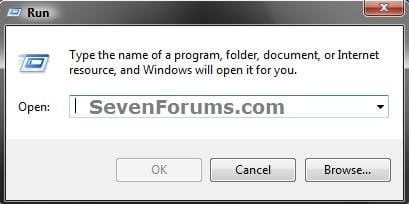
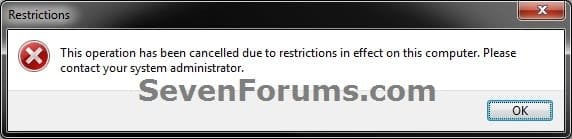
EXAMPLE: Message a User will See when Run is Disabled
OPTION ONE
To Enable or Disable "Run" using a REG File Download
1. To Enable Run Command Dialog Box for Only Current User
A) Click/tap on the Download button below to download the file below, and go to step 3 below.
Enable_Run_Command.reg
Download
2. To Disable Run Command Dialog Box for Only Current User
A) Click/tap on the Download button below to download the file below, and go to step 3 below.
Disable_Run Command.reg
Download
3. Save the .reg file to the desktop.
4. Double click/tap on the downloaded .reg file to merge it.
5. When prompted, click/tap on Run, Yes (UAC-Windows 7/8) or Continue (UAC-Vista), Yes, and OK.
6. When done, you can delete the downloaded .reg file if you like.
7. Log off and log on, or restart the computer to apply.
OPTION TWO
To Enable or Disable "Run" using a BAT File Download
1. To Enable Run Command Dialog Box for Only Current User
A) Click on the Download button below to download the file below, and go to step 3 below.
Enable_Run_Command.bat
Download
2. To Disable Run Command Dialog Box for Only Current User
A) Click on the Download button below to download the file below, and go to step 3 below.
Disable_Run Command.bat
Download
3. Save the .bat file to the desktop.
4. Right click or press and hold on the downloaded .bat file, and click/tap on Run as administrator.
5. If prompted, click on Run.
NOTE: If you like, you can stop getting the Run prompt by unblocking the downloaded .bat file.
6. Log off and log on, or restart the computer to apply.
7. When finshed, you can delete the downloaded .bat file if you like.
OPTION THREE
To Enable or Disable "Run" using Local Group Policy Editor
1. Open the all users, specific users or groups, or all users except administrators Local Group Policy Editor for how you want this policy applied.
2. In the left pane, click on to expand User Configuration, Administrative Templates, and Start Menu and Taskbar. (See screenshot below)
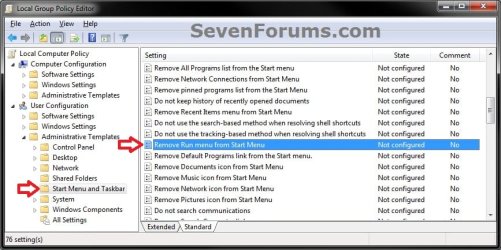
3. In the right pane, right click on Remove Run from Start Menu and click on Edit. (See screenshot above)
4. To Enable Run Command Dialog Box
A) Select (dot) either Not Configured or Disabled, and go to step 6 below. (See screenshot below step 6)
5. To Disable Run Command Dialog Box
A) Select (dot) Enabled, and go to step 6 below. (See screenshot below step 6)
6. Click on OK. (See screenshot below)
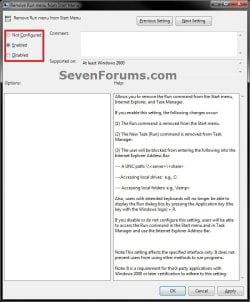
7. Close the Local Group Policy Editor window.
That's it,
Shawn
Related Tutorials
- A List of Run Commands for Windows 7
- How to Create Custom Run Commands
- Add "Run in Separate Memory Space" to Windows 7 Run Command
- How to Create a Windows 7 Run Command Shortcut
- How to Delete your Run Dialog Auto Suggest History in Windows
- How to Add or Remove Run Command from the Windows 7 Start Menu
- How to Turn Auto Suggest On or Off in Windows Explorer
- How to Turn Auto Complete On or Off in Windows Explorer
Attachments
Last edited:


