
How to Change AUTOCHK Initiation Countdown Time in Windows 7 and Windows 8
Information
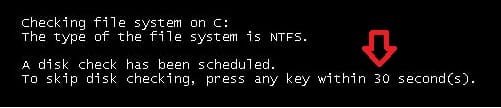
This will show you how to change the AUTOCHK initiation countdown time to how many seconds you would like to have for the To skip disk checking, press and key within 10 second(s) option for a scheduled chkdsk at boot.
The default time is 10 seconds. If you set the time to low (ex: 1 second), then you will not be able to press a key fast enough to cancel a scheduled disk check.
You will need to be logged in as an administrator to be able to change the AUTOCHK initiation countdown time.
The default time is 10 seconds. If you set the time to low (ex: 1 second), then you will not be able to press a key fast enough to cancel a scheduled disk check.
You will need to be logged in as an administrator to be able to change the AUTOCHK initiation countdown time.
EXAMPLE: AUTOCHK initiation countdown time (default and changed)

OPTION ONE
Change AUTOCHK Initiation Countdown Time using Command Prompt
B) In the command prompt, type chkntfs /T and press enter. (see screenshot below)

2. To Change the Current AUTOCHK Initiation Countdown Time A) Open an elevated command prompt (right click and "Run as administrator).
B) In the command prompt, type in chkntfs /T:seconds and press enter. (see screenshot below)
NOTE: Substitue seconds in the command for how many actual seconds (1 to 259200). For example, I would type chkntfs /T:30 for 30 seconds.
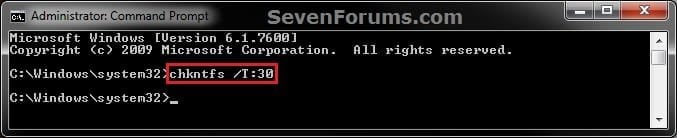
C) You can confirm the change using step 1.
3. When finished, you can close the command prompt.
OPTION TWO
Change AUTOCHK Initiation Countdown Time in Registry Editor
2. If prompted by UAC, then click/tap on Yes.
3. In regedit, navigate to the location below. (see screenshot below)
HKEY_LOCAL_MACHINE\SYSTEM\CurrentControlSet\Control\Session Manager
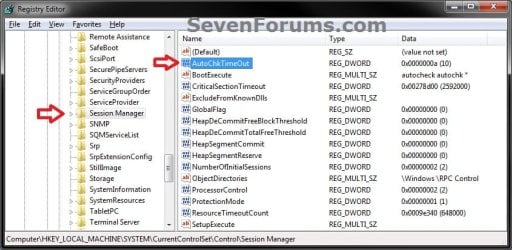
4. In the right pane of Session Manager, double click/tap on the AutoChkTimeOut DWORD to modify it. (see screenshot above)
NOTE: If you do not have AutoChkTimeOut in the right pane, then right click on a empty space in the right pane, click on New and DWORD (32-bit) Value, then type AutoChkTimeOut and press enter.
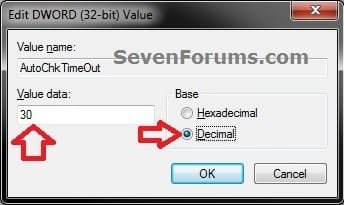
5. Select (dot) Decimal, enter how many seconds (1 to 259200) you want for the timeout value, and click/tap on OK. (see screenshot below)
6. Close regedit.
That's it,
Shawn
Last edited:


