
How to Enable or Disable Quick Launch in Windows 7
Information
By default Quick Launch is disabled in Windows 7. This will show you how to enable or disable Quick Launch as a taskbar toolbar using small or large icons in Windows 7.
Note
Quick Launch is a toolbar on the taskbar. Quick Launch is used to open a program quickly from a shortcut from within it separate from the pinned programs on the taskbar.
The Quick Launch folder is located at the hidden system folder location below to add shortcuts to.
C:\Users\(user-name)\AppData\Roaming\Microsoft\Internet Explorer\Quick Launch
The Quick Launch folder is located at the hidden system folder location below to add shortcuts to.
C:\Users\(user-name)\AppData\Roaming\Microsoft\Internet Explorer\Quick Launch
Tip
Microsoft has made available a hotfix that will resolve a problem where the taskbar customizations are lost and reset to defaults when automatic logon is enabled in Windows 7 and Windows Server 2008 R2. More details are available at FIX: The Taskbar is reset to the default settings when you use the "Automatically Log On" feature in Windows 7 and in Windows Server 2008 R2.
If you still have the issue of where the pinned Quick Launch used in this tutorial disappears on you after logging off and on or restarting the computer, then a workaround for this issue is to either:
If you still have the issue of where the pinned Quick Launch used in this tutorial disappears on you after logging off and on or restarting the computer, then a workaround for this issue is to either:
- Save your current theme after adding Quick Launch.
- If you have a 32-bit Windows 7, then it has been reported that you may need to turn off UAC if Quick Launch is disappearing on you after every restart.
- Open the hidden Quick Launch folder in the NOTE box above, then right click in the folder and click on New and Shortcut to add a shortcut into Quick Launch instead.
- Create a new folder, copy the shortcuts in the Quick Launch folder above into the new folder, then pin the new folder to the taskbar instead just like the Quick Launch folder here.
- To use a Microsoft hotfix. It is intended to correct only the problem that is described in this article. Apply it only to systems that are experiencing this specific problem.

EXAMPLE: Quick Launch Enabled on Right Side of Taskbar
NOTE: This is the new Quick Launch toolbar with text and title, small icons, or large icons.


EXAMPLE: Quick Launch Enabled on Left Side of Taskbar
NOTE: This is the new Quick Launch toolbar without text and title, and with small icons or large icons.


OPTION ONE
To Add Quick Launch to Taskbar
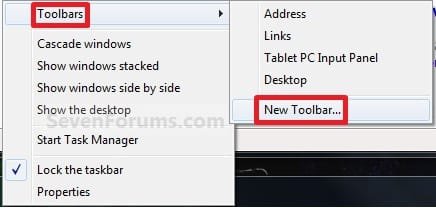
1. Right click on a empty space on the taskbar, then select (hover on) Taskbar and click on New Toolbar. (See screenshot below)
2. In the Folder line, type or copy the location below. (See screenshot below)
%userprofile%\AppData\Roaming\Microsoft\Internet Explorer\Quick Launch
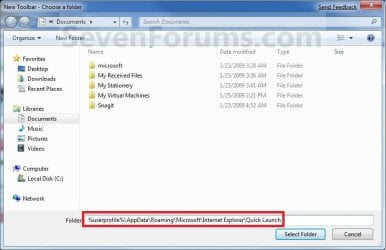
3. Click on the Select Folder button. (See screenshot above)
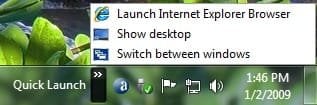
4. You now have a Quick Launch toolbar on the taskbar. (See screenshot below)
NOTE: Click on the arrow to see your Quick Launch shortcuts.
5. To Expand the Quick Launch Toolbar
A) Unlock the taskbar.
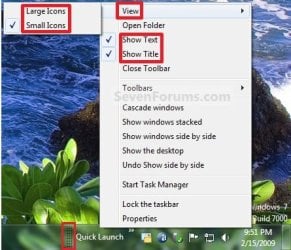
B) Left click and hold on the dotted separator line just to the left of Quick Launch, then drag it to the left or right to adjust to unhide all of the icons. Release the left click when done. (See screenshot below)
C) Lock the taskbar.
6. To Remove Quick Launch Toolbar Icon Text or Title
A) Unlock the taskbar.
B) Right click on the dotted separator line just to the left of Quick Launch, then uncheck the Show Text and Show Title by clicking on them. (See screenshot below step 5B)
C) Lock the taskbar.
7. To Have Small or Large Icons for Quick Launch Toolbar
A) Unlock the taskbar.
B) Right click on the dotted separator line just to the left of Quick Launch, then click on View and select to have Large Icons or Small Icons. (See screenshot below step 5B)
C) Lock the taskbar.
8. To Have Quick Launch Toolbar on Left Side of Taskbar
A) Unlock the taskbar.
B) Left click and hold on the dotted separator line just to the left of Quick Launch, then drag Quick Launch as far to the left on the taskbar as you are able to and release.
C) If you still have any pinned program icons to the left of Quick Launch, then left click and hold on the dotted separator line just to the left of the icons and hold, and drag it to the right past Quick Launch and release. (See screenshot below)

D) The Quick Launch toolbar is now on the far left side of the taskbar. (See screenshot below)

E) Left click and hold on the dotted separator line for the other icons and drag them left or right to make any adjustments to how you want them placed on the taskbar. (See screenshot above)
F) Lock the taskbar.
OPTION TWO
To Remove Quick Launch from Taskbar
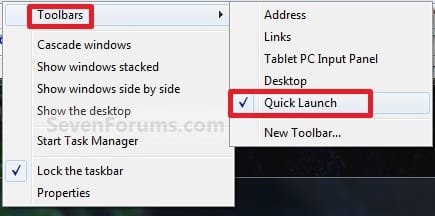
1. Right click on a empty space on the taskbar and click on Toolbars and Quick Launch to uncheck and remove it from the taskbar. (See screenshot below)
That's it,
Shawn
Related Tutorials
- How to Add Quick Launch to the "Send to" Context Menu in Vista, Windows 7, and Windows 8
- How to Backup and Restore Taskbar Toolbars in Vista and Windows 7
- How to Reset and Clear All Taskbar Toolbars in Vista and Windows 7
- How to Pin or Unpin a Folder to the Windows 7 Taskbar
- How to Pin or Unpin a Program to the Windows 7 Taskbar
- How to Use Small or Large Icons on the Windows 7 Taskbar
- How to Enable or Disable Windows 7 Taskbar Button Grouping
- How to Lock or Unlock the Windows 7 Taskbar
- How to Move the Windows 7 Taskbar Location on the Desktop
- How to Show or Hide the Windows 7 Taskbar with Auto-hide
- How to Center the Taskbar Icons in Windows 7
- How to Create a Internet Website Shortcut in Windows 7
- How to Use Toolbars in Windows 7 and Vista
- How to Pin or Unpin a Drive to the Windows 7 Taskbar
- How to Add or Remove a Toolbar on the Taskbar in Vista and Windows 7
- How to Enable or Disable Adding and Removing Taskbar Toolbars in Vista and Windows 7
Attachments



Last edited:

