Windows 7 Forums


Windows 7: Location - Change Computer Default Location


Location - Change Computer Default Location

How to Change the Default Location of your Windows 7 Computer
Published 10 Jun 2010
Published by

Featured Tutorial

Secunia ONLINE Software Inspector

How to Scan for Common Software Vulnerabilities

Windows 7 Installation - Transfer to a New Computer

How to Transfer your Complete Windows 7 Installation to a New Computer

Emergency Kit - save your files from a dead OS

How to Create and Use a Linux Mint Mate USB Flash Drive to Recover your Files

Microsoft Outlook Desktop Shortcut - Create

How to Create a Special Outlook Desktop (Office XP style) Shortcut

Chrome GPU Hardware Acceleration - Turn On or Off

How to Turn GPU "Hardware Acceleration" On or Off in Chrome

User Profiles - Create and Move During Windows 7 Installation

How to Create User Accounts on another Partition or Disk During Windows 7 Installation
How to Change the Default Location of your Windows 7 Computer

information   Information
This will show you how to set a default location to provide programs information about your computer's geographic location to use when a location sensor, such as a GPS receiver, is unavailable or not installed. When you set a default location, it applies to all users.

To help you know which programs are accessing your default location, Windows temporarily displays the Location and Other Sensors icon in the notification area the first time a program accesses your computer's location.


OPTION ONE
Set Default GeoID Location Using "Region and Language" Settings
1. Open the Control Panel (icons view), and click on the Region and Language icon.

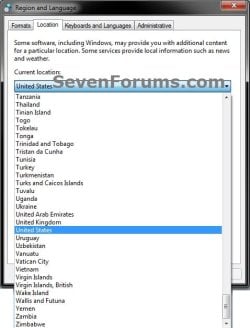
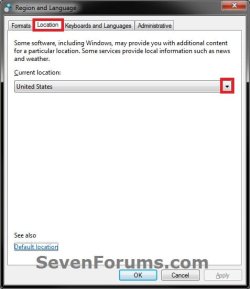
2. Click on the Location tab. (see screenshots below)
Location - Change Computer Default Location-location-1.jpgLocation - Change Computer Default Location-location-1b.jpg
3. To Only Set "Current Location"
A) Under Current location, select your current location from the drop down box and click on OK. (see screenshots above)

B) Go to step 5.
4. To Set "Default Location"
A) Click on the Default location link at the bottom. (see screenshots above)

B) Go to step 3 or 4 in OPTION TWO below.
5. Close the Control Panel window.


OPTION TWO
Set Default Location Using "Location and Other Sensors" Settings
1. Open the Control Panel.

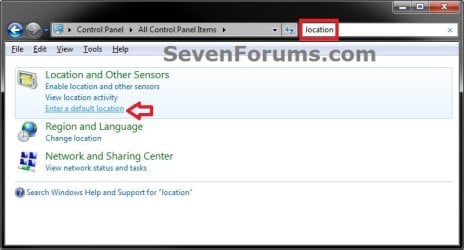
2. Type location in the Control Panel's search box (top right corner), then click on the Enter a default location link. (see screenshot below)
Location - Change Computer Default Location-location2.jpg
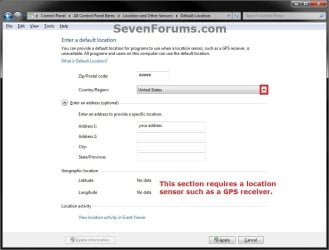
3. To Enter and Apply Default Location Information
A) Enter your default location information that you wish to fill out, then click on Apply when finished. (see screenshot below)
Location - Change Computer Default Location-location-3_uac.jpg
B) Go to step 5.
4. To Delete Default Location Information
NOTE: This will delete all default location information that you entered and applied in step 3 above back to being blank, and restores the default County/Region location back to what it is set as in step 2 of OPTION ONE above.
A) Click on the Delete information button. (see screenshot below)
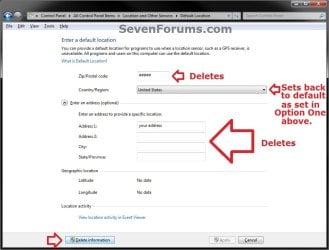
Location - Change Computer Default Location-location-4_uac.jpg
5. If prompted by UAC, click on Yes (if administrator) or type in the adminstrator's password (if standard user).

6. When finished, you can close the Default Location window. (see screenshot below step 3A or 4A)
That's it,
Shawn


Need more help? Try searching our extensive help and support site.
Loading
22 Sep 2012   #1
stevenvh

Windows 7 Home Premium 64 bit
Flanders, Belgium


The title is a bit misleading: this just allows you to set the current location (i.e. country), not the geographic location (longitude + latitude) Windows should get from a GPS. Is there a way to set the geographic location manually?

My System SpecsSystem Spec

22 Sep 2012   #2
Brink

64-bit Windows 7 Ultimate SP1 & Windows 8 Enterprise
Texas


Hello Steven, and welcome to Seven Forums.

Yeah I agree, but that's the description Microsoft gives it.

To get GPS type geographic location (longitude + latitude) cordinates, you would need to have an actual GPS sensor device compatible with Windows 7 connected or built-in to the computer. However, you would unlikely be able to change the cordinates.
My System SpecsSystem Spec
22 Sep 2012   #3
stevenvh

Windows 7 Home Premium 64 bit
Flanders, Belgium


Thanks Brink. So, no location in the registry which I could patch? (My PC is not really the traveling type :-))

(Also, thanks for the gazillion tutorial posts.)
My System SpecsSystem Spec
.


22 Sep 2012   #4
Brink

64-bit Windows 7 Ultimate SP1 & Windows 8 Enterprise
Texas


You're most welcome. I'm afraid that I don't know where the registry entries are for these settings though.
My System SpecsSystem Spec
Comment

 Location - Change Computer Default Location problems?


Tutorial Tools


Similar help and support threads for: Location - Change Computer Default Location
Windows 7 Tutorial Category
Solved How do change default bookmark location in IE9? Browsers & Mail
Saving to a library location that is NOT the default save location General Discussion
Dump File - Change Default Location Tutorials
Change default game save location Gaming
How to Change Default location General Discussion


All times are GMT -5. The time now is 11:45 PM.


Seven Forums Android App Seven Forums IOS App Follow us on Facebook

Windows 7 Forums is an independent web site and has not been authorized,
sponsored, or otherwise approved by Microsoft Corporation.
"Windows 7" and related materials are trademarks of Microsoft Corp.
© Designer Media Ltd
  

1 2 3 4 5 6 7 8 9 10 11 12 13 14 15 16 17 18 19 20 21 22 23 24 25 26 27 28 29 30 31 32