
How to Optimize an SSD / HDD When You're Ready to Reinstall the Operating System
This will show how to remove / over-write all existing data from a Solid State Drive (SSD) or a Hard Disk Drive (HDD), it'll work for both, then how to create a partition and then format that partition before install begins so you have a clean drive to start the installation with.
Note
Before you start this, in the Windows start menu search box type diskmgmt.msc right click the entry and click "Run as Administrator" if you get a User Account Control (UAC) prompt enter your user credentials and click Yes; make very sure you know the correct drive number of the drive you want to do this to if you have more than one SSD / HDD in the machine, you don't want to do the wrong one.
Warning
Do not do this to any SSD or HDD that has data on it you don't want to lose, the first thing this does is to mark the drive as "Unallocated Space" and then writes zeroes ( 0's ) to the entire drive, it's known as a "Secure Erase" and it will make data un-recoverable, it cannot be done to just a single partition on a drive, it will do the whole drive.
You have been warned!
Information
It may be a help to over-write the HDD Master Boot Record (MBR) before you start any other procedure using the diskpart clean command, rather than the clean all; it takes just seconds to complete so you will have "unallocated" space to use either the Windows installer to create and format the partition(s) or use diskpart for that, however you choose.
Let's get started!
Step One
Boot To DISKPART
If need be, view this tutorial at the link below for an out-line of the process.
How to Boot to DISKPART at PC Startup
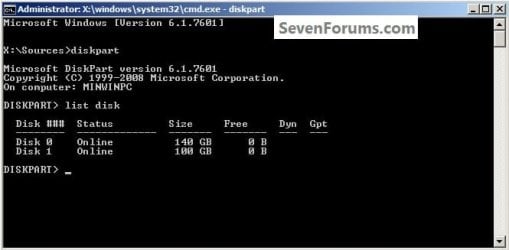
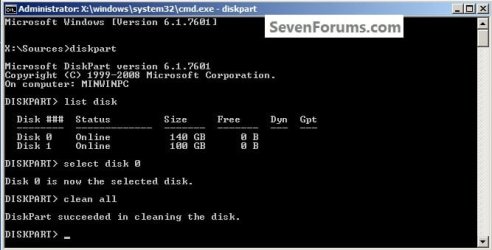
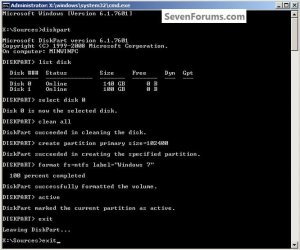
1) In the command window that opens type diskpart then hit the <enter> key then type list disk <enter> if you have more than one SSD / HDD in the machine it'll list them all.
Have a look here to view additional important information on this entire process.
click any image to enlarge
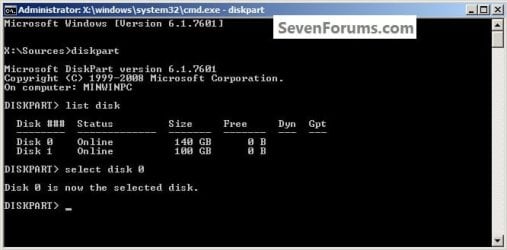
2) Now in the command window type select disk # (# = target disk number) then <enter>, you will get "Disk # is now the selected disk".
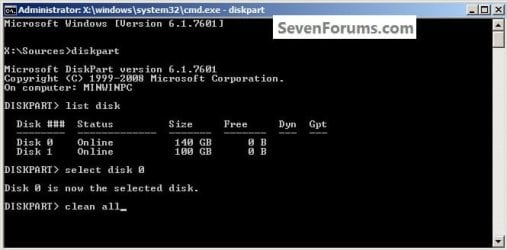
3) Now type clean <enter> you will get a blinking cursor telling you that clean all is working like in the second snip down, just relax and let it work.
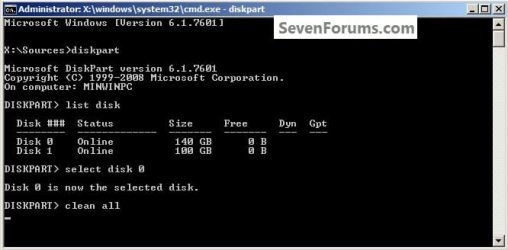
4) When it finishes you'll get "DiskPart succeeded in cleaning the disk" in the command window.
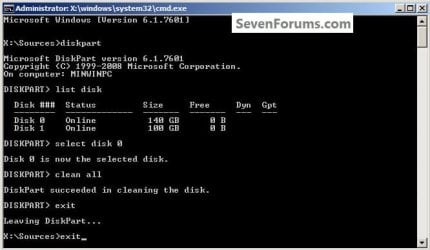
To leave diskpart at any time and return to the Windows 7 installer type exit two (2) separate times and hit <enter> after each and you will be returned to the installer to continue the installation process.
Step Two
Create a Partition
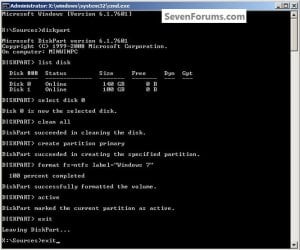
1) Create a single partition of the entire HDD / SSD
Still in the same command window, to create a partition of the entire HDD / SSD, it is suggested if you are using one of the larger, 1 - 2TB HDDs that you use the outline in #2 below to create a single 100GB partition to do the installation to or #3 below if you would like to include the new Windows 7 System Reserved partition, as we're now seeing serious issues with some trying to install to such large partitions.
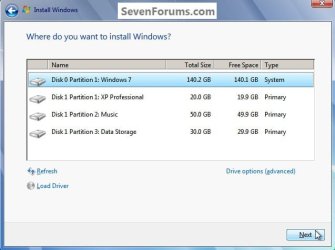
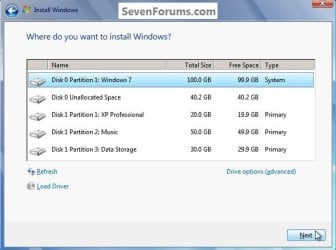
Do not format the created partition(s) with the installer if you create them using this process as the installer will delete all this info, the second snip shows how to select "where to install" during the installation process, click to highlight/select the "Windows 7" partition and click next.
Now skip down to #5 below to start the installation.
click any image to enlarge
2) Create a specific size partition
If you wanted to create a specific size partition, say 100GB you would add the size you want to create in MBs like in the command below.
create partition primary size=102400 <enter>
1024MB = 1GB - 1024x100 = 102400, you can use/create any size you like.
You can always extend the Windows partition to include the remaining unallocated space on the HDD / SSD or create additional Primary partitions or an Extended partition after the installation completes if you choose.
Do not format the created partition(s) with the installer if you create them using this process as the installer will delete all this info, the second snip shows how to select "where to install" during the installation process, click to highlight/select the "Windows 7" partition and click next.
Now skip down to #5 below to start the installation.
3) Create the System Reserved partition
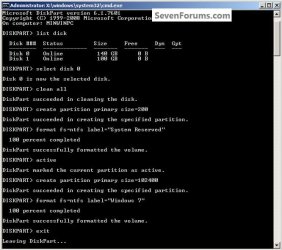
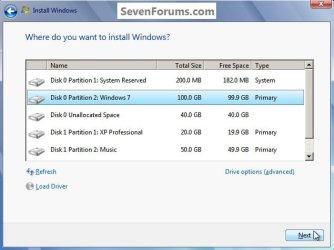
If you should want to add the "System Reserved" partition back after the clean all, see this snip; of course you would have to select to install Windows 7 to the partition labeled as "Windows 7" during the install and do not format either partition with the installer.
The reason for suggesting to create the System Reserved at 200MB instead of the new default of 100MB is an attempt to curb some of the issues we're now seeing with the partition being too small when dual/multi booting and it also being needed for use with the Windows 7 Backup and Restore and BitLocker programs.
You can always extend the Windows partition to include the remaining unallocated space on the HDD / SSD or create additional Primary partitions or an Extended partition after the installation completes if you choose.
The second snip shows how to select "where to install" during the installation process, click to highlight/select the "Windows 7" partition and click next.
4) See this tutorial for the "align" argument
Align a Solid State Drive for Windows Installation
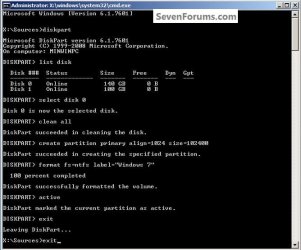
5) That's it, you're now done with the command window, type exit <enter> to leave diskpart and exit <enter> again to close the command window; if you're using a Windows 7 full installer it will go to the "Select Language" screen to continue the installation process as usual.
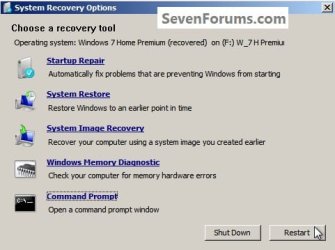
For those using a created repair CD or a Vista installer type exit <enter> to leave diskpart and exit <enter> again to close the command window; at the System Recovery Options dialog box that's still open click Restart to finish the process.
Enjoy!

Related Tutorials
- http://www.sevenforums.com/tutorials/127744-clean-install-windows-7-ahead-xp.html
- http://www.sevenforums.com/tutorials/127918-clean-install-windows-7-ahead-vista.html
- http://www.sevenforums.com/tutorials/119151-system-reserved-create-using-disk-management.html
- http://www.sevenforums.com/tutorials/123170-system-reserved-create-dual-boot.html
- http://www.sevenforums.com/tutorials/121536-system-reserved-multi-boot-logical-partitions.html
- http://www.sevenforums.com/tutorials/52129-disk-clean-clean-all-diskpart-command.html
- http://www.sevenforums.com/tutorials/76383-disk-cleanup-extended.html
- http://www.sevenforums.com/tutorials/70822-ssd-tweaks-optimizations-windows-7-a.html
- http://www.sevenforums.com/tutorials/107566-dual-boot-create-partitions-using-pwbd.html
- http://www.sevenforums.com/tutorials/109752-partition-recover-space-used-older-os.html
- http://www.sevenforums.com/tutorials/87768-password-reset-options-windows-7-a.html
- http://www.sevenforums.com/tutorials/433-disk-check.html
- http://www.sevenforums.com/tutorials/818-disk-cleanup-open-use.html
- http://www.sevenforums.com/tutorials/93322-partition-wizard-use-bootable-cd.html
- SSD Alignment
- How to physically Install an SSD and transfer the Operating System
Last edited by a moderator:


