Windows 7 Forums


Windows 7: Default Programs - Associate a File Type or Protocol


Default Programs - Associate a File Type or Protocol

How to Associate a File Type or Protocol Default Program in Window 7
Published 08 May 2009
Published by

Applies to:
7

Featured Tutorial

Clean Up Factory Bloatware


Microsoft Account Display Name - Change

How to Change your Microsoft Account Display Name

Clean Reinstall - Factory OEM Windows 7

How to Clean Reinstall a Factory OEM Windows 7

Secunia ONLINE Software Inspector

How to Scan for Common Software Vulnerabilities

System Preparation Tool - Use to Customize Windows

How to Use Sysprep to Customize Windows 7 and Windows 8

Portable OS - Carry your OS on an External Drive

How to Create a Portable OS on an External Drive
How to Associate a File Type or Protocol Default Program in Window 7

information   Information
This will show you how to associate a file extension type or protocol to open with a program you select by default in Windows 7.

These Default Programs association settings are a per user setting and not applied to all users.

warning   Warning
The program that you select as the default for the file extension type or protocol must support opening that file extension or protocol for the program to be able to open it. For example, a .TXT will open with Notepad or Wordpad, but it will not open with MSPaint.


OPTION ONE
Restore Default File Associations Using a Download
1. Go to the link below to select a file extension to download a .reg file for to merge and restore it's default associations for.

Restore Default Windows 7 File Extension Type Associations


OPTION TWO
Set File Associations Through Default Programs
1. Open the Control Panel (Icons view), and double click on the Default Programs icon.
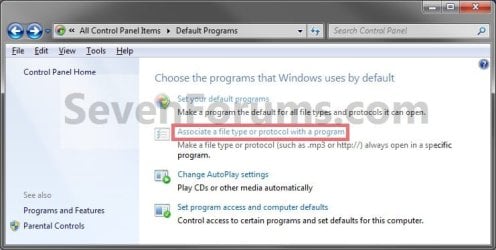
2. Click on the Associate a file type or protocol with a program link. (See screenshot below)
Default Programs - Associate a File Type or Protocol-step1.jpg
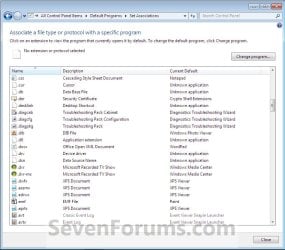
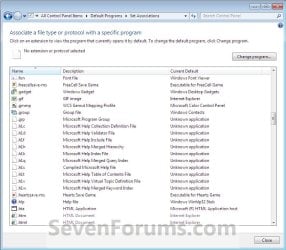
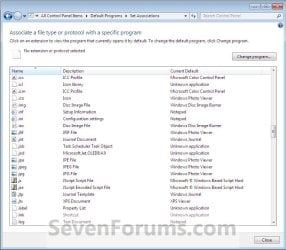
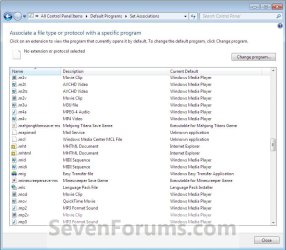
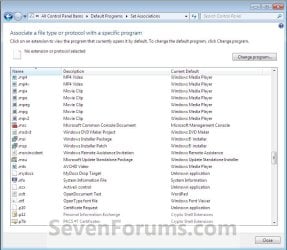
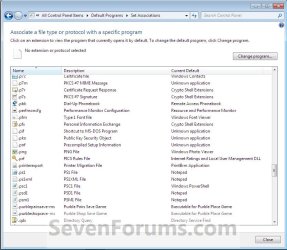
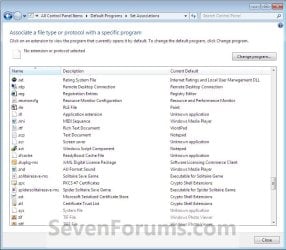
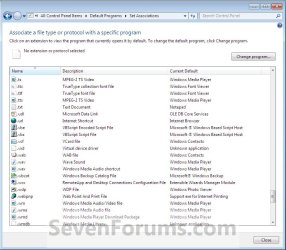
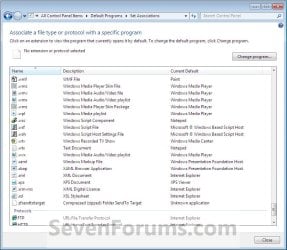
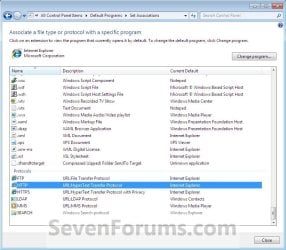
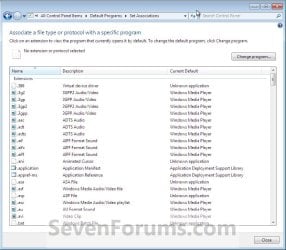
3. Under the left Name column, select a file extension type or protocol that you want to change what program will open it by default, then click on the Change Program button. (See screenshots below)
NOTE: These are the default associations in Windows 7 for these Extensions and Protocols.
Default Programs - Associate a File Type or Protocol-step2.jpgDefault Programs - Associate a File Type or Protocol-step3.jpg
Default Programs - Associate a File Type or Protocol-step4.jpgDefault Programs - Associate a File Type or Protocol-step5.jpg
Default Programs - Associate a File Type or Protocol-step6.jpgDefault Programs - Associate a File Type or Protocol-step7.jpg
Default Programs - Associate a File Type or Protocol-step8.jpgDefault Programs - Associate a File Type or Protocol-step9.jpg
Default Programs - Associate a File Type or Protocol-step10.jpgDefault Programs - Associate a File Type or Protocol-step11.jpg
Default Programs - Associate a File Type or Protocol-step12.jpgDefault Programs - Associate a File Type or Protocol-step13.jpg
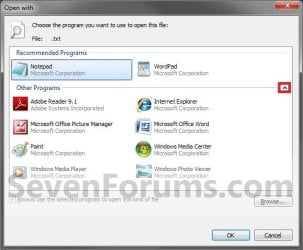
4. To Select a Listed Program in Open With
NOTE: This is for when the program you want to use to open the file extension type or protocol by default with is listed the Open with window.
A) Click on the arrow next to the right of Other Programs to show additional programs. (See screenshot below)
Default Programs - Associate a File Type or Protocol-step14.jpg
B) Go to step 6.
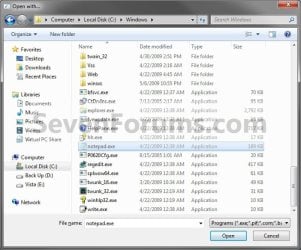
5. To Browse for a Program
NOTE: This is for when the program you want to use to open the file extension type or protocol by default with is not listed the Open with window.
A) Click on the Browse button. (See screenshot above)

B) Navigate to the program's exe file, select it, and click on the Open button. (See screenshot below)
Default Programs - Associate a File Type or Protocol-step15.jpg
6. Select the program that you want to use as the default for the file type or protocol you selected in step 3, and click on OK. (See screenshot below step 4A)

7. Repeat the steps above to change any other file extension type or protocol default program association.

8. When finished, click on the Close button. (See screenshots below step 3)

9. Close the Default Programs window. (See screenshot below step 2)
That's it,
Shawn


Related Tutorials


Need more help? Try searching our extensive help and support site.
Loading
16 May 2009   #1
td0615

my OS


i need to change my exe files cause i accidently changed them to open with command prompt but now i cant make ti hwo it was before

My System SpecsSystem Spec

17 May 2009   #2
Brink

64-bit Windows 7 Ultimate SP1 & Windows 8 Enterprise
Texas


Hello td0615, and welcome to Seven Forums.

Here is a copy of the default registry entries to restore EXE files. After you download the REG file to your desktop, just double click on it to merge it to the registry. You may need to logoff and logon, or restart the computer to apply.

Hope this helps,
Shawn
Attached Files
File Type: reg Default_exe.reg (4.7 KB, 2540 views)
My System SpecsSystem Spec
17 May 2009   #3
td0615

my OS
 
 
THANKYOU

thankyou so much this whole thing has been such a pain im showing all my buddies who use windwos 7 this website
My System SpecsSystem Spec
.


17 May 2009   #4
Brink

64-bit Windows 7 Ultimate SP1 & Windows 8 Enterprise
Texas


You're most welcome td0615.
My System SpecsSystem Spec
17 May 2009   #5
td0615

my OS


it didnt work it says it cannot do it
My System SpecsSystem Spec
17 May 2009   #6
Brink

64-bit Windows 7 Ultimate SP1 & Windows 8 Enterprise
Texas


Umm, ok. You try a System Restore using a restore point dated before you changed the EXE association.
My System SpecsSystem Spec
17 May 2009   #7
td0615

my OS


i tried that it wouldnt let me it said system restore could not start
My System SpecsSystem Spec
17 May 2009   #8
Brink

64-bit Windows 7 Ultimate SP1 & Windows 8 Enterprise
Texas


Ok. Next on the list is a Repair Install.
My System SpecsSystem Spec
17 May 2009   #9
td0615

my OS


man this website is got everything
My System SpecsSystem Spec
Comment

 Default Programs - Associate a File Type or Protocol problems?


Tutorial Tools


Similar help and support threads for: Default Programs - Associate a File Type or Protocol
Windows 7 Tutorial Category
Mailto missing from registry (& Associate File Type or Protocol List) Browsers & Mail
Solved Unable to associate file type to upgraded version of a program Software
Associate a file type General Discussion
what can i associate an .nsis file type with Software
Associate file type to xp mode application? Virtualization


All times are GMT -5. The time now is 01:20 AM.


Seven Forums Android App Seven Forums IOS App Follow us on Facebook

Windows 7 Forums is an independent web site and has not been authorized,
sponsored, or otherwise approved by Microsoft Corporation.
"Windows 7" and related materials are trademarks of Microsoft Corp.
© Designer Media Ltd
  

1 2 3 4 5 6 7 8 9 10 11 12 13 14 15 16 17 18 19 20 21 22 23 24 25 26 27 28 29 30 31 32