How to Make Windows 7 Start Menu User Folder Buttons Open to Users Instead of Libraries Location
Information
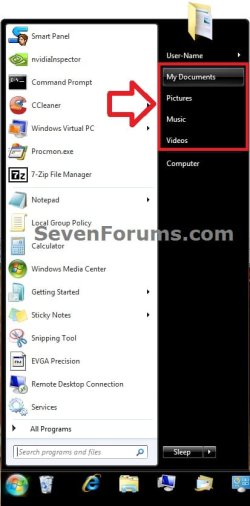
This will show you how to make the Windows 7 Start Menu My Documents, Pictures, Music, and Videos buttons open to the real C:\Users\(user-name) location instead of the default Libraries location for all users.
You must be logged in as an administrator to be able to do the steps in this tutorial.
You must be logged in as an administrator to be able to do the steps in this tutorial.
Note
EXAMPLE: Start Menu User Folder Buttons
OPTION ONE
Set Start Menu User Folder Buttons to Open to "Users" Location
1. Set Start Menu Documents Button to Open to Users Location
A) Click on the Download button below to download the file below.
Start_Menu_My_Documents_Open_to_Users.reg
Download
2. Set Start Menu Music Button to Open to Users Location
A) Click on the Download button below to download the file below.
Start_Menu_Music_Open_to_Users.reg
Download
3. Set Start Menu Pictures Button to Open to Users Location
A) Click on the Download button below to download the file below.
Start_Menu_Pictures_Open_to_Users.reg
Download
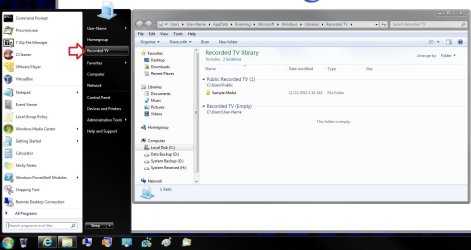
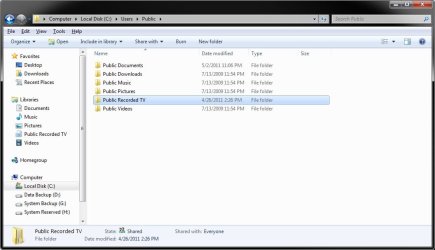
4. Set Start Menu Recorded TV Button to Open to Public Location
NOTE: Special thanks to Foe for this addition.

A) Click on the Download button below to download the file below.
Start_Menu_Recored_TV_Open_to_Public.bat
Download
5. Set Start Menu Videos Button to Open to Users Location
A) Click on the Download button below to download the file below.
Start_Menu_Videos_Open_to_Users.reg
Download
6. Save the .reg or. bat file to the desktop.
7. Double click on the downloaded .reg or .bat file.
8. Click on Run, Yes (UAC), Yes, and OK when prompted.
9. Log off and log on, or restart the computer to apply.
10. When done, you can delete the downloaded .reg file if you like.
OPTION TWO
Set Start Menu User Folder Buttons to Open to Default "Libraries" Location
1. Set Start Menu Documents Button back to Open to Default Libraries Location
A) Click on the Download button below to download the file below.
Default_Start_Menu_My_Documents_Open_to_Library.reg
Download
2. Set Start Menu Music Button back to Open to Default Libraries Location
A) Click on the Download button below to download the file below.
Default_Start_Menu_Music_Open_to_Library.reg
Download
3. Set Start Menu Pictures Button back to Open to Default Libraries Location
A) Click on the Download button below to download the file below.
Default_Start_Menu_Pictures_Open_to_Library.reg
Download
4. Set Start Menu Recorded TV Button back to Open to Default Public Libraries Location
NOTE: Special thanks to Foe for this addition.
A) Click on the Download button below to download the file below.
Start_Menu_Recored_TV_Open_to_Public_Library.reg
Download
5. Set Start Menu Videos Button back to Open to Default Libraries Location
A) Click on the Download button below to download the file below.
Default_Start_Menu_Videos_Open_to_Library.reg
Download
6. Save the .reg file to the desktop.
7. Double click on the downloaded .reg file.
8. Click on Run, Yes (UAC), Yes, and OK when prompted.
9. Log off and log on, or restart the computer to apply.
10. When done, you can delete the downloaded .reg file if you like.
That's it,
Shawn
Attachments
-
Default_Start_Menu_Videos_Open_to_Library.reg548 bytes · Views: 1,560
-
Start_Menu_Videos_Open_to_Users.reg544 bytes · Views: 3,912
-
Default_Start_Menu_Music_Open_to_Library.reg536 bytes · Views: 1,589
-
Start_Menu_Music_Open_to_Users.reg536 bytes · Views: 4,610
-
Default_Start_Menu_Pictures_Open_to_Library.reg536 bytes · Views: 1,595
-
Start_Menu_Pictures_Open_to_Users.reg536 bytes · Views: 4,553
-
Default_Start_Menu_My_Documents_Open_to_Library.reg536 bytes · Views: 2,092
-
Start_Menu_My_Documents_Open_to_Users.reg536 bytes · Views: 6,977
-
Start_Menu_Recored_TV_Open_to_Public_Library.reg242 bytes · Views: 1,058
-
Start_Menu_Recored_TV_Open_to_Public.bat395 bytes · Views: 1,988
Last edited: