
How to Disable Auto Arrange in Windows 7 Explorer to have Free Sorting
Information
In Windows 7, auto arrange is enabled by default so that all file and folder names in Windows Explorer are sorted alphabetically no matter what folder view you used.
This is basically like having how you can arrange icons how you like on your desktop in every folder in Windows Explorer now.
This will show you how to disable Auto Arrange in Windows 7 to be able to sort your files and folders in any random order and position you like in each opened folder in Windows Explorer and in the Pin to Start Menu area at the top of the Start Menu without it having to be sorted alphabetically by name. Windows 7 will also remember these random folder sortings (order and position), and open as how they were when the folder window was last closed.
This is basically like having how you can arrange icons how you like on your desktop in every folder in Windows Explorer now.
This will show you how to disable Auto Arrange in Windows 7 to be able to sort your files and folders in any random order and position you like in each opened folder in Windows Explorer and in the Pin to Start Menu area at the top of the Start Menu without it having to be sorted alphabetically by name. Windows 7 will also remember these random folder sortings (order and position), and open as how they were when the folder window was last closed.
Note
When You Disable Auto Arrange:
- While using Extra Large Icons, Large Icons, Medium Icons, Small Icons, and Extended Tiles folder views, you can arrange files/folders in any random order and position.
- While using Details folder view, you can only arrange files/folders in any order and not in any random position.
- While using Extra Large Icons, Large Icons, Medium Icons, Small Icons, and Extended Tiles folder views, you can click on View (Menu bar) and check Auto arrange to have the black indicator line back inbetween files/folders when arranging files/folders in any order. This turns off the ability to arrange files/folders by random positions though.
- While using Extra Large Icons, Large Icons, Medium Icons, Small Icons, and Extended Tiles folder views, you can click on View (Menu bar) and uncheck Auto arrange to be able to arrange files/folders in any order and random positions.
- The Auto arrange and Align to grid options can be turned on and off at will in the View (Menu bar and right click context menu) when available (not grayed out) while using Extra Large Icons, Large Icons, Medium Icons, Small Icons, or Extended Tiles folder views.
- If you have items arranged by random positions and switch from a Extra Large Icons, Large Icons, Medium Icons, Small Icons, and Extended Tiles folder view to a List, Details, Extended Tiles, or Content folder view, the random positions will be reset but still placed in a order of arrangement instead.
- If you unzip a file in a folder, move a folder, or rename a folder, it will refresh and auto arrange the files in that specific folder only after each time you do this. Auto arrange is still disabled for that folder, but you will need to arrange the files back to whatever non-auto arranged order you like again after unzipping a file in a folder, move a folder, or rename a folder.
Warning
DO NOT USE this tutorial in any other OS than Windows 7.
- While this tutorial will allow you to disable auto arrange in the main Libraries folder itself, it will not disable auto arrange in any of the other library folders (ex: Documents, Music, Pictures, Videos).
- Free sorting is not available if you use "Group by" folder views instead of only "Sort by" folder views.
- Free sorting is not available in the List and Content folder views.
- When you disable Auto Arrange, you will have Extend Tiles folder view instead of Tiles available in all folders except the Computer windows.
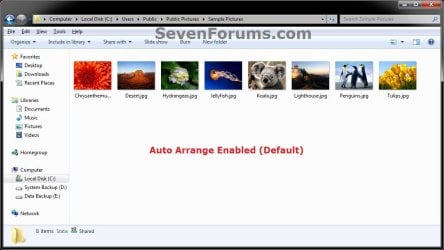
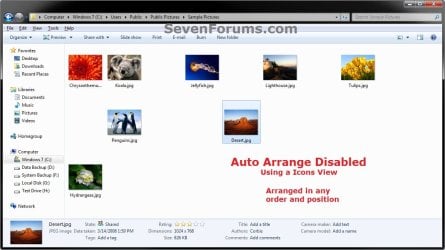
EXAMPLE: Auto Arrange Enabled and Disabled
NOTE: Notice in the screenshot with Auto Arrange disabled, the files can be dragged around the Windows Explorer window to sort how you like without having to be in alphabetical order.

OPTION ONE
To Disable Auto Arrange in Windows 7 Windows Explorer
Warning
It is also recommended to create a restore point before doing this option in case you would like to undo any unwanted unknown side affects that OPTION TWO may not undo. This way, you could also do a system restore with this restore point to undo this option completely.
1. Click on the Download button below to download the BAT file below.
Disable_Windows_7_Explorer_Auto_Arrange.bat
Download
2. Save the .bat file to your desktop.
3. Close everything that you have running first, then run the downloaded .bat file.
4. If prompted, click on Run.
NOTE: If you like, you can stop getting the Run prompt by unblocking the downloaded .bat file.
5. You will now notice your screen flicker and a command prompt open as the explorer process is restarted.
6. Let the command prompt count down to finish on it's own without pressing a key.
7. When it's finished, you will see the Computer window open.
8. Auto arrange in Windows Explorer is now disabled.
OPTION TWO
To Enable Auto Arrange in Windows 7 Windows Explorer
NOTE: This is the default setting.
1. Click on the Download button below to download the BAT file below.
Enable_Windows_7_Explorer_Auto_Arrange.bat
Download
2. Save the .bat file to your desktop.
3. Close all opened explorer windows first, then run the downloaded .bat file.
4. If prompted, click on Run.
NOTE: If you like, you can stop getting the Run prompt by unblocking the downloaded .bat file.
5. You will now notice your screen flicker and a command prompt open as the explorer process is restarted.
6. When it's finished, you will see the Computer window open.
7. Auto arrange in Windows Explorer is now enabled again.
That's it,
Shawn
Related Tutorials
- How to Back Up and Restore Your Folder View Settings in Vista, Windows 7, and Windows 8
- How to Disable Auto Arrange in Vista Windows Explorer to have Free Sorting
- Make Windows 7 Start Menu User Folder Buttons Open to Users Instead of Libraries Location
- How to Enable or Disable Numerical Sorting in Windows Explorer
- How to Reset All Folder View Settings to Default in Windows 7
- How to Reset the Folder View Settings for All Folders with Same Folder Template in Windows 7
- "Apply to Folders" a Specific Folder View to All Folders with Same Folder Template in Windows 7
- How to Change a Folder Template in Windows 7
- How to Set a Default Folder Template for All Folders in Windows 7
- How to Change the File and Folder View Arrangement in Windows 7 Explorer
- How to Change the Icon Size in a Windows 7 Explorer Window
- How to Change the Group by, Sort by, and Arrange by Folder View in Windows 7 Explorer
- How to Set a Default Folder View for All Folders in Windows 7
- How to Add or Remove Windows Explorer Columns
- How to Change the Width of Columns in Windows Explorer
- How to Enable or Disable Start Menu Auto Arrange by Name in Vista and Windows 7
- How to Arrange Folders Included in a Library in Any Order in Windows 7 and Windows 8
Attachments
Last edited:


