
Please Note:
This tutorial applies to Firefox 3.6, 4.0 & above
Description:
Firefox can be set, to automatically cleanup various items, which may be loaded onto your PC during Internet browsing.
These items include:
Step 1
In Firefox 3.6 select "Options" from the "Tools" menu.
In Firefox 4.0 & above select "Options" from the "Options" entry in the "Firefox" button (see picture).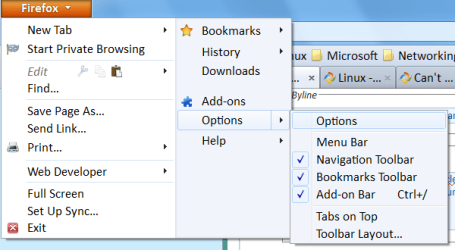
Step 2
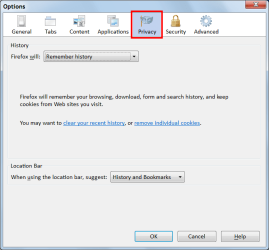
Select "Privacy"
Note:
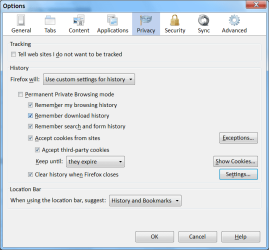
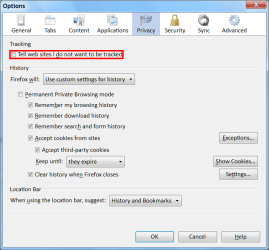
Firefox 5.0 & above uses a slightly different layout (see second picture).
Step 3
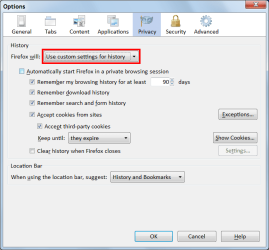
Select "Use custom settings for history" from the drop-down menu.
Step 4
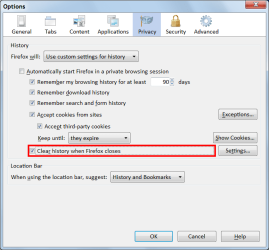
Click the "Clear history when Firefox closes" Check box.
Step 5
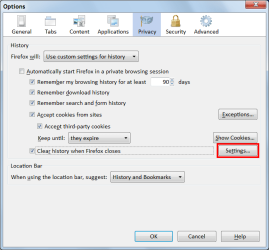
Click on the "Settings" button.
Note:
Step 6
Choose your desired options.
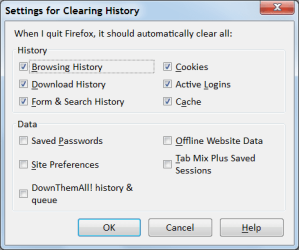
Various add-ons may add options to this window.
In this example, "Tab Mix Plus" and "DownThemAll" have Check boxes.
Step 7
Click on the "OK" button ("Settings for Clearing History" window)
Step 8
Click on the "OK" button ("Options" window)
Firefox should now auto-cleanup (your chosen options) when you close it.
Disable Auto-Cleanup
Select "Remember History" from the drop-down menu.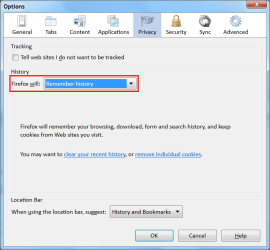
Updated 25 January 2012
Updated 13 January 2012
Updated 23 June 2011
This tutorial applies to Firefox 3.6, 4.0 & above
It may not be applicable for earlier versions.
Description:
Firefox can be set, to automatically cleanup various items, which may be loaded onto your PC during Internet browsing.
These items include:
- Browsing History
- Download History
- Form & Search History
- Cookies
- Active Logins
- Cache
- Saved Passwords
- Site Preferences
- Offline Website Data
- Some Add-on History and/or Settings
Step 1
In Firefox 3.6 select "Options" from the "Tools" menu.
In Firefox 4.0 & above select "Options" from the "Options" entry in the "Firefox" button (see picture).
Step 2
Select "Privacy"
Note:
Firefox 5.0 & above uses a slightly different layout (see second picture).
Step 3
Select "Use custom settings for history" from the drop-down menu.
Step 4
Click the "Clear history when Firefox closes" Check box.
Step 5
Click on the "Settings" button.
Note:
Firefox 5.0 & above includes a new feature, "Tell web sites I do not want to be tracked" at the top of this window (see second picture).
Step 6
Choose your desired options.
Various add-ons may add options to this window.
In this example, "Tab Mix Plus" and "DownThemAll" have Check boxes.
Step 7
Click on the "OK" button ("Settings for Clearing History" window)
Step 8
Click on the "OK" button ("Options" window)
Firefox should now auto-cleanup (your chosen options) when you close it.
Disable Auto-Cleanup
Select "Remember History" from the drop-down menu.
Updated 25 January 2012
Updated 13 January 2012
Updated 23 June 2011
Last edited:


