Screenshot with Paint

How to Take and Create a Screenshot with Paint in Windows 7


   Information
This will show you how to take a full screen screenshot or a single window screenshot, then create and save the screenshot in Windows 7 Paint.
   Tip
If you wanted to take a screenshot of a opened menu item, then you would want to use step 1 and crop the screenshot in Paint since the menu item would close when trying to take the screenshot with step 2.


Here's How:
1. To Take a Screenshot of the Entire Display Screen
NOTE: If you have multiple monitors, then they will also be included in the full screen screenshot. This option will also include context menus in the screenshot.
A) Press the PrtScn key for a desktop.
NOTE: For laptops or notebooks, you may need to press either the Ctrl+PrtScn or Fn+PrtScn keys instead of only the PrtScn key.

B) Go to step 3.
2. To Take a Screenshot of only the "Active" Window
NOTE: This will just be a screenshot of the window that you have the focus set on. The window that has focus will have a darker border than the other opened windows.
A) Click on the title bar of the window that you want to take a screenshot of to place focus on it.

B) Press the Alt+PrtScn keys for a desktop.
NOTE: For laptops or notebooks, you may need to press the Alt+Fn+PrtScn keys instead of only the Alt+PrtScn key.
3. Open Paint.

4. In Paint, press Ctrl+V to paste the screenshot into Paint.
A) Go to step 6.
OR

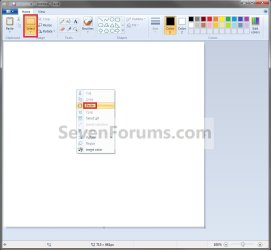
5. In Paint, click on the rectangle above Select on the toolbar, then right click on the white space in the lower main pane of Paint and click on Paste. (See screenshot below)
Paste1.jpg
6. Make any crops or adjustments you would like to the screenshot. (See screenshots below)
NOTE: For detailed information on how to use Paint, click on the
10480d1242077800-paint-open-help.png
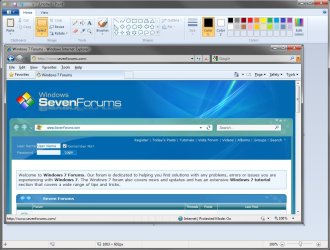
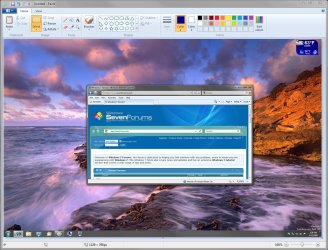
icon at the upper right corner in Paint. The left screenshot is of a single window, and the right screenshot is of the full screen
.
Paste2.jpg

Paste3.jpg
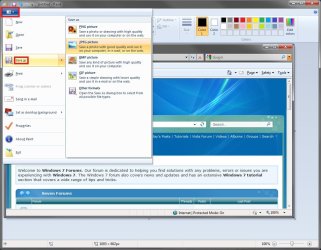
7. When ready to save the screenshot, click on the file drop down arrow to the left of the Home and View tab. Next, hover the mouse pointer on Save as to open it, then click on the file extension (ex: JPEG) that you want to save the screenshot as. (See screenshot below)
Save1.jpg
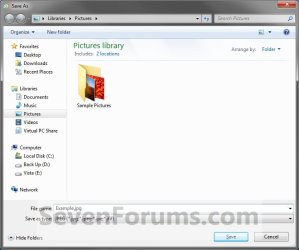
8. Navigate to where you want to save the screenshot. Type in a name for the screenshot to be saved as, and click on the Save button. (See screenshot below)
Save2.jpg
9. When done taking screenshots, close Paint.
That's it,
Shawn


Last edited:
Failing that, you might have to resort to capturing a screenshot with the aid of a digital camera.
 

My Computer

Computer type
PC/Desktop
Computer Manufacturer/Model Number
Dwarf Dwf/11/2012 r09/2013
OS
Windows 8.1 Pro RTM x64
CPU
Intel Core-i5-3570K 4-core @ 3.4GHz (Ivy Bridge) (OC 4.4GHz)
Motherboard
ASRock Z77 Extreme4-M
Memory
4 x 4GB DDR3-1600 Corsair Vengeance CMZ8GX3M2A1600C9B (16GB)
Graphics Card(s)
MSI GeForce GTX770 Gaming OC 2GB
Sound Card
Realtek High Definition on board solution (ALC 898)
Monitor(s) Displays
ViewSonic VA1912w Widescreen (VGA)
Screen Resolution
1440x900
Hard Drives
OCZ Agility 3 SSD 120GB SATA III x2 (RAID 0)
Samsung HD501LJ 500GB SATA II x2
Hitachi HDS721010CLA332 1TB SATA II
Iomega 1.5TB Ext USB 2.0
WD 2.0TB Ext USB 3.0
PSU
XFX Pro Series 850W Semi-Modular
Case
Gigabyte IF233
Cooling
1 x 120mm Front Inlet 1 x 120mm Rear Exhaust
Keyboard
Microsoft Comfort Curve Keyboard 3000 (USB)
Mouse
Microsoft Comfort Mouse 3000 for Business (USB)
Internet Speed
NetGear DG834Gv3 ADSL Modem/Router (Ethernet) ~4.0 Mb/s (O2)
Antivirus
Avast! 8.0.1497
Browser
IE 11
Other Info
Optical Drive: HL-DT-ST BD-RE BH10LS30 SATA Bluray
Lexmark S305 Printer/Scanner/Copier (USB)
WEI Score: 8.1/8.1/8.5/8.5/8.25
Asus Eee PC 1011PX Netbook (Windows 7 x86 Starter)
When I'm in game and I take a ss it takes a SS of my desktop instead?
You might want to try Jing. You can program it to a Function key (I chose F9). When you hit the F-Key, you can take a full or partial screen shot. They are a little fuzzy about registration, but that has no consequences. I use it since a long time on several system and never had a problem
 

My Computer

Computer Manufacturer/Model Number
HP, Dell, Gateway, Toshiba - 4 laptops and 2 desktops
OS
Vista, Windows7, Mint Mate, Zorin, Windows 8
CPU
from 1.6GHz Duo to i7
Monitor(s) Displays
2x HP w2207
Hard Drives
5x HDD, 7x SSD, 12x Externals
Keyboard
with trackball - no mices
Mouse
Trackball mice
Internet Speed
DSL 6000
Ya the Print Screen button is the the one I also changed it to a dif button and it did teh same thing. I downloaed Fraps and now it works with the F10 button. Not sure if changing to F10 in Galdwin SS have the same results or not..
 

My Computer

OS
xp win7
Hi when I have used the control prnscr option you can cut and paste , but when applying to a new sheet and viewing it, it looks so small in the top left corner. Would it be possible to be able to send an image which is the same size when attached. Please let me know your preferred method.
 

My Computer

Computer type
Laptop
Computer Manufacturer/Model Number
sony
OS
windows 7 pro
CPU
intel core duo T5800
Memory
4 gig
Hard Drives
320 gig
Antivirus
nortons
Browser
explorer 9
Hello Scorpio,

The forum software will display the attached image smaller so it will not overtake the thread, but you can click on an attached image in a post to view it at full size. :)
 

My Computer

Computer type
PC/Desktop
Computer Manufacturer/Model Number
Self built custom
OS
64-bit Windows 11 Pro for Workstations
CPU
Intel i7-8700K OC'd to 5 GHz
Motherboard
ASUS ROG Maximus XI Formula Z390
Memory
64 GB (4x16GB) G.SKILL TridentZ RGB DDR4 3600 MHz
Graphics Card(s)
ASUS ROG-STRIX-GTX1080TI-O11G-GAMING
Sound Card
Integrated
Monitor(s) Displays
2 x Samsung Odyssey G7 27"
Screen Resolution
2560x1440
Hard Drives
1TB Samsung 990 PRO M.2,
4TB Samsung 990 PRO PRO M.2,
TerraMaster F8 SSD Plus NAS
PSU
Seasonic Prime Titanium 850W
Case
Thermaltake Core P3
Cooling
Corsair Hydro H115i
Keyboard
Logitech wireless K800
Mouse
Logitech MX Master 4
Internet Speed
2 Gb/s Download and 100 Mb/s Upload
Antivirus
Malwarebyte Anti-Malware Premium
Browser
Google Chrome
Other Info
Logitech Z625 speaker system,
Logitech BRIO 4K Pro webcam,
HP Color LaserJet Pro MFP M477fdn,
APC SMART-UPS RT 1000 XL - SURT1000XLI,
Galaxy S23 Plus phone
A small comment about saving the file after capturing. It should not be recommended to save to jpeg, as it's a poor algorithm for screenshots (it creates visible distortion and artifacts all over the image). Png is a much better one for this (because it's lossless), and natively supported by paint on Win7. Jpeg is better for photography though.
 

My Computer

Computer type
Laptop
Computer Manufacturer/Model Number
Toshiba Sattelite A665-S6092
OS
Windows 7 Ultimate x64
CPU
Intel Core i7-740QM
Memory
8 GB DDR3
Graphics Card(s)
NVIDIA GeForce 330GT
Screen Resolution
1366x768
Hard Drives
Samsung 840 SSD 500GB
1TB USB3 external HD
Cooling
Coolermaster Notepal U3 notebook cooling pad
Internet Speed
3mbps ASDL
Antivirus
ClamWin 0.98.7
Browser
Opera 12.17 x86 (main), Firefox 38 (sec), IE11 (last resort)
I usea asimple bat file for Desktop Screenshot
 

Attachments

My Computer

Computer type
PC/Desktop
Computer Manufacturer/Model Number
AMD
OS
Windows 7 Ultimate x64
CPU
AMD FX 8350
Motherboard
Asus M5A99X EVO R2.0
Memory
Kingston 16 gb
Graphics Card(s)
Sapphire R9 270X TOXIC EDITION
Monitor(s) Displays
Asus VG248QE
Hard Drives
4 hdd
PSU
EVGA SuperNOVA NEX750B
Cooling
Noctua NH D14
Mouse
Gamdias ZEUS
Antivirus
Comodo
Browser
Mozilla Firefox
Back
Top