Need help using command line to re-image hard drive from system image

jimdays

New member
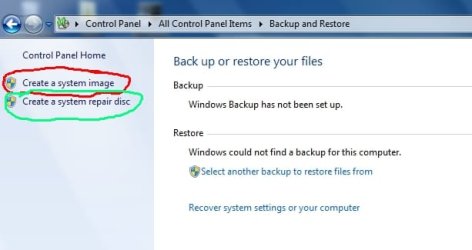
I have a Windows 7 32 bit computer with Home Premium installed by someone else. The computer works fine, but I want to explore various ways to reinstall the operating system (in case of serious malfunction) from backup image I made on 2 DVDs. The image backup I made using Backup and Restore (see screenshot1 red circle). The image spanned on 2 DVDs. I know that the mouse could be used from System Repair DVD (see green circle), which I made and boots up the computer and gives the choice "System Image Recovery" to restore backup from the DVDs. However I want to explore the method of using the Command Prompt, (see photo2). I've looked around on the web and found this:
Code:
wbadmin get versions -backupTarget:E:
When I put that in the command line, I get this:
Code:
Microsoft Windows [Version 6.1.7601]
X:\windows\system32>wbadmin get versions -backupTarget:E:
wbadmin 1.0 - Backup command-line tool
<C> Copyright 2004 Microsoft Corp.
The times of the backups displayed are based on the time zone of the current operating system that you are using.
The time zone being used is <GMT -8:00> Pacific Standard Time.
Backup time: 12/24/2024 2:23 PM
Backup location: DVD labeled USER-PC 12/24/2024 5:23 PM 1. USER-PC 12/24/2024 5:23 PM 2
Version identifier: 12/24/2024-22:23
Can recover: Volume<s>, Bare Metal Recovery
X:\windows\system32>_

My first question: What would be the exact next command to start the wiping and re-imaging the hard drive? I guess it is this:
Code:
wbadmin start sysrecovery -version:12/24/2024-22:23 -backupTarget:E:
Can someone tell me if this is correct, and give me the correct exact command if the above is wrong.Then my second question is: If I put in the above (corrected) command, will the wiping of the hard drive begin immediately, or will there be a warning and last chance to abort the wiping of the hard drive?screenshot .jpgphoto2.jpg
 

My Computers

System One System Two

  • OS
    Windows 7 Home Premium 32bit
  • Computer type
    PC/Desktop
Then file format on dvd is not the same as the regular system image even though they both have the .vhd extension.

edit: I have some pics of when I tried withe dvd - looks like it works with the dvd

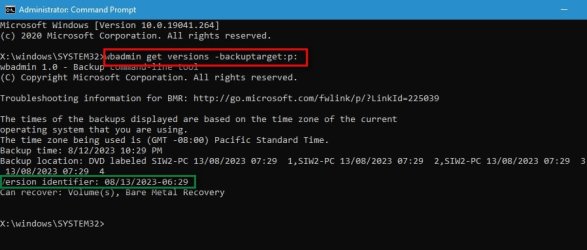
The commands are a little tricky the first time

first is get versions

to find the identifier ( in green below )

wbadmin-get-versions.jpg

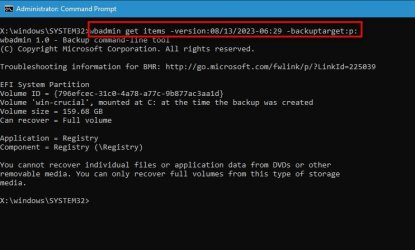
next is get items

wbadmin-get-items.jpg

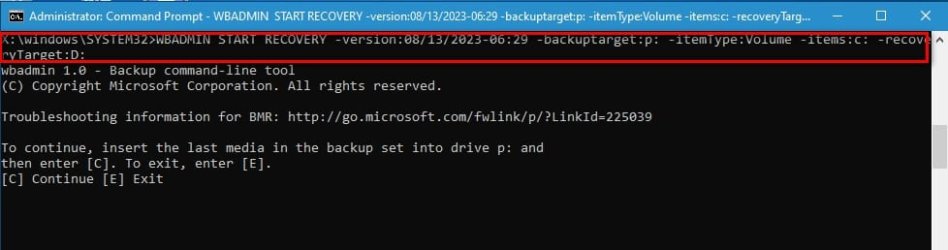
then it is start recovery

you have to put in the last dvd which is probabaly labelled 1
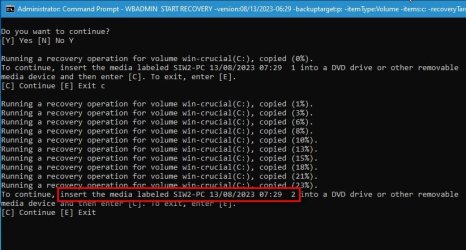
wbadmin-start-recovery.jpg

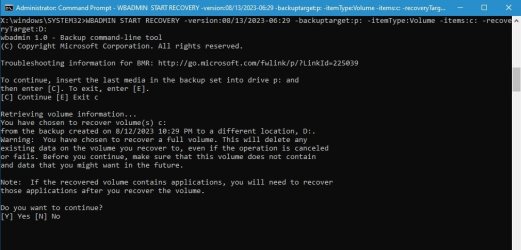
will there be a warning and last chance to abort the wiping of the hard drive?

The drive letters as seen from winpe are probably different, so it will tell you the recovery target ( i.e the destination you are aiming at ) does not have the same letter the image was mounted at

Do you want to continue ?

If you are sure you have selected the right target, type Y

wbadmin-start-recovery2.jpg

it will prompt you when it wants the next dvd

wbadmin-start-recovery5.jpg

- - - Updated - - -

*******************************************************************
If you want to restore from a regular .vhd ( not the dvd type) it can be done with diskgenius free version
 
Last edited:

My Computers

System One System Two

  • Computer type
    PC/Desktop
    OS
    7 X64
    CPU
    i5 8400
    Motherboard
    gigabyte b365m ds3h
    Memory
    2x8gb 3200mhz
    Hard Drives
    various
    PSU
    pure power 11 400w cm
    Case
    Coolermaster
    Cooling
    cryorig m9i
  • Computer type
    PC/Desktop
    OS
    7x64
    CPU
    g5400
    Motherboard
    ga b365m ds3h
    Memory
    8gb ddr4 2400
    PSU
    xfx pro 450w
OK, thank you for responding with quite a bit of detail. I still am confused about certain points.
1) in your second screenshot you used: wbadmin get items -version:08/13/2023-6:29 -backuptarget:p:
I see the resulting command response, but I don't see what you used from that response. In the previous screenshot you used red circle and then green circle to show the important part of command response that you later used. Can you show me exactly what you used from the second screenshot ?
2) then in the third screenshot, red circle (wbadmin start recovery....) you later typed in: -itemType:Volume -items:c:
Where did you get this (-itemType:Volume -items:c:) Does the "c" refer to the original c drive on your computer?
Would I just use the exact same syntax (-itemType:Volume -items:c:) when I want to re-image my computer?
My computer just has c drive, and of course I want to re-image back to c drive, so the computer is exactly the same as original
3) then in that same red circle, you used: -recoveryTarget:d:
Where did that "D" come from? Can I just use "C" for my recovery target?
4) Then, based on my best understanding, would I use this exact command (wbadmin start recovery....) for my computer:
Code:
wbadmin start recovery -version:12/24/2024-22:23 -backupTarget:E: -itemType:Volume -items:c: -recoveryTarget:C:

Please address and clarify these points. Thank you.
 
Last edited:

My Computers

System One System Two

  • OS
    Windows 7 Home Premium 32bit
  • Computer type
    PC/Desktop
Where did you get this (-itemType:Volume -items:c:) Does the "c" refer to the original c drive on your computer?

it says "you can only recover full volumes from this type of storage media"

therefore -itemType:Volume

it says "volume..mounted as C: at the time the image was created"

therefore -items:c:

the target is D because that is the letter winpe has asigned to the partition that was C when booted into it.

you need to check either by using diskpart or have a look by typing at cmd prompt notepad

when notepad pops up click File >save and use the notepad browse dialog to have a look at your disk(s) to find out what letters winpe has assigned.
 

My Computers

System One System Two

  • Computer type
    PC/Desktop
    OS
    7 X64
    CPU
    i5 8400
    Motherboard
    gigabyte b365m ds3h
    Memory
    2x8gb 3200mhz
    Hard Drives
    various
    PSU
    pure power 11 400w cm
    Case
    Coolermaster
    Cooling
    cryorig m9i
  • Computer type
    PC/Desktop
    OS
    7x64
    CPU
    g5400
    Motherboard
    ga b365m ds3h
    Memory
    8gb ddr4 2400
    PSU
    xfx pro 450w
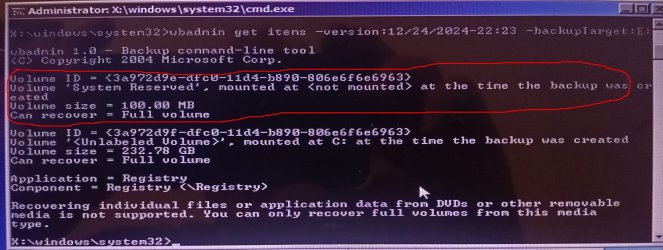
Ok, another problem arose. When you typed in "wbadmin get items...", you just got one volume (to restore). But I got two volumes, the main volume (232GB) and another volume called "system reserved" (100MB). See below two photos.
I want the restoration process to make the computer exactly as it was, so the computer should contain both volumes (just like before restoration). So my question is: how can I restore both volumes to make the computer exactly as it was before restoration?getitems.jpgsys.jpg
 

My Computers

System One System Two

  • OS
    Windows 7 Home Premium 32bit
  • Computer type
    PC/Desktop
example:
Code:
wbadmin start recovery -version:03/31/2005-09:00 -itemType:Volume -items:\\?\Volume{cc566d14-44a0-11d9-9d93-806e6f6e6963}\


Syntax: WBADMIN START RECOVERY
-version:<VersionIdentifier>
-items:{<VolumesToRecover> | <AppsToRecover> | <FilesOrFoldersToRecover>
-itemtype:{Volume | App | File}
[-backupTarget:{<VolumeHostingBackup> | <NetworkShareHostingBackup>}]
[-machine:<BackupMachineName>]
[-recoveryTarget:{<TargetVolumeForRecovery> | <TargetPathForRecovery>}]
[-recursive]
[-overwrite:{Overwrite | CreateCopy | Skip}]
[-notRestoreAcl]
[-skipBadClusterCheck]
[-noRollForward]
[-quiet]

Description: Runs a recovery operation based on the parameters that you
specify.
To use this command, you must be a member of the Backup Operators group
or Administrators group.

Parameters:
-version Specifies the version of the backup to recover in
MM/DD/YYYY-HH:MM format. If you do not know the version
identifier, type WBADMIN GET VERSIONS.

-items Specifies a comma-delimited list of volumes, applications,
files, or folders to recover.
-If -itemtype is Volume, you can specify only a single volum
by providing the volume drive letter, volume mount point, or
GUID-based volume name.
-If -itemtype is App, you can specify only a single
application. To be recovered, the application must have
registered with Windows Server Backup. You can also use the
value ADIFM to recover an installation of Active Directory
Domain Services. See Remarks for more information.
-If -itemtype is File, you can specify files or folders, but
they should be part of the same volume and they should be
under the same parent folder.

-itemtype Specifies the type of items to recover. Must be Volume, App,
File.

-backupTarget Specifies the storage location that contains the backup that
you want to recover. The parameter is useful when the
location is different from where backups of this computer ar
usually stored.

-machine Specifies the name of the computer that you want to recover
the backup for. The parameter is useful when multiple
computers have been backed up to the same location. Should b
used when -backupTarget is specified.

-recoveryTarget Specifies the location to restore to. This parameter is
useful if this location is different than the location that
was previously backed up. It can also be used for
restorations of volumes, files, or applications. If you are
restoring a volume, you can specify the volume drive letter
of the alternate volume.
If you are restoring a file or application, you can specify
an alternate recovery location.

-recursive Valid only when recovering files. Recovers the files in the
folders and all files subordinate to the specified folders.
By default, only files which reside directly under the
specified folders are recovered.

-overwrite Valid only when recovering files. Specifies the action to tak
when a file that is being recovered already exists in the
same location.
-Skip causes Windows Server Backup to skip the existing file
and continue with recovery of the next file.
-CreateCopy causes Windows Server Backup to create a copy
of the existing file so that the existing file is not
modified.
-Overwrite causes Windows Server Backup to overwrite the
existing file with the file from the backup.

-notRestoreAcl Valid only when recovering files. Specifies to not restore
the security access control lists (ACLs) of files being
recovered from backup. By default, the security ACLs are
restored (the default value is true). If this parameter is
used, the ACLs for the restored files will be inherited from
the location to which the files are being restored.

-skipBadClusterCheck Valid only when recovering volumes. Skips checking
the disks that you are recovering to for bad cluster
information. If you are recovering to an alternate server or
hardware, we recommend not using this parameter. You can
manually run the command CHKDSK /B on these disks at any tim
to check them for bad clusters, and then update the file
system information accordingly.
Important: Until you run CHKDSK as described, the bad
clusters reported on your recovered system may not be
accurate.

-noRollForward Valid only when recovering applications. This allows for
previous point-in-time recovery if the latest version from
the backups is selected. For other versions of the
application that are not the latest, previous point-in-time
recovery is done by default.

-quiet Runs the command with no prompts to the user.

Examples:
WBADMIN START RECOVERY -version:03/31/2005-09:00 -itemType:Volume -items:d:
WBADMIN START RECOVERY -version:03/31/2005-09:00 -itemType:App
-items:Registry -recoverytarget:d:\
WBADMIN START RECOVERY -version:03/31/2005-09:00 -itemType:File
-items:d:\folder -recursive
WBADMIN START RECOVERY -version:03/31/2005-09:00 -itemType:Volume
-items:\\?\Volume{cc566d14-44a0-11d9-9d93-806e6f6e6963}\
WBADMIN START RECOVERY -version:04/30/2005-09:00 -backupTarget:\\servername
\share -machine:server01

Remarks: To view a list of items available that are available for recovery
from a specific backup version, use WBADMIN GET ITEMS. If a volume did not
have a mount point or drive letter at the time of backup, then this command
would return a GUID-based volume name that should be used for recovering the
volume.

- - - Updated - - -

Ok, another problem arose. When you typed in "wbadmin get items...", you just got one volume (to restore).

no mine had two volumes, I only wanted to restore the OS partition, the EFI System partition was fine and didn't need restoring
 

My Computers

System One System Two

  • Computer type
    PC/Desktop
    OS
    7 X64
    CPU
    i5 8400
    Motherboard
    gigabyte b365m ds3h
    Memory
    2x8gb 3200mhz
    Hard Drives
    various
    PSU
    pure power 11 400w cm
    Case
    Coolermaster
    Cooling
    cryorig m9i
  • Computer type
    PC/Desktop
    OS
    7x64
    CPU
    g5400
    Motherboard
    ga b365m ds3h
    Memory
    8gb ddr4 2400
    PSU
    xfx pro 450w
Back
Top