Solved Image your system with free Macrium

I have Windows 7 Home Premium and Windows 7 Pro machines.
Using free version 6.3.1745
Do I need a separate individual Rescue Media CD for each machine; or, will the discs be identical regardless of the machine ?

Thanks for reading and all help is appreciated.
You absolutetly want to upgrade your free version to the latest 7.2.6957. It's still free, and MUCH improved with enhancements over version 6.

In particular, Macrium has recently brought out some super enhancements to the "create rescue media" functionality. I like to think I might have had something to do with their development in this direction as I had submitted a large wish-list of such features several years ago. They thanked me, and put it in the pot for future work. And many of those wishes have now come true.

k5oDih.jpg


nPyKOk.jpg


Now the program automatically checks both (a) the version of WinPE and (b) Macrium Reflect which you may currently have last installed into your Boot Manager version of "rescue media". If either check uncovers that a newer version is appropriate (e.g. you've now upgraded Macrium Reflect from 3954 to 3957, so that the Boot Manager copy is now out-of-date, or if WinPE for Kernel 10 has now been upgraded from 1603 to 1709, etc.) it will allow you to automatically upgrade the Boot Manager parts which need updating. This may require a new large download of WinPE but it's all done automatically for you while you watch the fuel gauge.

So in this one new "carve-out functionality" in a separate window concerning creating as many of the one or more standalone "rescue media" varieties you might want to have (e.r. Boot Manager from your hard drive if available, which of course is the most convenient, small flash drive, optical CD/DVD, ISO file, etc.) it's all now possible very very easily.


As far as using the system-generated "ID" vs. your own file names, I use my own file names. I name them whatever I want for maximum understandability if/when I ever go to use them again which might be a long time after they were created. In particular, I use MR constantly many times (e.g. typically at least once or twice a day if not more) during the week-long rebuild project when reinstalling Windows. I like to create at the very least names like "end of day #n, WMC and extenders now complete and working". These "progress" versions inform me of which version to revert to if a disaster strikes during the effort and I decide to revert to an earlier "stable" version I absolutely knew was working perfectly.

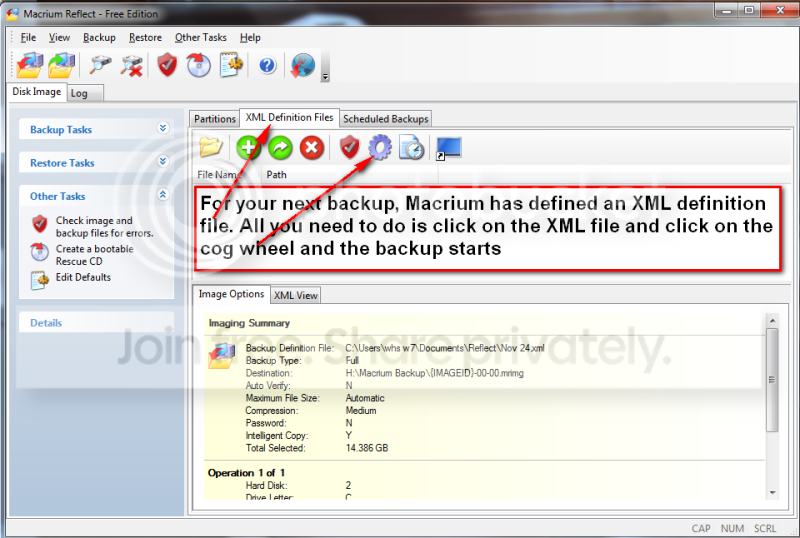
MR always appends an appropriate incrementing suffix if you run the same job multiple times without changing the file name (where it always starts with a suffix of 00-00 for the first version generated). And of course you specify how many generations to retain (with incrementing suffixes) before deleting the oldest and re-using its suffix, in a continuing circular naming technique.

The time-to-restore now present in the much-improved version 7 of the product is astonishingly clever and fast, if there's really not much which has changed in the MRIMG file you're restoring and the current contents of the target drive. The program now has a "checking for differences" pre-step (which you'd think would take substantial time, but apparently because of their brilliant indexed technique it doesn't) so that when it then actually begins the restore it might take very little time. Say you're restoring last night's image today, and you haven't done much in your system today. The restore might take 45 seconds (once it starts, after the "checking for difference")! Or, if you've made lots of changes, it might take 5-10 minutes or more depending on your hardware and file size.

I myself use the non-free "standard home version" (I buy a 4-seat license pack) for my own machines, just as my way of rewarding the software vendor for their brilliant ongoing development and support for the product... which I absolutely could not live without. I install "free" for friends and family who I don't want to ask to pay for this software since it might never be used for them, whereas it is indispensible for me and my own situation.

It is invaluable in building or upgrading machines, using either the (a) "copy out to external backup / change hardware / copy back from external backup" or (b) "clone this disk" methodology, which are conceptually identical but used for different new hardware situations. It is perfect for say what I just went through this week, having received a new Lenovo M910t with Win7 installed on a 1TB HDD spinner. I added my own M.2 Samsung 970 EVO NVMe SSD to be the new primary drive. I then booted to a flash drive standalone WinPE 10 + 3957 version of "rescue media" (which will work for pretty much ANY version of Windows and hardware, since it's based on WinPE 10 - 1709) in order to take my "initial out-of-the-carton factory partitions image" of everything on the HDD spinner to my external USB 3.0 backup drive. This is my true emergency backup, should I ever have the desire to go back to "factory state" which in truth I know will never happen since I take regular image backups of my "production" system throughout the years, and I can always revert to last night's or last weekend's working system if a disaster strikes. I NEVER need to go back to "factory" once I'm in production.

So I had to boot to the new Win7 from the HDD spinner at least for a first time and then short while in order to at the very least install the Samsung NVMe Controller Driver (since NVMe support is not built into the old Win7 as it is into Win10). Then I installed Macrium Reflect. Then I ran Macrium Reflect (while Windows 7 was running) to "clone" the three system-related boot-involved partitions from the HDD spinner (ignoring the "recovery" partition which I never use, but that's just me).

Then I re-booted and interrupted the BIOS sequence in order to get into BIOS Setup to change the boot sequence to now show the NVMe drive after (1) USB FDD, (2) USB HDD, (3) optical CD/DVD, (4) NVMe. Then I save/exit from the BIOS change and the machine proceeds to now boot to the Lenovo-provided Win7 which has been cloned over to my newly installed DIY NVMe SSD. I will eventually perform a few SSD tweaks (since the Lenovo Win7 was installed to HDD spinner), and then I will use Partition Wizard (free or non-free) to delete all the original partitions from the Lenovo 1TB HDD spinner and re-create several new "data" partitions on that drive which has now been re-purposed.

I now "create rescue media" and build (a) the Boot Manager version (automatically placed on the system-reserved and C partitions which are now on NVMe), and also (b) USB flash drive standalone emergency version. System imaging the does not involve changes to the system boot / C partitions but involves other partitions or making backups can be performed by MR while operating within Windows. Operations involving changing C or system drives / partitions must be performed "standalone", either after booting from the Boot Manager menu option (if that is available and appropriate for your need) or from standalone USB flash drive or optical CD/DVD.

I simply could not live without MR, especially when going through hell week during a situation like this week's total machine replacement. When reinstalling Windows it can either be from a retail installer for a home-built machine, or vendor pre-installed (like with this Lenovo M910t), but regardless when I'm upgrading or changing drive hardware and need to copy partitions, in my opinion there's no product superior to MR .
 

My Computer

Computer type
PC/Desktop
Computer Manufacturer/Model Number
Home-built, two systems (1) and (2)
OS
Windows 7 Pro x64 (1), Win7 Pro X64 (2)
CPU
i5-3350p 3.1Ghz/6MB-cache (1); E8400 3.0Ghz/6MB-cache (2)
Motherboard
ASUS P8Z77-V Pro (1); ASUS P5Q3 (2)
Memory
8GB PC3-12800 DDR3 (1); 4GB PC3-10600 DDR3 (2)
Graphics Card(s)
ATI HD7750 (1), (see TV cards); ATI R7 250 (2)
Sound Card
Realtek ALC892 HD Audio (1); Realtek ALC1200 HD Audio (2)
Monitor(s) Displays
Eizo HD2441W LCD, Eizo S2433W (1); Eizo 24" S2433W (2)
Screen Resolution
1920x1200, 1920x1200 (1); 1920x1200 (2)
Hard Drives
(1) 1TB SATA-II (7200RPM), 2x2TB SATA-III (7200RPM), 250GB SATA-III (10000RPM) for OS; 2x2TB external USB 3.0

(2) 320GB SATA-II (7200RPM), 750GB SATA-II (7200RPM), 150GB SATA-II (10000RPM) for OS; 2TB external USB 3.0
PSU
Nesteq ECS-6001 600W (1); Nesteq ECS-5001 500W (2)
Case
Acousti-Case 360 (1) and (2)
Cooling
Noctua NH-U12P SE2 for CPU, 2x120mm case fans (1) and (2)
Keyboard
IBM PS/2 (1) and (2)
Mouse
Logitech MX Revolution wireless (1); Microsoft wired (2)
Internet Speed
100mbps down / 10mbps up
Antivirus
Microsoft Security Essentials; Malwarebyte Anti-Malware Pro
Browser
Firefox
Other Info
Ceton InfiniTV 4-tuner cablecard-enabled TV card as well as Hauppauge HVR-2250 OTA/ATSC 2-tuner TV card in (1), running under Win7 WMC
Okay....,
I created O/S partition backup images of three machines, saving the images to a network folder that resides on another machine.
All three O/S partitions held about 80-GB of information.
To create and verify the images took on average 01:35:00 to complete.

I then saved an image of the host machine in which the network folder resides.
With 82-GB to image, this operation took only 00:19:29 to complete.

Do those time figures look about average for saving to a network folder ?
Considering how long it took for the network saves; it hardly seems possible that the host machine could achieve the task in 1/5th as long.
 

My Computer

Computer type
PC/Desktop
Computer Manufacturer/Model Number
Dell Optiplex 780m "mini-tower"
OS
Windows 7 Pro x64
CPU
Intel Core Two Duo E8600 3.33 ghz
Motherboard
Whatever DELL put in it
Memory
8GB
Graphics Card(s)
Gigabyte Radeon R7 240
Monitor(s) Displays
HP 2159m
PSU
750 Watt Corsair CX750
Keyboard
Logitech Wireless
Mouse
Logitech Wireless
Browser
Chrome, Firefox, IE
I've never tried but it may make it more difficult to create and maintain differential or incremental images off it.

I use a different approach. I allow MR to generate the image names but place them in folders which describe their purpose.
I do the same thing.
MR - Backup Folder Structure 2019.png
 

My Computer

Computer type
PC/Desktop
Computer Manufacturer/Model Number
n/a
OS
W7 Ultimate SP1, LM19.2 MATE, W10 Home 1703, W10 Pro 1703 VM, #All 64 bit
CPU
AMD Phenom II x6 1100T, 3.3 GHz
Motherboard
ASUS M4A88T-M/USB3 (AM3)
Memory
12GB DDR3 1333 G-Skill (4GB x 2), G-Skill (2GB x 2)
Graphics Card(s)
NVIDIA GeForce GTX 660
Sound Card
Realtek?
Monitor(s) Displays
Samsung S23B350
Screen Resolution
1920x1080
Hard Drives
WD Green 2TB (SATA), WD Green 3TB (SATA), WD Blue 4TB (SATA), WD Blue 6TB (SATA)
PSU
Cooler Master
Case
Antec GX300 Tower
Cooling
3x Antec TRICOOL 120mm Fans
Mouse
Wired Optical
Internet Speed
DSL
Antivirus
Avast
Browser
Pale Moon (64 bit)
Other Info
2018-12-27 Upgraded HDDs
2015-12-10 Upgraded case, graphics card, storage
2015-08-15 Upgraded motherboard & RAM
2015-07-15 Upgraded LM17.1 to LM17.2
I have a spare 1TB HDD internal drive that I want to use as a backup. I thought about connecting it to the PC using a SATA cable & then creating an image on it. Then at some point stick it into a USB drive enclosure.

Would Macrium or Windows still recognize the USB connected drive in order to restore an image from it? It's the same drive but I'm not sure what happens when it's connected via USB.
 

My Computer

Computer type
PC/Desktop
Computer Manufacturer/Model Number
HP
OS
Windows 7 Ultimate x64
CPU
AMD Athlon x4
Motherboard
HP / Foxconn
Memory
8.00 GB
Graphics Card(s)
GTX 750Ti SC
Monitor(s) Displays
ACER
Hard Drives
1TB Seagate
PSU
380W
Cooling
Stock
Internet Speed
3 Mbps
I have a spare 1TB HDD internal drive that I want to use as a backup. I thought about connecting it to the PC using a SATA cable & then creating an image on it. Then at some point stick it into a USB drive enclosure.

Would Macrium or Windows still recognize the USB connected drive in order to restore an image from it? It's the same drive but I'm not sure what happens when it's connected via USB.

If the internal drive is 3.5", a cable won't work for it; sometimes even 2.5" drives don't work. Instead, put the drive into an enclosure (or a dock) first before using it externally.

Macrium Reflect and Windows will recognize USB connected drives. I do it all the time with my notebook.
 

My Computer

Computer type
PC/Desktop
Computer Manufacturer/Model Number
Custom Build
OS
Win 7 Ultimate 64 bit
CPU
Intel i7-3930K
Motherboard
ASUS P9X79 WS
Memory
Kingston HyperX Genesis 32GB Kit (8x4GB Modules) 1600MHz DDR
Graphics Card(s)
MSI R7850 Twin Frozr 2GD5/OC Radeon HD 7850 2GB 256-bit GDDR
Sound Card
Asus Xonar Essence STX
Monitor(s) Displays
3x Asus VG248QE 24", Vizio 32" TV
Screen Resolution
1920 x 1080, ?
Hard Drives
Samsung 128GB 840 Pro SSD (1),
Samsung 4TB 850 EVO SSDs (4)
Samsung 4TB 850 EVO SSDs (16) external backup drives used in 2.5" hot swap bays in the computer.
PSU
Corsair HX750w
Case
Antec Two Hundred v2 (modified)
Cooling
Cooler Master GeminII S524 120mm (fan replaced with a 140mm)
Keyboard
Logitech G510s
Mouse
Logitech M525 (two in use)
Internet Speed
=< 32Mbps down, 8Mbps up
Antivirus
AVAST!, MBAM, SAS, Spybot S&D (all but MBAM free) Glary Util
Browser
IE11
Other Info
LSI 9211-8i HBA card (8 SATA III ports), 2.5" & 3.5" Hot Swap Bays, HooToo HT-CR001 PCI-E to USB 3.0 Internal Hub + 6 Slot Card Reader, and LG Model CH12LS28 BD-ROM Optical Drive. Also, ScanSnap S1500 ADF duplexing scanner, Canon 9000F flat bed scanner, Corsair SP2500 2.1 speakers, Samsung CLP 415nw laser color printer, Cyberpower PP2200SW UPS

My Computer

Computer type
Laptop
Computer Manufacturer/Model Number
Hewlett-Packard/G62-107SA Notebook
OS
Microsoft Windows 7 Home Premium 64-bit Service Pack 1
CPU
Intel(R) Core(TM) i3 CPU M 330 @ 2.13GHz
Motherboard
Hewlett-Packard 1425
Memory
8 GB DDR3
Graphics Card(s)
Intel(R) HD Graphics
Sound Card
Realtek High Definition Audio
Monitor(s) Displays
Builtin
Screen Resolution
1366 x 768 x 32 bits (4294967296 colors) @ 60 Hz
Hard Drives
250 GB SATA Hard Disk Drive 7200 rpm
2TB Seagate GoFlex USB 2 Drive
1TB Iomega Prestige USB 2 Drive
1.5TB Iomega Prestige USB 2 Drive (Samsung)
2TB WD MyBook Live NAS.
Mouse
Logitech Anywhere MX
Internet Speed
152 Mbs download 10 Mbs upload
Antivirus
Norton 360
Browser
Chrome
I have a spare 1TB HDD internal drive that I want to use as a backup. I thought about connecting it to the PC using a SATA cable & then creating an image on it. Then at some point stick it into a USB drive enclosure.

Would Macrium or Windows still recognize the USB connected drive in order to restore an image from it? It's the same drive but I'm not sure what happens when it's connected via USB.

I think I understand your question; if not, then please ignore what I say.
If you are connecting the disk to SATA internally, you will need connect both, a SATA data cable(the narrow one) and a SATA power cable(the wide one).
Once it is connected, if you go into disk management and assign a permanent drive letter to that disk, it will from that point onward be recognized by that drive letter, whether it be internally SATA connected or USB connected via a self-powered enclosure; thus, the "path" that the image program looks for it will be the same.
I hope that made sense.
 

My Computer

Computer type
PC/Desktop
Computer Manufacturer/Model Number
Dell Optiplex 780m "mini-tower"
OS
Windows 7 Pro x64
CPU
Intel Core Two Duo E8600 3.33 ghz
Motherboard
Whatever DELL put in it
Memory
8GB
Graphics Card(s)
Gigabyte Radeon R7 240
Monitor(s) Displays
HP 2159m
PSU
750 Watt Corsair CX750
Keyboard
Logitech Wireless
Mouse
Logitech Wireless
Browser
Chrome, Firefox, IE

My Computer

Computer type
PC/Desktop
Computer Manufacturer/Model Number
n/a
OS
W7 Ultimate SP1, LM19.2 MATE, W10 Home 1703, W10 Pro 1703 VM, #All 64 bit
CPU
AMD Phenom II x6 1100T, 3.3 GHz
Motherboard
ASUS M4A88T-M/USB3 (AM3)
Memory
12GB DDR3 1333 G-Skill (4GB x 2), G-Skill (2GB x 2)
Graphics Card(s)
NVIDIA GeForce GTX 660
Sound Card
Realtek?
Monitor(s) Displays
Samsung S23B350
Screen Resolution
1920x1080
Hard Drives
WD Green 2TB (SATA), WD Green 3TB (SATA), WD Blue 4TB (SATA), WD Blue 6TB (SATA)
PSU
Cooler Master
Case
Antec GX300 Tower
Cooling
3x Antec TRICOOL 120mm Fans
Mouse
Wired Optical
Internet Speed
DSL
Antivirus
Avast
Browser
Pale Moon (64 bit)
Other Info
2018-12-27 Upgraded HDDs
2015-12-10 Upgraded case, graphics card, storage
2015-08-15 Upgraded motherboard & RAM
2015-07-15 Upgraded LM17.1 to LM17.2
I'm not sure that's true. :D
I like to have "a place for everything and everything in its place".

I hate it when I'm pretty sure I have something, but I can't find it when I want it.

I very much enjoyed reading through that link you provided; thanks.

I am in total agreement with that last sentence, as well; my wife ---- who is a complete opposite --- claims that I have OCB. (I can't help it if I always know where my keys and other stuff are at, while she is madly tearing the house apart, trying to rush out the door with no idea where her keys, phone, etc. are at. Years ago, I even put her a key-hook right beside the door at eye level; I don't think it has ever been used.)
I didn't get this organized behavior from any of my family either, as everything they ever touched was always complete chaos, even other peoples stuff.
My father's policy was that it was cheaper to buy something again, than to spend time looking for it.
 

My Computer

Computer type
PC/Desktop
Computer Manufacturer/Model Number
Dell Optiplex 780m "mini-tower"
OS
Windows 7 Pro x64
CPU
Intel Core Two Duo E8600 3.33 ghz
Motherboard
Whatever DELL put in it
Memory
8GB
Graphics Card(s)
Gigabyte Radeon R7 240
Monitor(s) Displays
HP 2159m
PSU
750 Watt Corsair CX750
Keyboard
Logitech Wireless
Mouse
Logitech Wireless
Browser
Chrome, Firefox, IE
I think I understand your question; if not, then please ignore what I say.
If you are connecting the disk to SATA internally, you will need connect both, a SATA data cable(the narrow one) and a SATA power cable(the wide one).
Once it is connected, if you go into disk management and assign a permanent drive letter to that disk, it will from that point onward be recognized by that drive letter, whether it be internally SATA connected or USB connected via a self-powered enclosure; thus, the "path" that the image program looks for it will be the same.
I hope that made sense.

Yes, I would connect SATA & power cables.

I don't understand about going into disk management and assigning it a permanent drive letter. Other times when I connected a second internal drive the BIOS automatically detected it and the second drive appeared in Disk Management with a number such as "Disk 1" assigned to it & the partitions had letters assigned to them.

I don't recall ever assigning a number or letter. Have I been dong something wrong, and just lucky that it's worked?
 

My Computer

Computer type
PC/Desktop
Computer Manufacturer/Model Number
HP
OS
Windows 7 Ultimate x64
CPU
AMD Athlon x4
Motherboard
HP / Foxconn
Memory
8.00 GB
Graphics Card(s)
GTX 750Ti SC
Monitor(s) Displays
ACER
Hard Drives
1TB Seagate
PSU
380W
Cooling
Stock
Internet Speed
3 Mbps
I don't recall ever assigning a number or letter. Have I been dong something wrong, and just lucky that it's worked?

When you connect a random disk to the machine, whether it be internal or external, providing that disk has already been allocated, Windows will assign it either the drive letter that it has already been assigned, or the next available unused letter; this is fine if you don't later need a path to be remembered.

If you want to assign a particular drive letter to that disk that will remain with it no matter how many times you disconnect and reconnect, in Disk Management, click on (select) the partition you desire to assign the letter to; right-click and choose "Change drive letter and path"; click "change"; choose your drive lettter from the flyout menu; you should then see that drive letter in the partition label.

While you are at it, right-click again and choose "Properties"; the name associated with that drive will be in an editable space; replace that name with one that makes sense to you, such as Mike's Pictures or Mike's Music, etc.

If I have missed a step or anything, someone please correct me, as I don't want to mislead anyone.

Let me add this: a disk can contain several partitions and each of these partitions is considered a Drive with it's own drive letter; if a disk only has a single partition, it will only have the single drive letter.
If a disk has multiple partitions/drives, you can change any single one of the drive letters and it not have any effect on the others.

Also, if you connect a disk with assigned letter(s) and those letters are already in use, the next available letter(s) will temporarily be assigned.
 

My Computer

Computer type
PC/Desktop
Computer Manufacturer/Model Number
Dell Optiplex 780m "mini-tower"
OS
Windows 7 Pro x64
CPU
Intel Core Two Duo E8600 3.33 ghz
Motherboard
Whatever DELL put in it
Memory
8GB
Graphics Card(s)
Gigabyte Radeon R7 240
Monitor(s) Displays
HP 2159m
PSU
750 Watt Corsair CX750
Keyboard
Logitech Wireless
Mouse
Logitech Wireless
Browser
Chrome, Firefox, IE
When you connect a random disk to the machine, whether it be internal or external, providing that disk has already been allocated, Windows will assign it either the drive letter that it has already been assigned, or the next available unused letter; this is fine if you don't later need a path to be remembered.

If you want to assign a particular drive letter to that disk that will remain with it no matter how many times you disconnect and reconnect, in Disk Management, click on (select) the partition you desire to assign the letter to; right-click and choose "Change drive letter and path"; click "change"; choose your drive lettter from the flyout menu; you should then see that drive letter in the partition label.

While you are at it, right-click again and choose "Properties"; the name associated with that drive will be in an editable space; replace that name with one that makes sense to you, such as Mike's Pictures or Mike's Music, etc.

If I have missed a step or anything, someone please correct me, as I don't want to mislead anyone.

Let me add this: a disk can contain several partitions and each of these partitions is considered a Drive with it's own drive letter; if a disk only has a single partition, it will only have the single drive letter.
If a disk has multiple partitions/drives, you can change any single one of the drive letters and it not have any effect on the others.

Also, if you connect a disk with assigned letter(s) and those letters are already in use, the next available letter(s) will temporarily be assigned.


It appears that using an external USB drive might be confusing when working with images because the drive might get a different drive letter assigned every time you connect it, depending on if other USB drives have been connected & in what order.

As mentioned in posting 2004, "The only advantage leaving them in their original location has is that Macrium keeps a record of where they are and pre-loads a list for you to pick from".

I already have a USB EHD drive with some Windows 7 images on it. And I just got a drive enclosure for my internal HDD which will let me connect it via USB.

Is it advisable to assign a drive letter to each USB drive? What about my old USB EHD that already has Windows 7 images an it, or is it best to leave that one alone?
 

My Computer

Computer type
PC/Desktop
Computer Manufacturer/Model Number
HP
OS
Windows 7 Ultimate x64
CPU
AMD Athlon x4
Motherboard
HP / Foxconn
Memory
8.00 GB
Graphics Card(s)
GTX 750Ti SC
Monitor(s) Displays
ACER
Hard Drives
1TB Seagate
PSU
380W
Cooling
Stock
Internet Speed
3 Mbps
Mike, if you want to keep the drive letters the same, use Disk Management and change the drive letters to something like W, X, or Y. You will most likely never use enough USB devices to get up to those letters. I use 3 external drives for images and Windows has never changed the drive letters.

As a practical matter, I don't believe it really matters to Macrium. If you have to restore an image from a recovery USB, DVD or a partition, it asks you to find an image to restore. You search for the image you want to restore and select it. Then restore it. I copy images back and forth between drives and have never had a restore fail.

IMO, keeping the drive letters the same is mostly a convenience to you. I really don't believe it makes much difference to Macrium, as long as you know where the image you want to restore is located. That has been my experience.
 

My Computers

System One System Two

  • Computer type
    PC/Desktop
    Computer Manufacturer/Model Number
    ALWAYS UNDER CONSTRUCTION
    OS
    Windows 11 Pro
    CPU
    Ryzen 9 5900X
    Motherboard
    Asus X570 Crosshair Viii Hero
    Memory
    32GB G Skill DDR4-3600
    Graphics Card(s)
    EVGA RTX 3080 FTW 3 Ultra
    Sound Card
    On Board/Sennheiser PC37X Headset
    Monitor(s) Displays
    3 X Asus 27"
    Screen Resolution
    2560x1440
    Hard Drives
    2 X 1 TB NVME drives
    PSU
    EVGA 850
    Case
    Phanteks Eclipse P400A
    Cooling
    EVGA 280 AIO
    Keyboard
    Logitech G510s/ Logitech G13
    Mouse
    Logitech G502
    Internet Speed
    24/1
    Antivirus
    ESET/MBAM Pro/SAS Pro
    Browser
    Chrome/ Firefox/ Edge
  • Computer type
    Laptop
    System Manufacturer/Model Number
    Dell 16 Plus
    OS
    Windows 11 Pro
    CPU
    Intel Ultra 9 288V
    Memory
    32 GB LPDDR5X 8533
    Monitor(s) Displays
    16" Mini-LED HDR600 Touch 90 Hz
    Screen Resolution
    2560X1600
    Hard Drives
    1 TB NVME
Mike, if you want to keep the drive letters the same, use Disk Management and change the drive letters to something like W, X, or Y. You will most likely never use enough USB devices to get up to those letters. I use 3 external drives for images and Windows has never changed the drive letters.

As a practical matter, I don't believe it really matters to Macrium. If you have to restore an image from a recovery USB, DVD or a partition, it asks you to find an image to restore. You search for the image you want to restore and select it. Then restore it. I copy images back and forth between drives and have never had a restore fail.

IMO, keeping the drive letters the same is mostly a convenience to you. I really don't believe it makes much difference to Macrium, as long as you know where the image you want to restore is located. That has been my experience.

The only time it really matters is for saved backup definitions as they use the drive letter of the destination drive rather than the diskid.
 

My Computer

Computer type
Laptop
Computer Manufacturer/Model Number
Hewlett-Packard/G62-107SA Notebook
OS
Microsoft Windows 7 Home Premium 64-bit Service Pack 1
CPU
Intel(R) Core(TM) i3 CPU M 330 @ 2.13GHz
Motherboard
Hewlett-Packard 1425
Memory
8 GB DDR3
Graphics Card(s)
Intel(R) HD Graphics
Sound Card
Realtek High Definition Audio
Monitor(s) Displays
Builtin
Screen Resolution
1366 x 768 x 32 bits (4294967296 colors) @ 60 Hz
Hard Drives
250 GB SATA Hard Disk Drive 7200 rpm
2TB Seagate GoFlex USB 2 Drive
1TB Iomega Prestige USB 2 Drive
1.5TB Iomega Prestige USB 2 Drive (Samsung)
2TB WD MyBook Live NAS.
Mouse
Logitech Anywhere MX
Internet Speed
152 Mbs download 10 Mbs upload
Antivirus
Norton 360
Browser
Chrome
...change the drive letters to something like W, X, or Y...

Excellent advice except avoid using drive letter X. It's sometimes used by some hardware and software, mostly legacy, for temporary use and just might cause a problem (granted, it's a longshot but why take chances?).
 

My Computer

Computer type
PC/Desktop
Computer Manufacturer/Model Number
Custom Build
OS
Win 7 Ultimate 64 bit
CPU
Intel i7-3930K
Motherboard
ASUS P9X79 WS
Memory
Kingston HyperX Genesis 32GB Kit (8x4GB Modules) 1600MHz DDR
Graphics Card(s)
MSI R7850 Twin Frozr 2GD5/OC Radeon HD 7850 2GB 256-bit GDDR
Sound Card
Asus Xonar Essence STX
Monitor(s) Displays
3x Asus VG248QE 24", Vizio 32" TV
Screen Resolution
1920 x 1080, ?
Hard Drives
Samsung 128GB 840 Pro SSD (1),
Samsung 4TB 850 EVO SSDs (4)
Samsung 4TB 850 EVO SSDs (16) external backup drives used in 2.5" hot swap bays in the computer.
PSU
Corsair HX750w
Case
Antec Two Hundred v2 (modified)
Cooling
Cooler Master GeminII S524 120mm (fan replaced with a 140mm)
Keyboard
Logitech G510s
Mouse
Logitech M525 (two in use)
Internet Speed
=< 32Mbps down, 8Mbps up
Antivirus
AVAST!, MBAM, SAS, Spybot S&D (all but MBAM free) Glary Util
Browser
IE11
Other Info
LSI 9211-8i HBA card (8 SATA III ports), 2.5" & 3.5" Hot Swap Bays, HooToo HT-CR001 PCI-E to USB 3.0 Internal Hub + 6 Slot Card Reader, and LG Model CH12LS28 BD-ROM Optical Drive. Also, ScanSnap S1500 ADF duplexing scanner, Canon 9000F flat bed scanner, Corsair SP2500 2.1 speakers, Samsung CLP 415nw laser color printer, Cyberpower PP2200SW UPS
Need help creating an Image & backup

I posted this on the Vista forum. But since it works just as well on Windows7, I post it here too.

Image your system with free Macrium

Over the years I have experimented with different imaging programs. I started out with Norton Ghost which works very well, but is quite heavy handed. Backup and restore cycles are usually approximately one hour and it takes quite some time before you understand the intricacies of the product. I have also used Paragon and Acronis true Image. Both of those are in the same league as Ghost. They do provide though a large collection of function – which, I guess, is part of the reason why they are complex and slow.
One that is easy is the Maxtor One Touch Manager that comes with the Maxtor One Touch Disks. My wife loves it because once it is set up, all you have to do is push the button on the One Touch Disk and off it goes.
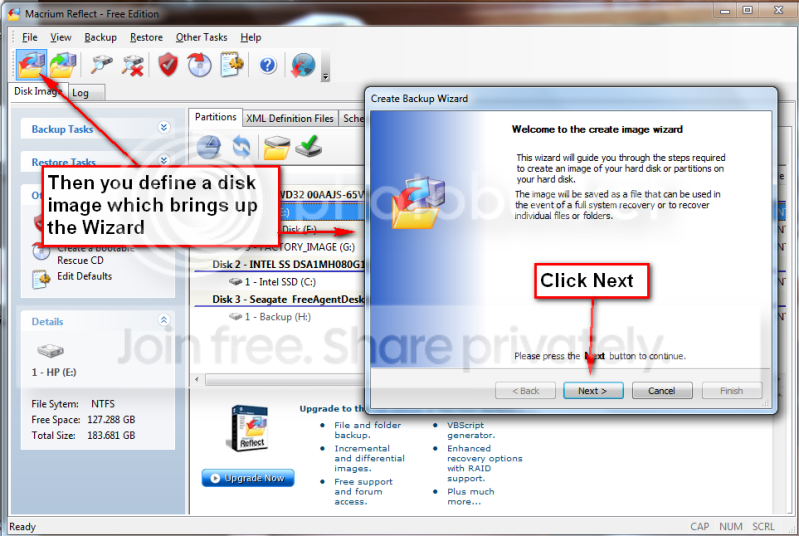
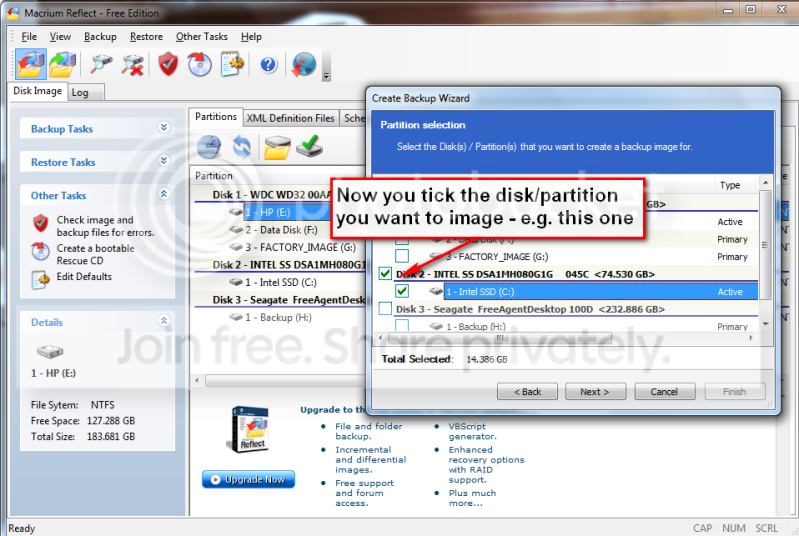
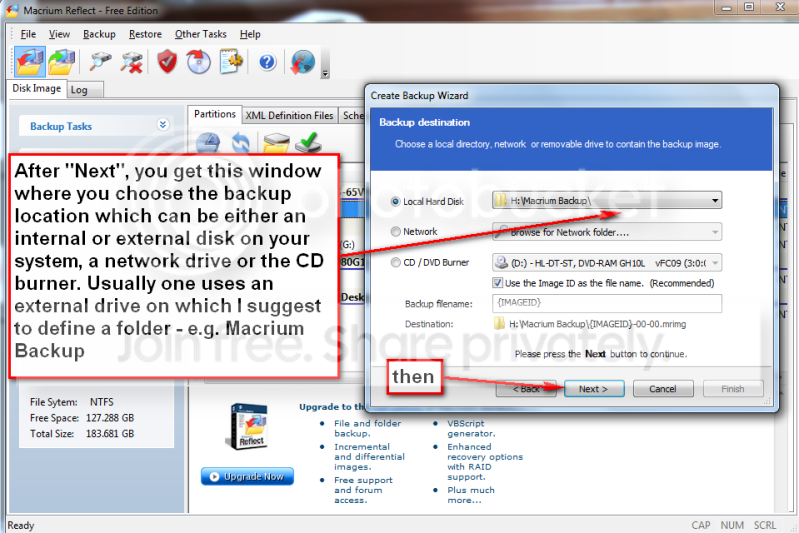
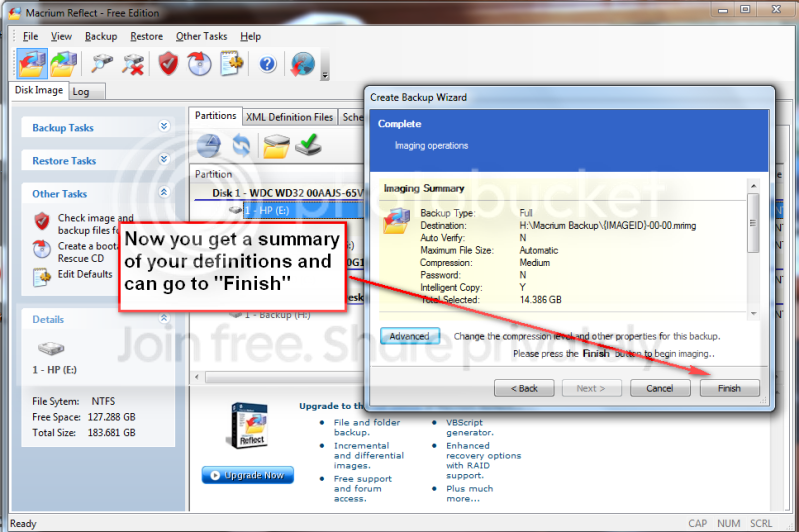
Not quite the same but very easy is Macrium. Below you find the four steps to set it up and the one step to run it thereafter. You will notice that the handling of Macrium is as easy as can be. To download the free Macrium, you go to this site:

http://www.macrium.com/reflectfree.asp

There is also a paid version with more functions. But for the normal backup/restore, the free version is sufficient.
I did not document the restore function, in part, because I cannot take any screenshots during that phase. But it is very simple and self explanatory. All you need to do is set your BIOS boot sequence to boot from your CD reader, put the CD in (the one you burnt – see the first picture) and off it goes. The CD loads a Linux based Wizard that will guide you thru a few simple questions.
Performance when you take the image should be in the 10 minute range for an average system. Restore is about 20 minutes without prior image verification and twice as long with prior image verification


p1.png


p2.png


p3.png


p4.png


p5.png


p6.png

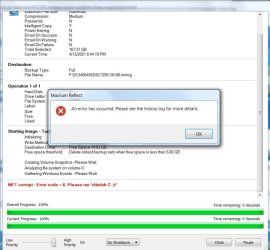
I downloaded the free version today, followed the above instructions except I tried to save the system image to an external hard drive 14.6 GB free, and I got this error and do not know how to fix it:
Macrium Issues.JPG
 

My Computer

Computer type
Laptop
Computer Manufacturer/Model Number
HP EleteBook 8740w
OS
Windows 7 Home Professional
Antivirus
PC Matic
Browser
Brave
The error message says to run chkdsk C: /r on your C Drive. This may help Disk Check


From your image it appears you are trying to put a 167 GB image on a 14.6 GB external. That can't happen. You will need a much larger external drive.
 

My Computers

System One System Two

  • Computer type
    PC/Desktop
    Computer Manufacturer/Model Number
    ALWAYS UNDER CONSTRUCTION
    OS
    Windows 11 Pro
    CPU
    Ryzen 9 5900X
    Motherboard
    Asus X570 Crosshair Viii Hero
    Memory
    32GB G Skill DDR4-3600
    Graphics Card(s)
    EVGA RTX 3080 FTW 3 Ultra
    Sound Card
    On Board/Sennheiser PC37X Headset
    Monitor(s) Displays
    3 X Asus 27"
    Screen Resolution
    2560x1440
    Hard Drives
    2 X 1 TB NVME drives
    PSU
    EVGA 850
    Case
    Phanteks Eclipse P400A
    Cooling
    EVGA 280 AIO
    Keyboard
    Logitech G510s/ Logitech G13
    Mouse
    Logitech G502
    Internet Speed
    24/1
    Antivirus
    ESET/MBAM Pro/SAS Pro
    Browser
    Chrome/ Firefox/ Edge
  • Computer type
    Laptop
    System Manufacturer/Model Number
    Dell 16 Plus
    OS
    Windows 11 Pro
    CPU
    Intel Ultra 9 288V
    Memory
    32 GB LPDDR5X 8533
    Monitor(s) Displays
    16" Mini-LED HDR600 Touch 90 Hz
    Screen Resolution
    2560X1600
    Hard Drives
    1 TB NVME
Hi
I have setup Macrium Reflect on a Synology nas. I can pxe boot to the nas and backup and restore.
To do this on all the computers I have to create a rescue iso on every machine and put that on the nas and then add it to the pxe boot menu. Is there a way to install all my computer network drivers into one rescue image iso?
That way I could boot to the rescue image then choose which folder to backup/restore to and not have a different rescue image for each computer. I noticed in the win10 forum that Kari uses viBoot. I cannot run that on windows7.
Currently I am running windows 7 pro on most machines and 1 machine with windows 10 home. and Macrium Reflect V7.3 build:5854.
 

My Computers

System One System Two

  • OS
    Windows 7 Pro
  • Computer type
    PC/Desktop
Did you all see the popup in Macrium Reflect Free that they are ending support for free on Jan 1, 2024. If not you might see it if you pull up the check for updates.

This means no future updates after this year (2023). I plan to keep using it anyway on my win7 for now.
 

My Computers

System One System Two

  • Computer type
    PC/Desktop
    Computer Manufacturer/Model Number
    HP
    OS
    Windows 7 Home Premium 64bit.
  • Computer type
    PC/Desktop
Back
Top