

writhziden
Closed by request.
How I Debug Blue Screen Crashes
That is pretty much it.
SSD Related Crashes
Some Useful Links:
Latest WinDbg install: Windows Software Development Kit (SDK) for Windows 8 Release Preview
There are some really nice tutorials and diagnostics compiled by usasma that help, as well. Some on here, some on his site.
On SevenForums:
On usasma's site:
And a tutorial by H2SO4: Stop 0x124 - what it means and what to try
Verifier settings I use:
Hope the above is not too intimidating and provides useful steps. Happy debugging!!!
- Download the .zip file generated by the http://www.sevenforums.com/crashes-debugging/96879-blue-screen-death-bsod-posting-instructions.html that were developed by jcgriff2.
What do I do if the user has not uploaded the appropriate files?- If the user uploads .dmps and not the jcgriff2 files, I usually analyze the crashes first. Then at the end, I tell them what I found and ask that if they continue to have problems that they then upload the full crash reports by following the instructions in the blue screen of death posting instructions. If they upload the .dmps a second time, I repeat that we need them to follow those instructions because the .dmp files are no providing enough information. I give them the link to the instructions in both instances.
- What if no .dmp files are contained? There are two options here: make sure to get the jcgriff2 .zip file to continue with either option.
- Option 1: Open the $evtx_sys_dump.txt file. Search for the keyword "bugcheck" (without quotes) within the $evtx_sys_dump.txt file. Determine the bugcheck code and proceed to step 6 in this tutorial and the BSOD Index/BugCheck reference links.
- Option 2: Sometimes no bugcheck code is listed in that file. In that case, make sure the settings are correct in the $_WMIC_recoveros.txt file. The settings should look like:
If the settings do not match, then refer the user to http://www.sevenforums.com/tutorials/174459-dump-files-configure-windows-create-bsod.html OPTION ONE step 6. or OPTION TWO step 2.Code:AutoReboot=TRUE Caption= DebugFilePath=%SystemRoot%\MEMORY.DMP DebugInfoType=2 Description= ExpandedDebugFilePath=C:\Windows\MEMORY.DMP ExpandedMiniDumpDirectory=C:\Windows\Minidump KernelDumpOnly=FALSE MiniDumpDirectory=%SystemRoot%\Minidump Name=Microsoft Windows 7 Professional |C:\Windows|\Device\Harddisk1\Partition1 OverwriteExistingDebugFile=TRUE SendAdminAlert=FALSE SettingID= WriteDebugInfo=TRUE WriteToSystemLog=TRUE AllocatedBaseSize=8183 Caption=C:\pagefile.sys CurrentUsage=0 Description=C:\pagefile.sys InstallDate=20120525171648.201236+120 Name=C:\pagefile.sys PeakUsage=0 Status= TempPageFile=FALSE
- Option 1: Open the $evtx_sys_dump.txt file. Search for the keyword "bugcheck" (without quotes) within the $evtx_sys_dump.txt file. Determine the bugcheck code and proceed to step 6 in this tutorial and the BSOD Index/BugCheck reference links.
- There is one other scenario I have not yet mentioned. A lot of users come to us with freezes (usually hardware), black screen crashes where the monitor stops giving video output (likely the video card, but can be other things), or a system that suddenly restarts without warning. Greg's tutorial http://www.sevenforums.com/tutorials/220165-troubleshooting-steps-windows-7-a.html can be of great help here. Prior to linking that tutorial, make sure they know that if they are under warranty, they should send the system in for the warranty repairs prior to doing step 8., 10., or 11.
They can run Memtest86+ in step 8, but I would recommend giving that as a seperate step and telling them not to move any modules around if they are under warranty through a vendor like HP, Dell, etc.
Black screen crash information can also be found in Why is my screen black when I start Windows 7?
- If this is the first time using the WinDbg program go through the steps in http://www.sevenforums.com/crash-lockup-debug-how/26584-configuring-debugging-tools.html to configure them. I am including some image steps, as well, to hopefully make it a little clearer. Images 1-2 give the steps to set up the symbols with
as the symbol save and download paths.Code:
SRV*C:\SymCache*http://msdl.microsoft.com/download/symbols
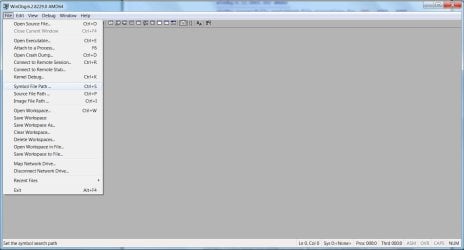
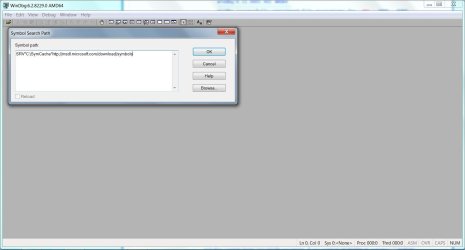
- Use CTRL + D to open a crash .dmp file. Navigate to where the jcgriff2 .zip file was extracted (or the .dmp directory if the user did not provide the jcgriff2 .zip file). Open the file and let it load. When you open the file, you will get a dialog as seen in the following image:
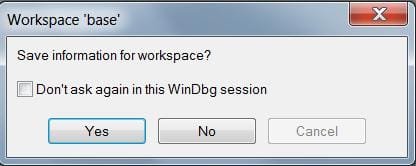
The next step is crucial. If you plan on debugging a lot of crashes, which I hope you do if you are reading this tutorial, then you will want to put a tick in the box for "Do not ask again in this WinDbg session." Then click Yes.
NOTE: You will never be asked this again, so make double sure your symbol path and download path are set and correct.
If you do by chance make a mistake with the above: File -> Clear Workspace... and then File -> Delete Workspace... and make sure to clear all and delete all saved workspaces. Exit the WinDbg program, restart it, and you will be given the option to setup symbols again. Then save the workspace when you open the next .dmp file.
- Now, prior to proceeding through the WinDbg analysis, I like to check the msinfo32.nfo file and the $systeminfo.txt file in the jcgriff2 reports.
For the msinfo32.nfo file:
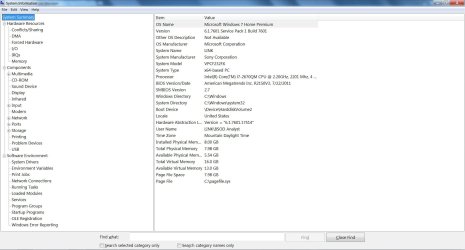
- If you did not get an msinfo32.nfo file or it is corrupted/unreadable, here are the steps to obtain it:
Please upload your msinfo32.nfo file. To get this: Start Menu -> Type msinfo32 into the Search programs and files box -> When it opens, go to File, Save -> Save as msinfo32.nfo and save in a place you will remember -> Let it finish the process of gathering and saving the system info -> Right click the .nfo file, click send to compressed (zipped) folder -> Upload the .zip file here.
Please upload your msinfo32.txt file. To get this: Start Menu -> Type msinfo32 into the Search programs and files box -> When it opens, go to File, Export -> Save as msinfo32.txt and save in a place you will remember -> Let it finish the process of gathering and saving the system info -> Right click the .txt file, click send to compressed (zipped) folder -> Upload the .zip file here.
The .txt file is a bit harder to read, and impossible if it is not in English unless you want to use Google translate... It can be necessary if the .nfo file is not possible to open, though.
- Once you have the msinfo32 file: First, check the BIOS date. It should be on the first screen that shows up when the file opens. If it is pre 2009, ask that the user check hardware compatibility with Windows 7: Windows 7 Compatibility: Software Programs & Hardware Devices: Find Updates, Drivers, & Downloads
- Next, check Hardware resources (the first expandable item) and look for forced hardware (the third item in the list when it is expanded). If any hardware is listed as forced, let the user know. This is very rare.
- Check Components (the second expandable item). The second to last item in that expanded list is Problem Devices; apprise the user of any problem devices.
NOTE: If you see PS/2 devices listed, check the Input devices. It is the sixth item in the expanded Components list. See if there are special/USB keyboard or mouse devices. Gaming mice can cause a PS/2 missing mouse to show up as a problem device, and a USB keyboard can cause a PS/2 missing keyboard to show up. Those can then be ignored.
- In Components still, check Network devices. It is the eighth item in the list. Look for any USB Wireless Network Adapter devices. These are known to cause problems, especially if their drivers are out of date. USB ports do not always provide the power necessary for wireless network adapters to run reliably. If someone is using such a device and it is implicated later in crashes (or their network is), I recommend replacing the device with a PCI Wireless Network Adapter.
- The final check is the third expandable item: Software Environment. Check Running tasks (fifth item down) for antivirus software; make sure multiple realtime protection programs are not running at the same time.
- In Software Environment, also check Program Groups and Startup Programs to see if there are possible issues there. Maybe too many programs start up, or too many realtime security programs start up. In Program Groups, I check for any 3rd party defrag, driver finding, and Windows optimization tools. If you are unsure about a listed program, Google is a huge help in most cases. In my experience, all of these 3rd party tools cause crashes from time to time or degrade system performance and stability (with the probable exception of CCleaner).
Do look for CCleaner, too. Especially if no .dmp files were included. CCleaner often deletes .dmps without the average user's knowledge.
Now, for $systeminfo.txt:
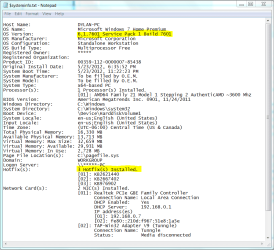
- Check that Service Pack 1 is installed. The first highlighted area will give that information. You can also check in the .dmp files whether it is 7600 or 7601 to determine whether SP1 (7601) is installed.
- Check the number of hotfixes installed. It should be between 80-100 at this point. You'll get a feel for it as you analyze more, and obviously this is subject to change as new service packs are released.
- If you did not get an msinfo32.nfo file or it is corrupted/unreadable, here are the steps to obtain it:
- To analyze the actual .dmp files:
- If you have not yet opened one of the .dmps, do so now. I like to start with the most recent and work backward in time through them. I usually analyze the first 5-10 looking for patterns. 7-zip is the best method to retain the actual modified dates when extracting the files. That way you know which .dmp is most recent.
- The reason I start with the most recent is then I can look at the most up to date setup of the system and the loaded drivers at this time. To see drivers: Debug -> Modules... as in the images
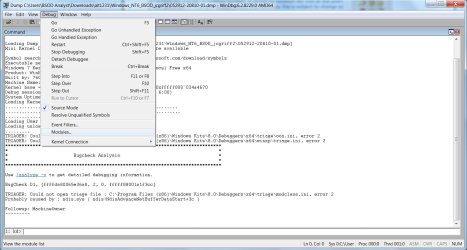
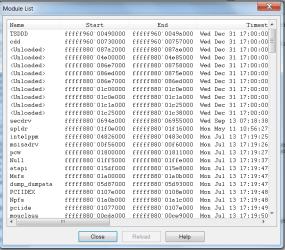
Next, the fourth column from the left is the timestamp. The first column is the name. I click the Timestamp header first to check for any drivers pre-Windows 7, or prior to July 13, 2009. Not all old drivers cause problems, so just because it is out of date, do not assume it is definitely an issue. The main ones to look for are:- ASACPI.sys (this one just needs to be 2009; it does not matter if it is pre-Windows 7),
- RTCore32.sys,
- RTCore64.sys,
- network drivers,
- audio drivers,
- graphics drivers,
- chipset related drivers,
- hard disk controller drivers like iaStor and mv91xx.
- Also, any antivirus software drivers that are out of date are likely to cause problems (with the exception of f-secure since one of its drivers is always out of date).
- If you end up recommending Driver Verifier, sort the list of modules by name and look for the following:
- dtsoftbus01.sys,
- SFEP.sys, Make sure SFEP.sys is up to date; it is the Sony Firmware Extension Parser driver and has issues if it is pre-July 13, 2009. Users with an outdated driver can usually get a driver from a newer Sony model: Sony eSupport - VPCEH290X - Drivers & Software
- sptd.sys, make sure DaemonTools software is removed if you see dtsoftbus01.sys or sptd.sys. sptd.sys should be removed whether using Verifier or not since it is a known cause of crashes. The removal tool for it is sptd.sys uninstaller.
- acsock64.sys, internet issues: Computer stops responding when you run an application that uses the Windows Filtering Platform API in Windows 7, Windows Server 2008 R2, Windows Server 2008, or Windows Vista
- If you have not yet opened one of the .dmps, do so now. I like to start with the most recent and work backward in time through them. I usually analyze the first 5-10 looking for patterns. 7-zip is the best method to retain the actual modified dates when extracting the files. That way you know which .dmp is most recent.
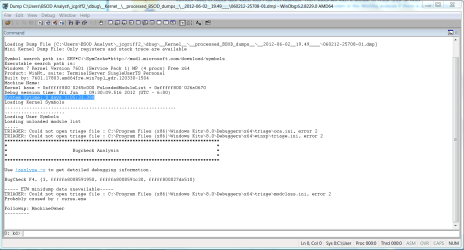
- Once done looking through drivers, I close the modules list, and I run the !analyze -v command in the command window.
User-friendly: Analyzing your first BSoD! is basically how I started.
I then look at the BugCheck code and use the following two references:
usasma's BSOD Index. This lists common causes for the BugCheck, so if a driver is not directly known or to blame, you can determine troubleshooting steps. This takes a bit of experience to determine which steps work best for which situations.
PM me if you need help at this point.
Bug Check Code Reference gives some very nice information including Cause and Resolution steps by scrolling down after going to a link for a BugCheck code.
That is pretty much it.
SSD Related Crashes
I should also mention that SSD crashes are common. Check the msinfo32.nfo file for storage drives (fourth item from the bottom in the Components expanded list) and see if an SSD is installed. For SSDs, make sure the following are up to date:
Also, for the SSD, sometimes users say that after crashes the SSD will disappear from the system. Brink provided a link I now use and the steps I provide that follow.
-------------EDIT-------------
Another thing to check with SSDs that I did not mention. The Crucial M4 SSD is known to crash after an hour of uptime if the firmware is not up to date. Check the uptime of the system in the WinDbg analysis if there is an M4 involved.
http://www.sevenforums.com/crashes-...ion-1-hour-after-cold-boot-3.html#post1793840
- SSD firmware
- BIOS Version
- Chipset Drivers
- Hard disk controller drivers/SATA drivers
- Marvell IDE ATA/ATAPI controllers (older drivers for these are especially problematic)
Also, for the SSD, sometimes users say that after crashes the SSD will disappear from the system. Brink provided a link I now use and the steps I provide that follow.
Try doing a power cycle of the SSD. The following steps should be carried out and take ~1 hour to complete.
- Power off the system.
- Remove all power supplies (ac adapter then battery for laptop, ac adapter for desktop)
- Hold down the power button for 30 seconds to close the circuit and drain all components of power.
- Reconnect all power supplies (battery then ac adapter for laptop, ac adapter for desktop)
- Turn on the system and enter the BIOS (see your manual for the steps to enter the BIOS)
- Let the computer remain in the BIOS for 20 minutes.
- Follow steps 1-3 and physically remove the SSD from the system by disconnecting the cables for a desktop or disconnecting the drive from the junction for a laptop.
- Leave the drive disconnected for 30 seconds to let all power drain from it.
- Replace the drive connection(s) and then do steps 4-8 again.
- Repeat steps 1-4.
- Start your computer normally and run Windows.
The above steps were a result of: Why did my SSD "disappear" from my system? - Crucial Community
While that may not be your drive, a power cycle should be the same on all SSD drives. See how the system responds after the SSD power cycle.
-------------EDIT-------------
Another thing to check with SSDs that I did not mention. The Crucial M4 SSD is known to crash after an hour of uptime if the firmware is not up to date. Check the uptime of the system in the WinDbg analysis if there is an M4 involved.
http://www.sevenforums.com/crashes-...ion-1-hour-after-cold-boot-3.html#post1793840
Some Useful Links:
Latest WinDbg install: Windows Software Development Kit (SDK) for Windows 8 Release Preview
There are some really nice tutorials and diagnostics compiled by usasma that help, as well. Some on here, some on his site.
On SevenForums:
- http://www.sevenforums.com/crash-lo...op-0x116-video_tdr_error-troubleshooting.html
- http://www.sevenforums.com/crash-lo...0x101-clock_watchdog_timeout-troubleshtg.html
On usasma's site:
And a tutorial by H2SO4: Stop 0x124 - what it means and what to try
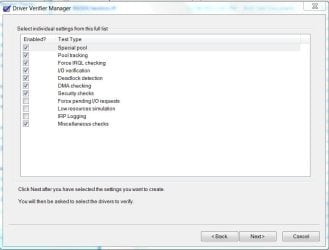
Verifier settings I use:
- An underlying driver may be incompatible\conflicting with your system. Run Driver Verifier to find any issues. To run Driver Verifier, do the following:
a. Backup your system and user filesThe idea with Verifier is to cause the system to crash, so do the things you normally do that cause crashes. After you have a few crashes, upload the crash reports for us to take a look and try to find patterns.
b. Create a system restore point
c. If you do not have a Windows 7 DVD, Create a system repair disc
d. In Windows 7:
- Click the Start Menu
- Type verifier in Search programs and files (do not hit enter)
- Right click verifier and click Run as administrator
- Put a tick in Create custom settings (for code developers) and click next
- Put a tick in Select individual settings from a full list and click next
- Set up the individual settings as in the image and click next
- Put a tick in Select driver names from a list
- Put a tick next to all non-Microsoft drivers.
- Click Finish.
- Restart your computer.
If Windows cannot start in normal mode with driver verifier running, start in safe mode. If it cannot start in safe mode or normal mode, restore the system restore point using http://www.sevenforums.com/tutorials/700-system-restore.html OPTION TWO.
If you are unable to start Windows with all drivers being verified or if the blue screen crashes fail to create .dmp files, run them in groups of 5 or 10 until you find a group that causes blue screen crashes and stores the blue screen .dmp files.
When you are ready to disable Verifier: Start Menu -> All Programs -> Accessories -> Right click Command Prompt -> Run as administrator -> Type the following command and then Enter:verifier /reset-> Restart your computer.
Hope the above is not too intimidating and provides useful steps. Happy debugging!!!
Last edited:
My Computer
At a glance
Windows 7 Home Premium 64 BitIntel(R) Core(TM)2 Quad CPU Q9550 @ 2.83GHz6.00 GB Hundai HMT125U6BFR8C-H9ATI Radeon HD 4850
- Computer Manufacturer/Model Number
- HP Pavilion e9110t
- OS
- Windows 7 Home Premium 64 Bit
- CPU
- Intel(R) Core(TM)2 Quad CPU Q9550 @ 2.83GHz
- Motherboard
- Pegatron IPIEL-LA3
- Memory
- 6.00 GB Hundai HMT125U6BFR8C-H9
- Graphics Card(s)
- ATI Radeon HD 4850
- Sound Card
- Realtek High Definition Audio/ATI High Definition Audio
- Monitor(s) Displays
- Acer AL2216W
- Screen Resolution
- 1680x1050
- Hard Drives
- Hitachi HDP725050GLA360 ATA Device 500 GB
- PSU
- Unknown/installed by HP
- Case
- HP generic case
- Cooling
- Intel Stock Cooling
- Keyboard
- HP Keyboard
- Mouse
- HP Mouse
- Internet Speed
- Download: 19.15 Mbps Upload: 1.67 Mbps
- Other Info
- Network Adapter Realtek RTL8168D/8111D Family PCI-E Gigabit Ethernet NIC (NDIS 6.20)
Network Adapter 802.11n Wireless PCI Express Card LAN Adapter


