
ANN: Classic Shell 2.9.3 is out - Now with Search!

Ivo

New member
Hi, everybody

I just released the new version 2.9.3 of Classic Shell. You can download it from here: Welcome to Classic Shell

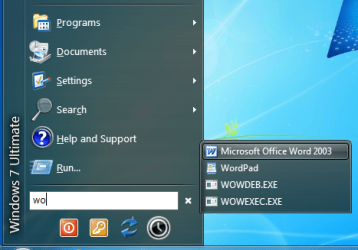
The main new feature is the addition of a search box. You can search the contents of the start menu and the directories in your PATH environment variable.

There is also a new feature that lets you add a row of buttons (like for shutdown). See the attached image.

For a full list of changes visit the History page: Classic Shell: History

Please report any problems on the Source Forge bug tracker: SourceForge.net: Classic Shell: Bugs

Regards
Ivo
 

Attachments
  • search.png
    search.png
    98.4 KB · Views: 43

My Computer

Computer Manufacturer/Model Number
Me :) I build all my PCs
OS
Windows 7 Home 64, Vista Ultimate 64
I downloaded the new version and although I installed it after uninstalling the previous version and having restarted the PC; I still do not have a SEARCH box in the start menus:cry:
 

My Computer

OS
windows 7 home premium x64
CPU
i7 920
Motherboard
asus p6t se
Memory
6 gb corsair
Graphics Card(s)
gtx 260
Hard Drives
wd 640gb
I don't know what is so special about this. I like the windows 7 start menu, and if you really want to go skinny, buy or download aston menu 2!
And btw enabling the explorerbalk is easy to do yourself, as I recently learned :)
 

My Computer

Computer type
Laptop
Computer Manufacturer/Model Number
HP Probook 4710s
OS
Windows 7 Home Premium 32 bit
Hard Drives
Fujitsu
Mouse
Touchpad
I downloaded the new version and although I installed it after uninstalling the previous version and having restarted the PC; I still do not have a SEARCH box in the start menus:cry:

Since this is a "classic start menu", the search box is not enabled by default. You will have to go to the settings, open the Search Box tab, and enable it from there.
Note: If you have modified the menu structure you may be missing the search box item. Go to the Customize Start Menu tab, grab "Search Box" from the right side and drop it into the left side where you want the search box to appear.
 

My Computer

Computer Manufacturer/Model Number
Me :) I build all my PCs
OS
Windows 7 Home 64, Vista Ultimate 64
I don't know what is so special about this. I like the windows 7 start menu, and if you really want to go skinny, buy or download aston menu 2!
And btw enabling the explorerbalk is easy to do yourself, as I recently learned :)

Maybe I should take a look at that "aston menu 2". That's the first time I'm hearing about it.
I don't know what you mean by "explorerbalk" - sorry.
 

My Computer

Computer Manufacturer/Model Number
Me :) I build all my PCs
OS
Windows 7 Home 64, Vista Ultimate 64
WOW Thanks IVO!:D
May you enjoy your life to the fullest. It is people like you that make life easier for the rest of us who have to put up with the Idiots at MS who think they know us better than we do ourselves.

Thanks again :party:
 

My Computer

OS
windows 7 home premium x64
CPU
i7 920
Motherboard
asus p6t se
Memory
6 gb corsair
Graphics Card(s)
gtx 260
Hard Drives
wd 640gb
I meant explorerbar (sorry was speaking dutch :) )
 

My Computer

Computer type
Laptop
Computer Manufacturer/Model Number
HP Probook 4710s
OS
Windows 7 Home Premium 32 bit
Hard Drives
Fujitsu
Mouse
Touchpad
ANN: Classic Shell 3.0

Version 3.0 of Classic Shell was just released. Download it from here: Welcome to Classic Shell
It fixes all bugs that were reported since the last release candidate. Other than that, there are no new features.
 

My Computer

Computer Manufacturer/Model Number
Me :) I build all my PCs
OS
Windows 7 Home 64, Vista Ultimate 64
Awesome, Ivo. You've done an amazing job! Thanks! :D
 

My Computer

Computer Manufacturer/Model Number
Toshiba L355D
OS
Windows 7 Ultimate x64 SP1
CPU
Core2 Duo
Motherboard
Intel
Memory
4 GB
Graphics Card(s)
GM965 on-board
Sound Card
RealTek on-board
Monitor(s) Displays
19"+17"(laptop)
Screen Resolution
1440x900 (x 2)
Hard Drives
500GB Ext. 200GB Internal
PSU
N/A
Case
N/A
Cooling
N/A
How to Customize the Start Button right click context menu

Hello Ivo,
I am referring to this thread: How to Customize the Start Button right click context menu


Normally the right click context menu of the start button shows this two menu entries:
  • Properties
  • Open Windows Explorer
Your program "Classic Start Menu" replaces this context menu with:
  • ==Classic Start Menu==
  • Open
  • Open All Users
  • Settings
  • Help
  • Exit
I see that this context menu is configured in "StartMenuL10N.ini":
Code:
Menu.Open = &Open
Menu.OpenAll = O&pen All Users
Menu.MenuSettings = Settings
Menu.MenuHelp = Help
Menu.MenuExit = Exit
Is it possible to add personal menu entries to the context menu ?
Perhaps without using "Classic Start Menu" ?
 

My Computer

OS
Windows 7
The text for the entries is configured there, not what those entries do. The reason for the file is to change the text depending on the language, not to change the behavior.
 

My Computer

Computer Manufacturer/Model Number
Me :) I build all my PCs
OS
Windows 7 Home 64, Vista Ultimate 64
Yes, I understand this. I see that the using of the variables of "StartMenuL10N.ini" is hard coded in "ClassicStartMenuDLL.dll". Because you know the background how to modify the context menu of start button I hoped you can explain how to change this code to work:
Code:
Windows Registry Editor Version 5.00

[HKEY_CLASSES_ROOT\Directory\shell\Notepad]
[HKEY_CLASSES_ROOT\Directory\shell\Notepad\command]
@="c:\\windows\\notepad.exe"

[HKEY_CLASSES_ROOT\Directory\shell\Regedit]
[HKEY_CLASSES_ROOT\Directory\shell\Regedit\command]
@="c:\\WINDOWS\\REGEDIT.EXE"
 

My Computer

OS
Windows 7
So you want to click on the start button, see a menu, and then run an item of that menu?
That's what the start menu is for! :) Simply add your programs to it.
If you don't care about having a classic start menu, you can customize the classic menu with just Notepad and Regedit (remove all other items), and then set it to open on middle click. Left click will open the Windows start menu, and middle click will open the small menu with 2 programs in it.
 

My Computer

Computer Manufacturer/Model Number
Me :) I build all my PCs
OS
Windows 7 Home 64, Vista Ultimate 64
So you want to click on the start button, see a menu, and then run an item of that menu?
No. I want to right click on the start button and have their some individual integrated shortcuts to programs which I often use (notpad, regedit, ZIP program etc.)
 

My Computer

OS
Windows 7
I understand you want to right click, but that's not supported. I'm giving you 2 other options - left click and middle click. What you ask is to add a third customizable menu to the start button (you already have 2 - the standard and the classic), which IMO is quite unnecessary.
 

My Computer

Computer Manufacturer/Model Number
Me :) I build all my PCs
OS
Windows 7 Home 64, Vista Ultimate 64
What you ask is to add a third customizable menu to the start button (you already have 2 - the standard and the classic), which IMO is quite unnecessary.
You are right - "Classic Start Menu" has enough good features.

But I also like the feature to add some links to programs into right click menu of the start button. This is much faster than navigating though the menus of "Classic Start Menu".

My question was just meant so: Is it possible to activate this feature - even if I not use "Classic Start Menu". And I hoped you can solve this problem easily with you excellent background know how of Windows 7 Start Menu internals - even it has nothing to do with "Classic Start Menu".
 

My Computer

OS
Windows 7
No, sorry. It is a pretty big deal just to get some code running inside Explorer. Classic Shell requires 2 DLLs and 2 EXEs for the job. That's quite a bit fo work just to change something from middle click to right click.
Also if I make a tool to replace the right-click menu, it will break Classic Shell (how will you open the current menu then?). I am not going to break my own software :)
 

My Computer

Computer Manufacturer/Model Number
Me :) I build all my PCs
OS
Windows 7 Home 64, Vista Ultimate 64
Hello,

want to ask what commands would be for:

1. Details pane
2. Preview pane
3. Navigation pane
4. Open folder in new window
5. Delete button which would work like shift+delete
6. Print
7. Burn
8. Play all
9. Slide show
10. New text file

Maybe somewhere exists same/similar commands list? Thanks


4. looks like %windir%\explorer.exe %2 works :)
 

My Computer

OS
Windows 7 Ultimate x64
Here's how you can do some of these: SourceForge.net: Classic Shell: Topic: Show/Hide Navigation pane button

If you hold down shift while pressing the Delete button you will get #5. Or do something like cmd.exe /C del %1. I haven't tried it, so experiment a little to make it work.

I don't know about the rest. There are probably different solutions depending on how fancy or robust you want it.
 

My Computer

Computer Manufacturer/Model Number
Me :) I build all my PCs
OS
Windows 7 Home 64, Vista Ultimate 64
What I do wrong?

if I try to build play button:

"C:\Program Files\Windows Media Player\wmplayer.exe" /Play "%L"
or
"%ProgramFiles(x86)%\Windows Media Player\wmplayer.exe" /prefetch:8 /Play "%L"

not working.


if I try to build slide show button:

Executing Control Panel Items (Windows)
in comments found Windows SideShow:

%SystemRoot%\System32\AuxiliaryDisplayCpl.dll,-1

not working.

I want to completely remove command bar and use Classic Shell just first need to build some buttons in Classic Shell which are in command bar. Thanks
 

My Computer

OS
Windows 7 Ultimate x64
Back
Top