
You are using an out of date browser. It may not display this or other websites correctly.
You should upgrade or use an alternative browser.
You should upgrade or use an alternative browser.
Maximize Windows using batch file during startup
- Thread starter beidog
- Start date

DeVandal
Expelled
Create a shortcut to your browser. In the Target field, add SPACE followed by URL enclosed in parentheses.
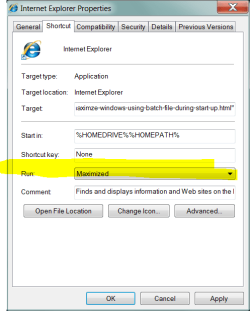
Set shortcut property to open maximized. Place shortcut in Startup folder (or a more advanced startup location. If you don't know how, just use the Startup folder).
Set shortcut property to open maximized. Place shortcut in Startup folder (or a more advanced startup location. If you don't know how, just use the Startup folder).
My Computer
- OS
- Windows 7 Ultimate x64
- CPU
- P4 3.2
- Motherboard
- Intel 815GM
- Memory
- DDR 400
- Graphics Card(s)
- ATI HD3850
- Sound Card
- C-Media 7.1
- Monitor(s) Displays
- SyncMaster 244T
- Screen Resolution
- 1920*1200
- Hard Drives
- Several
- PSU
- 500
- Case
- PowerSpec $24
- Cooling
- ThermalTake copper
- Internet Speed
- Blazing
how to set the shortcut property for particular a website?
I can set Shortcut property of IE, but while I open the shortcut of the website, it;s not maximized.
Also, how can I open a shortcut in full screen(F11). I can change from regedit, but after the computer restart, it back to the regular screen.
I can set Shortcut property of IE, but while I open the shortcut of the website, it;s not maximized.
Also, how can I open a shortcut in full screen(F11). I can change from regedit, but after the computer restart, it back to the regular screen.
My Computer
- OS
- Windows 7 Ultimate x64
DeVandal
Expelled
In the Target field, add SPACE followed by URL enclosed in parentheses.how to set the shortcut property for particular a website?
Set shortcut property to open maximized.while I open the shortcut of the website, it;s not maximized.
I don't know. Wait, I was schooled...Also, how can I open a shortcut in full screen(F11).
Attachments
Last edited:
My Computer
- OS
- Windows 7 Ultimate x64
- CPU
- P4 3.2
- Motherboard
- Intel 815GM
- Memory
- DDR 400
- Graphics Card(s)
- ATI HD3850
- Sound Card
- C-Media 7.1
- Monitor(s) Displays
- SyncMaster 244T
- Screen Resolution
- 1920*1200
- Hard Drives
- Several
- PSU
- 500
- Case
- PowerSpec $24
- Cooling
- ThermalTake copper
- Internet Speed
- Blazing

Kari
An Angry Old Man
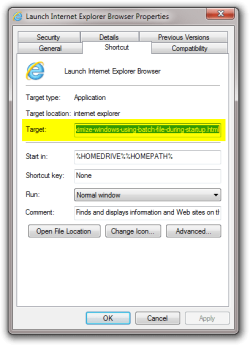
You mean the so called kiosk mode (F11). That can be done with -k switch in shortcut target. For instance to open this page in kiosk mode in IE from a shortcut, just create a new shortcut and add this to Target:
Shortcut to open this page in 32-bit IE (default), in kiosk mode on a 64-bit Windows 7:
"%programfiles(x86)%\internet explorer\iexplore.exe" -k http://www.sevenforums.com/general-discussion/139966-maximize-windows-using-batch-file-during-startup.html
Shortcut to open this page in 64-bit IE, in kiosk mode on a 64-bit Windows 7, OR to open this page in 32-bit IE, in kiosk mode on a 32-bit Windows 7:
"%programfiles%\internet explorer\iexplore.exe" -k http://www.sevenforums.com/general-discussion/139966-maximize-windows-using-batch-file-during-startup.html
To "decode" that line, there's first the path to IE, followed by the switch -k which opens IE in borderless kiosk mode, followed by the URL of the site you want to open.
Kari
Shortcut to open this page in 32-bit IE (default), in kiosk mode on a 64-bit Windows 7:
"%programfiles(x86)%\internet explorer\iexplore.exe" -k http://www.sevenforums.com/general-discussion/139966-maximize-windows-using-batch-file-during-startup.html
Shortcut to open this page in 64-bit IE, in kiosk mode on a 64-bit Windows 7, OR to open this page in 32-bit IE, in kiosk mode on a 32-bit Windows 7:
"%programfiles%\internet explorer\iexplore.exe" -k http://www.sevenforums.com/general-discussion/139966-maximize-windows-using-batch-file-during-startup.html
To "decode" that line, there's first the path to IE, followed by the switch -k which opens IE in borderless kiosk mode, followed by the URL of the site you want to open.
Kari
Last edited:
My Computer
- Computer type
- Laptop
- Computer Manufacturer/Model Number
- HP ENVY 17-1150eg
- OS
- Windows 10 Pro x64 EN-GB
- CPU
- 1.6 GHz Intel Core i7-720QM Processor
- Memory
- 6 GB
- Graphics Card(s)
- ATI Mobility Radeon HD 5850 Graphics
- Sound Card
- Beats sound system with integrated subwoofer
- Monitor(s) Displays
- 17" laptop display, 22" LED and 32" Full HD TV through HDMI
- Screen Resolution
- 1600*900 (1), 1920*1080 (2&3)
- Hard Drives
- Internal: 2 x 500 GB SATA Hard Disk Drive 7200 rpm
External: 2TB for backups, 3TB USB3 network drive for media
- Cooling
- As Envy runs a bit warm, I have it on a Cooler Master pad
- Keyboard
- Logitech diNovo Media Desktop Laser (bluetooth)
- Mouse
- Logitech Performance Mouse MX
- Internet Speed
- 50/10 Mbps VDSL
- Antivirus
- Windows Defender 4.3.9431.0
- Browser
- Maxthon 3.5.2., IE11
I can find these all in the IE shortcut, but not the website shortcut(No Maximize windows options and the "Target")
Everything I changed on the IE Shortcut(the Maximize Windows and the -K options) doesn't affect anything on the website shortcut. Thus, I put the website shortcut on the startup, the webpage still pops up like the normal screen.
Everything I changed on the IE Shortcut(the Maximize Windows and the -K options) doesn't affect anything on the website shortcut. Thus, I put the website shortcut on the startup, the webpage still pops up like the normal screen.
My Computer
- OS
- Windows 7 Ultimate x64
Kari
An Angry Old Man
Let's try one more time. Follow these instructions exactly as written, doing every step as told and nothing else.
This example creates a shortcut that opens Seven Forums in Internet Explorer borderless kiosk mode (same as if F11 is pressed), and saves the shortcut in Startup folder so it is automatically run every time Windows is launched:

Kari
This example creates a shortcut that opens Seven Forums in Internet Explorer borderless kiosk mode (same as if F11 is pressed), and saves the shortcut in Startup folder so it is automatically run every time Windows is launched:
- Click Start Orb
 rb:
rb: - If you want this shortcut to be launched only when logging in to the current user account, right click All Programs, select Open, continue then from step 4
.

. - If you want this shortcut to be launched when logging in to any user account, right click All Programs, select Open All Users
.
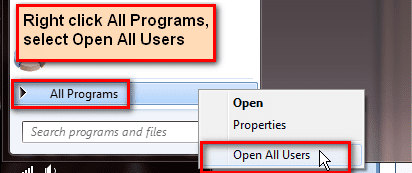
. - An explorer window opens, showing your personal Start Menu folder or the Start Menu folder for all users, depending on your choice above (step 2 or 3). Double click Programs, then double click Startup
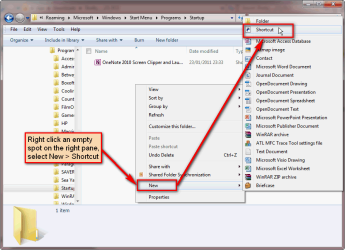
- When in Startup folder, right click an empty spot on the right pane
- Select New > Shortcut
.
. - Type this under Type the location of the item exactly as written here:
- If you are using Windows x64:
"%programfiles(x86)%\internet explorer\iexplore.exe" -k http://www.sevenforums.com - If you are using Windows x86:
"%programfiles%\internet explorer\iexplore.exe" -k http://www.sevenforums.com
- If you are using Windows x64:
- Click Next
.
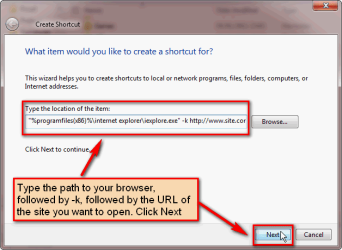
. - Name the shortcut as you wish, click Finish
.
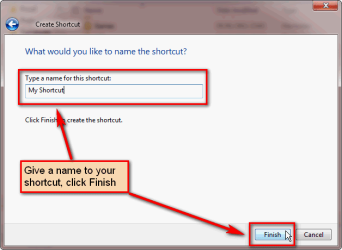
Last edited:
My Computer
- Computer type
- Laptop
- Computer Manufacturer/Model Number
- HP ENVY 17-1150eg
- OS
- Windows 10 Pro x64 EN-GB
- CPU
- 1.6 GHz Intel Core i7-720QM Processor
- Memory
- 6 GB
- Graphics Card(s)
- ATI Mobility Radeon HD 5850 Graphics
- Sound Card
- Beats sound system with integrated subwoofer
- Monitor(s) Displays
- 17" laptop display, 22" LED and 32" Full HD TV through HDMI
- Screen Resolution
- 1600*900 (1), 1920*1080 (2&3)
- Hard Drives
- Internal: 2 x 500 GB SATA Hard Disk Drive 7200 rpm
External: 2TB for backups, 3TB USB3 network drive for media
- Cooling
- As Envy runs a bit warm, I have it on a Cooler Master pad
- Keyboard
- Logitech diNovo Media Desktop Laser (bluetooth)
- Mouse
- Logitech Performance Mouse MX
- Internet Speed
- 50/10 Mbps VDSL
- Antivirus
- Windows Defender 4.3.9431.0
- Browser
- Maxthon 3.5.2., IE11