
You are using an out of date browser. It may not display this or other websites correctly.
You should upgrade or use an alternative browser.
You should upgrade or use an alternative browser.
Windows 7 Libarary Question
- Thread starter networkn
- Start date

i dont know but i want that back too, libraries are not something i really plan on using since i have all my stuff of a certain type in 1 folder anywayHi There!
In Vista if I click on my username in The start button I get my subfolders under c:\users\username
In Windows 7 it goes to libraries which I hate. How can I switch back to the old behaviour?
My Computer
- OS
- Windows 7 Ultimate Beta 7000
- CPU
- AMD Athlon 64 X2 5000+ Brisbane 2.6GHz Black Edition
- Motherboard
- ASUS M2A-VM
- Memory
- Kingston 2GB DDR2 667
- Monitor(s) Displays
- Acer AL2216Wbd 22" Widescreen
- Screen Resolution
- 1680x1050
- Hard Drives
- HITACHI 500GB SATA
- Other Info
- Laptop: Compaq C700

Hello Networkn, and welcome to Seven Forums.
You could create a new library with the C:\Users\(user name) folder.
Hope this helps,
Shawn
You could create a new library with the C:\Users\(user name) folder.
Hope this helps,
Shawn
My Computer
- Computer type
- PC/Desktop
- Computer Manufacturer/Model Number
- Self built custom
- OS
- 64-bit Windows 11 Pro for Workstations
- CPU
- Intel i7-8700K OC'd to 5 GHz
- Motherboard
- ASUS ROG Maximus XI Formula Z390
- Memory
- 64 GB (4x16GB) G.SKILL TridentZ RGB DDR4 3600 MHz
- Graphics Card(s)
- ASUS ROG-STRIX-GTX1080TI-O11G-GAMING
- Sound Card
- Integrated
- Monitor(s) Displays
- 2 x Samsung Odyssey G7 27"
- Screen Resolution
- 2560x1440
- Hard Drives
- 1TB Samsung 990 PRO M.2,
4TB Samsung 990 PRO PRO M.2,
TerraMaster F8 SSD Plus NAS
- PSU
- Seasonic Prime Titanium 850W
- Case
- Thermaltake Core P3
- Cooling
- Corsair Hydro H115i
- Keyboard
- Logitech wireless K800
- Mouse
- Logitech MX Master 4
- Internet Speed
- 2 Gb/s Download and 100 Mb/s Upload
- Antivirus
- Malwarebyte Anti-Malware Premium
- Browser
- Google Chrome
- Other Info
- Logitech Z625 speaker system,
Logitech BRIO 4K Pro webcam,
HP Color LaserJet Pro MFP M477fdn,
APC SMART-UPS RT 1000 XL - SURT1000XLI,
Galaxy S23 Plus phone
your pretty clever! thanks, at least for now it will work.Hello Networkn, and welcome to Seven Forums.
You could create a new library with the C:\Users\(user name) folder.
Hope this helps,
Shawn

My Computer
- OS
- Windows 7 Ultimate Beta 7000
- CPU
- AMD Athlon 64 X2 5000+ Brisbane 2.6GHz Black Edition
- Motherboard
- ASUS M2A-VM
- Memory
- Kingston 2GB DDR2 667
- Monitor(s) Displays
- Acer AL2216Wbd 22" Widescreen
- Screen Resolution
- 1680x1050
- Hard Drives
- HITACHI 500GB SATA
- Other Info
- Laptop: Compaq C700
LOL, you're welcome Tdk08.
I always say if there is no solution, then make a workaround.
I always say if there is no solution, then make a workaround.
My Computer
- Computer type
- PC/Desktop
- Computer Manufacturer/Model Number
- Self built custom
- OS
- 64-bit Windows 11 Pro for Workstations
- CPU
- Intel i7-8700K OC'd to 5 GHz
- Motherboard
- ASUS ROG Maximus XI Formula Z390
- Memory
- 64 GB (4x16GB) G.SKILL TridentZ RGB DDR4 3600 MHz
- Graphics Card(s)
- ASUS ROG-STRIX-GTX1080TI-O11G-GAMING
- Sound Card
- Integrated
- Monitor(s) Displays
- 2 x Samsung Odyssey G7 27"
- Screen Resolution
- 2560x1440
- Hard Drives
- 1TB Samsung 990 PRO M.2,
4TB Samsung 990 PRO PRO M.2,
TerraMaster F8 SSD Plus NAS
- PSU
- Seasonic Prime Titanium 850W
- Case
- Thermaltake Core P3
- Cooling
- Corsair Hydro H115i
- Keyboard
- Logitech wireless K800
- Mouse
- Logitech MX Master 4
- Internet Speed
- 2 Gb/s Download and 100 Mb/s Upload
- Antivirus
- Malwarebyte Anti-Malware Premium
- Browser
- Google Chrome
- Other Info
- Logitech Z625 speaker system,
Logitech BRIO 4K Pro webcam,
HP Color LaserJet Pro MFP M477fdn,
APC SMART-UPS RT 1000 XL - SURT1000XLI,
Galaxy S23 Plus phone

That approach will work fine until two things occur: 1) you change the location of one of the "special" folders like "My Music" etc. by either drag and drop or changing the location property page of the folder. Many users will not even know they have done that. 2) any application queries the shell (explorer) namespace for the location of one of these special folders. At this point your new library is now out of sync with the rest of the OS. Files may start getting saved in seemingly random places, things don't show up where you expect them to, etc.
After long hard careful consideration and the background of being a mainline commercial Windows developer since Windows 3 there's really only one solution that maintains compatibility with the old shell folders approach, the new library approach and still allows you to store your files where you want. This approach only works well
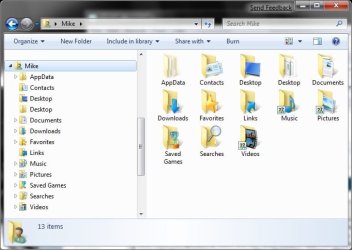
There are two things here to note: 1) this *is* build 7000 and I've got the old shell folders showing -- it is still possible 2) your files need to be organized like Windows does by default -- you can add categories (like Projects or Renderings maybe) but cannot combine (Music+Videos+Pictures≠Media)
To start, there's no way to get the old shell folders to simply replace the new libraries by default. That requires a single click to make it appear and a simple setup. If that works for you then continue on otherwise you can skip this and continue with the library setup part below. Click the Start Orb (or press the Windows key) and type "folder". Folder options should appear at the top of your search results so you can hit Enter to call it up. Check the following options:

That's going to show the old-style Windows tree-view rather than the abridged version Windows 7 shows by default. If that's enough for you you can stop there and get to the old Username folder that way. If you prefer the new abridged version AND the old Username folder then just drag the Username folder to the Favorites star at the very top of the folder list. That in itself is a nice shortcut but if you'd like to decrease clutter uncheck the All folders option in the Folder Option dialog you checked above. DO NOT to uncheck the "expand to current folder" option there. Now whenever you want to access the old Username folder in the new Windows 7 explorer view just click your username under Favorites and it will appear like magic.
To get all this to work with the new Libraries feature and your custom file storage scheme you'll need to tell the shell folders about your custom folders and then tell the Libraries to use only the shell folders. Here's how:
I'll use My Pictures as an example -- the others work the same way. First click on the Username shortcut we created above to display the special shell folder view. Right click "Pictures" or "My Pictures" or whatever you've called it and select Properties and then the Location tab.
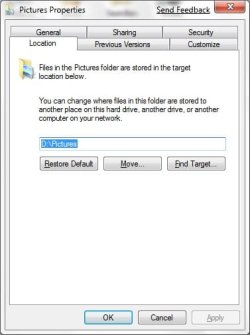
Here you can change the real folder that the virtual shell folder "My Pictures" refers to. Applications frequently look up the locations these virtual shell folders refer to in order to determine default save locations for particular file types. At least that what Microsoft TELLS developers to do. Say you have some of your Pictures in c:\users\bob\pictures and some in d:\otherpictures. You might rather have them all in one place but somehow things have just ended up in c:\users\bob\pictures rather than d:\otherpictures where you want them. Windows 7 will help you out there. If you change the location using this property page it will offer to move anything in the current location to the new location for you. Aww. That's nice. Now if you click on the Pictures library and the locations button in the toolbar you can modify the library to look like this
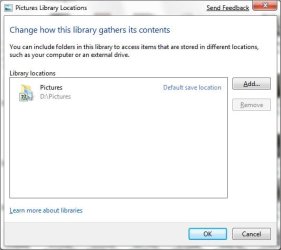
Now no matter how you get to your pictures -- by filesystem folder (d:\pictures) or by Username shell folder or by the new Pictures library, everything goes to the same place. Both you and your apps and Windows should all stay firmly on the same page. Now you can change the other shell folders as you'd like. At minimum I'd do Documents, Pictures, Music and Videos just to bring the Libraries inline but you can also move all of the shell folders elsewhere. I move everything except the hidden AppData folder (also known as the profile folder) to another volume like this
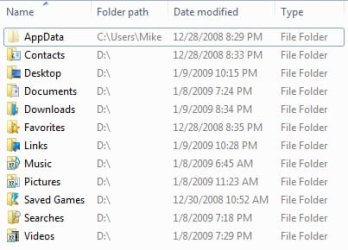
I like to keep all my user files on another volume a la *NIX just to make sizing easier and reinstalling the OS simpler. Whenever I reinstall 7 I just change my shell folder locations to my data drive and all my documents are back exactly as before. I still need to install apps but nothings perfect right?
Hop this clears things up!
After long hard careful consideration and the background of being a mainline commercial Windows developer since Windows 3 there's really only one solution that maintains compatibility with the old shell folders approach, the new library approach and still allows you to store your files where you want. This approach only works well
There are two things here to note: 1) this *is* build 7000 and I've got the old shell folders showing -- it is still possible 2) your files need to be organized like Windows does by default -- you can add categories (like Projects or Renderings maybe) but cannot combine (Music+Videos+Pictures≠Media)
To start, there's no way to get the old shell folders to simply replace the new libraries by default. That requires a single click to make it appear and a simple setup. If that works for you then continue on otherwise you can skip this and continue with the library setup part below. Click the Start Orb (or press the Windows key) and type "folder". Folder options should appear at the top of your search results so you can hit Enter to call it up. Check the following options:
That's going to show the old-style Windows tree-view rather than the abridged version Windows 7 shows by default. If that's enough for you you can stop there and get to the old Username folder that way. If you prefer the new abridged version AND the old Username folder then just drag the Username folder to the Favorites star at the very top of the folder list. That in itself is a nice shortcut but if you'd like to decrease clutter uncheck the All folders option in the Folder Option dialog you checked above. DO NOT to uncheck the "expand to current folder" option there. Now whenever you want to access the old Username folder in the new Windows 7 explorer view just click your username under Favorites and it will appear like magic.
To get all this to work with the new Libraries feature and your custom file storage scheme you'll need to tell the shell folders about your custom folders and then tell the Libraries to use only the shell folders. Here's how:
I'll use My Pictures as an example -- the others work the same way. First click on the Username shortcut we created above to display the special shell folder view. Right click "Pictures" or "My Pictures" or whatever you've called it and select Properties and then the Location tab.
Here you can change the real folder that the virtual shell folder "My Pictures" refers to. Applications frequently look up the locations these virtual shell folders refer to in order to determine default save locations for particular file types. At least that what Microsoft TELLS developers to do. Say you have some of your Pictures in c:\users\bob\pictures and some in d:\otherpictures. You might rather have them all in one place but somehow things have just ended up in c:\users\bob\pictures rather than d:\otherpictures where you want them. Windows 7 will help you out there. If you change the location using this property page it will offer to move anything in the current location to the new location for you. Aww. That's nice. Now if you click on the Pictures library and the locations button in the toolbar you can modify the library to look like this
Now no matter how you get to your pictures -- by filesystem folder (d:\pictures) or by Username shell folder or by the new Pictures library, everything goes to the same place. Both you and your apps and Windows should all stay firmly on the same page. Now you can change the other shell folders as you'd like. At minimum I'd do Documents, Pictures, Music and Videos just to bring the Libraries inline but you can also move all of the shell folders elsewhere. I move everything except the hidden AppData folder (also known as the profile folder) to another volume like this
I like to keep all my user files on another volume a la *NIX just to make sizing easier and reinstalling the OS simpler. Whenever I reinstall 7 I just change my shell folder locations to my data drive and all my documents are back exactly as before. I still need to install apps but nothings perfect right?
Hop this clears things up!
Last edited:
My Computer
- Computer type
- Laptop
- Computer Manufacturer/Model Number
- Apple
- OS
- El Capitan / Windows 10
- CPU
- i7-4980HQ
- Memory
- 16GB
- Graphics Card(s)
- Iris 5200
baarod: sorry dude, I might be being dense, but I am not sure what you mean? Do you understand what my original question was? I want to be able to be able to click my username in the start menu and go to the place you have just displayed, rather than this new libary system that I have nothing against, but I don't want taking me away from my quick system access.
My Computer
- OS
- Windows 7

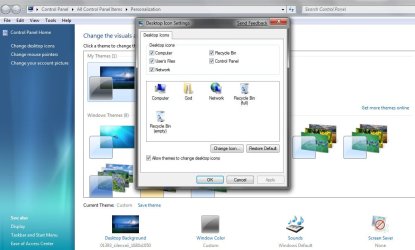
Right click on your desktop and go to personalize and then go to change desktop icons and tick the box for users files and you can then access it straight from your desktop.
My Computer
- Computer Manufacturer/Model Number
- Home Brew
- OS
- Windows 7 Ultimate Vista Ultimate x64
- CPU
- Core 2 Duo E8500 3.16Ghz @ 3.8Ghz
- Motherboard
- eVGA 750i FTW
- Memory
- 2x2Gigs Patriot PC2-6400 LL
- Graphics Card(s)
- Inno3D GeForce GTX260 216 SP
- Monitor(s) Displays
- ASUS VW222U 22" 2ms Response time
- Screen Resolution
- 1680x1050
- Hard Drives
- SATA 150GB
SATA II 250GB
USB IDE 750GB Ext.
- PSU
- HYTEC 600W & Thermaltake 650W Toughpower Power Exp
- Case
- Thermaltake Armor LCS (Liquid Cooling System)
- Cooling
- Liquid Cooling System
- Keyboard
- Logitech G15 Gaming Keyboard
- Mouse
- Logitech G9 Gaming Mouse
Your welcome networkn.
My Computer
- Computer Manufacturer/Model Number
- Home Brew
- OS
- Windows 7 Ultimate Vista Ultimate x64
- CPU
- Core 2 Duo E8500 3.16Ghz @ 3.8Ghz
- Motherboard
- eVGA 750i FTW
- Memory
- 2x2Gigs Patriot PC2-6400 LL
- Graphics Card(s)
- Inno3D GeForce GTX260 216 SP
- Monitor(s) Displays
- ASUS VW222U 22" 2ms Response time
- Screen Resolution
- 1680x1050
- Hard Drives
- SATA 150GB
SATA II 250GB
USB IDE 750GB Ext.
- PSU
- HYTEC 600W & Thermaltake 650W Toughpower Power Exp
- Case
- Thermaltake Armor LCS (Liquid Cooling System)
- Cooling
- Liquid Cooling System
- Keyboard
- Logitech G15 Gaming Keyboard
- Mouse
- Logitech G9 Gaming Mouse
baarod: sorry dude, I might be being dense, but I am not sure what you mean? Do you understand what my original question was? I want to be able to be able to click my username in the start menu and go to the place you have just displayed, rather than this new libary system that I have nothing against, but I don't want taking me away from my quick system access.
Sorry -- was updating the post to be more descriptive. See above

My Computer
- Computer type
- Laptop
- Computer Manufacturer/Model Number
- Apple
- OS
- El Capitan / Windows 10
- CPU
- i7-4980HQ
- Memory
- 16GB
- Graphics Card(s)
- Iris 5200
7048 Fixes This
In case anyone is still interested build 7048 restores the old behavior folks were asking about in this thread.
In case anyone is still interested build 7048 restores the old behavior folks were asking about in this thread.
My Computer
- Computer type
- Laptop
- Computer Manufacturer/Model Number
- Apple
- OS
- El Capitan / Windows 10
- CPU
- i7-4980HQ
- Memory
- 16GB
- Graphics Card(s)
- Iris 5200

petrossa
New member
In case anyone is still interested build 7048 restores the old behavior folks were asking about in this thread.
What you quite properly pointed out and i think can't be stressed enough is the dangers imported with the use of 'Libraries'.
Using them quit literally makes you completely dependent on Windows keeping all the links in correct order and leaving you at a loss to find your files if it doesn't.
Also backup's will be disaster area, i guess all present day backup systems go haywire if you do a backup of a library, and if not they'll do it on restore.
Furthermore, once you've committed some TB's of data to the library system it'll be a month's work going back to the folder system when you discover there's a bug in the library management system;
A word to the wise:
Never ever entrust your important data to a newly developed datamanagement system, especially when it's incorporated in windows.
Wait a year or 2, if by then the net is not flooded by panic messages you can consider using the library.
My Computer
- Computer Manufacturer/Model Number
- me and myself
- OS
- vista x64/ win 7 x64
- CPU
- phenom 9950 BE
- Motherboard
- ASUS M2A-VM HDMI
- Memory
- 8 gb
- Graphics Card(s)
- nvidia gts 250
- Sound Card
- realtek HD onboard
- Monitor(s) Displays
- dual hd 19" tft
- Screen Resolution
- 1440x900
- Hard Drives
- 2 x 500 gb WDC
1 x 500 gb Seagate
1 x 1000 gb Seagate
1 80 gb raptor
1 usb 160 gb
- Cooling
- standard issue
- Keyboard
- logitech g11
- Mouse
- usb wireless MS laser 6000
- Internet Speed
- 18 mb (according to my provider :)

- Local time
- 9:00 AM
- Messages
- 234
A word to the wise:
Never ever entrust your important data to a newly developed datamanagement system, especially when it's incorporated in windows.
Wait a year or 2, if by then the net is not flooded by panic messages you can consider using the library.
There's nothing really new with the librairies in Seven :huh:.
This is just a new name for something which work really fine under Vista: The virtualForlders using indexed files.
You can use search folder in Vista since it's on the market.. So a little bit more than 2 years.
Librairies uses the same technologies , but integrate it in a specific and static function.
This is why you must index folder you want to add in your librairies.
My Computer
- OS
- Vista H.P. SP1 x32 Seven RC x64
- CPU
- Q6600 @ 3.4Ghz
- Motherboard
- GA-EP45-DS3L
- Memory
- 4Go PC2-6400
- Graphics Card(s)
- 8500GT @ 700/500
- Sound Card
- Audigy Platinium
- Monitor(s) Displays
- Mitsubishi Diamond Pro 920 + Mitsubishi Diamond Pro 720
- Screen Resolution
- 1600x1200 twice
- Hard Drives
- Hitachi 160Go
Maxtor 160Go (system drive)
Maxtor 200Go in Antec MX-1 EC external box (eSATA-USB2.0)
- PSU
- Corsair VX550W
- Case
- Thermaltake Xaser III
- Cooling
- Watercooling (CPU, GPU, HDD, NB)
- Keyboard
- MS Wireless Multimedia 6000 V2.0
- Mouse
- IntellEye Explorer 3.0
- Internet Speed
- ADSL 18Mbit/s/1Mbit/s
petrossa
New member
There's nothing really new with the librairies in Seven :huh:.
This is just a new name for something which work really fine under Vista: The virtualForlders using indexed files.
You can use search folder in Vista since it's on the market.. So a little bit more than 2 years.
Librairies uses the same technologies , but integrate it in a specific and static function.
This is why you must index folder you want to add in your librairies.
I quite disagree, the search folder in vista works fine if you have 1 mb of data, anything above that and it just eats cycles.
For the second part, it is not akin to vista's search folder at all. It's a whole newly concept building on parts of vista's search folder.
To say the untried second is fine because the first seems to work sometimes, is like saying hey Windows NT 4.0 works fine so Vista can't fail.
My Computer
- Computer Manufacturer/Model Number
- me and myself
- OS
- vista x64/ win 7 x64
- CPU
- phenom 9950 BE
- Motherboard
- ASUS M2A-VM HDMI
- Memory
- 8 gb
- Graphics Card(s)
- nvidia gts 250
- Sound Card
- realtek HD onboard
- Monitor(s) Displays
- dual hd 19" tft
- Screen Resolution
- 1440x900
- Hard Drives
- 2 x 500 gb WDC
1 x 500 gb Seagate
1 x 1000 gb Seagate
1 80 gb raptor
1 usb 160 gb
- Cooling
- standard issue
- Keyboard
- logitech g11
- Mouse
- usb wireless MS laser 6000
- Internet Speed
- 18 mb (according to my provider :)
- Local time
- 9:00 AM
- Messages
- 234
For the second part, it is not akin to vista's search folder at all. It's a whole newly concept building on parts of vista's search folder.
It use the same technologies, the same parts/modules of the OS which does the job well in Vista.
After that it's just the way it's integrate into the OS and the UI. The API are the same...
I use search folder with much more the the 1mb of data (pictures or music) and I do not see any probleme, and I do not understand what you blame on the librairies...
In fine, Librairies doesn't touch the data, it's just linking the data (simlink or hardlink as far as I know). I tought this kind of thing more safe that the classic "real" folder which can be deleted one time for all!
And windows is not the only OS which use this kind of virtual location (pointer, or hardlink). Linux structure is a little bit similar (look at the /bin or /sbin folder for example)
My Computer
- OS
- Vista H.P. SP1 x32 Seven RC x64
- CPU
- Q6600 @ 3.4Ghz
- Motherboard
- GA-EP45-DS3L
- Memory
- 4Go PC2-6400
- Graphics Card(s)
- 8500GT @ 700/500
- Sound Card
- Audigy Platinium
- Monitor(s) Displays
- Mitsubishi Diamond Pro 920 + Mitsubishi Diamond Pro 720
- Screen Resolution
- 1600x1200 twice
- Hard Drives
- Hitachi 160Go
Maxtor 160Go (system drive)
Maxtor 200Go in Antec MX-1 EC external box (eSATA-USB2.0)
- PSU
- Corsair VX550W
- Case
- Thermaltake Xaser III
- Cooling
- Watercooling (CPU, GPU, HDD, NB)
- Keyboard
- MS Wireless Multimedia 6000 V2.0
- Mouse
- IntellEye Explorer 3.0
- Internet Speed
- ADSL 18Mbit/s/1Mbit/s