Solved Best method/tool for cloning a failing HDD for Data Recovery?

Tested Ddrescue

Hi, I have a failing Sata HDD external 1TB WD, it doesn't load the file system anymore due to multiple bad sectors in its Boot sector, So I was looking into this post and after a bit of research, I found out that this may become the best tool available for us saving HDD lives. I current bought a new 2TB Seagate backup plus now I will try using DD rescue as per this main post.

Here's the command I'm trying now,
ddrescue -f -r3 -v -n /dev/sdd /dev/sdc recovery.log

/dev/sdd - failing drive(source) (1tb)
/dev/sdc - destination drive (2tB)

I have no clue what -d (use disk direct access) and -S (Sparse mode) actually does, but based on some posts here, some didn't do the -S or -d.

So guys, did I do the right thing above??
 

My Computer My Computer

At a glance

windows 7 ultimate
Computer type
PC/Desktop
OS
windows 7 ultimate
Thank you very much for all the great information on this thread. I have a 320gb Hitachi sata hard drive with the extreme bad conditions. It has 115 bad sectors in its surface & 334 bad sectors in total. Its health is showing as 8% by some hdd tool from hire&boot live cd. Prior to using hire& boot mini linux option, i tried to boot the hard disk with knoppix, backtrack & few other live Linux but nothing gone successful with the boot.
Then in hire & boot mini Linux, i tried to copy data from the bad drive to the other drive & many other things, but after some time it hangs up all the operations, may be because of the bad sectors. i also tried using acronis true imager for imaging the required partion to a image file but that also failed with many read errors.
so please tell me, which live Linux to use for using dd-rescue for cloning the drive? & Is dd-rescue still the best tool for cloning the data from a failing drive or are there any better alternative available?
Please replay as soon as possible.A big Thanksss in advance...

!! Radhe Radhe !!:)
 
Last edited:

My Computer My Computer

At a glance

Windows 8.1 64 bit
Computer type
Laptop
Computer Manufacturer/Model Number
DELL INSPIRON 3521
OS
Windows 8.1 64 bit
I am in a similar boat where my laptop HDD has reallocated sectors and is failing SMART test. I'm getting an exact model replacement from Western Digitial (HDD was purchased last year).

How do I directly connect the source and destination HDD?
I can connect the new HDD via a USB to IDE/SATA connector
OR
via Orico 6629 series dual bay HDD Dock.

thanks,
 

My Computer My Computer

At a glance

Win-7 Prof 64bit
Computer type
PC/Desktop
OS
Win-7 Prof 64bit
Your source HDD inside the laptop is now failing - what is its capacity?

Your destination HDD can be a working external HDD but empty, connected to the USB port. A larger capacity external drive than the laptop drive is preferred for easy identification of the source drive and destination drive in ddrescue.

You will be booting your laptop from the bootable ddrescue pendrive and issue the first command.

Against the command prompt type: fdisk -l [ENTER] This will list all your drives. Note the nomenclature of your source disk( faulty drive inside the laptop) and destination disk ( the empty drive greater than the capacity of the laptop internal drive). The option is lower case L = l and not one 1

You will be able to identify your source disk and Destination disk only by their capacity. That is why a larger than the internal laptop drive is recommended for the destination disk. Once you have identified the correct nomenclature of your source disk and destination disk you will issue this command.

ddrescue -r3 -n -v /dev/[Source disk]/dev/[Destination disk] recovery.log [ENTER]
( Note: ddrescue[space]-r3[space]-n[space]-v[space]/dev/sdb[space]/dev/sdc[space]recovery.log

A typical command : ddrescue -r3 -n -v /dev/sdb /dev/sdc recovery.log [ENTER]
Note: Replace sdb with the actual nomenclature of your source disk obtained from fdisk -l command.
Replace sdc with the actual nomenclature of your Destination disk obtained from fdisk -l command.

Only if cloning is completed successfully: You can replace your laptop drive with the new drive you have received and perform a reverse cloning. Your external drive will now be the source drive and the replaced internal lap drive the destination.

If cloning is not successful: ddrescue during its first pass clones all good sectors.This is fairly fast. It retains the sector number of the identified bad sectors in the recovery.log file. During the second and third it repeatedly tries to get the data from only bad sectors taken from the log file. With r3 it will do 3 passes. With r3, r4 r5 etc., it will try as many number of passes. If ddrescue fails, that means that it has not been able to get all the data from all the bad sectors because of the severity of bad sectors. Your reverse cloned laptop drive will be still better than the failing laptop drive. Any deficiencies in OS noted can perhaps be made good by a repair install. But as far as your personal data is concerned you have to accept whatever has been recovered.

I haven't finished my post. Going out for a dinner meet. Shall continue on next post when I return.
 

My Computer My Computer

At a glance

Windows 7 Home Premium 32 bit
OS
Windows 7 Home Premium 32 bit
Hello,

Thank you for your (partial? :)) response.

My HDD is 750GB and will be replaced by an identical 750GB drive. It has 4 partitions + System Reserved and User Profiles have been redirected to E:\ while installing Win-7 Pro 64-bit.

My HDD in the laptop is still working though I get Intel Storage warning about Disk Failure. I keep resetting disk to normal and am keeping my work on this laptop to the bare minimum.

Since it is still working, I was wondering which way to go - cloning or macrium images.

Also, am wondering if it is necessary to do reverse cloning. Once cloning succeeds, can I not just swap the old failing HDD and put the new one in?

Or perhaps I misunderstood and you want me to use an external HDD to be the destination of cloning. After cloning is done, I put the new HDD in laptop and use the external HDD as the source. If so, instead of doing this, can I clone with failing HDD in laptop and new HDD (same size) connected on USB via IDE/SATA connector or a disk dock (I have both)?

I have to return the old HDD, WD needs the old one else they'll charge me for the now free advance replacement unit that they have already shipped.

Also, am not sure there are that many bad sectors on the HDD. From WD Diagnostics tool, I get:
Reallocated Sector Count ID=5, Value-140, threshold-140, worst-140 Fail

So it is 140 right now, do not know how much data was in there. Is there a way to find out?

Thank you again for your assistance.
 
Last edited:

My Computer My Computer

At a glance

Win-7 Prof 64bit
Computer type
PC/Desktop
OS
Win-7 Prof 64bit
"If so, instead of doing this, can I clone with failing HDD in laptop and new HDD (same size) connected on USB via IDE/SATA connector or a disk dock (I have both)?"

That is exactly the point I wanted to deal with in this deferred post.

When both the Source Disk and the Destination disk ( the new disk) have the same capacity, how does one identify these in ddrescue.? This problem will be faced by the majority of users whose source disk has one single volume and the destination disk as new has one single volume.

The answer is yes , you can do that. When the source disk and destination disk have the same capacity, partition the destination disk such that it has one more partition than the source disk. When ddrescue is run and you ask it to list the drives, the one which has one less partition than the other is the source disk and the other with one more partition is the Destination disk. Accordingly, you frame your next command to clone from the Source Disk to destination disk.

In your case of course there will be no problem. Your source Disk will show with four or five partitions and the new destination disk will show as a full drive ( single volume).

Now bad sectors: During the course of usage most HDDs are bound to create weak sectors ( These are likely to turn into bad sectors and so for the time being I shall call them as weak sectors.) As soon as the weak sectors are detected by the hard disk controller, it transfers the data in it to another reserved sector and the weak sectors are taken out of service. You wouldn't even know that a likely to become bad sector was identified and removed. Run your diagnostics it wouldn't show any. Only a certain percentage of the disk capacity are reserved to map the bad sectors. When the reserved sectors are exhausted and fresh bad sectors have no place to go, it is only at this stage you start getting the warning. From this point onwards how long the HDD will last is quite unpredictable. It may be tomorrow or a year later. We have seen this: users asking " I got a warning. What should I do?" Someone responds within a reasonable time. Pat comes the reply, "Sorry, it is all over. My HDD no longer shows up anywhere. No macrium or ddrescue cloning is possible"

So the recommendation is always this: Once you get a warning that the HDD is failing, stop using the HDD forthwith. Clone it immediately. Don't run any data recovery software. Do not even run the diagnostics. Do any data recovery only on the cloned drive.

In most cases Macrium will fail to clone a drive with bad sectors. This has been tried and stated so by Anshad Edavana in this thread or some other thread.

And mjf has already told you - Clean install best solution.

Oops... I haven't given such long lectures anytime. :)
 
Last edited:

My Computer My Computer

At a glance

Windows 7 Home Premium 32 bit
OS
Windows 7 Home Premium 32 bit
Thank you for the assistance.

So I do the following steps:

1. Format the new HDD with only ONE partition that would assist in figuring out the correct nomenclature

2. Download SystemRescueCD and create a bootable flash drive with that ISO using Rufus
(Q) Are there any instructions on how to do this? Is the following still valid?
http://www.sevenforums.com/hardware-devices/246679-create-bootable-usb-flash.html

3. Boot laptop with flash drive from step 2 with bad HDD inside and the new HDD connected via USB to SATA connector. (Q) Is this kind of connection fine or can it create issues?

4. At the command prompt type: fdisk -l [ENTER] This will list all drives and note nomenclature

5. Then type at command prompt type: ddrescue -r3 -n -v /dev/sdb /dev/sdc recovery.log [ENTER]
( Note: ddrescue[space]-r3[space]-n[space]-v[space]/dev/sdb[space]/dev/sdc[space]recovery.log

sdb = Bad HDD
sdc = New HDD

I checked again and saw that the bad reallocated sectors are 135 and not 140 that I mentioned earlier. So even though the threshold is 140, I'm glad I contacted Western Digital the very next day that I got an error and am getting the new HDD on Monday.

Instead of installing everything again, since I have most of the data backed up, I'd like to see if there is a program that is not working properly (of course if Windows is not working fine then that would be an issue). But other than that (I don't know if SFC can help in restoring system files), I can live with having to install some software here and there again. Anyhow plan is to migrate to Win-10 in a couple of months.


Q). Should I create a Macrium image for the whole disk with most of my backed up non-critical data backed up as an alternative in case the above cloning fails? Or is it that if the above cloning fails then macrium won't be able to create an image either?
I can use the following method:
Imaging disks with bad sectors - KnowledgeBase - Macrium Reflect Knowledgebase

Thanks again for your help.
 
Last edited:

My Computer My Computer

At a glance

Win-7 Prof 64bit
Computer type
PC/Desktop
OS
Win-7 Prof 64bit
1. In your case you need not do anything with the new drive. ( In all probability it will come preformatted with one single volume). In ddrescue you can easily identify your bad disk since it will show up with four or five partitions.

2. Yes, it is valid. It is a simple procedure.If you have any data on the pendrive back it up since it will be lost when rufus formats it and writes the ddrescue iso.

3. Should be fine as long as ddrescue is able to list the drives.

4. Yes.

5.The new command I have proposed is ddrescue -d -f -r3 /dev/sdb /dev/sdc recovery.log
This is the command another user had used with successful cloning. Replace sdb with the correct nomenclature of the bad source disk to be cloned. Replace sdb with the correct nomenclature of your new destination disk.

6. Your last question: hyphothetical at this stage. Please read Anshad Edavana's posts #5 and 15 in this very thread. He has more practical, on-hand experience with data recovery. (Sadly we miss him now. )
 

My Computer My Computer

At a glance

Windows 7 Home Premium 32 bit
OS
Windows 7 Home Premium 32 bit
1. In your case you need not do anything with the new drive. ( In all probability it will come preformatted with one single volume). In ddrescue you can easily identify your bad disk since it will show up with four or five partitions.

2. Yes, it is valid. It is a simple procedure.If you have any data on the pendrive back it up since it will be lost when rufus formats it and writes the ddrescue iso.

3. Should be fine as long as ddrescue is able to list the drives.

4. Yes.

5.The new command I have proposed is ddrescue -d -f -r3 /dev/sdb /dev/sdc recovery.log
This is the command another user had used with successful cloning. Replace sdb with the correct nomenclature of the bad source disk to be cloned. Replace sdb with the correct nomenclature of your new destination disk.

6. Your last question: hyphothetical at this stage. Please read Anshad Edavana's posts #5 and 15 in this very thread. He has more practical, on-hand experience with data recovery. (Sadly we miss him now. )

1. I'm assuming that this will be reflected under "Device" column (this is right beneath Disk Identifier) where it lists all partitions.

5.Yes that was my question also. I will have 3 drives attached - my old failing HDD, my new HDD via USB to SATA connector and bootable USB drive. So was wondering why we do not do sda, sdb and sdc like the original. Another point is since I'm cloning to the exact size HDD the recovery.log getting saved in my new HDD can cause an issue, is it not? Please let me know. Unless the log is getting saved in the older failing HDD in which case it should be fine.

Also, Anshad's post shows 3 drives attached sda, sdb, sdc. Am not sure how his command line to save log was - "/media/sdc1/Log" the last Log could be the directory on flash drive. But where did the nomenclature /media/sdc1 came up from?

6. I looked at Anshad's post and he had used Macrium to clone the failing HDD and it failed. What I was proposing is Macrium image with the link that Macrium has with steps for failing HDD. Will creating an image before cloning with ddrescue adversely affect the HDD?

Thank you again for your assistance.
 
Last edited:

My Computer My Computer

At a glance

Win-7 Prof 64bit
Computer type
PC/Desktop
OS
Win-7 Prof 64bit
1. I can't off hand tell you anything since it is long since I ran ddrescue. At the moment I don't have the ddrescue pendrive also to run. You run the list command and you will see the drives listed. If you have any doubts post the screenshot after giving the command. Of course you have to take a camera snap.

5. Anshad Edavana was writing the log file into a third drive - since he was most probably running ddrescue from some other Linux distro/toolkit and he did not want the log file to be written on to his ddrescue source or it was not possible. This is not necessary for the user since he is using a onetime use ddrescue pendrive. With the given command the log file is automatically written into the pendrive containing the ddrescue. There is no need to have a third drive which in effect will confuse the ordinary user.

Commands to stop/start ddrescue.

Stop: Ctrl+C
Resume:rerun your initial ddrescue command. When you resume ddrescue will start from where it left the scan. ddrescue takes the cue from the log file.

6. Like Macrium, ddrescue only scans and reads. Does not alter anything on the drive.
 
Last edited:

My Computer My Computer

At a glance

Windows 7 Home Premium 32 bit
OS
Windows 7 Home Premium 32 bit
1. Ok, will do.

5. From Anshad's post - "Then i booted the system using "Parted magic" and issued fdisk -l command to list the connected disk's details. sda is the 80 GB source drive, sdb is the target drive and sdc is the USB flash drive to store the log file ( The drive connected to SATA port 1 will be named "sda" , second one will be "sdb" )."

This suggests that he was using old HDD, new HDD and bootable flash drive (assuming this is what you refer to as pendrive). So these are the 3 drives, I don't think that he used 3 HDD along with bootable flash drive.

Hence I wanted to know why he used "/media/sdc1/Log" to save log to flash drive and if I should also do the same since you mentioned that using - recovery.log - in the command without disk nomenclature would save the log in the flash drive.

6. So I can try to create an image with Macrium as an alternative before using ddrescue. Good to know.

Thanks for your assistance and guidance and patience with my endless list of questions. I'm just trying to make sure I have all information before I do this tomorrow when I'll receive the HDD.
 

My Computer My Computer

At a glance

Win-7 Prof 64bit
Computer type
PC/Desktop
OS
Win-7 Prof 64bit
I checked in another forum about the location of the log file, just to be sure that I don't make wrong statements.:)

It states "The log file is stored in the directory in which you run the command, unless you specify another location." So definitely it will be stored in the USB pendrive from which you run ddrescue. Just make sure that you use a large enough pendrive so that logfile can be accommodated. An 8GB or even 16GB pendrive should be fine. The log file may not generally exceed 100MB but the larger the drive to be cloned the larger it can be.

Also Anshad Edavana might have run ddrescue from a live CD. When you run it from a Live CD, ddrescue runs from the Ramdrive created in the system. So the log file also will be created in the RAM drive. When the PC is switched off the RAM drive is gone and so also the log file in it. So Anshad could have used a third pen drive to store the log file and directed it to that location.

Your questions are appreciated. When we dig deeper to answer, we learn what we have missed/ forgotten ( my memory does not last for more than 3 days :)) or what we had very casually taken for granted.
 

My Computer My Computer

At a glance

Windows 7 Home Premium 32 bit
OS
Windows 7 Home Premium 32 bit

My Computer My Computer

At a glance

Win-7 Prof 64bit
Computer type
PC/Desktop
OS
Win-7 Prof 64bit
https://www.google.com/search?q=gdd...7.97102j0j7&sourceid=chrome&es_sm=93&ie=UTF-8

gddrescue is an improved version of ddrescue it seems to me.

and exist a gui which is nicer to use than commandline
https://launchpad.net/ddrescue-gui

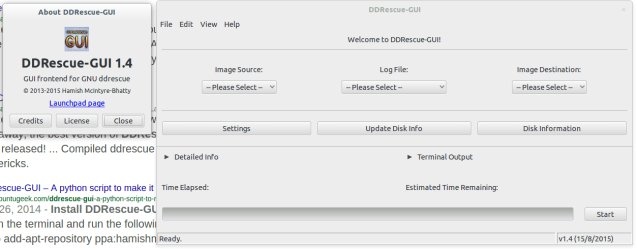
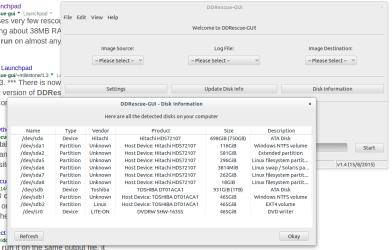
DDRescue-GUI is a program designed to make it easier to use GNU ddrescue (A Command-Line data recovery tool). It provides a simple graphical method for using ddrescue. This is designed to be as user-friendly as possible so users new to Linux can use ddrescue easily.

I need to boot into ubuntu and take a look myself. what is available.
I usually am on linux. I found it fun to learn new things.
 

My Computer My Computer

At a glance

Windows 7 Ultimate x64
OS
Windows 7 Ultimate x64
In Ubuntu there is the package gddrescue, and also a gui viewer for the resultant log file.
to run the command it is still ddrescue.

There exists though the nice gui package for ubuntu. I just installed it.
https://launchpad.net/ddrescue-gui
To run, it is in the system tools menu.

Here are some screens
 

Attachments

  • ddrescue1.png
    ddrescue1.png
    106.7 KB · Views: 2
  • ddrescue3.png
    ddrescue3.png
    31.6 KB · Views: 1
  • ddrescue4.png
    ddrescue4.png
    41.6 KB · Views: 2

My Computer My Computer

At a glance

Windows 7 Ultimate x64
OS
Windows 7 Ultimate x64
Started ddrescue on a 750GB HDD. After 4.33 hrs following is what I have:

rescued - 329888 MB errsize - 29251 kB
ipos/opos - 330017 MB errors - 312

Still on Pass 1.
 

My Computer My Computer

At a glance

Win-7 Prof 64bit
Computer type
PC/Desktop
OS
Win-7 Prof 64bit
Hello,

Found 2 pieces of information while googling:

(1) https://wiki.gentoo.org/wiki/Ddrescue
Run first
ddrescue -f -n /dev/sdb /root/sdb_rescue.img /root/rescue.log
-f: Force ddrescue to run even if the destination file already exists.
-n: Skip the splitting phase to avoid spending a lot of time trying to rescue the most difficult parts of a file.

Run next to copy only the bad blocks and try 3 times to read from the source before giving up.
ddrescue -d -f -r3 /dev/sdb /root/sdb_rescue.img /root/rescue.log

Do not know if the above approach provides any advantage (time taken?) over our current approach.

(2) https://www.technibble.com/forums/threads/ddrescue-help.43930/

I think I've found why Anshad used "/media/sdc1/Log" to save log to flash drive, I think jumanji also referred to LiveCD etc

Using
mkdir /media/storage
mount -t ntfs-3g /dev/zzz /media/storage
(where zzz is the disk name you want the logfile saved to)

then ddrescue command becomes
ddrescue -B -v -n /dev/XXX /dev/YYY /media/storage/logfile.log

which is what Anshad had
 
Last edited:

My Computer My Computer

At a glance

Win-7 Prof 64bit
Computer type
PC/Desktop
OS
Win-7 Prof 64bit
Started ddrescue on a 750GB HDD. After 4.33 hrs following is what I have:

rescued - 329888 MB errsize - 29251 kB
ipos/opos - 330017 MB errors - 312

Still on Pass 1.


After 14.49 hrs, following is the reading:
rescued - 750138 MB errsize - 17403 kB
ipos/opos - 231495 MB errors - 899
Splitting failed blocks

Since I'd not checked for around 10 hours, I do not know if this is pass-2 or pass-3 or a final step after 3 passes were made.

Any ideas on how much more time of rescuing am I looking at?

Thanks,
 
Last edited:

My Computer My Computer

At a glance

Win-7 Prof 64bit
Computer type
PC/Desktop
OS
Win-7 Prof 64bit
Another update before I leave for work:

rescued - 750151 MB errsize - 4452kB
ipos/opos - 231316 errors - 1945
runtime - 16.69 h, successful read - 15 min ago

So, errsize has gone down and errors have gone up. I'm hoping that there is an explanation for this and that this is normal.

Thanks,
 

My Computer My Computer

At a glance

Win-7 Prof 64bit
Computer type
PC/Desktop
OS
Win-7 Prof 64bit
Back
Top