Dual Boot Installation with Windows 7 and XP

How to Setup a Dual Boot Installation with Windows 7 and XP


   Information
This will show you how to install Windows 7 and XP to dual boot with when you already have either Windows 7 or XP installed first.
   Note
With a dual boot installaton, you will have two operating systems (OS) installed. When you start the computer, you will have the choice to choose which OS you would like to start up to. This method is the easiest way of doing a dual boot with these two operating systems.
   Tip
When dual booting with another OS (ex: Vista or XP), you may not always have that OS partition show up in Computer with a driver letter in Windows 7. If this happens, then you will just need to add a drive letter to the OS (ex: Vista or XP) partition in Windows 7 Disk Management for it to show up in Computer with a driver letter.
   Warning
To stop XP from deleting your Windows 7 System Restore Points everytime XP is started, then see System Restore Points - Stop XP Dual Boot Delete to hide Windows 7 from XP.

Windows 7 Minimum Hardware Requirements


NOTE: For more information on this, see: Windows 7 system requirements
  • 1 GHz 32-bit or 64-bit processor
  • 1 GB RAM for 32-bit Windows 7 OR 2 GB RAM for 64-bit Windows 7
  • 16 GB available disk space 32-bit Windows 7 OR 20 GB for 64-bit Windows 7
  • Support for DirectX 9 graphics with 128 MB memory (in order to enable Aero theme)
  • DVD-R/W Drive
  • Internet or phone access to activate Windows 7.
Windows XP Minimum Hardware Requirements

NOTE: For more information on this, see: System requirements for Windows XP operating systems
  • PC with 300 megahertz (MHz) or higher processor clock speed recommended; 233-MHz minimum required;* Intel Pentium/Celeron family, AMD K6/Athlon/Duron family, or compatible processor recommended
  • 128 megabytes (MB) of RAM or higher recommended (64 MB minimum supported; may limit performance and some features)
  • 1.5 gigabyte (GB) of available hard disk space.*
  • Super VGA (800 × 600) or higher resolution video adapter and monitor
  • CD-ROM or DVD drive
  • Keyboard and Microsoft Mouse or compatible pointing device
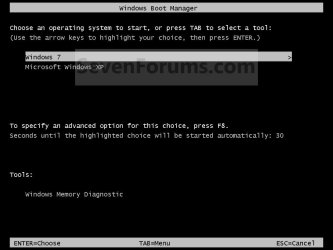
EXAMPLE: Windows Boot Manager
NOTE: This is the boot screen where you select what operating system that you would like to start. By default, you have 30 seconds to choose another operating system before the default operating system will start automatically.
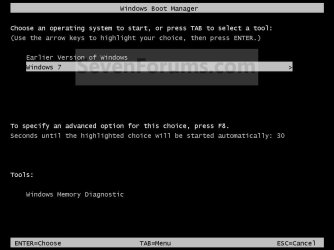
Example.jpg


OPTION ONE

When XP is Installed First


NOTE: If you have a RAID setup, you will need to have the Windows 7 RAID drivers on a USB flash drive available to select and load while installing Windows 7.
1. Do step 2 or 3 below for where you wanted to install Windows 7 at.

2. To Create a New Partition from the XP Hard Disk Drive
A) With your Windows 7 installation disc boot into the Command Prompt from the System Recovery Options screen.
NOTE: Make sure that the CD/DVD drive is selected first in the boot order in the BIOS.

B) In the command prompt, select and shrink the XP volume by how many MB (1024 MB = 1 GB) you want to have for this Windows 7 partition. (See screenshot below)
NOTE: You would do steps 2 to 9 in METHOD TWO at that link. Windows 7 will need a minimum of 16 GB (16384 MB).
XP-W7_1.jpg
C) Click on the X at the top right corner to close the command prompt. (See screenshot above)

D) Click on the X at the top right corner to close System Recovery Options. (See screenshot below)
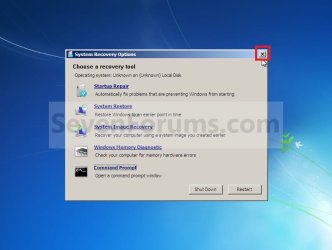
XP-W7_2.jpg
E) Go to step 4.
3. To Use a Separate Hard Disk Drive than the XP Drive
A) Boot from your Windows 7 installation disc.
NOTE: Make sure that the CD/DVD drive is selected first in the boot order in the BIOS.
4. Click on the Install now button. (See screenshot below)
XP-W7_3.jpg
5. When you get to this point, select the partition (step 2) or hard drive to install Windows 7 on. (See screenshot below)
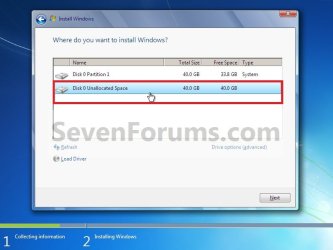
XP-W7_4.jpg
6. Finish installing Windows 7.
NOTE: You would start at step 9 in that link to finish installing Windows 7.

7. When finished, restart the computer to have the option to boot from XP (Earlier Verision of Windows) or Windows 7. (See screenshot below)

   Note
If you are only booting into Windows 7 and do not have XP listed in the Windows Boot Manager, then you can install only EasyBCD (step 8 Option Two below) to add XP (or Windows 7) while started in Windows 7 the same way to the boot list.

Example.jpg


OPTION TWO

When Windows 7 is Installed First


   Warning

1. To Create a New Partition from the Windows 7 Hard Disk Drive
NOTE: If you want to install XP on a separate internal hard drive instead, then skip this step and go to step 2.
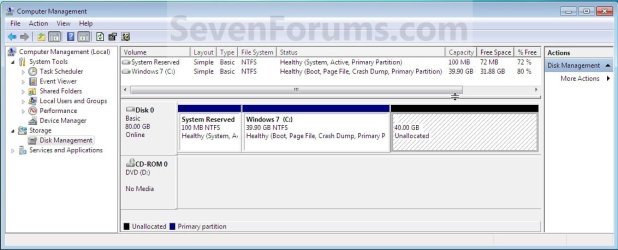
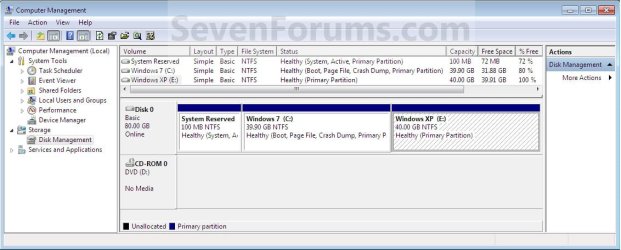
A) In Windows 7, select and shrink the Windows 7 volume in Disk Management by how many MB (1024 MB = 1 GB) you want to have for this XP partition. (See screenshots below)
NOTE: You would do all of Method One at that link.
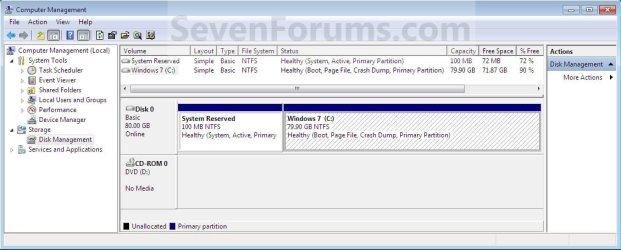
W7-XP-1.jpg

W7-XP-2.jpg

W7-XP-3.jpg
2. Insert your XP installation disc, then restart the computer and press any key to boot from it when prompted. (See screenshot below)
NOTE: Make sure that the CD/DVD drive is selected first in the boot order in the BIOS.

Step1.jpg
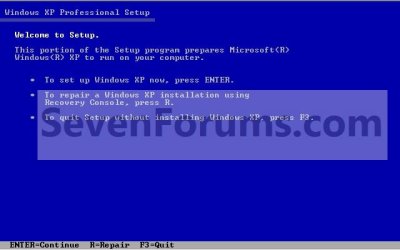
3. From XP Setup, Press Enter. (See screenshot below)


   Warning

W7-XP-4.jpg
4. Press F8. (See screenshot below)
NOTE: On some multimedia keyboards, you may need to press the F-Lock or Function key before pressing F8.
W7-XP-5.jpg
5. Select the partition (step 1) or hard drive that you want to install XP on using the arrow keys and press Enter.
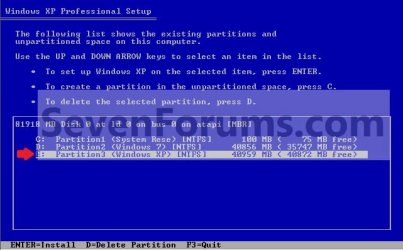
W7-XP-6.jpg
6. Finish installing XP.


   Tip
If you get Error loading Operating System after XP restarts:
  • Using your Windows 7 installation disc, boot to the command prompt at startup.
  • Type in these comands below, and press enter after each one.
    • bootrec /FixMbr
    • bootrec /FixBoot
    • bootrec /RebuildBcd
  • Exit the command prompt and restart the computer.
  • At this point, Windows 7 should boot up the same way before trying to install XP.
  • Continue to step 8 below and run EasyBCD from Windows 7 instead.

7. In XP, download and install .Net Framework 2.0 (32-bit) version or .Net Framework 2.0 (64-bit) version first, and EasyBCD (free version) for your 32-bit (x86) or 64-bit (x86) XP.
NOTE: In XP, Net Framework is required to be installed to run EasyBCD. After you click on Register (at bottom of link) for the free EasyBCD, registration is not required to download it.

8. Run EasyBCD (free version).
NOTE: This is required to repair the Windows 7 boot file and add XP to the Windows Boot Manager list.

9. On the left side of EasyBCD, click on the Add New Entry button. (See screenshot below)
A) In the top section under Operating Systems, click on the Windows tab. (See screenshot below)
B) To the right of Type, select Windows NT/2k/XP/2k3 from the drop down menu. (See screenshot below)
:warn:WARNING: Be sure to leave the Automatically detect correct drive box checked.

C) To the right of Name, you can leave the default Microsoft Windows XP as the name to be displayed in the Windows Boot Manager, or you can type whatever name you would like to have instead. (See screenshot below)
D) Click on the Add Entry button. (See screenshot below)
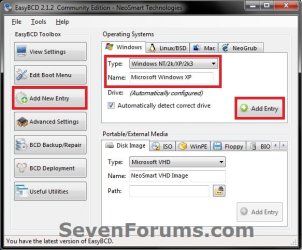
W7-XP-7.jpg
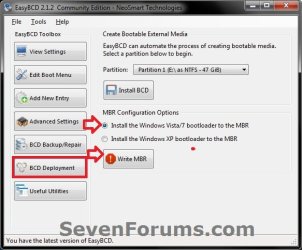
10. On the left side of EasyBCD, click on the BCD Deployment button, select (dot) the Install the Windows Vista/7 bootloader to the MBR option, and click on the Write MBR button. (See screenshot below)
W7-XP-9.jpg
11. Close EasyBCD.

12. Restart the computer to have the option to boot from Microsoft Windows XP or Windows 7. (See screenshot below)
Example2.jpg
   Tip
If Windows 7 will not start up when selected, then use your Windows 7 installation DVD to do a Startup Repair.

That's it,
Shawn


Last edited:
Alright thanks for the help guys. Dual boot is the best option for us as we use fairly system intense programs that require XP. The XP mode may not be sufficient.

Well for some odd reason the Dell BIOS has 3 SATA settings, ATA, AHCI, and Raid On. It came preinstalled on the Raid On setting, but in order to boot from XP i needed to switch it to ATA. However, when it was switched to ATA I couldn't boot Win7 but I could boot XP, and vice versa when I switched back to Raid On. I just talked to our IT person and it seems like they also recommended what Theog has.
I'm going to first backup the Utility and Recovery partitions as disk images on an external drive, then commence the install of SATA drivers and reinstall of XP. Now to find those drivers

Thanks again for your insight and I will let
 

My Computer

OS
Windows 7 ultimate 32bit
Alright thanks for the help guys. Dual boot is the best option for us as we use fairly system intense programs that require XP. The XP mode may not be sufficient.

Well for some odd reason the Dell BIOS has 3 SATA settings, ATA, AHCI, and Raid On. It came preinstalled on the Raid On setting, but in order to boot from XP i needed to switch it to ATA. However, when it was switched to ATA I couldn't boot Win7 but I could boot XP, and vice versa when I switched back to Raid On. I just talked to our IT person and it seems like they also recommended what Theog has.
I'm going to first backup the Utility and Recovery partitions as disk images on an external drive, then commence the install of SATA drivers and reinstall of XP. Now to find those drivers

Thanks again for your insight and I will let

If your Dell has a Intel Sata Controller.
You can download your F6 Sata Controller drivers from here:

Intel Sata Controller Drivers

Check your model first.
 

My Computer

OS
ME/XP/Vista/Win7
Ya I found the driver in there. However, these laptops do not have a floppy drive to install with F6. Does this mean that I will be required to slipstream an XP disk with the drivers?
 

My Computer

OS
Windows 7 ultimate 32bit
Well thats good. I downloaded the Intel Rapid Storage Tech drivers and went through the nlite slipstream process. Though when I got to the driver loading process there is a iaAHCI and iaStor to choose from, either one gives the same drivers to choose from. However it lists about 20-25 different drivers, none of which give any indication of which one is for XP32bit, they all should be 32 bit, but different OS's. The only thing that they hint to is different intel chipsets (i think). What I tried was a multiple driver select and added them all to the boot disk. Unfortunately after burning, the xp disk will not boot.

Edit: So I looked up my RAID controller and the file was listing different types. So I found which one the computer has but now I have the choice in drivers for that controller of either "hdc" or "scsiadapter" type.
Im thinking that if I add one of these then there would be a chance that the disk would be bootable.

Update: Tried burning/boot from the "scsiadapter" type. Once again does not boot. I select boot from dvd-drive at startup, and it does not even get to the blue load screen before it restarts the computer. Same with the other XP disks I've made (besides the factory XP which does).

It is looking as if the slipstream is not working at all, and ive looked around town for a usb floppy drive and it doesn't look like I'll find one. I've been thinking of starting from square one (comp is new anyways). So I thought i might start by creating backup system images just in case. Then delete xp/7 partitions and do a fresh install of XP, set that up, install the raid drivers while in xp, then dual boot windows 7.
Good idea or bad idea?
 
Last edited:

My Computer

OS
Windows 7 ultimate 32bit
You didn't need the SATA drivers the first time you installed XP, correct? Maybe theog can help you slip the RAID drivers since it appears Win7 was installed in RAID mode but won't run now that you changed it to SATA mode to install XP.

Can you find an old IDE HD to install XP? This is the best Dual Boot method anyway.
 
Last edited:
At the moment, all I have are external hdd which I assume are 2.5" SATA drives.
Though i was just wondering if this would theoretically work:
- In windows 7, delete the installed windows xp partition
- Then boot up off of windows xp disk, delete windows 7 partition (keeping the dell recovery/util partitions intact)
- Repartition unallocated space, install windows XP on first partition, after installation install dell drivers, install windows 7 raid/sata drivers, Install Acronis Home
- Follow first page instructions to setup the unused partition
-Run Acronis Recovery and restore unused partition using a system image created of my current windows 7 drive
- Install EasyBCD and continue instructions

Of course I would create the partitions in exactly the same sizes for the operating systems. I also created full system images with acronis to get back to where I am right now if anything went wrong.

It sounds feasible to me, but I thought I would ask.
Thanks
 

My Computer

OS
Windows 7 ultimate 32bit
I just re=read the thread as SATA controller issue has sidetracked us a bit. If you changed RAID to SATA to install XP then you likely don't need SATA drivers, but possible RAID drivers would allow you to install XP to the RAID.

The RAID presents a complication which makes it hard to advise you to proceed to reinstall XP and reimage 7. We see many problems with Win7 installs to RAID and generally advise to un-RAID the HD's to install Win7 with SATA controller set to ACHI or IDE mode.

I cannot say for sure if an Acronis image of RAIDed Win7 would work if you un-RAID the HD's to install XP first, but I know for sure the Recovery partition and OEM utlities partition would not work. If you make the Recovery Disks first, you might be able to restore everything to unRAIDED HD's.

What you might consider at this point is unRAIDing your HD's then clean installing XP to one HD with the others unplugged. After that is set up as you want unplug the XP HD to clean install Win7 from Recovery Disks, or from a Win7 installation DVD to get the cleanest possible install without the factory bloatware or useless utilties which have better versions built-into Win7. Here's how to get a purrfect clean reinstall of factory preinstall: http://www.sevenforums.com/installation-setup/125874-re-install-windows-7-a.html#post1086729

This will leave you with the best method for Dual Booting anyway: separate HD's via the BIOS.

I hope I haven't confused you more, but wanted to lay out your options as thoroughly as possible. Feel free to ask back all the questions needed to make a sound decision.
 
Well this is a laptop with just one hard drive. And I don't think that it is actually setup as a RAID.
What I meant by doing the switch is that in the BIOS there is a tab 'System Configuration' which inside contains another tab called 'SATA'. In this you can switch the setting between disabled, ATA, AHCI, and Raid On. So im not sure if it was setup as a Raid, but I know that the default is selected on the Raid On option, but I think ive also read that this is like a Raid autodetect mode. Is there a way to check in windows 7 if the partitions are set up in raid?
If I could determine if it is Un-raided then it would be safe to do the XP install and re-image of 7.
At the same time I'm looking into the possibility of upgrading all our software to work with windows 7, It will hinge on the ability to install and the costs, but Im in the process of finding this out.
That would of course be ideal as we would no longer need XP (other than maybe XP mode for some smaller programs). But I still need to have a fall back of XP/7 dual boot in case we are unable to upgrade.

Thanks again
 

My Computer

OS
Windows 7 ultimate 32bit
If you only have one HD then it isnt' set up as RAID. Are you certain that the controller was set to RAID On before you changed it to install XP?

Were you planning to install XP and then reimage Win7 with controller set to ATA? It is not certain the image will work if you change the setting, and almost certain the REcovery Partition will not. This is a lot of risk and trouble to Dual Boot an XPired OS.

If you're determined then I'd back up files, make my Recovery Disks and a Win7 image. Next change the controller setting to ATA, wipe the HD and attempt to reimage Win7. IF this fails I would run the Recovery Disks. Then I would shrink if necessary, boot XP to create and format its partition and install. It doesn't matter which order since neither of these Win7 methods will configure the Dual Boot. So you'll have to mark Win7 Active and run Startup Repair to start Win7, install EasyBCD 2.0 to add XP. http://www.sevenforums.com/tutorials/105541-startup-repair-run-3-separate-times.html

The alternative is to find a Win7 installation DVD, install XP first, then do a clean install of Win7 which should configure the Dual Boot while shedding all of the factory bloatware and useless factory utilities which have better versions built into Win7: http://www.sevenforums.com/installation-setup/125874-re-install-windows-7-a.html#post1086729

While you mull this over I've asked a RAID expert to look at it.
 
K well I just went to the BIOS, I loaded the default settings and it does have Raid On as the default. Though in the description it says SATA is configured to support RAID mode (Intel Rapid Restore Technology). This page talks about it:
Intel® Rapid Storage Technology — What is Intel® Rapid Recover Technology?
It seems to be a mode to help with recovery rather than RAIDS.
However, I switched it back to the ATA setting and it went back to Windows 7 not booting. So I am having a little difficulty trying to find a way to handle that with the recovery.
Like you mentioned, it is looking unlikely that a system image would take in ATA setting if it won't boot when I switch to it.
In my last post I had mentioned that we may still be able to upgrade all our software to win7, and at this point im really hoping we can do this.
 

My Computer

OS
Windows 7 ultimate 32bit
K well I just went to the BIOS, I loaded the default settings and it does have Raid On as the default. Though in the description it says SATA is configured to support RAID mode (Intel Rapid Restore Technology). This page talks about it:
Intel® Rapid Storage Technology — What is Intel® Rapid Recover Technology?
It seems to be a mode to help with recovery rather than RAIDS.
However, I switched it back to the ATA setting and it went back to Windows 7 not booting. So I am having a little difficulty trying to find a way to handle that with the recovery.
Like you mentioned, it is looking unlikely that a system image would take in ATA setting if it won't boot when I switch to it.
In my last post I had mentioned that we may still be able to upgrade all our software to win7, and at this point im really hoping we can do this.

1) A BIOS set to ATA will handle IDE mode only.
2) A BIOS set to SATA will handle SATA mode only.
3) A BIOS set to Raid On will handle SATA mode & RAID mode, But not IDE mode.

Therefore leave your BIOS set to default Raid On.
When you do your Dual with Windows XP, load the Sata controller drivers at F6.
 

My Computer

OS
ME/XP/Vista/Win7
Well, I really appreciate all your help guys. Personally, I have learned a fair bit on the process of dual booting. But it seems like we are able to upgrade all necessary software up to Windows 7, and rather than have a griphold on an older OS with diminishing tech support, they found it better in the long run to do the switch now with these new computers.
So I have gotten rid of the XP partition and expanded to just have the one Windows 7 partition. Now to get all the programs set up and ready to go.

Thanks again, I really appreciate it
 

My Computer

OS
Windows 7 ultimate 32bit
Well, I really appreciate all your help guys. Personally, I have learned a fair bit on the process of dual booting. But it seems like we are able to upgrade all necessary software up to Windows 7, and rather than have a griphold on an older OS with diminishing tech support, they found it better in the long run to do the switch now with these new computers.
So I have gotten rid of the XP partition and expanded to just have the one Windows 7 partition. Now to get all the programs set up and ready to go.

Thanks again, I really appreciate it

Thanks for posting back.
Good luck with all your upgrades.
 

My Computer

OS
ME/XP/Vista/Win7
Please help. I have hp dm4-1173CL it has W7 Ultimate 64 bit on it. I followed all the steps and got xp pro installed on second partition of same drive. Then I installed .net 2.0 and Easybcd software, and followed the steps given. Rebooted, and dual boot works, both xp and w7 work. The problem I see is that when I'm in Windows xp, it show Drive C to be the drive which belongs to Windows 7, and Windows XP is installed on partition 2, drive letter F according to DOS, (which by the way in windows 7 is defined as drive letter D). So although both systems boot, I need XP to boot up thinking that the drive letter F on which it is installed is drive C, so that if anything happens to it or data is written to it etc, it is written to XP not to my W7 drive. I think what happened is that Easybsd put msdos.sys io.sys config.sys autoexec.bat ntdetct.com ntldr bootmgr on my C drive, which is here w7 is installed, along with a folder named NST which has ntldr file in it also 291KB, dated 01/21/2011. so I think the screw up is when the dual boot starts, it goes to my w7 partition which is partition 1, and then takes instructions from there to go to partition 2 which is where xp is to boot up. By the way, w7 works fine and all the drive letters work ok, it's XP I'm concerned about. In the past, when I did dual boot, whatever drive you boot from, will somehow take the letter C, it is not happening in this case when I boot from XP. XP thinks C drive is where the W7 is installed, and F is where XP files are sitting. Please tell me what I need to do. Thank you.
 
Last edited by a moderator:

My Computer

OS
W7
Did you boot the XP installer to do the install?

Please post back a screenshot of your full Disk Mgmt Drive map using Snipping Tool in Start Menu. Label the drives so we know what's on which.

Did you consider running XP Mode in Ultimate, as its a lot less messy option and works quite well according to reports.
 
Dual Boot Xp and Windows 7 on individual Hard Drives

My computer has Xp on it and I installed another HDD on which I installed Windows 7 Home premium. I now have the opoerating systems on separate HDDs. I have already installed both and they work fine other than having to enter the BIOS to change which drive/OS I boot.

How do I get the "Boot to" selection option to come up.

I have both original install disks.

Sorry if I missed this but I have searched the forums, I see instructions for a fresh install but none on this.
 

My Computer

Computer Manufacturer/Model Number
Home
OS
Windows 7 - 64
CPU
Core i3
The simplest way is to boot into windows 7 HD.

Install Easybcd 2.0.

Ad XP entry.

That's it.

Then Always boot via the windows 7 HD.
 

My Computers

System One System Two

  • Computer type
    PC/Desktop
    OS
    7 X64
    CPU
    i5 8400
    Motherboard
    gigabyte b365m ds3h
    Memory
    2x8gb 3200mhz
    Hard Drives
    various
    PSU
    pure power 11 400w cm
    Case
    Coolermaster
    Cooling
    cryorig m9i
  • Computer type
    PC/Desktop
    OS
    7x64
    CPU
    g5400
    Motherboard
    ga b365m ds3h
    Memory
    8gb ddr4 2400
    PSU
    xfx pro 450w
Dual Boot Giving Wrong Drive Letter in XP

Please help. I have hp dm4-1173CL it has W7 Ultimate 64 bit on it. I followed all the steps and got xp pro installed on second partition of same drive. Then I installed .net 2.0 and Easybcd software, and followed the steps given. Rebooted, and dual boot works, both xp and w7 work. The problem I see is that when I'm in Windows xp, it show Drive C to be the drive which belongs to Windows 7, and Windows XP is installed on partition 2, drive letter F according to DOS, (which by the way in windows 7 is defined as drive letter D). So although both systems boot, I need XP to boot up thinking that the drive letter F on which it is installed is drive C, so that if anything happens to it or data is written to it etc, it is written to XP not to my W7 drive. I think what happened is that Easybsd put msdos.sys io.sys config.sys autoexec.bat ntdetct.com ntldr bootmgr on my C drive, which is here w7 is installed, along with a folder named NST which has ntldr file in it also 291KB, dated 01/21/2011. so I think the screw up is when the dual boot starts, it goes to my w7 partition which is partition 1, and then takes instructions from there to go to partition 2 which is where xp is to boot up. By the way, w7 works fine and all the drive letters work ok, it's XP I'm concerned about. In the past, when I did dual boot, whatever drive you boot from, will somehow take the letter C, it is not happening in this case when I boot from XP. XP thinks C drive is where the W7 is installed, and F is where XP files are sitting. Please tell me what I need to do. Thank you.

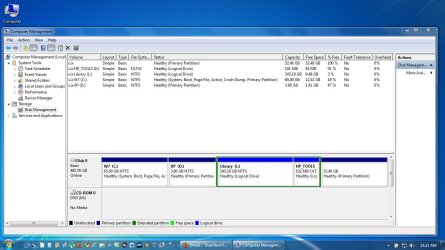
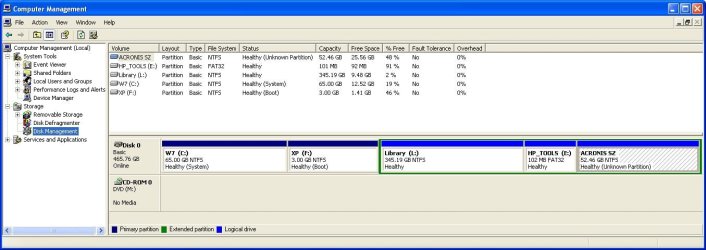
here are the screen shots, as you can see in w7 all drive letters are fine W7 is on C drive, XP on D, L (Library) is another partition where I store docs, E (HPTOOLS) was there when I bought the laptop, last partition is a partition created by Acronis Secure Zone. and everything works fine. By the way, the laptop came with w7 preinstalled, I upgraded to Ultimate version only.

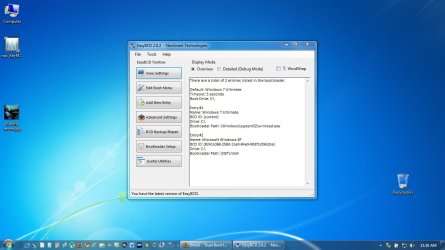
Then I followed all the procedure given here to create the D Drive 3GB, booted from XP pro cd and installed XP. XP installed itself on what it calls F drive. It boots fine. Where I need help is that when I boot into XP, I want it to be think its on C drive and think W7 is on F if you want to call it. It is not swapping the letter. As you can see in second snapshot taken in XP, the W7 partition is called C, XP is called F. That is crazy. I've also attched easybcd snapshot. Please tell me how to fix this. And if you want to shed some light on why xp installed it the way it did. Thanks

And yes, I do know that you can have xp within windows, but the reason why i put xp on a seperate partition totally is because sometime I download softwares from the net, and symantec security will usually delete those file, not let me open them because it suspects malware, virus or whatever. So I need a seperate partition, where I can go open the files without symantec, get password etc, try it out and if I like it come back to W7 and install it but now I have the password or crack or serial etc. Speaking of which, does anyone know, if I was to open the downloaded software in XP within the Windows 7 enviornment, and not install symantec there, and if i was to open a file and it does have virus or something, does it get copied to my w7 enviornment or no? My goal is to keep w7 safe.
W7 SnapShot.jpg

xp SnapShot.jpg

easybcd on W7 SnapShot.jpg
 

My Computer

OS
W7
@uremailgoes

it can be done but its seriously time-consuming & risky. First you need to get some winpe bootable in case to transfer boot files & also when something goes wrong.

Wait lets assume you have not got Winpe but you got Windows XP bootable. Mark Windows XP drive ie,. D drive as Active partition (in Windows 7) also move hidden system files such as boot.ini, ntdetect.com & ntdlr to Windows XP drive D: from Windows 7 drive C:.

Once done reboot PC into Windows XP bootable by pressing 'r' in recovery conscol, type this command fixmbr & fixboot. restart PC it should start PC in Windows XP. in case something went wrong you may have to "repair" Windows XP (no need to format). This method will set Windows XP drive to (C:\>)

afterwords move hidden "boot" folder & bootmgr file to Windows XP drive (C:) from within Windows XP

(Note: boot folder & bootmgr are windows 7 system boot loaders it should be in primary active drive)

Fix windows 7 using bootable Windows 7 media & then use EasyBCD to fix dualboot.

Before proceeding to this Method get it approved from the Experts eg,. SIW2/ theog or Brink
 

My Computer

Computer Manufacturer/Model Number
AMD.ATI.ASUS
OS
Windows 7
CPU
AMD Phenom II X4 925
Motherboard
Asus M4A785T-M
Memory
A-DATA 2GB DDR3
Graphics Card(s)
ATI 4200 256MB
Sound Card
VIA Vinyl HD Audio
Monitor(s) Displays
Samsung 22" 2233
Hard Drives
WD Sata II 500GB X2 (RAID 0)
PSU
VIP 400W Gold
Case
iBall Gamer
Cooling
AMD Cooler
Keyboard
Logitech Wired
Mouse
Logitech Wired
Internet Speed
512kbps Unlimited
Back
Top