Display scaling issue (not just in Windows)

BCXtreme

New member
Hey,

I recently bought a Sony VAIO All-in-One Desktop/HDTV (this is NOT the computer that I put in for my system specs on this site). It has a 24" display that runs at 1920x1200 natively.

Whenever it displays the Windows 7 loading screen or the BIOS (both around 800x600), the actual display's resolution does not change from 1200p. Same problem occurs if I lower Windows' display resolution The result is that rather than stretching the picture to fit the screen, the picture is instead displayed in a small area in the middle of the screen, with a black letterbox on all sides.

Every other computer I've ever worked with will stretch lower resolutions to fit the display. How do I get this computer to do that instead of just making the on-screen picture smaller?

Thanks for any help you can offer,
- Phil

P.S. I posted this in the "Chillout Room" because it doesn't seem to have anything to do with Windows 7. If there's a better place to put it, please let me know.
 

My Computer

Computer Manufacturer/Model Number
Alienware X51
OS
Windows 7 Home Premium x64
CPU
Intel Core i7-2600 @3.40GHz
Memory
8.00GB DDR3
Graphics Card(s)
NVIDIA GeForce GTX 555 w/1.0GB RAM
Monitor(s) Displays
BenQ XL2420TX
Screen Resolution
1920x1080@120Hz
Hard Drives
1TB
PSU
330-watt
Keyboard
Logitech Wireless Illuminated Keyboard K800
Mouse
Razer Orochi
Internet Speed
Campus Internet
Look for a Aspect ratio/1:1/Fill setting in either your cards control panel or on the TV itself. It sounds like it's defaulting to 1:1 ratio which will give you borders etc.
 

My Computer

Computer type
PC/Desktop
Computer Manufacturer/Model Number
Systems by SmartEyeball
OS
8 Pro x64
CPU
i7 3770K 4.6GHz
Motherboard
ASUS P8Z77 WS
Memory
16GB G.Skill Trident X 2666mhz
Graphics Card(s)
x2 EVGA 780 Ti Superclocked SLI
Sound Card
SB X-FI Surround 5.1 PRO USB / ATH-AD900 Headphones
Monitor(s) Displays
x3 Dell U2410 / 58" Samsung
Screen Resolution
5760*1200/ 1920*1200
Hard Drives
2x Intel 520 240GB (RAID 0) * 2x WD Caviar Blacks 2TB (RAID 0) * 2TB WD Caviar Black * Sony Optirac DVD
PSU
Silverstone Strider Evolution 1200W
Case
Thermaltake Level 10 GT Snow Edition
Cooling
Noctua NH-D14
Keyboard
Topre Realforce // Ducky Shine MX Black // Filco Ninja TKL
Mouse
Thermaltake Theron (Highly Recommended) + Razer Imperator
Antivirus
MSE
Browser
IE, FF, WaterFox
Other Info
GT Extreme V2 Sim Racing Cockpit + 40" LCD and K/B Mouse stand ▼
Fanatec CSR Elite Wheel + Clubsport V1 Pedals + CSR shifter/7G-H ▼Saitek X52 Pro ▼ TrackIR 5 Pro
Buttkicker v2 Seat Rumbler with Dedicated 5.1 and Sub Woofer attached to frame ▼
=
Bloody Big Grin
Look for a Aspect ratio/1:1/Fill setting in either your cards control panel or on the TV itself. It sounds like it's defaulting to 1:1 ratio which will give you borders etc.

The Intel GMA control panel has a place to choose aspect ratio settings, but the only one listed is the one I'm already on: "Center". I checked all over the unit itself, but I couldn't find any buttons, switches, or even OSD menu options relating to aspect ratio. I can't figure out why the Intel control panel isn't giving me any other options ... even if it did, would this fix the incorrect display outside of Windows?
 

My Computer

Computer Manufacturer/Model Number
Alienware X51
OS
Windows 7 Home Premium x64
CPU
Intel Core i7-2600 @3.40GHz
Memory
8.00GB DDR3
Graphics Card(s)
NVIDIA GeForce GTX 555 w/1.0GB RAM
Monitor(s) Displays
BenQ XL2420TX
Screen Resolution
1920x1080@120Hz
Hard Drives
1TB
PSU
330-watt
Keyboard
Logitech Wireless Illuminated Keyboard K800
Mouse
Razer Orochi
Internet Speed
Campus Internet
Sorry for the delay in replying mate.

I'm not familiar with the Intel control panel, so I couldn't really tell you why it's only giving you the center option.

However, since it's occurring outside windows and therefore not controlled by a driver, it does sound like a setting on the display device itself. In the OSD menu, it could be hiding under a different name like AR, Wide Mode etc
 

My Computer

Computer type
PC/Desktop
Computer Manufacturer/Model Number
Systems by SmartEyeball
OS
8 Pro x64
CPU
i7 3770K 4.6GHz
Motherboard
ASUS P8Z77 WS
Memory
16GB G.Skill Trident X 2666mhz
Graphics Card(s)
x2 EVGA 780 Ti Superclocked SLI
Sound Card
SB X-FI Surround 5.1 PRO USB / ATH-AD900 Headphones
Monitor(s) Displays
x3 Dell U2410 / 58" Samsung
Screen Resolution
5760*1200/ 1920*1200
Hard Drives
2x Intel 520 240GB (RAID 0) * 2x WD Caviar Blacks 2TB (RAID 0) * 2TB WD Caviar Black * Sony Optirac DVD
PSU
Silverstone Strider Evolution 1200W
Case
Thermaltake Level 10 GT Snow Edition
Cooling
Noctua NH-D14
Keyboard
Topre Realforce // Ducky Shine MX Black // Filco Ninja TKL
Mouse
Thermaltake Theron (Highly Recommended) + Razer Imperator
Antivirus
MSE
Browser
IE, FF, WaterFox
Other Info
GT Extreme V2 Sim Racing Cockpit + 40" LCD and K/B Mouse stand ▼
Fanatec CSR Elite Wheel + Clubsport V1 Pedals + CSR shifter/7G-H ▼Saitek X52 Pro ▼ TrackIR 5 Pro
Buttkicker v2 Seat Rumbler with Dedicated 5.1 and Sub Woofer attached to frame ▼
=
Bloody Big Grin
Well, I've pored over the physical buttons on the display, the OSD menu, and the remote, and I can't find anything that looks even remotely like an option to change aspect ratio. I guess the next step is to contact Sony support and ask them where they hid this setting.
 

My Computer

Computer Manufacturer/Model Number
Alienware X51
OS
Windows 7 Home Premium x64
CPU
Intel Core i7-2600 @3.40GHz
Memory
8.00GB DDR3
Graphics Card(s)
NVIDIA GeForce GTX 555 w/1.0GB RAM
Monitor(s) Displays
BenQ XL2420TX
Screen Resolution
1920x1080@120Hz
Hard Drives
1TB
PSU
330-watt
Keyboard
Logitech Wireless Illuminated Keyboard K800
Mouse
Razer Orochi
Internet Speed
Campus Internet
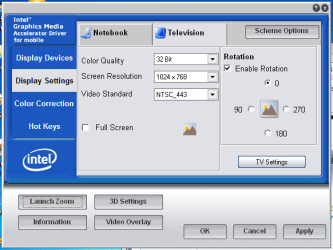
I have the exact same issue when connecting to my 43" plasma TV via S-Video. I have to set the following in order to view in full screen.

Main Control Panel
Capture.PNG

TV H/V Zoom Settings
Capture1.PNG

Hope this helps :)


Jeff
 

My Computer

Computer Manufacturer/Model Number
Compaq Desktop
OS
Windows 7 Ultimate x64
CPU
AMD Sempron Dual Core
Memory
3GB
Graphics Card(s)
NVIDIA GeForce 6150SE nForce 430
Screen Resolution
1024x768
Hard Drives
150GB Sata
Orbital Shark, where you have that button that says "TV Settings" I have "Power Settings". I think this computer recognizes itself as a laptop display, so that could be why.

Well, I contacted Sony Support and they were no help at all. They just couldn't figure out what it was that I wanted to do. I finally gave up on that, and so I'm going to stay open to more suggestions from you guys, if anyone has any. I'm also going to try taking pictures of what this display is doing, compared to what I want it to do, just so I can confirm with you that I'm using the right terminology to describe all of this.
 

My Computer

Computer Manufacturer/Model Number
Alienware X51
OS
Windows 7 Home Premium x64
CPU
Intel Core i7-2600 @3.40GHz
Memory
8.00GB DDR3
Graphics Card(s)
NVIDIA GeForce GTX 555 w/1.0GB RAM
Monitor(s) Displays
BenQ XL2420TX
Screen Resolution
1920x1080@120Hz
Hard Drives
1TB
PSU
330-watt
Keyboard
Logitech Wireless Illuminated Keyboard K800
Mouse
Razer Orochi
Internet Speed
Campus Internet

My Computer

Computer Manufacturer/Model Number
Alienware X51
OS
Windows 7 Home Premium x64
CPU
Intel Core i7-2600 @3.40GHz
Memory
8.00GB DDR3
Graphics Card(s)
NVIDIA GeForce GTX 555 w/1.0GB RAM
Monitor(s) Displays
BenQ XL2420TX
Screen Resolution
1920x1080@120Hz
Hard Drives
1TB
PSU
330-watt
Keyboard
Logitech Wireless Illuminated Keyboard K800
Mouse
Razer Orochi
Internet Speed
Campus Internet
If you right-click the desktop do you get 'Graphics Properties' showing in the list?
 

My Computer

Computer Manufacturer/Model Number
Compaq Desktop
OS
Windows 7 Ultimate x64
CPU
AMD Sempron Dual Core
Memory
3GB
Graphics Card(s)
NVIDIA GeForce 6150SE nForce 430
Screen Resolution
1024x768
Hard Drives
150GB Sata
If you right-click the desktop do you get 'Graphics Properties' showing in the list?

Yep. I've checked out every setting in there, but it's possible I missed something if you have a specific suggestion.
 

My Computer

Computer Manufacturer/Model Number
Alienware X51
OS
Windows 7 Home Premium x64
CPU
Intel Core i7-2600 @3.40GHz
Memory
8.00GB DDR3
Graphics Card(s)
NVIDIA GeForce GTX 555 w/1.0GB RAM
Monitor(s) Displays
BenQ XL2420TX
Screen Resolution
1920x1080@120Hz
Hard Drives
1TB
PSU
330-watt
Keyboard
Logitech Wireless Illuminated Keyboard K800
Mouse
Razer Orochi
Internet Speed
Campus Internet
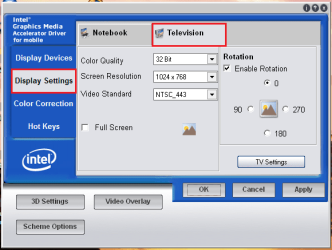
Once you have the GMA control open you should have 'Display Settings' on the left, if you click that you should see 'Television'

Capture.PNG
   Note
The TV setting will only appear if you have the S-Video cable connected

Also, you may need to tell Windows to 'Detect' your TV from the 'Screen Resolution' desktop (right-click) option.
 

My Computer

Computer Manufacturer/Model Number
Compaq Desktop
OS
Windows 7 Ultimate x64
CPU
AMD Sempron Dual Core
Memory
3GB
Graphics Card(s)
NVIDIA GeForce 6150SE nForce 430
Screen Resolution
1024x768
Hard Drives
150GB Sata
  • Like
Reactions: OEM
Once you have the GMA control open you should have 'Display Settings' on the left, if you click that you should see 'Television'

View attachment 17257
   Note
The TV setting will only appear if you have the S-Video cable connected

Also, you may need to tell Windows to 'Detect' your TV from the 'Screen Resolution' desktop (right-click) option.

As I said, this is an all-in-one unit, so no cable. Since the TV is built-in, Windows just recognizes it as a notebook display.
 

My Computer

Computer Manufacturer/Model Number
Alienware X51
OS
Windows 7 Home Premium x64
CPU
Intel Core i7-2600 @3.40GHz
Memory
8.00GB DDR3
Graphics Card(s)
NVIDIA GeForce GTX 555 w/1.0GB RAM
Monitor(s) Displays
BenQ XL2420TX
Screen Resolution
1920x1080@120Hz
Hard Drives
1TB
PSU
330-watt
Keyboard
Logitech Wireless Illuminated Keyboard K800
Mouse
Razer Orochi
Internet Speed
Campus Internet
Back
Top