"press any key to boot from CD or DVD" doesn't always appear at bootup

I'm not sure you understand what I am saying.

A "bootable" device is, by definition, a device that has a self contained program installed on it that can load and run independent of any operating system outside of the bootable device. Everything you see on your screen is being run from the program code on the Bootable device (the CD/DVD).

For instance, the Minitool Partition Wizard program on "Bootable CD" is a Linux program that loads onto your computer from the CD using the Linux Boot-Loader.
It is not "compatible with" Linux - it Is Linux.

Have you done the test where you disconnect all the extra internal and external optical drives and then tried to boot one of the problem CDs?

The purpose of this test is to see if the BIOS is not able to detect the bootable media because it is busy checking too many devices at once.
 

My Computer My Computer

At a glance

Windows 7 64 Bit Home Premium SP1i7-3820GSkill F3-14900CL9Q - 16GBEVGA GeForce GTX660 - Driver 352.86
Computer type
PC/Desktop
Computer Manufacturer/Model Number
Home Built - Jan 2013
OS
Windows 7 64 Bit Home Premium SP1
CPU
i7-3820
Motherboard
Asus P9X79-PRO - Bios 4608
Memory
GSkill F3-14900CL9Q - 16GB
Graphics Card(s)
EVGA GeForce GTX660 - Driver 352.86
Sound Card
On board Realtek ALC898
Monitor(s) Displays
Acer S271HL
Screen Resolution
1920 x 1080
Hard Drives
#1- Samsung 840 Pro Series
#2- Western Digital WD1002FAEX Sata3 Black
#3- Western Digital WD1002FAEX Sata3 Black
PSU
Corsair CMPSU-850TX-V2 - 850 watt (by Seasonic)
Case
Corsair Obsidian 550D
Cooling
Standard 3 120mm case fans, Cooler Master Hyper 212 EVO
Keyboard
MS KC-0405
Mouse
Intellimouse 5-button
Internet Speed
56 Mbits/Sec (on a good day)
Antivirus
Avast & Malwarebytes
Browser
Firefox
Other Info
Asus DVD - DRW-24B1ST 24X
Thanks for the response Victor S and TVeblen

Have you done the test where you disconnect all the extra internal and external optical drives and then tried to boot one of the problem CDs?

Yes, I have, multiple times, just to be sure.


the Minitool Partition Wizard program on "Bootable CD" is a Linux program

It is not "compatible with" Linux - it Is Linux.

I'm very well aware of that. It is still not recognized. Is it because it is Linux? Why does WinXP recognize it and boot it & not Win7?

Ron
 

My Computer My Computer

At a glance

Windows 7 Professional x64
OS
Windows 7 Professional x64
@TVeblin +1 on your last 2 posts explaining boot-up !

@RCM
Can you disconnect the bootable HD so the PC will not boot?
Does it sit there waiting for a bootable CD/DVD.
Are any messages displayed?
 

My Computer My Computer

At a glance

Multi-Boot W7_Pro_x64 W8.1_Pro_x64 W10_Pro_x6...AMD Athlon II x4 6206GB GSkill DDR2 800AMD 4670 GPU + AMD 4200 IGP
Computer type
PC/Desktop
Computer Manufacturer/Model Number
home built
OS
Multi-Boot W7_Pro_x64 W8.1_Pro_x64 W10_Pro_x64 +Linux_VMs +Chromium_VM
CPU
AMD Athlon II x4 620
Motherboard
Gigabyte GA-MA785G-UD3H
Memory
6GB GSkill DDR2 800
Graphics Card(s)
AMD 4670 GPU + AMD 4200 IGP
Sound Card
on board Realtek ALC889A
Monitor(s) Displays
RCA 40" LCD TV, Insignia 32" LCD TV, HP 15" LCD monitor
Screen Resolution
1680 x 1050
Hard Drives
OCZ Vertex 3 120GB,
Samsung F3 1TB (3),
Several others - WD, Seagate, Hitachi, ...
PSU
Corsair 500 W
Case
Rosewill mid tower
Cooling
CM 90mm rifle
Keyboard
Gyration wireless, Logitech wireless, Dell USB wired
Mouse
Gyration wireless, Logitech wireless, V7 USB wired
Internet Speed
Spectrum - 100Mbps D / 10Mbps U
Antivirus
Avast, MBAM3, EMET, WinPatrol
Browser
Pale Moon, Firefox, IE
Other Info
2 multi-boot PC's
Mainly HTPC/Office/Gen purpose (no gaming).
Trendnet USB KVM.
LG DVD burner/Blue Ray Player.
Tray system for removable SATA backup drives.

Not currently OCd, under-volted.
I use Hybrid sleep, rarely re-boot or shutdown.

Hauppauge HD-PVR, Avermedia PCIe TV Tuner, Hauppauge PCI TV Tuner.
@RCM

You are missing the point.
When booting with CD/DVD or USB, Windows 7 or XP has nothing to do with the boot process.
You have a BIOS or hardware problem.
 

My Computer My Computer

At a glance

Windows 7 Home Premium 64biti3-5308 Gbonboard
Computer Manufacturer/Model Number
HP p6370t
OS
Windows 7 Home Premium 64bit
CPU
i3-530
Motherboard
MSI - IONA
Memory
8 Gb
Graphics Card(s)
onboard
Sound Card
onboard
Monitor(s) Displays
Dell ST2400
Screen Resolution
1920x1080
Hard Drives
Intell 520 SSD 120Gb, WD6400AAKS, 640Gb & WD USB MyBook 1Tb
Internet Speed
1.5 Mmbps, Hughes Satellite
DavidW7ncus & Bumpkin thanks for responding

I'm not going to start taking the computer apart when it is working.

This is not a BIOS or hardware problem. If it were a BIOS or hardware problem, none of the disks would boot at all, or they might boot sporadicly. The disks that do boot, boot every time without hesitation.

So, after so many post about the disk that do or do not work.....

see my post #6
It seems to me that something in the autoboot header of the disk is not being recognized or accepted by Windows 7 or the BIOS. However, the boot files of one of the disk that does work, and one that does not, appear to be identical. I've even tried copying the 'good' to the 'bad', but that did not work either.

It seems obvious to me that the problem must have something to do with the 'booting files' that these disks are incorporating. Does anyone have a good suggestion about how to burn bootable disks with a good working boot file, or incorporate the good 'boot files' to end up creating a bootable disk?

Ron

And, looking back at my question #2:

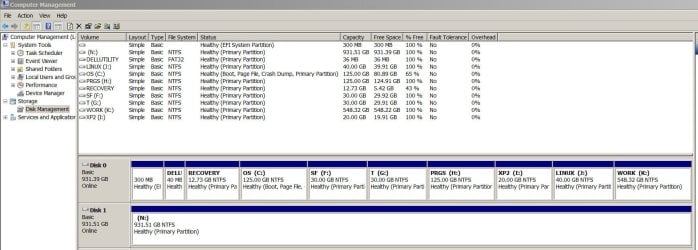
I presently have 10 'primary' partitions. Both Drive(0) & drive (1) are shown as 'Active'.
To my humble knowledge, shouldn't partitions 5 through 10 be 'Logical Partitions'? And shouldn't Drive(1) be a 'Logical Partition', and not "Active'?

I have read in several posts that there is a limit of only 4 'active' partitions. Is this correct? Does it make any difference? What is the best way to correct this, if it is a potential problem. DiskPart?

Ron
 
Last edited:

My Computer My Computer

At a glance

Windows 7 Professional x64
OS
Windows 7 Professional x64
And, looking back at my question #2:

I presently have 10 'active' partitions.
To my humble knowledge, shouldn't partitions 5 through 10 be 'Logical Partitions'? And shouldn't Drive(1) be a 'Logical Partition', and not "Active'?

I have read in several posts that there is a limit of only 4 'active' partitions. Is this correct? Does it make any difference? What is the best way to correct this, if it is a potential problem. DiskPart?

Ron

I think you are trying to say "Primary" partitions.

An active partition is one that has a (oh God no) Bootable OS on it. And unless you intend to have a multi-boot system you should only have one ACTIVE partition.

Up to 4 PRIMARY partitions. One Active partition per Operating System.
 

My Computer My Computer

At a glance

Windows 7 64 Bit Home Premium SP1i7-3820GSkill F3-14900CL9Q - 16GBEVGA GeForce GTX660 - Driver 352.86
Computer type
PC/Desktop
Computer Manufacturer/Model Number
Home Built - Jan 2013
OS
Windows 7 64 Bit Home Premium SP1
CPU
i7-3820
Motherboard
Asus P9X79-PRO - Bios 4608
Memory
GSkill F3-14900CL9Q - 16GB
Graphics Card(s)
EVGA GeForce GTX660 - Driver 352.86
Sound Card
On board Realtek ALC898
Monitor(s) Displays
Acer S271HL
Screen Resolution
1920 x 1080
Hard Drives
#1- Samsung 840 Pro Series
#2- Western Digital WD1002FAEX Sata3 Black
#3- Western Digital WD1002FAEX Sata3 Black
PSU
Corsair CMPSU-850TX-V2 - 850 watt (by Seasonic)
Case
Corsair Obsidian 550D
Cooling
Standard 3 120mm case fans, Cooler Master Hyper 212 EVO
Keyboard
MS KC-0405
Mouse
Intellimouse 5-button
Internet Speed
56 Mbits/Sec (on a good day)
Antivirus
Avast & Malwarebytes
Browser
Firefox
Other Info
Asus DVD - DRW-24B1ST 24X
If you try and create more than four primary partitions on one drive you risk causing Windows converting the drive to a dynamic drive, which would cause boot problems.

You can have up to four primary partitions on a single drive and only one of those can be Active. If you need more partitions you can create logical partitions as part of an extended primary partition.
 

My Computer My Computer

At a glance

Windows 7 Ultimate SP1 64-BitIntel Core i7 870 @ 2.93GHz8Gb Dual-Channel DDR3 @ 664MHznVidia GeForce GTX 460 1024MB dedicated RAM
Computer Manufacturer/Model Number
HP Pavilion Elite 495UK
OS
Windows 7 Ultimate SP1 64-Bit
CPU
Intel Core i7 870 @ 2.93GHz
Motherboard
MSI 2A9C (CPU1)
Memory
8Gb Dual-Channel DDR3 @ 664MHz
Graphics Card(s)
nVidia GeForce GTX 460 1024MB dedicated RAM
Sound Card
Realtek HD Audio
Monitor(s) Displays
HP2310i
Screen Resolution
1920 x 1080
Hard Drives
1x1954GB Hitachi HDS22020ALA 330 (RAID), 1x1954GB Hitachi External for backup and storage
PSU
460W
Case
HP Elite
Cooling
Air cooled
Keyboard
Logitech K750 solar-powered keyboard
Mouse
Logitech Wireless M180 mouse
Internet Speed
2Mb
Other Info
Pure Avanti Flow Internet Radio with iPod Dock, 64Gb iPod, HP USB Speakers, Sony MDR-V500 Headphones, Sony Vaio F-Series Laptop
Thanks for the reply TVeblen,

You are right, they are all 'primary', not 'active'. (I corrected my post).

So, should I edit the other 6 partitions and 'correct' them? There has not been a problem presented, so far.

Ron
 

My Computer My Computer

At a glance

Windows 7 Professional x64
OS
Windows 7 Professional x64
Please post back a screenshot of your maximized Disk management drive map and listings, using Snipping Tool in Start Menu.
 
Thanks for the reply Seavixen32

I corrected my previous post to show 'primary', not 'active' (my bad)

If you try and create more than four primary partitions on one drive you risk causing Windows converting the drive to a dynamic drive, which would cause boot problems.

I did not try to create 'primary' partitions. I used the Computer Management/Disk Management to create the partitions, and it made them all 'primary', without any option or choice to do otherwise. There does not appear to be any option in Disk Management to reset the partitions to 'logical'. There has not been any indication of a problem, so far (but I haven't sneezed today lol).

That is why I was trying to find some software (2 of the non-booting disks) to help correct the partitions back to 'logical', thinking it might be a potential problem later on.

Ron
 

My Computer My Computer

At a glance

Windows 7 Professional x64
OS
Windows 7 Professional x64
Please respond to gregrocker's request for a screenshot of your disk management layout.

He is our top expert in this field, if he can't help you we've got real problems. :)
 

My Computer My Computer

At a glance

Windows 7 Ultimate SP1 64-BitIntel Core i7 870 @ 2.93GHz8Gb Dual-Channel DDR3 @ 664MHznVidia GeForce GTX 460 1024MB dedicated RAM
Computer Manufacturer/Model Number
HP Pavilion Elite 495UK
OS
Windows 7 Ultimate SP1 64-Bit
CPU
Intel Core i7 870 @ 2.93GHz
Motherboard
MSI 2A9C (CPU1)
Memory
8Gb Dual-Channel DDR3 @ 664MHz
Graphics Card(s)
nVidia GeForce GTX 460 1024MB dedicated RAM
Sound Card
Realtek HD Audio
Monitor(s) Displays
HP2310i
Screen Resolution
1920 x 1080
Hard Drives
1x1954GB Hitachi HDS22020ALA 330 (RAID), 1x1954GB Hitachi External for backup and storage
PSU
460W
Case
HP Elite
Cooling
Air cooled
Keyboard
Logitech K750 solar-powered keyboard
Mouse
Logitech Wireless M180 mouse
Internet Speed
2Mb
Other Info
Pure Avanti Flow Internet Radio with iPod Dock, 64Gb iPod, HP USB Speakers, Sony MDR-V500 Headphones, Sony Vaio F-Series Laptop
Thanks for the reply gregrocker,

Screenshot supplied...
 

Attachments

  • Disk Manager.jpg
    Disk Manager.jpg
    139.9 KB · Views: 33

My Computer My Computer

At a glance

Windows 7 Professional x64
OS
Windows 7 Professional x64
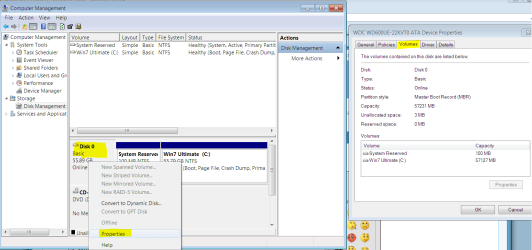
Your Win7 HD is a GPT disk which allows unlimited Primary partitions and requires installing the OS in EFI mode: UEFI (Unified Extensible Firmware Interface) - Install Windows 7 with - Windows 7 Forums

You can confirm GPT by rightclicking on Disk1 in the Disk Mgmt drive map, open Properties and look at Volumes tab as shown here:

Capture.PNG

We are beginning to see more EFI BIOS as they come into the mainstream and will have to re-learn many of the install and repair methods for Win7 - many of which were pioneered here at SevenForums.

As of yet I've not seen this affect the OD in any way except that a separate EFI boot disk must be set first to boot to install or repair Win7. This is why I suggested you use the Dell F12 key to boot disk or flash media.

So you may simply have a faulty OD. There are other suggestions which have been made in the thread which should all be tried. Then I would try another OD.

There is no reason your other HD needs to be formatted GPT unless you want to exceed the 4 Primary partition limit or install Win7 to it.
 
hey gregrocker

Thanks for the reply.

I reset the BIOS to frist boot from UEFI, then Windows Boor Manager.

I tried one of the CD disk (one of the ones that do not show the 'press any key to boot') again, no screen to 'press any key to boot from CD or DVD disk'.

I rebooted pressing F12. The only 4 options were EUFI, Windows Boot Manager, Enter Setup, & Enter ePSA

ePSA Pre-boot System Assessment
All test passed:
System
Cables
Hard Drive 0-0-0
Hard Drive 0-0-1
CDROM Drive 0-0-0
CDROM Drive 0-0-1
Video Card
CPU Fan
Sys Fan
SB Fan
Processor
Memory

I have tried the other DVD, as well as 2 external CD/DVD drives. They also work booting the 3 disks that the internal drives boot.

Any other ideas? (Win7 SP2? lol)

Ron

(edit) In finalities it looks like the software producers have to make changes to get on board with the GPT systems in order to get their software to boot with these newest systems. Any thoughts or comments?
 
Last edited:

My Computer My Computer

At a glance

Windows 7 Professional x64
OS
Windows 7 Professional x64
Try each of the other options you get when tapping F12 at boot. Enter Setup might be the disk you're trying to boot.

Post back a camera snap if possible or write down what the other choices bring up.

To be honest, until we know more about these BIOS you'll need to read your Manual closely on the Dell Support Downloads webpage. I also would only want to install in MBR mode unless you absolutely need that many Primary partitions which nobody does.
 
Thanks gregrocker,

No camera shot possible. Pressing F12 takes me to the Boot Menu with the 4 options listed previously. Entering Setup from there does not provide any other options than before, it only takes me back to the BIOS (the same).

I also would only want to install in MBR mode unless you absolutely need that many Primary partitions which nobody does.

I have not yet come across any option to install in MBR mode, so far. And I agree that most people probably do not need that many Primary partitions. I don't think I do, at this time. So that leads me to 4+ questions.

1) Is it possible to change the Drive(0) from GPT to MBR safely? Will I still need the 300MB EFI System Partition?

2) Should I use DiskPart (or something else) to change the partitions 5-10 to Logical instead of Primary? I'm planning on installing most of my software on partition #7 PRGS (Primary at this moment), will I possibly encounter any problems?

3) Should I change Drive(1) (already MBR) to Inactive and Logical? Or should I go ahead and change it to GPT as well, should I ever decide to add 2 more HDs? There are 4 HD bays in this rig. The drive letters will definitely extend beyond Z, especially when 2 750GB external HDs are attached, each with 6 partitions, FAT32 format. What is the recommended procedure to format Drive(1) to GPT? Can Win7 do that, or will I need other software to accomplish that?

4) What are your recommendations for me in continuing to expand my system in the future?

Thanks for the answers and help,
Ron
 

My Computer My Computer

At a glance

Windows 7 Professional x64
OS
Windows 7 Professional x64
Thanks gregrocker

Thanks for answering 1 of 4

Respectfully,
Ron

I'm out of here.....
 

My Computer My Computer

At a glance

Windows 7 Professional x64
OS
Windows 7 Professional x64
Ron, since changing to MBR requires a reinstall anyway then the other 3 questions become moot.

I also have no recommendations since EFI is new enough here we are just struggling to adapt our install and repair methods to it. I am in no position to advise yet on an EFI BIOS except that I won't buy one until a lot more becomes clear.

Sorry if you feel I shorted you. I have two dozen other open threads right now with about half who can't even boot their Win7 or get it installed.
 
Hey gregrocker & All,

I did not mean to appear rude in my last post, it was quite late for an old guy like me, and I had been fighting with this unresolved issue for weeks.

I solved one of the major issues dealing with MBR vs. GPT formatted HDs. I'll try to keep this short (and that is not too easy to do lol).

I ordered a new Dell XPS computer from Dell. Dell got the order wrong. The XPS was returned. I had to wait 10+ days for the refund to be accounted for. A new order was placed for the Dell Alienware Aurora-R4 computer. After spending 8+ days, and talking to nearly 30 Dell Pro Tech Support personnel, the problems were not solved. Dell agreed to exchange the Alienware computer for another one just like it. The specs are in my post #1.

The computer came with 1 - 1TB HD. The initial order included the computer, a 24" monitor, and an extra 1TB internal HD (customer installed). The original HD came formatted GPT. The 'extra' HD came formatted NTSF MBR, with no instructions or guide, just a plain plastic wrapper, in a box.

One of the main problems I was experiencing:

I partitioned the Drive(0) without any problem, the computer would still boot without error (all partitions on Drive(0) showed to be Primary). I partitioned Drive(1) (the MBR drive) with 4 partitions (3 came out Primary & 1 Logical).

The computer would not boot, saying I needed to run Bootup Repair to fix any problems. Bootup Repair never fixed anything (do not count on it at all).

Luckily I have a Rosewill SATA or IDE 3-in-1 (5.25", 3.5", 2.5") to USB2.0 Cable Converter Adapter. I physically removed Drive(1) from the case and used DiskPart to clean it and quick re-format it (NTFS), replaced it, and the computer started up just fine. If you don't do a 'quick' format, it will take approximately 20 hrs. to format a 1TB HD.

I began to experiment by adding just one extra partition at a time to Drive(1). After adding 2 partitions (now 3 total, all Primary by default), the computer would still boot without error. As soon as I added the 4th partition, which came out to be Logical by default, the computer failed to boot.

I needed 4 partitions (maybe 5 or 6 even) on Drive(1).

Being the experimenter I am, I removed the drive again, re-formatted it again, put in back in the case again.

This time I right-clicked on Drive(1) and used the option to format it to GPT.

Made my 4 partitions (all Primary, by default), and the computer booted without any error.

Conclusions:

Dell / Alienware Pro Tech Support do not know about this issue, or how to resolve it.

If one is going to add an extra HD to their system, and it comes out of the box with the MBR format, do not have more than 3 partitions total (and they must all be Primary).

If you need more than 3 partitions, you must format the drive GPT. Apparently Windows 7 and GPT format does not accept Logical partitions.

I hope my days and weeks of trial & error helps others, before they are not able to boot their computer, as I was faced with for weeks. Now I can begin to use my new computer. :-) (and try not to sneeze lol)

Respectfully,
Ron
 
Last edited:

My Computer My Computer

At a glance

Windows 7 Professional x64
OS
Windows 7 Professional x64
Back
Top