Computer connected to internet wirelessly but webpages won't load

darknightz0117

New member
Member
VIP
Local time
7:20 AM
Messages
179
Hi all,

This problem is happening on a Windows Vista laptop that was recently upgraded to Windows 7. Installation went without a hitch. However, every so often, browsers won't load pages. Windows 7 says that the computer has an internet connection but for some reason web pages will not load. The problem goes away after a restart.

We've tried flush dns, the winsock fix, and the problem persists. We haven't connected by ethernet but the laptop is connected to the internet primarily through wireless. Any suggestions would help. This happens at random, with no particular trigger. One minute, we can load web pages just fine, then the next second it won't. Extremely confused.

Here is the laptop:

Product Specifications HP Pavilion dv6985se Entertainment Notebook PC | HP® Support
 

My Computer My Computer

OS
Windows 7
CPU
AMD Phenom II X4 555
Motherboard
Biostar TA785G3
Memory
2x2GB OCZ Platinum Edition DDR3 PC3-10666
Graphics Card(s)
Sapphire Radeon 6870
Hard Drives
Generic SSD (64GB)
Samsung F3 (1TB)
Seagate (1TB)
Case
Antec 300
Are you able to ping websites when the issue occurs?
 

My Computer My Computer

OS
Windows 7 Professional 32bit
Are you able to ping websites when the issue occurs?

Ah, hadn't thought of that. Another thing that I noticed was that when I right click on the network and click "status", Activity doesn't move. No bytes are sent, and no bytes are received. Does that mean anything?
 

My Computer My Computer

OS
Windows 7
CPU
AMD Phenom II X4 555
Motherboard
Biostar TA785G3
Memory
2x2GB OCZ Platinum Edition DDR3 PC3-10666
Graphics Card(s)
Sapphire Radeon 6870
Hard Drives
Generic SSD (64GB)
Samsung F3 (1TB)
Seagate (1TB)
Case
Antec 300
Yeah, sounds like a DNS issue.
Next time it happens, open a command console and run these commands.

Code:
tracert www.google.com
Post the outcome here.

Then try.

Code:
ipconfig /all
Look at the adapter that's connected to your modem (Wireless adapter if using wireless), and check the DNS lease time.

Then run
Code:
ipconfig -release
ipconfig -renew
And see if that resolves the issue.
 

My Computer My Computer

OS
Windows 7 Professional 32bit
Yeah, sounds like a DNS issue.
Next time it happens, open a command console and run these commands.

Code:
tracert www.google.com
Post the outcome here.

Then try.

Code:
ipconfig /all
Look at the adapter that's connected to your modem (Wireless adapter if using wireless), and check the DNS lease time.

Then run
Code:
ipconfig -release
ipconfig -renew
And see if that resolves the issue.

Thanks for these! I'll try them the next time it happens. It's so intermittent and I can't predict when it will happen so I'll update as soon as possible.
 

My Computer My Computer

OS
Windows 7
CPU
AMD Phenom II X4 555
Motherboard
Biostar TA785G3
Memory
2x2GB OCZ Platinum Edition DDR3 PC3-10666
Graphics Card(s)
Sapphire Radeon 6870
Hard Drives
Generic SSD (64GB)
Samsung F3 (1TB)
Seagate (1TB)
Case
Antec 300
Yeah, sounds like a DNS issue.
Next time it happens, open a command console and run these commands.

Code:
tracert www.google.com
Post the outcome here.

Then try.

Code:
ipconfig /all
Look at the adapter that's connected to your modem (Wireless adapter if using wireless), and check the DNS lease time.

Then run
Code:
ipconfig -release
ipconfig -renew
And see if that resolves the issue.

Okay, when I run tracert Google, nothing happens. When I look for the DNS Lease time, it's exactly 24 hours. When I run ipconfig -release, all I get is "Windows IP configuration". The same happens when I run ipconfig -renew. However, diagnosing the connection in Windows 7 results in "The default gateway is not available". It fixes it and then I have access to internet again. However, I don't want to have to go through that all the time.
 

My Computer My Computer

OS
Windows 7
CPU
AMD Phenom II X4 555
Motherboard
Biostar TA785G3
Memory
2x2GB OCZ Platinum Edition DDR3 PC3-10666
Graphics Card(s)
Sapphire Radeon 6870
Hard Drives
Generic SSD (64GB)
Samsung F3 (1TB)
Seagate (1TB)
Case
Antec 300
Lol, sorry. It's meant to be

Code:
ipconfig /release
ipconfig /renew
Keep getting my Unix/Windows syntax messed up >.<


The lease time being exactly 24 hours sounds like there's an issue when the lease is renewed, which explains why restarting solved it (would expect the same result from ipconfig release/renew).

Here's a suggestion from someone else

Go to control panel, System and Security, click on System, the Device Manager on the left. Click on network adapters, and then right click on your PCI controller, then click properties, power management, and uncheck the box that allows Windows to disable the adapter to save power.
Source: Why does my computer lose its internet connection after some time?


Also make sure your network driver is up to date.
If the above doesn't solve it, you could try setting a static IP for your computer. Also check the lease time in your routers DHCP configuration, you could increase the lease time to a lot longer for the issue to not happen so frequently.
 

My Computer My Computer

OS
Windows 7 Professional 32bit
Lol, sorry. It's meant to be

Code:
ipconfig /release
ipconfig /renew
Keep getting my Unix/Windows syntax messed up >.<


The lease time being exactly 24 hours sounds like there's an issue when the lease is renewed, which explains why restarting solved it (would expect the same result from ipconfig release/renew).

Here's a suggestion from someone else

Go to control panel, System and Security, click on System, the Device Manager on the left. Click on network adapters, and then right click on your PCI controller, then click properties, power management, and uncheck the box that allows Windows to disable the adapter to save power.
Source: Why does my computer lose its internet connection after some time?


Also make sure your network driver is up to date.
If the above doesn't solve it, you could try setting a static IP for your computer. Also check the lease time in your routers DHCP configuration, you could increase the lease time to a lot longer for the issue to not happen so frequently.

Thanks for your consistent help! I tried the ipconfig /release and ipconfig /renew and it did not work. I've changed the power setting and that might help but who knows. I checked my other computers and they all have 24 hour leases too so I don't think that's the problem? Is there any other way to check what is going on?
 

My Computer My Computer

OS
Windows 7
CPU
AMD Phenom II X4 555
Motherboard
Biostar TA785G3
Memory
2x2GB OCZ Platinum Edition DDR3 PC3-10666
Graphics Card(s)
Sapphire Radeon 6870
Hard Drives
Generic SSD (64GB)
Samsung F3 (1TB)
Seagate (1TB)
Case
Antec 300
Any other ideas? Anybody? :D
 

My Computer My Computer

OS
Windows 7
CPU
AMD Phenom II X4 555
Motherboard
Biostar TA785G3
Memory
2x2GB OCZ Platinum Edition DDR3 PC3-10666
Graphics Card(s)
Sapphire Radeon 6870
Hard Drives
Generic SSD (64GB)
Samsung F3 (1TB)
Seagate (1TB)
Case
Antec 300
Are the drivers up to date for the wireless card?


Let's also put a file on your desktop to help monitor your connectivity:

Enable file extensions - if need be
http://www.sevenforums.com/tutorials/10570-file-extensions-hide-show.html

create a new text file
open that new file in notepad
paste in this code

Code:
cd\
ping -4 google.com -t -w 7000

save the file
exit notepad

rename the file and the extension to this ping google.bat

Double click on that file
a black command prompt window should appear
you can minimize that window or move it so that you can only see a tiny part of it
when a connectivity problems occur, restore the window and see if the pings are still happening

(you can drag the bottom of the command prompt window to make it taller)

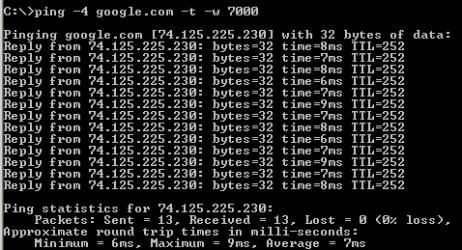
the pings to google should look something like this:
254473d1360480076-help-network-lag-wi-fi-google.png
 

My Computer My Computer

Computer type
Laptop
Computer Manufacturer/Model Number
Employer provided Dell Latitude
OS
W7 Pro SP1 64bit
CPU
i7
Memory
8GB
Graphics Card(s)
Intel HD Graphics
Hard Drives
crappy SSD
Antivirus
Employer mandated Symantec Endpoint Protection
Browser
Pale Moon 64bit, IE11 64bit & Chrome 64bit
Let's make one other file too:

paste in this code

Code:
cd\
ping -4 192.168.0.1 -t -w 7000
Replace 192.168.0.1 with the IP address of your router

If you don't know that IP address, use ipconfig from a command prompt window to find it. Let us know if you need help with that. (edit: It is usually the default gateway IP address.)

Save this file and named it ping router.bat

Double click on that file. If you get a good ping return, then you have another diagnostic tool. If all of the pings to the router timeout (but you can still surf the web) then the router might be setup to not respond to pings.

If your router returns good pings, but google does not: then there might be a problem with your ISP. (Maybe you can test your ISP with another device? Another computer or smart phone connected to the same router [wireless access point].)

If your router sometimes returns good pings & sometimes not - then there is probably a problem with the computer. I'm not talking about a timeout here and there. I'm talking about 20 or 30 seconds of back to back timeouts.
 
Last edited:

My Computer My Computer

Computer type
Laptop
Computer Manufacturer/Model Number
Employer provided Dell Latitude
OS
W7 Pro SP1 64bit
CPU
i7
Memory
8GB
Graphics Card(s)
Intel HD Graphics
Hard Drives
crappy SSD
Antivirus
Employer mandated Symantec Endpoint Protection
Browser
Pale Moon 64bit, IE11 64bit & Chrome 64bit

My Computer My Computer

Computer type
Laptop
Computer Manufacturer/Model Number
Employer provided Dell Latitude
OS
W7 Pro SP1 64bit
CPU
i7
Memory
8GB
Graphics Card(s)
Intel HD Graphics
Hard Drives
crappy SSD
Antivirus
Employer mandated Symantec Endpoint Protection
Browser
Pale Moon 64bit, IE11 64bit & Chrome 64bit
Let's make one other file too:

paste in this code

Code:
cd\
ping -4 192.168.0.1 -t -w 7000
Replace 192.168.0.1 with the IP address of your router

If you don't know that IP address, use ipconfig from a command prompt window to find it. Let us know if you need help with that.

Save this file and named it ping router.bat

Double click on that file. If you get a good ping return, then you have another diagnostic tool. If all of the pings to the router timeout (but you can still surf the web) then the router might be setup to not respond to pings.

If your router returns good pings, but google does not: then there might be a problem with your ISP. (Maybe you can test your ISP with another device? Another computer or smart phone connected to the same router [wireless access point].)

If your router sometimes returns good pings & sometimes not - then there is probably a problem with the computer. I'm not talking about a timeout here and there. I'm talking about 20 or 30 seconds of back to back timeouts.

Sorry, I've been busy these past few weeks! I'll try and start this weekend! Thank you for your help :D
 

My Computer My Computer

OS
Windows 7
CPU
AMD Phenom II X4 555
Motherboard
Biostar TA785G3
Memory
2x2GB OCZ Platinum Edition DDR3 PC3-10666
Graphics Card(s)
Sapphire Radeon 6870
Hard Drives
Generic SSD (64GB)
Samsung F3 (1TB)
Seagate (1TB)
Case
Antec 300
No problem. No rush. We will be here :-)
 

My Computer My Computer

Computer type
Laptop
Computer Manufacturer/Model Number
Employer provided Dell Latitude
OS
W7 Pro SP1 64bit
CPU
i7
Memory
8GB
Graphics Card(s)
Intel HD Graphics
Hard Drives
crappy SSD
Antivirus
Employer mandated Symantec Endpoint Protection
Browser
Pale Moon 64bit, IE11 64bit & Chrome 64bit
No problem. No rush. We will be here :-)

Hello!

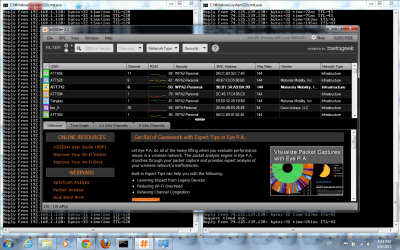
So I just ran it for about 3 hours and I haven't had a break in Internet. It is really hard to replicate the problem because it happens so random, but thus far I haven't had a problem accessing the internet. I've attached a screenshot of both .bat files running to show you what's going on. Only the google ping test times out, the router ping test stays steady.
 

Attachments

  • command prompts.png
    command prompts.png
    62.5 KB · Views: 11

My Computer My Computer

OS
Windows 7
CPU
AMD Phenom II X4 555
Motherboard
Biostar TA785G3
Memory
2x2GB OCZ Platinum Edition DDR3 PC3-10666
Graphics Card(s)
Sapphire Radeon 6870
Hard Drives
Generic SSD (64GB)
Samsung F3 (1TB)
Seagate (1TB)
Case
Antec 300
One last thing (for now):

Please install inSSIDer and check to see if other wireless access points are on or near the channel that you are using.

Download Wireless Troubleshooting Software | MetaGeek
Were you able to install the little tool mention above to see if other wireless access points are on or near the channel that you are using.


It is not unusual to have a time out or two when pinging Google. I wonder if the pings are keeping something from going into a sleep mode. Some wireless network adapters sort of sleep after prolonged inactivity.


I glanced thru the thread and noticed that no one answered this:
....I noticed was that when I right click on the network and click "status", Activity doesn't move. No bytes are sent, and no bytes are received. Does that mean anything?
My numbers update about each second. Do yours move (change/update/increase) while the two pings are running? How about when steaming a YouTube video?
 

My Computer My Computer

Computer type
Laptop
Computer Manufacturer/Model Number
Employer provided Dell Latitude
OS
W7 Pro SP1 64bit
CPU
i7
Memory
8GB
Graphics Card(s)
Intel HD Graphics
Hard Drives
crappy SSD
Antivirus
Employer mandated Symantec Endpoint Protection
Browser
Pale Moon 64bit, IE11 64bit & Chrome 64bit
One last thing (for now):

Please install inSSIDer and check to see if other wireless access points are on or near the channel that you are using.

Download Wireless Troubleshooting Software | MetaGeek
Were you able to install the little tool mention above to see if other wireless access points are on or near the channel that you are using.


It is not unusual to have a time out or two when pinging Google. I wonder if the pings are keeping something from going into a sleep mode. Some wireless network adapters sort of sleep after prolonged inactivity.


I glanced thru the thread and noticed that no one answered this:
....I noticed was that when I right click on the network and click "status", Activity doesn't move. No bytes are sent, and no bytes are received. Does that mean anything?
My numbers update about each second. Do yours move (change/update/increase) while the two pings are running? How about when steaming a YouTube video?

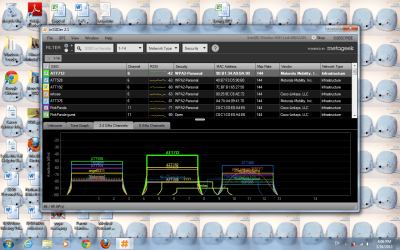
I attached a screenshot of the inSSIDer. Sorry, I don't really know how to understand it haha, but it looks like there are a few other access points that share my channel (if I scroll through the list).

The Activity not moving is only when the problem occurs. Right now, it's changing every second, even when a YouTube video is streaming. There is this though: even though we're paying for 12Mbps, this laptop doesn't reach those speeds (via speedtest.net). When I'm upstairs (two story house), I get about 0.83 Mbps. When I'm downstairs next to the router, I still only get 4.25 Mbps (sometimes even less, the tests vary). My desktop connected by ethernet cable gets 11.30 Mbps almost consistently. If connected by ethernet, the laptop gets 11.30 Mbps too. I think something's wrong with the wireless card in this laptop, but I don't know what. The drivers are up to date, but maybe the card is too old and there's not much support going for it?
 

Attachments

  • inSSIDer.png
    inSSIDer.png
    107.7 KB · Views: 14

My Computer My Computer

OS
Windows 7
CPU
AMD Phenom II X4 555
Motherboard
Biostar TA785G3
Memory
2x2GB OCZ Platinum Edition DDR3 PC3-10666
Graphics Card(s)
Sapphire Radeon 6870
Hard Drives
Generic SSD (64GB)
Samsung F3 (1TB)
Seagate (1TB)
Case
Antec 300
You have several Wireless Access Points (WAP) around you.

You might want to move your WAP to channel 3.

But the tab named 2.4 GHz Channels might tell you more info.
 

My Computer My Computer

Computer type
Laptop
Computer Manufacturer/Model Number
Employer provided Dell Latitude
OS
W7 Pro SP1 64bit
CPU
i7
Memory
8GB
Graphics Card(s)
Intel HD Graphics
Hard Drives
crappy SSD
Antivirus
Employer mandated Symantec Endpoint Protection
Browser
Pale Moon 64bit, IE11 64bit & Chrome 64bit
You have several Wireless Access Points (WAP) around you.

You might want to move your WAP to channel 3.

But the tab named 2.4 GHz Channels might tell you more info.

How do you move the WAP to channel 3?

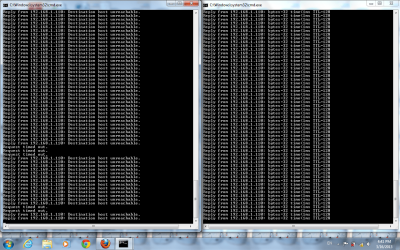
I've attached a screenshot of how the pingtest looks like when it disconnects. We were streaming a movie when the movie stopped playing and we realized that the internet somehow disconnected. Diagnosing the wireless didn't help either. Is the internal wireless adapter failing? Should we use a USB wireless dongle?
 

Attachments

  • Ping tests.png
    Ping tests.png
    61 KB · Views: 5
  • inSSIDer.png
    inSSIDer.png
    183.1 KB · Views: 6

My Computer My Computer

OS
Windows 7
CPU
AMD Phenom II X4 555
Motherboard
Biostar TA785G3
Memory
2x2GB OCZ Platinum Edition DDR3 PC3-10666
Graphics Card(s)
Sapphire Radeon 6870
Hard Drives
Generic SSD (64GB)
Samsung F3 (1TB)
Seagate (1TB)
Case
Antec 300
Back
Top