Wireless Network Connection 5

mangoh

New member
I know its just a number but it is really annoying and it must be possible to solve it but when seeing what networks are available in the bottom right hand corner it says "Wireless Network Connection 4"

The '4' being the annoying part, it occurred since I've been trying to update my drivers. I know it's harmless but its extremely annoying so please don't just say ignore it.

Thank you for your understanding in advance.

How do I get rid off it?

Edit: Added screenshot

9igqs1.png
 
Last edited:

My Computer

OS
Windows 7 Professional 64bit
Hi mangoh,

You may follow the steps listed below:

1. Remove all 'wireless profiles' manually:
- Click Start > Control Panel > Network and Sharing Center > Manage Wireless Networks > Right click to remove all wireless networks listed (Windows will detect the effect networks automatically and will allow you to establish connectivity again; use the 'network security key' if using a secured connection)

2. Re-install the 'Wireless Adapter' drivers:
- Click 'Start' > type 'Device Manager' (without quotations) in the 'search box' > Tap 'Enter' > Locate 'Network adapters' category and expand it > Right click the 'wireless adapter' and 'Uninstall' > Follow through with the uninstall process and restart the unit > Windows is likely to pick the 'WLAN drivers' by itself; if not, you may install the driver from the manufacturer website > Restart the system and recheck results.

Hope this helps. Do reply if you have any further questions.


My Computer

OS
Windows 7 64bit
Hi mangoh,

You may follow the steps listed below:

1. Remove all 'wireless profiles' manually:
- Click Start > Control Panel > Network and Sharing Center > Manage Wireless Networks > Right click to remove all wireless networks listed (Windows will detect the effect networks automatically and will allow you to establish connectivity again; use the 'network security key' if using a secured connection)

2. Re-install the 'Wireless Adapter' drivers:
- Click 'Start' > type 'Device Manager' (without quotations) in the 'search box' > Tap 'Enter' > Locate 'Network adapters' category and expand it > Right click the 'wireless adapter' and 'Uninstall' > Follow through with the uninstall process and restart the unit > Windows is likely to pick the 'WLAN drivers' by itself; if not, you may install the driver from the manufacturer website > Restart the system and recheck results.

Hope this helps. Do reply if you have any further questions.


Hi thanks for your reply.

I tried both steps and still have no success. Step 2 only listed one network adapter.

A quick Google suggests that it has happened to a few people. It's harmless but very annoying. Not as annoying as someone saying 'just ignore it'
 

My Computer

OS
Windows 7 Professional 64bit

You should be able to go to the Network and Sharing Center then look to the left and choose, "change adaptor settings", right click the network adaptor and choose rename, and then rename the connection. But you may be referring to the network name.

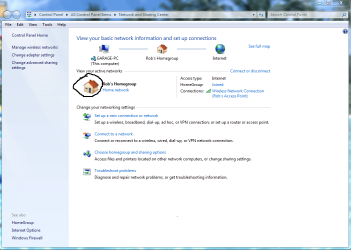
To change the network name, you can go to the Network and Sharing Center, then just click on the little "house" or work icon, which is circled in the picture, you can easily change the name here, this is the network name that shows up lower right for my wireless network so I hope this is the one you are referring too. :)
 

Attachments

  • network name change.PNG
    network name change.PNG
    193 KB · Views: 5

My Computer

Computer type
PC/Desktop
Computer Manufacturer/Model Number
Home built
OS
Windows 7 Ult, Windows 8.1 Pro,
CPU
Q9650-4.275GHz, E8600 4.5GHz, E6750-3.8GHz
Motherboard
Evga 780i FTW
Memory
G.Skill PC2 9600 1200Mhz 5 5 5 15 2T
Graphics Card(s)
GTX480
Sound Card
Asus Xonar D2
Monitor(s) Displays
HannsG
Screen Resolution
1680X1050
Hard Drives
GSkill Phoenix Pro 120GB SSD
PSU
ThermalTake Toughpower 1000Watt modular
Case
ThermalTake XaserV
Cooling
Xigmatek S1283
Keyboard
Logitech G15
Mouse
Logitech G9
Internet Speed
T1
You should be able to go to the Network and Sharing Center then look to the left and choose, "change adaptor settings", right click the network adaptor and choose rename, and then rename the connection. But you may be referring to the network name.

To change the network name, you can go to the Network and Sharing Center, then just click on the little "house" or work icon, which is circled in the picture, you can easily change the name here, this is the network name that shows up lower right for my wireless network so I hope this is the one you are referring too. :)

Just to confirm I was referring to the wireless network connection not the name near house icon.

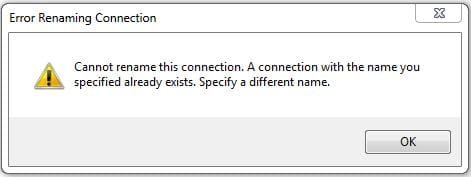
I already tried changing the wireless network connection figure via your first suggestion but it says "wireless network connection name already exists"
 

My Computer

OS
Windows 7 Professional 64bit

My Computer

Computer Manufacturer/Model Number
Custom Built
OS
Windows 7 Ultimate 32-Bit & Windows 7 Ultimate 64-Bit
CPU
Intel Core i7 CPU 950 @ 3.07GHz
Motherboard
ASUS P6T DELUXE V2
Memory
OCZ 6GB (3 x 2GB) 240-Pin DDR3 SDRAM DDR3 1600 OCZ3X1600R2
Graphics Card(s)
ATI Radeon HD 5700 Series
Sound Card
OnBoard
Hard Drives
WD6400AACS-00M3B0 (640GB SATA )
PSU
CORSAIR 850w
Case
NZXT LEXA
Cooling
Intel Stock Heatsink Fan
Keyboard
Microsoft Wireless Laser Keyboard 7000
Mouse
Microsoft Wireless Laser Mouse 7000
You should be able to go to the Network and Sharing Center then look to the left and choose, "change adaptor settings", right click the network adaptor and choose rename, and then rename the connection. But you may be referring to the network name.

To change the network name, you can go to the Network and Sharing Center, then just click on the little "house" or work icon, which is circled in the picture, you can easily change the name here, this is the network name that shows up lower right for my wireless network so I hope this is the one you are referring too. :)

Just to confirm I was referring to the wireless network connection not the name near house icon.

I already tried changing the wireless network connection figure via your first suggestion but it says "wireless network connection name already exists"

You will need to post a screen shot of the exact problem because as you can see, people are confused about what you are talking about. :confused:

You can change the name of the wireless network or the wireless adaptor, one of those will work and surely must be what you are talking about as there are no other options for naming the network.

You should definitely be able to change the name of the Network Adaptor, I'll post pictures if required. :)

When I click on my wireless icon "lower right" that name is in fact, the same one that can be changed by clicking on the little house icon. I'm trying to figure out how that didn't work for you?

Everyone else seems to be referring to the network name in "Manage Wireless Connections" and telling you to delete the connections there but I don't believe that is what you were referring to.
 

My Computer

Computer type
PC/Desktop
Computer Manufacturer/Model Number
Home built
OS
Windows 7 Ult, Windows 8.1 Pro,
CPU
Q9650-4.275GHz, E8600 4.5GHz, E6750-3.8GHz
Motherboard
Evga 780i FTW
Memory
G.Skill PC2 9600 1200Mhz 5 5 5 15 2T
Graphics Card(s)
GTX480
Sound Card
Asus Xonar D2
Monitor(s) Displays
HannsG
Screen Resolution
1680X1050
Hard Drives
GSkill Phoenix Pro 120GB SSD
PSU
ThermalTake Toughpower 1000Watt modular
Case
ThermalTake XaserV
Cooling
Xigmatek S1283
Keyboard
Logitech G15
Mouse
Logitech G9
Internet Speed
T1
Thanks but problem persists.

You should be able to go to the Network and Sharing Center then look to the left and choose, "change adaptor settings", right click the network adaptor and choose rename, and then rename the connection. But you may be referring to the network name.

To change the network name, you can go to the Network and Sharing Center, then just click on the little "house" or work icon, which is circled in the picture, you can easily change the name here, this is the network name that shows up lower right for my wireless network so I hope this is the one you are referring too. :)

Just to confirm I was referring to the wireless network connection not the name near house icon.

I already tried changing the wireless network connection figure via your first suggestion but it says "wireless network connection name already exists"

You will need to post a screen shot of the exact problem because as you can see, people are confused about what you are talking about. :confused:

You can change the name of the wireless network or the wireless adaptor, one of those will work and surely must be what you are talking about as there are no other options for naming the network.

You should definitely be able to change the name of the Network Adaptor, I'll post pictures if required. :)

When I click on my wireless icon "lower right" that name is in fact, the same one that can be changed by clicking on the little house icon. I'm trying to figure out how that didn't work for you?

Everyone else seems to be referring to the network name in "Manage Wireless Connections" and telling you to delete the connections there but I don't believe that is what you were referring to.

9igqs1.png


Tried all above :(
 

My Computer

OS
Windows 7 Professional 64bit
I'm reviving this thread because I'm facing the same problem as the OP here. What the OP is trying to fix is the "Wireless Network Connection 5" to "Wireless Network Connection". If you try renaming it, it will give you the message on the attachment below. Merging or deleting the wireless (or local area, doesn't matter) connections won't solve this "issue". I am attaching a picture as well of my "multiplication" problem. It's not a problem really, it's just annoying.
 

Attachments

  • WNC7.JPG
    WNC7.JPG
    20.3 KB · Views: 14
  • Multiple Network Connections.JPG
    Multiple Network Connections.JPG
    31 KB · Views: 2

My Computer

Computer type
Laptop
Computer Manufacturer/Model Number
Lenovo IDEAPAD Z710 59407652 17.3''
OS
Windows 7 Ultimate x64
CPU
Intel Core i5-4200M @ 2.50GHz
Motherboard
Intel HM86 (Lynx Point)
Memory
8,00 GB Dual Channel DDR3 @ 800MHz
Graphics Card(s)
Nvidia GeForce GT 745M
Screen Resolution
1600 x 900
Hard Drives
Samsung SSD 850 EVO 250GB
Cooling
Cooler Master Notepal Ergostand
Mouse
Roccat Kova[+]
Antivirus
Avast! Free Antivirus
Browser
Google Chrome
From a Elevated Command Prompt:

netsh interface show interface - to get a list of interfaces.

[SIZE=-1]netsh interface set interface name="Local Area Connection 2" newname="Local Area Connection" - to change the name./

Actually, you could make newname anything you want, like "Fred's Internet" or "My Network Connection".[/SIZE]
 

My Computer

Computer type
PC/Desktop
Computer Manufacturer/Model Number
Lenovo IdeaCenter 450
OS
Windows 10 Pro X64
CPU
Intel Quad Core i7-4770 @ 3.4Ghz
Memory
16.0GB PC3-12800 DDR3 SDRAM 1600 MHz
Graphics Card(s)
Intel Integrated HD Graphics
Sound Card
Realtek HD Audio
Monitor(s) Displays
HP 22" LCD
Screen Resolution
1680 x 1050
Hard Drives
250GB Samsung EVO SATA-3 SSD
2TB Seagate ST2000DM001 SATA-2
1.5TB Seagate ST3150041AS SATA
Keyboard
Dell USB
Mouse
Lenovo USB
Internet Speed
Cable via Road Runner 3MB Upload, 30MB Download
Antivirus
Windows Defender, MBAM Pro, MBAE
Browser
Seamonkey
Other Info
UEFI/GPT
PLDS DVD-RW DH16AERSH
Thank you for your answer. I tried renaming the Local Area Connection 3 back to its original name (Local Area Connection) and I came up with this. How can I reset the numbers on all of my connections? I understand that there must already be a connection with that name, that's why I am coming up with an error obviously, but that's as far as my knowledge goes. :o
 

Attachments

  • newname.JPG
    newname.JPG
    32.8 KB · Views: 14

My Computer

Computer type
Laptop
Computer Manufacturer/Model Number
Lenovo IDEAPAD Z710 59407652 17.3''
OS
Windows 7 Ultimate x64
CPU
Intel Core i5-4200M @ 2.50GHz
Motherboard
Intel HM86 (Lynx Point)
Memory
8,00 GB Dual Channel DDR3 @ 800MHz
Graphics Card(s)
Nvidia GeForce GT 745M
Screen Resolution
1600 x 900
Hard Drives
Samsung SSD 850 EVO 250GB
Cooling
Cooler Master Notepal Ergostand
Mouse
Roccat Kova[+]
Antivirus
Avast! Free Antivirus
Browser
Google Chrome
What does netsh interface show interface show you?
 

My Computer

Computer type
PC/Desktop
Computer Manufacturer/Model Number
Lenovo IdeaCenter 450
OS
Windows 10 Pro X64
CPU
Intel Quad Core i7-4770 @ 3.4Ghz
Memory
16.0GB PC3-12800 DDR3 SDRAM 1600 MHz
Graphics Card(s)
Intel Integrated HD Graphics
Sound Card
Realtek HD Audio
Monitor(s) Displays
HP 22" LCD
Screen Resolution
1680 x 1050
Hard Drives
250GB Samsung EVO SATA-3 SSD
2TB Seagate ST2000DM001 SATA-2
1.5TB Seagate ST3150041AS SATA
Keyboard
Dell USB
Mouse
Lenovo USB
Internet Speed
Cable via Road Runner 3MB Upload, 30MB Download
Antivirus
Windows Defender, MBAM Pro, MBAE
Browser
Seamonkey
Other Info
UEFI/GPT
PLDS DVD-RW DH16AERSH

Attachments

  • netsh.JPG
    netsh.JPG
    49.2 KB · Views: 12

My Computer

Computer type
Laptop
Computer Manufacturer/Model Number
Lenovo IDEAPAD Z710 59407652 17.3''
OS
Windows 7 Ultimate x64
CPU
Intel Core i5-4200M @ 2.50GHz
Motherboard
Intel HM86 (Lynx Point)
Memory
8,00 GB Dual Channel DDR3 @ 800MHz
Graphics Card(s)
Nvidia GeForce GT 745M
Screen Resolution
1600 x 900
Hard Drives
Samsung SSD 850 EVO 250GB
Cooling
Cooler Master Notepal Ergostand
Mouse
Roccat Kova[+]
Antivirus
Avast! Free Antivirus
Browser
Google Chrome

My Computer

Computer type
PC/Desktop
Computer Manufacturer/Model Number
Lenovo IdeaCenter 450
OS
Windows 10 Pro X64
CPU
Intel Quad Core i7-4770 @ 3.4Ghz
Memory
16.0GB PC3-12800 DDR3 SDRAM 1600 MHz
Graphics Card(s)
Intel Integrated HD Graphics
Sound Card
Realtek HD Audio
Monitor(s) Displays
HP 22" LCD
Screen Resolution
1680 x 1050
Hard Drives
250GB Samsung EVO SATA-3 SSD
2TB Seagate ST2000DM001 SATA-2
1.5TB Seagate ST3150041AS SATA
Keyboard
Dell USB
Mouse
Lenovo USB
Internet Speed
Cable via Road Runner 3MB Upload, 30MB Download
Antivirus
Windows Defender, MBAM Pro, MBAE
Browser
Seamonkey
Other Info
UEFI/GPT
PLDS DVD-RW DH16AERSH
Back
Top