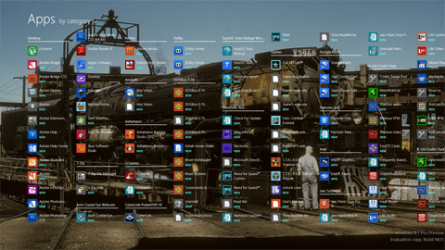
Well by now you realize that "there is a sucker born every minute" that will chew into the "get you coming and going" crud that's being served up! Scroll down using the Apps button at the bottom of the 8.1 Preview to see what's in store for the guilable!
Let's see a look at some of those prepackaged tiles includes: Finance, Food & Drink, Health&Fitness, Music, News, People, replace the word Scan for "SCAM"? naaaa... Marketing gimic!, Sports, Store(MS Store obviously), Travel, and then use the slider to scroll over to the right for what is offscreen and find the things you should be seeing like Calc, NotePad, Paint, Remote, Snipping tool, WMP, etc. with Weather stuffed in between the two screens.
Obviously MS has some new angles being pursued at the same they promote their new Surface Tablet series.
Yes, Nighthawk, I agree that most of the apps should be re-named CRapps, but there are one or two that are OK. I use the weather app, and one game (Pinball FX2) and that's about it, app-wise.
But in 8.1, you need never even see the Start Screen, and you don't need 3rd-party stuff to do it. Simply right-click on the task-bar then go to Properties>Navigation. There, you can customise how Win 8.1 starts, and what it starts to. See pic 2 below.
The All Apps screen can be accessed directly now, without having to go through the Start Screen. All Apps is still somewhat shambolic, but new customising options do help. With a few more options (like being able to hide and move tiles more easily), it could become a viable Start menu. The potential is there. See pic 1 below.
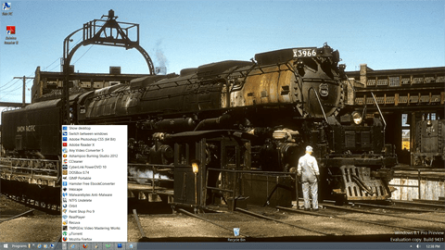
There are at least two ways to get a replacement (of sorts) for the Win 7 Start menu without resorting to 3rd-party programs like Classic Shell or StartIsBack. Firstly, there's the old and all-but-forgotten Quick-Launch tool bar.
Enable Quick-Launch toolbar by first unlocking the taskbar. Then right-click on the task-bar and go Toolbars>New Toolbar. Then drill down to C:\Users\Username\AppData\Roaming\Microsoft\Internet Explorer. Highlight, but do not open, the Quick Launch Folder, then click on OK. Go back to the task-bar, and you'll see it is enabled. Configure it by moving the two vertical bars, then re-lock the task-bar. Done! See pic 3 below.
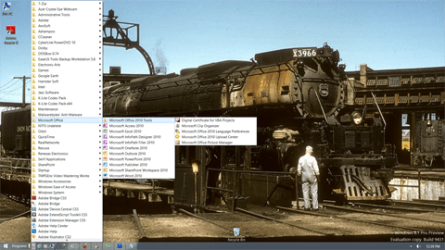
There's also a version of the old 'Win 95/98/XP classic' Start menu cleverly hidden in 8 and 8.1 as well. I used it on the Win 8 DP before I discovered 3rd-party fixes, and it works reasonably well.
Enable 'Classic' Start Menu by following Jimbo's tutorial here...
More Than 3 Out of 4 Enthusiasts Reject Windows 8 - Page 18 - Windows 7 Support Forums See pic 4 below.
I do agree re the boiling-water syndrome, and I have come in for some flak on EF for my dislike of the always-online, pay-as-you-go direction MS is heading, and my dislike/distrust of the 'cloud' but I've found ways to avoid, both in 8 and 8.1 So long as I have the choice, it's fine. But I'll dump MS like a hot spud the day I no longer have the choice.
Sorry for such a long post, but I do hope some may find it useful or helpful. And no, I'm not trying to convert anyone, or being a fanboi for 8.1
Wenda.
All screenshots taken from Windows 8.1 preview.