Regain a lost drive using Test Disk - An Illustrated Guide

Thank you Jumanji!
I apologize for not having realised this was not the appropriate place to post my issue.
I'm gonna follow your instructions and start a new thread for this, thanks.


"We shall decide whether to use TestDisk or some other data recovery utility. ( You have already tried EaseUs. I wish you had not.)"
Did you mean to suggest by this that EaseUS may have made some damage to the data by scanning the drive? (I really thought that it was safe since, as a data recovering product, it's obviously supposed to leave everything untouched) I truly hope that's not the case... :confused:
 

My Computer My Computer

Computer type
Laptop
Computer Manufacturer/Model Number
Compaq/HP Presario C750
OS
Vista Home Premium 32bit
Memory
2 Gib
Hard Drives
Western Digital WD30EZRX
Western Digital WD40EZRX
........Did you mean to suggest by this that EaseUS may have made some damage to the data by scanning the drive? (I really thought that it was safe since, as a data recovering product, it's obviously supposed to leave everything untouched) I truly hope that's not the case... :confused:

Most probably not. But then it provides an alibi for us if things don't turn out rosy - blame the OP, blame the software he had used ;).
 

My Computer My Computer

OS
Windows 7 Home Premium 32 bit
Most probably not. But then it provides an alibi for us if things don't turn out rosy - blame the OP, blame the software he had used ;).

Fair enough hehe! (Not that I'd be ready to blame you or anyone willing to help me, mind you. I'm already grateful that much more knowledgeable people like you accept to take a look at my troubles, you know :o ;))

Now, I tried to follow what you told me as thoroughly as I could, and posted this new thread for my help request. Thanks again Jumanji!
 

My Computer My Computer

Computer type
Laptop
Computer Manufacturer/Model Number
Compaq/HP Presario C750
OS
Vista Home Premium 32bit
Memory
2 Gib
Hard Drives
Western Digital WD30EZRX
Western Digital WD40EZRX
Which type of partition table should I select? "None" is detected.

I have a 500 GB (effective 467GB) WD Passport external hard drive. Long story short, I was going to backup something from my second laptop (Windows Vista) and the computer froze so I freaked out and disconnected the External Hard Drive because I couldn´t select "safely remove". Now it cant be read neither on that laptop nor on my main laptop (windows 7). I installed the correct WD drivers for my main laptop and the warning message dissapeard from device manager but the hard drive cant be read (takes too long to try to read and fails) and appears as a Local Disk (E:). Windows has many times suggested me to reformat the drive. That I wont do. I want to recover aprox 200Gb stored in it.

I have downloaded TestDisk and before repairing the partition I want to use TestDisk to take a look at the files and do a test by recovering one random video. Following the steps in this thread I encounter that TestDisk identifies that there is no partition table type in my drive.

What should I do? Should I pick None or pick Intel/PC?

I would really appreciate your help. I have learned a lot already reading this thread and others in this forum but I am not totally confident to try to repair the partition without knowing which type of partition table to choose.

EDIT: sorry for posting in this thread. I have started a new thread under the sub-forum Hardware and Devices. This is the thread http://www.sevenforums.com/hardware...s-7-wd-hdd-500gb-thought-trying-testdisk.html
 
Last edited:

My Computer My Computer

Computer type
Laptop
Computer Manufacturer/Model Number
HP
OS
Windows 7 Enterprise 64 bit
Am I doing something wrong???

I had a 3Tb almost full and perfectly working GPT NTFS Windows 7 formatted hard disk in an external SATA enclosure. I decided to change the letter of the unit and suddenly the partition appears RAW. In case it matters, the BIOS is not EFI (as per the choice in TestDisk menu)

I'm running TestDisk to recover the partition... choose the partition type as EFI GPT and then Analyze.... and it starts the procedure: 364000 sectors to go, 1 sector per second (give or take)... that's 67 HOURS!!!! Is this normal?

Excuse my naivity but I though that, providing the disk is not damaged (which it doesn't look that's the case as per the above explanation on how it came to be RAW), it'd be a matter of looking at the master boot record (or whatever name it has in GPT) and/or its backup --in the past MBRs had an automatic backup made at the end of the disk, didn't they?-- and once found, at least the backup, it'd show that a previous partition existed and offered to rewrite the MBR... that's a few minutes tops, isn't it? How come it's analyzing the 364000 sectors???

Thanks
 

My Computer My Computer

OS
W7 Pro x64
^Please redefine your problem abinitio in a new thread on the Hardware and Devices sub-forum giving full details of your enclosure and the HDD inside. Manufacturer, Model No, capacity etc. In that thread post a screenshot of Windows Disk Management with only your enclosure+HDD plugged into the USB port. Adhere to the guidelines here.
http://www.sevenforums.com/tutorials/274797-disk-management-post-screen-capture-image.html

Screenshots: http://www.sevenforums.com/tutorials/9733-screenshots-files-upload-post-seven-forums.html

Also post a screenshot of how that external drive looks in Partition Wizard Free Edition Version 9.1 Free download Magic Partition Manager Software, partition magic alternative, free partition magic, partition magic Windows 7 and server partition software - Partition Wizard Online

Basically, just changing the drive letter cannot make a drive RAW. And if you talk of how I made my drive RAW for this experiment, that is not the only way a drive could turn RAW.:)

Your naivity is excused :). A lot of misconceptions.( Just like me you know something but not everything. :))
 

My Computer My Computer

OS
Windows 7 Home Premium 32 bit

My Computer My Computer

Computer type
PC/Desktop
Computer Manufacturer/Model Number
Custom Build
OS
Microsoft Windows 8.1 Pro 64-bit
CPU
Intel Core i7-4930K (BX80633I74930K)
Motherboard
Asus X79-Deluxe
Memory
G.SKILL Ripjaws 6 x 4GB DDR3 1600 (F3-12800CL9T2-24GBRL)
Graphics Card(s)
EVGA GeForce GTX 780 Ti Superclocked (03G-P4-2884-KR)
Hard Drives
Samsung SSD 840 Pro 256GB (OS / Boot)
Samsung SSD 850 Pro 512GB (Cache / Swap / Temp)
Western Digital WDC WD4003FZEX-00Z4SA0 (Persistent Data)
PSU
EVGA SuperNOVA 1000 P2
Case
Corsair Obsidian Series 750D Full Tower ATX
Cooling
XIGMATEK Dark Knight II SD1283 Night Hawk Edition
I had replied to your post in Hardware and Devices yesterday night itself 13 hours ago. I haven't still got the information I requested.

TestDisk is not the answer for all the problems. We have to ascertain what exactly the problem is and then decide which way to go.

I hope you will answer the queries in the other thread to proceed further.
 

My Computer My Computer

OS
Windows 7 Home Premium 32 bit
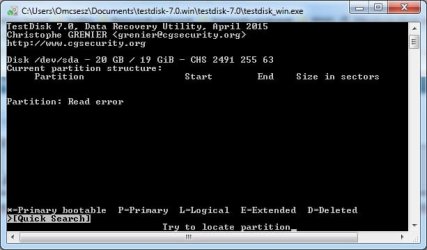
Read error

Hello jumanji!

I was going through the guide, but I ran into a read error. What does this mean? (see picture)
 

Attachments

  • read error.jpg
    read error.jpg
    27.7 KB · Views: 28

My Computer My Computer

Computer type
PC/Desktop
OS
Microsoft Windows 7 Professional (x64) Build 7601
CPU
Pentium Dual-Core E5200 @2.5Ghz
Motherboard
ASUS P5K
Memory
6 GB PC2-6400 DDR2-SDRAM UDIMM
Graphics Card(s)
MSI N210 (MS-V809)
Hard Drives
KINGSTON SV300S37A240G
WDC WD10JMVW-11AJGS4
Antivirus
ESET NOD32 8.0
Browser
FireFox 48.0.2
Hi there. I've had so much trouble with my 2tb hard drive. I have done all the commands specified at the beginning of this thread using Test Disk. then i rebooted my pc and the hard drive has now disappeared. I cant see it anywhere, even in Disk management. What went wrong? I've spent days and days trying to get this drive to work and spent a lot of money. Tried offline cloning but nothing happened. Can someone help me? Thank you so much.
 

My Computer My Computer

Computer type
PC/Desktop
OS
Windows 7 Home Premium 64 bit
I understand that this is a really old thread, but I just joined this forum to say Thank You to Jumanji. I had been trying to regain access to my unallocated drive for the last 3 days with various software and your guide took me only 2 mins to fix it. Thank you so much!!
 

My Computer My Computer

Computer type
PC/Desktop
Computer Manufacturer/Model Number
LENOVO
OS
Windows 10 x64
Howdy - WOW! Yes! This was almost 10 years ago . . . hopefully folks might still be around to address this. I have the problem presented here in PART 2. No partition is found, nothing bootable, not even anything in the list. I tell TestDisk to do the DEEPER scan (after the quick scan) and still . . . nothing.

What did I do? Well, I used a Seagate Slim BUP 1TB SSD (on windows PC) for a few years as a media drive. I just recently swapped out computers, so I did a little backup on that drive, too. Then, when I plugged into my newly setup PC, the drive would not mount. Disk Manager recognized something was there, and said healthy partition, but no mounting.

I stupidly followed a DiskPart YouTube video before realizing what the CLEAN command would do.

That's all I did . . . DiskPart CLEAN. No other formatting or anything.

Unfortunately, TestDIsk will not find a SINGLE thing.

However, software like Hetman Partition Recover is finding the file structure, drive, folders, and actual files; however, that's going to set me back $100US to recover the drive. UGH!!!!!!

Before I pull out my wallet, I wondered if there is some other "trick" I might be missing where TestDisk (or even another free option) might be available to me . . . anyone . . . please?

Thank you!

PART 2:

The first part of this topic broadly outlined the steps involved in regaining an inaccessible drive with a corrupt/missing partition table.

In the event, the drive will be seen in the Disk Management without a drive letter and unallocated space.

To actually ascertain how good is Test Disk in regaining the hard drive access, I destroyed the partition table on my Maxtor external drive – using the same Test Disk – and went through the whole process.

( My external drive had two partitions, one containing the backup of D and E drives/partitions of my internal drive and the other the periodical system images of drive C. As a matter of abundant caution, I had copied all this data into another external drive, should something go wrong in this destructive trial and I am unable to regain the drive/data. I had also imaged the MBR and kept it. )

Here is my healthy external drive before the partition table was deleted:

View attachment 178520

In the fourth Window – Part 1, I selected Delete, Enter, which deletes the partition table.

My external drive is now inaccessible and shows in the Disk Management as below. Now this is the real-life situation one will find that will necessitate calling upon Test Disk.

View attachment 178521

With the drive inacceesible, I hit Analyse, Enter – fourth Window in Part 1. A window with “No Partition is bootable” message appears. ( This in fact replaces the earlier fifth window in Part 1)

View attachment 178522


Hit Quick Search, Enter and this sixth window (missing earlier in Part 1 with a healthy drive) appears.


View attachment 178523

Press Y and voila the seventh window showing both the missing partitions appears. This happened almost instantaneously.

View attachment 178524

( Selecting a partition and hitting P as also the List, Enter in any window will show the folders/files which can be copied to any other drive in the PC. Screen shot later in this post)

Yep, Test Disk has done its job. Go ahead with the rest of the steps in Part 1, and the partition table is restored.

The Maxtor drive is back in business. No sweat.

View attachment 178525

So go ahead and try Test Disk when suddenly your external drive becomes inaccessible.

More on Test Disk:

The fourth Window has the following tabs: Analyse, Advanced, Geometry, Options, MBR Code,Delete, Quit. We have already seen the Analyse in the fourth window – Part 1.

The Advanced Tab brings out the file System Utilities window.

View attachment 178526

Here one can select Type – for changing Partition Type, Boot – for Boot Sector Recovery, List – to list and copy files from the selected Partition, Undelete – to recover deleted files and Image Creation – for creating images of the partition. Boot, Enter brings another window with List, Rebuild BS, Repair MFT, and DUMP (dump boot sector and backup boot sector)


MBR Code facilitates writing a new Test Disk MBR code. Users are well-advised to read http://www.cgsecurity.org/wiki/Menu_MBRCode on writing the Test Disk MBR as a last resort.

Apparently these would be used when the system becomes unbootable and one tries to fix the system hard drive and /or recover the files. In such a situation, however, one would run Test Disk from a live-CD. ( A list of liveCDs with Test Disk can be found here .)

The List, Enter brings the following window which will enable one copy the folders/files to another drive.

View attachment 1785278

(The screenshot shows the system images stored in the second partition of my Maxtor External drive.)

Please keep in mind that Test Disk has to be run as an administrator.
 

My Computers My Computers

System One System Two

  • OS
    Windows 10 Pro 64
  • Computer type
    PC/Desktop
I suggest you wait for jumanji to feature.
 

My Computers My Computers

System One System Two

  • Computer type
    PC/Desktop
    OS
    7 X64
    CPU
    i5 8400
    Motherboard
    gigabyte b365m ds3h
    Memory
    2x8gb 3200mhz
    Hard Drives
    various
    PSU
    pure power 11 400w cm
    Case
    Coolermaster
    Cooling
    cryorig m9i
  • Computer type
    PC/Desktop
    OS
    7x64
    CPU
    g5400
    Motherboard
    ga b365m ds3h
    Memory
    8gb ddr4 2400
    PSU
    xfx pro 450w
I suggest you wait for @jumanji to feature.

Yes - that's what I was kinda hoping; however, is jumanji still around? Anyone else?

Update: I used MiniTool Power Data Recovery free to scan the HD - I can see the full file/folder structure as I last remember it (and seeing I used it only less than a week ago - that means I believe I see the entire file/folder structure in tact).

MiniTool Power Data Recovery is the ONLY tool that shows me this folder structure and real file names (other programs find files; however, they list them as excel 1, excel 2, etc., etc.).

The point being is that I *KNOW* all the data is there on a lost partition; however, why can't TestDisk find anything?

Anyone? Please? Thank you!
 

My Computers My Computers

System One System Two

  • OS
    Windows 10 Pro 64
  • Computer type
    PC/Desktop
Have you used minitool pdr free to recover your data?
 

My Computers My Computers

System One System Two

  • Computer type
    PC/Desktop
    OS
    7 X64
    CPU
    i5 8400
    Motherboard
    gigabyte b365m ds3h
    Memory
    2x8gb 3200mhz
    Hard Drives
    various
    PSU
    pure power 11 400w cm
    Case
    Coolermaster
    Cooling
    cryorig m9i
  • Computer type
    PC/Desktop
    OS
    7x64
    CPU
    g5400
    Motherboard
    ga b365m ds3h
    Memory
    8gb ddr4 2400
    PSU
    xfx pro 450w
Have you used minitool pdr free to recover your data?

Well, yes and no. I used it to scan and find the partition. As I mentioned in my reply to you above, it would appear the entire partition and file/folder structure was found and in tact. However, the recovery tool only allows 5GB of free recovery. This is a 1 TB drive with just under 600GB of data on it I want recovered (my full, previous file/folder structure on the drive pre-crash).

Before I spend the $70 - I just wanted to exhaust all my free options. Will TestDisk be able to do this, or is it a lost cause if TestDisk refuses to discover any partitions and/or file/folder strucutres?

Thanks again!
 

My Computers My Computers

System One System Two

  • OS
    Windows 10 Pro 64
  • Computer type
    PC/Desktop
1.the last free version minitool dtata recovery that didnt limit recovery is in here 17514x64v26.iso
It is an older version, obviously, hopefully it will do the job.

extract the iso to create bootable usb using this: View attachment Usb7ice.zip
After booting from the usb, you will get a desktop - look under the start menu\data recovery

pdr6.5.jpg


2. If not, you could investigate Find and Restore Lost Files: Undelete deleted files and recover damaged disks, if it sees your data you would need to buy a license to recover, but it was $29.95 last time I looked
 
Last edited:

My Computers My Computers

System One System Two

  • Computer type
    PC/Desktop
    OS
    7 X64
    CPU
    i5 8400
    Motherboard
    gigabyte b365m ds3h
    Memory
    2x8gb 3200mhz
    Hard Drives
    various
    PSU
    pure power 11 400w cm
    Case
    Coolermaster
    Cooling
    cryorig m9i
  • Computer type
    PC/Desktop
    OS
    7x64
    CPU
    g5400
    Motherboard
    ga b365m ds3h
    Memory
    8gb ddr4 2400
    PSU
    xfx pro 450w
Yes - that's what I was kinda hoping; however, is @jumanji still around? Anyone else?

Update: I used MiniTool Power Data Recovery free to scan the HD - I can see the full file/folder structure as I last remember it (and seeing I used it only less than a week ago - that means I believe I see the entire file/folder structure in tact).

MiniTool Power Data Recovery is the ONLY tool that shows me this folder structure and real file names (other programs find files; however, they list them as excel 1, excel 2, etc., etc.).

The point being is that I *KNOW* all the data is there on a lost partition; however, why can't TestDisk find anything?

Anyone? Please? Thank you!
Not sure whether Jumanji still posts here. He is active on our sister site Windows 10 Help Forums
 

My Computer My Computer

Computer type
Laptop
Computer Manufacturer/Model Number
Hewlett-Packard/G62-107SA Notebook
OS
Microsoft Windows 7 Home Premium 64-bit Service Pack 1
CPU
Intel(R) Core(TM) i3 CPU M 330 @ 2.13GHz
Motherboard
Hewlett-Packard 1425
Memory
8 GB DDR3
Graphics Card(s)
Intel(R) HD Graphics
Sound Card
Realtek High Definition Audio
Monitor(s) Displays
Builtin
Screen Resolution
1366 x 768 x 32 bits (4294967296 colors) @ 60 Hz
Hard Drives
250 GB SATA Hard Disk Drive 7200 rpm
2TB Seagate GoFlex USB 2 Drive
1TB Iomega Prestige USB 2 Drive
1.5TB Iomega Prestige USB 2 Drive (Samsung)
2TB WD MyBook Live NAS.
Mouse
Logitech Anywhere MX
Internet Speed
152 Mbs download 10 Mbs upload
Antivirus
Norton 360
Browser
Chrome
Well - this was and is VERY kind of you! However, here's what happened:

1. USB bootable created just fine - nice, fast Windows 7 load up.
2. Found the MTPDR app and it runs.
3. Quick scan didn't find, so it automatically started deep scan.
4. It finds a TON of partitions, but only one with 99% suggested rate.
5. Upon looking at the file structure, yup! This is the one.
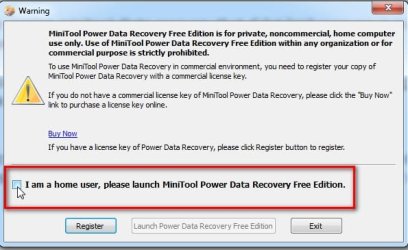
6. The problem? It is HFS+ partition, and when I go to save the files I selected, I get a pop up from MTPDR:

"Power Date Recovery Free Edition does not support to recover files from HFS+ file system. To save the recovered files, you need a license key.

Then the link to go buy.

I thought this was a free edition, however, for a "HOME USER?" Yes, I absolutely made sure I clicked on home user, as the launch button would not activate until I did.

What other options might I have now?

Thanks again!

1.the last free version minitool dtata recovery that didnt limit recovery is in here 17514x64v26.iso
It is an older version, obviously, hopefully it will do the job.

extract the iso to create bootable usb using this: View attachment 419937
After booting from the usb, you will get a desktop - look under the start menu\data recovery

View attachment 419938


2. If not, you could investigate Find and Restore Lost Files: Undelete deleted files and recover damaged disks, if it sees your data you would need to buy a license to recover, but it was $29.95 last time I looked
 

My Computers My Computers

System One System Two

  • OS
    Windows 10 Pro 64
  • Computer type
    PC/Desktop
HFS+ file system

It is free for windows, which means ntfs or fat file systems.

There is ( or was) a different program for mac, which is hfs+

It must think it is an hfs+ partition.

What does the partition recovery module say?
 

My Computers My Computers

System One System Two

  • Computer type
    PC/Desktop
    OS
    7 X64
    CPU
    i5 8400
    Motherboard
    gigabyte b365m ds3h
    Memory
    2x8gb 3200mhz
    Hard Drives
    various
    PSU
    pure power 11 400w cm
    Case
    Coolermaster
    Cooling
    cryorig m9i
  • Computer type
    PC/Desktop
    OS
    7x64
    CPU
    g5400
    Motherboard
    ga b365m ds3h
    Memory
    8gb ddr4 2400
    PSU
    xfx pro 450w
Back
Top