
A simple guide to a successful in-place upgrade

Kari

An Angry Old Man
Guru
VIP
SF Team
Local time
1:48 PM
Messages
17,473
Location
A Finnish ex-pat in Leipzig, Germany
A simple guide to a successful in-place upgrade

You have most likely heard that a clean (custom) install is the preferred install method when migrating to Windows 7. That is most certainly true. However, there are situations when in-place upgrade is more practical method to use. Tens, maybe hundreds of gigs software installed, no install media found for the software and so on.

You might have heard horror stories about non-working Seven and how it’s all in-place upgrade’s fault, or how an in-place leaves so much unwanted and not used pieces and bits it seriously puts your system in danger, at least making it slow. Most of these horror stories come from two types of users, those who have never done a Vista to Seven in-place upgrade but have heard third hand information and rumours, and those who have not prepared installation as it should be prepared.

I have done a lot of in-place upgrades, both from XP to Vista and lately from Vista to Seven. I have even successfully tried a one-session XP to Seven via Vista in-place upgrade (in-place XP to Vista, installing service packs and drivers and then directly in-place further to Seven), to show some colleagues how to do a safe and working upgrade. I have never encountered any upgrade related problems; I do have had my share of installation problems and issues but I’ve always found out that after failing to do an in-place upgrade, the same issue has occurred also after a clean install. Most often the reason is non-compatible hardware. You cannot blame in-place if your hardware refuses to work with Seven.

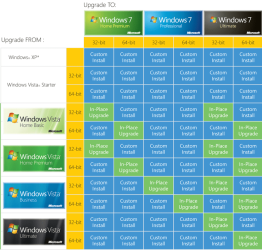
First, let’s take a look at the chart about in-place options:
upgrade_chart.PNG

(Click the images to show them bigger)

As you can see it is not possible to "downgrade when upgrading" i.e. you cannot in-place upgrade from for example Vista Ultimate to Seven Home Premium. You need to have the same or better edition (notice that you can in-place upgrade to Seven Professional only from Vista Business). Your current Vista needs at least service pack 1 to be able to upgrade to Seven.

Notice please:
  • You can only in-place upgrade to Win7 from Vista. Older Windows versions (XP, 2000 etc.) can not be in-place upgraded to Seven
  • You cannot in-place upgrade a 32-bit Vista to a 64-bit Seven or 64-bit Vista to a 32-bit Seven
  • The language versions have to match, you can in-place upgrade an English Vista only with an English Seven

So, let’s start. This guide will show you how to prepare and do an in-place upgrade from Vista to Seven. Following these steps you are most likely to get it right first time.

1. Check the compatibility issues
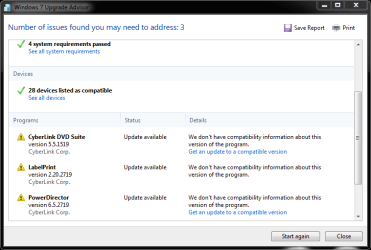
  • Download and run Windows 7 Upgrade Advisor
  • Follow any instructions given
  • Uninstall all incompatible software, update drivers and software if Advisor tells so
upgrade_advisor.PNG

2. Prepare your system

  • Update (flash) your system BIOS to most current version
  • After flashing BIOS, restore it to factory defaults
3. Prepare your software setup

  • Uninstall all applications and software you never use or which is expired (test and trial versions, software you know you are never going to use like the game you tested but didn’t like etc.)
  • Update AV and Firewall software to the most current versions, including virus definitions
  • Turn off AV, Firewall and all malware software. Remember to turn them on again after installation is finished
  • Check and run Windows Update until it tells you Vista is up to date
  • Clean up your system deleting all unnecessary files like temp folders etc.
  • Backup your system
4. Prepare your hardware setup

  • Check Device Manager to assure all devices are working
  • Disconnect all external devices, leave only the main display, mouse and keyboard
  • If upgrading a laptop, be sure it is connected to an AC power source
That’s it. Insert the install media and start doing an in-place upgrade. Please notice this is the most boring part of the process; an in-place upgrade can take hours as this chart shows:

upgrade_time.PNG

An in-place upgrade can easily take longer than doing a clean install and re-installing all the software. If you don't have too much personal files to transfer, only have a limited amount of applications to re-install and if you have all install media, I recommend doing a clean install. Remember though there's nothing wrong doing an in-place upgrade. It works well and fine when done right.

Enjoy your upgraded system. If you have any questions or concerns, please feel free to ask.

Kari
 
Last edited:

My Computer My Computer

At a glance

Windows 10 Pro x64 EN-GB1.6 GHz Intel Core i7-720QM Processor6 GBATI Mobility Radeon HD 5850 Graphics
Computer type
Laptop
Computer Manufacturer/Model Number
HP ENVY 17-1150eg
OS
Windows 10 Pro x64 EN-GB
CPU
1.6 GHz Intel Core i7-720QM Processor
Memory
6 GB
Graphics Card(s)
ATI Mobility Radeon HD 5850 Graphics
Sound Card
Beats sound system with integrated subwoofer
Monitor(s) Displays
17" laptop display, 22" LED and 32" Full HD TV through HDMI
Screen Resolution
1600*900 (1), 1920*1080 (2&3)
Hard Drives
Internal: 2 x 500 GB SATA Hard Disk Drive 7200 rpm
External: 2TB for backups, 3TB USB3 network drive for media
Cooling
As Envy runs a bit warm, I have it on a Cooler Master pad
Keyboard
Logitech diNovo Media Desktop Laser (bluetooth)
Mouse
Logitech Performance Mouse MX
Internet Speed
50/10 Mbps VDSL
Antivirus
Windows Defender 4.3.9431.0
Browser
Maxthon 3.5.2., IE11
Thank you, Kari, for taking the time in an attempt to help everyone who have not taken advantage of the greatest OS, to date.

I know that I felt a bit intimidated when I installed Windows 7 and your guide would have helped me, too.
 

My Computer My Computer

At a glance

Windows 10, Home Clean InstallIntel Core2 processsor Q8200(2.33Ghz 1333FSB)...6 gbATI Radeon 256MB HD3650
Computer type
PC/Desktop
Computer Manufacturer/Model Number
Dell XPS 420
OS
Windows 10, Home Clean Install
CPU
Intel Core2 processsor Q8200(2.33Ghz 1333FSB) Quad Core Tech
Motherboard
Dell
Memory
6 gb
Graphics Card(s)
ATI Radeon 256MB HD3650
Sound Card
Intergrated 7.1 Channel Audio
Monitor(s) Displays
Dell SP2009W 20"
Hard Drives
640 GB Serial ATA Hard drive
Cooling
Fan
Keyboard
Dell USB Keyboard
Mouse
Dell Premium Optical USB
Internet Speed
DSL 2.85
Thanks, Rich.

I been reading these clean vs. upgrade threads and noticed there really was not a simple to read and understand guide about in-place upgrade. I felt I knew how to at least give it a better chance to succeed. In-place upgrade is a real alternative to some of us.

Kari
 

My Computer My Computer

At a glance

Windows 10 Pro x64 EN-GB1.6 GHz Intel Core i7-720QM Processor6 GBATI Mobility Radeon HD 5850 Graphics
Computer type
Laptop
Computer Manufacturer/Model Number
HP ENVY 17-1150eg
OS
Windows 10 Pro x64 EN-GB
CPU
1.6 GHz Intel Core i7-720QM Processor
Memory
6 GB
Graphics Card(s)
ATI Mobility Radeon HD 5850 Graphics
Sound Card
Beats sound system with integrated subwoofer
Monitor(s) Displays
17" laptop display, 22" LED and 32" Full HD TV through HDMI
Screen Resolution
1600*900 (1), 1920*1080 (2&3)
Hard Drives
Internal: 2 x 500 GB SATA Hard Disk Drive 7200 rpm
External: 2TB for backups, 3TB USB3 network drive for media
Cooling
As Envy runs a bit warm, I have it on a Cooler Master pad
Keyboard
Logitech diNovo Media Desktop Laser (bluetooth)
Mouse
Logitech Performance Mouse MX
Internet Speed
50/10 Mbps VDSL
Antivirus
Windows Defender 4.3.9431.0
Browser
Maxthon 3.5.2., IE11
Thank you, Kari, for taking the time in an attempt to help everyone who have not taken advantage of the greatest OS, to date.

I know that I felt a bit intimidated when I installed Windows 7 and your guide would have helped me, too.

+1 Bravo! Bumped.
 
Ok i'm a little confused. When I bought my pc on september 2009 later I ordered a free Windows 7 Upgrade Kit. This disc I have is for the in-place upgrade right?? I wanted to install 7 several times, but I was a little scared about it, because I don't want to lose all my images, songs, games, etc. Does this installation deletes everything? Or it just upgrades Vista to Seven?
 

My Computer My Computer

At a glance

Windows Vista Home Premium 64bit SP2Intel Core2 Quad Q9300 2.5 GHz4 GBATI Radeon HD4350
Computer Manufacturer/Model Number
Acer Aspire M3641
OS
Windows Vista Home Premium 64bit SP2
CPU
Intel Core2 Quad Q9300 2.5 GHz
Motherboard
Don't know
Memory
4 GB
Graphics Card(s)
ATI Radeon HD4350
MS required manufacturers to provide a clean-copy Win7 Installation DVD in addition to a driver/applications disk for the Upgrade kits. So you have the ability to boot to clean install using the DVD if you want. http://www.sevenforums.com/tutorials/1649-clean-install-windows-7-a.html

Confirm that there is a Product Key with the Installation media disk. That key should be accepted up front during install on a factory upgrade kit even if you wipe the HD first to get the cleanest install: http://www.sevenforums.com/installation-setup/125874-re-install-windows-7-a.html#post1086729

Or follow Kari's steps above to run an in-place Upgrade which keeps files, programs and settings in place but reinstalls the OS only.

Be sure to back up your files first and (if you want) a Vista backup image as there is always a slight risk when installing.
 
Well, I'm not sure about how to do a backup, never done it before. And also, are you sure that by installing this upgrade kit my HD will keep all of its data? No risk of losing everything?
 

My Computer My Computer

At a glance

Windows Vista Home Premium 64bit SP2Intel Core2 Quad Q9300 2.5 GHz4 GBATI Radeon HD4350
Computer Manufacturer/Model Number
Acer Aspire M3641
OS
Windows Vista Home Premium 64bit SP2
CPU
Intel Core2 Quad Q9300 2.5 GHz
Motherboard
Don't know
Memory
4 GB
Graphics Card(s)
ATI Radeon HD4350
You'lll need to backup your data whether you do a clean install or an in-place Upgrade.

The easiest method is to go to your active User Account folder and either drag it intact to another HD, another computer on the network or DVD's. If you need to split up the data, drag each Active user folder: Documents, Pictures, Video, Music, Favorites, etc.

This saves a lot of wasted space and other complication caused by backup programs. Just click n drag to the storage location on the explorer tree on left hand margin of explorer window.
 
Alright thanks for your help Greg, I'll try to do it soon
 

My Computer My Computer

At a glance

Windows Vista Home Premium 64bit SP2Intel Core2 Quad Q9300 2.5 GHz4 GBATI Radeon HD4350
Computer Manufacturer/Model Number
Acer Aspire M3641
OS
Windows Vista Home Premium 64bit SP2
CPU
Intel Core2 Quad Q9300 2.5 GHz
Motherboard
Don't know
Memory
4 GB
Graphics Card(s)
ATI Radeon HD4350
I have a situation not shown on your Vista to Win7 chart
I have Win7 64bit installed but I accidentally deleted my D partition which had Office 2010 on it. My win7 still works and Office is still in my control panel. So
1. can I Update in Place Win7 64bit to Win7 64bit without reentering my product key? i.e. since I already have a Win7 installed, will he update in place recognize this and not require me to reenter the product key. This is a corporate license, reentering the product key means another license issued.
2. would I be better to use Win7 repair.
3. which order should I do my repair/update in place. i.e. should I repair my Office 2010 first, then Win7
4. I am trying to back up my Win7 first with Acronis True Image sector by sector image but it found some unreadable bytes which I told it to ignore. (I did chkdsk but no help). I am uncertain if my Acronis restore will work
 

My Computer My Computer

At a glance

Win 7 Home premium 64 bit
OS
Win 7 Home premium 64 bit
I'm not sure why an in-place Upgrade or Repair Install is being considered here.

If the only issue is a partition which was deleted that held the Office program you want to recover, then boot into free Partition Wizard bootable CD to run the Partition Recovery Wizard which should recover intact the D partition.

You'll need to clear anything you replaced it with so it can be restored once the Wizard finds and offers to Recover it.
 
thank you Gregrocker, unfortunately the problem is slightly bigger.
I deleted all partitions, then I created partitions of different sizes and did a quick format. My original D was 100GB my new D is 25GB. I have 2 Acronis True Image files on that WD drive that I hope to recover with Linux Live Cd, if I can figure out how to get Phtorec to save to an external drive.

In the mean time, since my Win7 is sort of working and Office 2010 is still in the control panel, I assume that I can either Repair both OR I can first repair Office 2010 then Update in Place Win7. But I do not want to re-enter my product key as this counts as another license issued. When update in place Win7 to Win7 do I need to reenter product key.
 

My Computer My Computer

At a glance

Win 7 Home premium 64 bit
OS
Win 7 Home premium 64 bit
First you say you deleted D which held Office. Now you say you deleted all partitions but there is still an installation there with Office in the Control Panel? This makes no sense at all. If you deleted all partitions there would be no installation to boot into.

Why don't you try opening Office to see if it works if it is still in the Control Panel, even though you said you deleted it on D partition - and now say you deleted all partitions.

How you would do an in-place Upgrade when you have no partitions is baffling. This is perhaps the least understandable posting I've read here in a long time. Perhaps you can explain it so that it makes sense.

You must reactivate when doing a Repair Install or Reinstalling Windows 7
 
I apologize Gregrocker for not supplying enough background.

I just wanted to know if Win7 update-in-place when going Win7 64bit home premium to Win7 64bit home premium will require me to reenter my product code again. From you Link it looks like I will need to enter the product key again.

First I want to try to recover my Acronis backup files with a file recover utility. I tried Ubantu Recover Remix / Photorec but could not get it to work right. So I will try some of the many utilities on Ultimate Boot CD.
 

My Computer My Computer

At a glance

Win 7 Home premium 64 bit
OS
Win 7 Home premium 64 bit
Still not clear on what was deleted or not and how there is an OS to Upgrade if you deleted all partitions.

Use Partition Wizard to undelete a partition, Recuva if data remains lost.
 
Gregrocker. I am very impressed by what you do for this forum and how you treat people. You post over 20,000 replies and you still have patience when I did not post a clear question.

actually mistake worked out pretty well
1. I had mistakenly deleted my D,E,F partitions where I had office, all of my backups etc.

2. tried to recover my backup files and was successful using Recuva - great free product - than you for the suggestion

3. Acronis did not like my recovered files so I had to go to plan B.

4. I wanted to do a back up of my C drive before proceeding but everytime I used Acronis 2011 I got a read error on my C drive. Turns out Acronis had a bug in it, and when I used Acronis 2009 my back up worked fine

5. was able to reinstall all of my programs (including office) with all of my original settings. All programs that is except for Powerchute which works with my UPS to do a controlled shutdown in a power failure. Powerchute setup wants me to remove the old program first, but I can not. The tech guy had me use Regedit, but we still could not remove Powerchute. Not a big loss.

6. since my C-drive doesn't appear to have any read errors, I will not be trying a Win7 to Win7 install in place
 

My Computer My Computer

At a glance

Win 7 Home premium 64 bit
OS
Win 7 Home premium 64 bit
MS required manufacturers to provide a clean-copy Win7 Installation DVD in addition to a driver/applications disk for the Upgrade kits. So you have the ability to boot to clean install using the DVD if you want. http://www.sevenforums.com/tutorials/1649-clean-install-windows-7-a.html

Confirm that there is a Product Key with the Installation media disk. That key should be accepted up front during install on a factory upgrade kit even if you wipe the HD first to get the cleanest install: http://www.sevenforums.com/installation-setup/125874-re-install-windows-7-a.html#post1086729

Or follow Kari's steps above to run an in-place Upgrade which keeps files, programs and settings in place but reinstalls the OS only.

Be sure to back up your files first and (if you want) a Vista backup image as there is always a slight risk when installing.

I have a friends machine who is not a techie. It has Windows Vista Home Premium 32-bit and we want to Upgrade it to Windows 7 Ultimate 32 bit. From what I see this is a VALID in-place upgrade path.

The CRITICAL question here is.. Will her existing Office 2003 & its Product/License/Activation need to be RE-INSTALLED? Or will Windows 7 let it work as it used to?

The thing is she has the CDs etc at home but she is visiting and will be further traveling for few weeks before getting back home. So we cant afford to have her not have the use of all these Programs (Office 2003 Pro) and relevant settings etc.

What kind of Program or App or Settings loss can/ should we expect or be prepared for?

Do share your insights here. Thanks in advance.
 

My Computer My Computer

At a glance

WinXP/ Win7x64/ Mac OSX Snow Leopard - Multi ...
Computer Manufacturer/Model Number
Mac Book Pro | Thinkpads T61 X61T W510
OS
WinXP/ Win7x64/ Mac OSX Snow Leopard - Multi Boot
The upgrade will run an advisor first to clue you to any issues, or you can run it yourself: Windows 7 Upgrade Advisor

All programs should hold their settings and remain in place and functional. However Office could well ask to be reactivated so have the key on hand, by auditing it if necessary using Belarc Advisor - Free software downloads and software reviews - CNET Download.com

Since this is a production machine being depended upon I would wait to do the Upgrade until a break, or else back up externally a System image so you can restore Vista if necessary in 20 minutes. Use free Macrium - Image your system or the premium free Acronis imaging software available if you have any WD or Seagate HD's in the mix - an excellent Manual is on the Downloads page found by googling.
 
The upgrade will run an advisor first to clue you to any issues, or you can run it yourself: Windows 7 Upgrade Advisor

All programs should hold their settings and remain in place and functional. However Office could well ask to be reactivated so have the key on hand, by auditing it if necessary using Belarc Advisor - Free software downloads and software reviews - CNET Download.com

Since this is a production machine being depended upon I would wait to do the Upgrade until a break, or else back up externally a System image so you can restore Vista if necessary in 20 minutes. Use free Macrium - Image your system or the premium free Acronis imaging software available if you have any WD or Seagate HD's in the mix - an excellent Manual is on the Downloads page found by googling.

I downloaded and ran the upgrade advisor. I can post the report here if you want and would comment.

In short, it okay-ed & "green checked marked" most things, flagged a few HP 'factory' apps for being out of date/ needing updates from Publisher/ Manufacturer or needing to be uninstalled.

But, it did not even list Office 2003 in its list. Neither was it checked green nor was it listed as a program/ app with some issues, needing update/upgrade or needing to be uninstalled.

Can anyone share their experiences with "in-place" upgrades where they had one or the other version of Office installed ?
 

My Computer My Computer

At a glance

WinXP/ Win7x64/ Mac OSX Snow Leopard - Multi ...
Computer Manufacturer/Model Number
Mac Book Pro | Thinkpads T61 X61T W510
OS
WinXP/ Win7x64/ Mac OSX Snow Leopard - Multi Boot
Back
Top