Open folders?

PZC

New member
Hello, this has probably already answered or it's easy to do (or maybe impossible..), but I really can't find anything related.

I want to change the default open yellow folders in Windows.
Inside the music library I have various folders with a thumbnail of each artist, for each folder. And that's the folder I want to change. I don't like the yellow folders, and I wondered if there's any way to change them but keeping the jpgs as thumbnails.

PS: Sorry if I didn't explain myself right :o
 

My Computer

OS
Windows 7
Hello, this has probably already answered or it's easy to do (or maybe impossible..), but I really can't find anything related.

I want to change the default open yellow folders in Windows.
Inside the music library I have various folders with a thumbnail of each artist, for each folder. And that's the folder I want to change. I don't like the yellow folders, and I wondered if there's any way to change them but keeping the jpgs as thumbnails.

PS: Sorry if I didn't explain myself right :o

http://www.sevenforums.com/customization/41105-themes-windows-7-a.html

Try one of Mr. Grim themes
cheers
 

My Computer

Computer Manufacturer/Model Number
Micro-Star International/MS-7529
OS
Windows 7 Ultimate x32
CPU
DualCore Intel Pentium E2200, 2218 MHz (11 x 202)
Motherboard
MSI G31M3 V2 (MS-7529) (2 PCI, 1 PCI-E x16,2 DDR2 DIMM)
Memory
2 GB DDR2-800 DDR2 SDRAM
Graphics Card(s)
nVIDIA GeForce 9500GT 1GB
Sound Card
Realtek ALC888/1200 @ Intel 82801GB ICH7
Monitor(s) Displays
Samsung SyncMaster 2253BW (Digital) 22'' LCD
Screen Resolution
1680x1050
Hard Drives
SAMSUNG HD322IJ ATA Device (298 GB , IDE)
But I don't want to change the whole theme. I just want to change "that" icon.
 

My Computer

OS
Windows 7
I know TuneUp Utilities "Styler" allows you to customize the System Icons, and the "User Folders" are considered System Icons.

Give that a shot.

If not, I know there are simply titled programs that can help such as "Icon Changer", etc..
 

My Computer

Computer Manufacturer/Model Number
Toshiba® Satellite® [L755D-s5359]
OS
Windows® 7 Home Premium SP1 [x64]
CPU
AMD A6 APU [2.4GHz O/C]
Memory
G.Skill DDR3 So-Dimm [8GB]
Graphics Card(s)
ATI Radeon™ HD 6520g [512MB]
Sound Card
Conexant® SmartAudio HD
Screen Resolution
1366x768
Hard Drives
Western Digital 500GB [Internal]
Western Digital 1TB Passport [External]
Keyboard
Microsoft® Comfort Curve 2000
Mouse
Microsoft® Wireless Mobile Mouse 6000
Internet Speed
Comcast Xfinity 100MBPS
Other Info
Common Devices:: HTC Titan, Microsoft ZuneHD 32GB

My Computer

Computer type
PC/Desktop
Computer Manufacturer/Model Number
Self built custom
OS
64-bit Windows 11 Pro for Workstations
CPU
Intel i7-8700K OC'd to 5 GHz
Motherboard
ASUS ROG Maximus XI Formula Z390
Memory
64 GB (4x16GB) G.SKILL TridentZ RGB DDR4 3600 MHz
Graphics Card(s)
ASUS ROG-STRIX-GTX1080TI-O11G-GAMING
Sound Card
Integrated
Monitor(s) Displays
2 x Samsung Odyssey G7 27"
Screen Resolution
2560x1440
Hard Drives
1TB Samsung 990 PRO M.2,
4TB Samsung 990 PRO PRO M.2,
TerraMaster F8 SSD Plus NAS
PSU
Seasonic Prime Titanium 850W
Case
Thermaltake Core P3
Cooling
Corsair Hydro H115i
Keyboard
Logitech wireless K800
Mouse
Logitech MX Master 4
Internet Speed
2 Gb/s Download and 100 Mb/s Upload
Antivirus
Malwarebyte Anti-Malware Premium
Browser
Google Chrome
Other Info
Logitech Z625 speaker system,
Logitech BRIO 4K Pro webcam,
HP Color LaserJet Pro MFP M477fdn,
APC SMART-UPS RT 1000 XL - SURT1000XLI,
Galaxy S23 Plus phone
First of all, thank you so much for your help.

This will get you going :

http://www.sevenforums.com/tutorials/16336-user-folders-change-default-icon.html


or check this out. It's a fantastic thread on resource hacking, made by someone I know :

Windows 7 Theme & Resource Mods

mod #7 there explains in detail how to change your explorer folder icons through some easy resource hacking.

First option is not what I'm looking for, and I see myself incapable of making second one XD But thanks anyway.


I tried the first one before making this thread, but it only changed the folders without the jpg thumbnails.
As for the second, it has only changed the open folders in the tree explorers.

It seems I may not been able to change them T_T

PS: Maybe I explained myself wrong? Would it be better if I make a screencap of what I have and want to change?
 

My Computer

OS
Windows 7
PZC,

Yes, please post a screenshot of what you are wanting to change. :)
 

My Computer

Computer type
PC/Desktop
Computer Manufacturer/Model Number
Self built custom
OS
64-bit Windows 11 Pro for Workstations
CPU
Intel i7-8700K OC'd to 5 GHz
Motherboard
ASUS ROG Maximus XI Formula Z390
Memory
64 GB (4x16GB) G.SKILL TridentZ RGB DDR4 3600 MHz
Graphics Card(s)
ASUS ROG-STRIX-GTX1080TI-O11G-GAMING
Sound Card
Integrated
Monitor(s) Displays
2 x Samsung Odyssey G7 27"
Screen Resolution
2560x1440
Hard Drives
1TB Samsung 990 PRO M.2,
4TB Samsung 990 PRO PRO M.2,
TerraMaster F8 SSD Plus NAS
PSU
Seasonic Prime Titanium 850W
Case
Thermaltake Core P3
Cooling
Corsair Hydro H115i
Keyboard
Logitech wireless K800
Mouse
Logitech MX Master 4
Internet Speed
2 Gb/s Download and 100 Mb/s Upload
Antivirus
Malwarebyte Anti-Malware Premium
Browser
Google Chrome
Other Info
Logitech Z625 speaker system,
Logitech BRIO 4K Pro webcam,
HP Color LaserJet Pro MFP M477fdn,
APC SMART-UPS RT 1000 XL - SURT1000XLI,
Galaxy S23 Plus phone
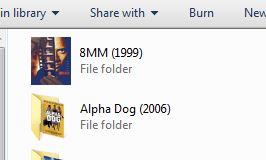
Ok, this is want I want to change. Just the yellow folders, because I want to keep the cover art (or any other pic) . Is possible?

folder.JPG
 

My Computer

OS
Windows 7
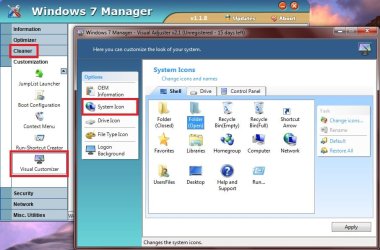
You will have to use a 3rd party skinning program to do this instead. You can use the trial version of Windows 7 Manager to do this.

Windows7Manager.jpg
 

My Computer

Computer type
PC/Desktop
Computer Manufacturer/Model Number
Self built custom
OS
64-bit Windows 11 Pro for Workstations
CPU
Intel i7-8700K OC'd to 5 GHz
Motherboard
ASUS ROG Maximus XI Formula Z390
Memory
64 GB (4x16GB) G.SKILL TridentZ RGB DDR4 3600 MHz
Graphics Card(s)
ASUS ROG-STRIX-GTX1080TI-O11G-GAMING
Sound Card
Integrated
Monitor(s) Displays
2 x Samsung Odyssey G7 27"
Screen Resolution
2560x1440
Hard Drives
1TB Samsung 990 PRO M.2,
4TB Samsung 990 PRO PRO M.2,
TerraMaster F8 SSD Plus NAS
PSU
Seasonic Prime Titanium 850W
Case
Thermaltake Core P3
Cooling
Corsair Hydro H115i
Keyboard
Logitech wireless K800
Mouse
Logitech MX Master 4
Internet Speed
2 Gb/s Download and 100 Mb/s Upload
Antivirus
Malwarebyte Anti-Malware Premium
Browser
Google Chrome
Other Info
Logitech Z625 speaker system,
Logitech BRIO 4K Pro webcam,
HP Color LaserJet Pro MFP M477fdn,
APC SMART-UPS RT 1000 XL - SURT1000XLI,
Galaxy S23 Plus phone
It doesn't work either. The program changes the tree icons only T_T

Ok, I give up, it doesn't matter. Thank you for your help ^^
 

My Computer

OS
Windows 7
Ok, this is want I want to change. Just the yellow folders, because I want to keep the cover art (or any other pic) . Is possible?

View attachment 52138


If this is what you are trying to do (below) , What I did was make a copy of the folder art and then go Here...http://www.coolutils.com/Online-Image-Converter.php# to convert the copy to .ico format.
Then put my new icons in a folder in Documents library, or where ever you want.
Right click on the folder you want to change, Properties, Customize, Change icon, Browse, Navigate to the folder you made and select your new Icon, OK, Apply.

Notice it doesn't show an open folder anymore but the contents are still there.
 

Attachments

  • folder icon.PNG
    folder icon.PNG
    15.7 KB · Views: 29

My Computer

Computer type
PC/Desktop
Computer Manufacturer/Model Number
Self Built
OS
Win 10 Pro x64
CPU
Intel I5-2500K @3.3GHz
Motherboard
Asrock P67 Extreme4
Memory
16GB G.Skill Ripjaws X (4x4GB)
Graphics Card(s)
EVGA GeForce 750 Ti SC 2GB
Sound Card
ASUS Xonar DG 5.1 Channels 24-bit 96KHz PCI Interface Sound
Monitor(s) Displays
auria eq2367
Screen Resolution
1920 x 1080
Hard Drives
250GB Samsung 850 EVO SSD
1TB WD Blue
1TB Hitachi
PSU
SeaSonic X 650W 80 Plus Gold
Case
Corsair Obsidian 750D
Cooling
Corsair H60, Three 140mm case fans
Keyboard
Logitech Wireless Keyboard K520
Mouse
Logitech Wireless Mouse M310
Internet Speed
Wave Broadband ~ 100 dn 5 up
Antivirus
Windows Defender, Malwarebytes Premium
Browser
Edge, IE11, Chrome
Other Info
Laptop specs: HP g7-1365dx /
CPU: AMD A6-3420M APU with Radeon(tm) HD Graphics /
RAM: Crucial 8Gb (2x4Gb) /
SSD: Crucial M4-CT128M4SSD2 ATA Device/ FW 000F /
GFX: AMD Radeon HD 6520G /
OS: Windows 10 Pro x64
Hello. I also want to change my folder icons, but want to have thumbnails enabled. right now i have new icons of folders aplied with win 7 manager. But this doesn't work with thumbnails enabled, because all the folder icons go back to the yellow standard version, with thumbnails of content in them.
So, the question is: Is it possible to change that icon(yellow open folder with thumbnails in it) to something else? I I want to have windows thumbnails option enabled.
 

My Computer

OS
Windows 7 Proffesional
CPU
AMD Athlon 64 x2 Dual Core 4200
Memory
3 gb
Graphics Card(s)
GF 8600
Internet Speed
1 MB/s
Hello. I also want to change my folder icons, but want to have thumbnails enabled. right now i have new icons of folders aplied with win 7 manager. But this doesn't work with thumbnails enabled, because all the folder icons go back to the yellow standard version, with thumbnails of content in them.
So, the question is: Is it possible to change that icon(yellow open folder with thumbnails in it) to something else? I I want to have windows thumbnails option enabled.


I have thumbnails enabled with this method above, It just doesn't show an open folder if you change the folder icon.
 

Attachments

  • thumbnails enabled.PNG
    thumbnails enabled.PNG
    100.7 KB · Views: 3

My Computer

Computer type
PC/Desktop
Computer Manufacturer/Model Number
Self Built
OS
Win 10 Pro x64
CPU
Intel I5-2500K @3.3GHz
Motherboard
Asrock P67 Extreme4
Memory
16GB G.Skill Ripjaws X (4x4GB)
Graphics Card(s)
EVGA GeForce 750 Ti SC 2GB
Sound Card
ASUS Xonar DG 5.1 Channels 24-bit 96KHz PCI Interface Sound
Monitor(s) Displays
auria eq2367
Screen Resolution
1920 x 1080
Hard Drives
250GB Samsung 850 EVO SSD
1TB WD Blue
1TB Hitachi
PSU
SeaSonic X 650W 80 Plus Gold
Case
Corsair Obsidian 750D
Cooling
Corsair H60, Three 140mm case fans
Keyboard
Logitech Wireless Keyboard K520
Mouse
Logitech Wireless Mouse M310
Internet Speed
Wave Broadband ~ 100 dn 5 up
Antivirus
Windows Defender, Malwarebytes Premium
Browser
Edge, IE11, Chrome
Other Info
Laptop specs: HP g7-1365dx /
CPU: AMD A6-3420M APU with Radeon(tm) HD Graphics /
RAM: Crucial 8Gb (2x4Gb) /
SSD: Crucial M4-CT128M4SSD2 ATA Device/ FW 000F /
GFX: AMD Radeon HD 6520G /
OS: Windows 10 Pro x64
Hello. I also want to change my folder icons, but want to have thumbnails enabled. right now i have new icons of folders aplied with win 7 manager. But this doesn't work with thumbnails enabled, because all the folder icons go back to the yellow standard version, with thumbnails of content in them.
So, the question is: Is it possible to change that icon(yellow open folder with thumbnails in it) to something else? I I want to have windows thumbnails option enabled.

You will need some resource hacking to accomplish what you want. You have the solution given to you. What you do with it is up to you.
 

My Computer

OS
win7 x64
Back
Top