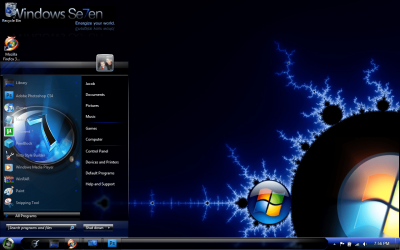
Start menu background

JacobAndrew

New member
Hello,
I have seen a couple themes with images on their start menu background and was wondering how one could put a picture there. I have both Restorator and Style Builder, but I don't really know how to work them or where to look in them. Thanks in advance.
 

My Computer

Computer Manufacturer/Model Number
Toshiba Satellite A665
OS
Windows 7
CPU
I7
Memory
6 GB DDR3
Graphics Card(s)
Nvidia GeForce 310M
Hard Drives
600 GB
Internet Speed
SLOW

My Computer

Computer Manufacturer/Model Number
Micro-Star International/MS-7529
OS
Windows 7 Ultimate x32
CPU
DualCore Intel Pentium E2200, 2218 MHz (11 x 202)
Motherboard
MSI G31M3 V2 (MS-7529) (2 PCI, 1 PCI-E x16,2 DDR2 DIMM)
Memory
2 GB DDR2-800 DDR2 SDRAM
Graphics Card(s)
nVIDIA GeForce 9500GT 1GB
Sound Card
Realtek ALC888/1200 @ Intel 82801GB ICH7
Monitor(s) Displays
Samsung SyncMaster 2253BW (Digital) 22'' LCD
Screen Resolution
1680x1050
Hard Drives
SAMSUNG HD322IJ ATA Device (298 GB , IDE)
Thanks Grimmjow!:D After looking at the links (and a couple others) I finally figured out how to do it. It was my first try at it, so it doesn't look the best, but I don't think it turned out to bad..
 

Attachments

  • Start menu background.png
    Start menu background.png
    826.3 KB · Views: 1,776

My Computer

Computer Manufacturer/Model Number
Toshiba Satellite A665
OS
Windows 7
CPU
I7
Memory
6 GB DDR3
Graphics Card(s)
Nvidia GeForce 310M
Hard Drives
600 GB
Internet Speed
SLOW
looks pretty good. excellent for a first attempt.
 

My Computer

Computer Manufacturer/Model Number
Custom
OS
Windows 7 Ultimate Signature Edition
CPU
Intel Core i7 Extreme 3.33GHz
Motherboard
EVGA X-58 SLI Classified
Memory
12GB DDR3
Graphics Card(s)
2x EVGA 285 2GB in SLI
Sound Card
Creative Labs X-Fi ExtremeGamer
Monitor(s) Displays
30" Viewsonic
Hard Drives
2x1TB Western Digital 7200RPM in RAID 0/1TB WD My Book External HDD
PSU
Thermaltake 1000w supporting quad SLI
Case
Thermaltake Armor Full Tower
Cooling
Thermaltake V1 CPU+DIY Liquid cooling
Now I really need help...

Thanks valtonray! :) I thought it looked pretty good myself, unfortunately after I tried starting my computer today it went to the log on screen (normally automatically logs me on) and after I clicked on my name, it would say loading and go right back to the log on screen again. So I put in my other hard drive and restored my midnight theme back to yesterday morning (system restore didn't work on original hard drive) and then it worked. So now I'm back to my start background with no image.. Any ideas on why it would do that? It worked fine all last night after I changed it..
 

My Computer

Computer Manufacturer/Model Number
Toshiba Satellite A665
OS
Windows 7
CPU
I7
Memory
6 GB DDR3
Graphics Card(s)
Nvidia GeForce 310M
Hard Drives
600 GB
Internet Speed
SLOW
i think you people that know how to do this is very very cheap with information about it,

i've been searching diffrenst forums for 3 day's and this is all i got


Looks kind of crappy in my eye, not the color i want either, i want to learn how to do it right before i start making it the way i want it

when i edit the all programs tab i looose aero affect. this is killing my brain, if i compare to others and other images i find i am edeting the right ones (brain exploding)

i cant understand why the would remove this setting that were sooooo quick and easy in xp i went from xp to Windows 7. this is the kind of thing that makes me want to change op, thinking of going back to the good old easy tweaking xp...

As you can see i am in neeed of help with this

so now on to my next question, does any one have the correct image numbers for:
Start Menu backgrounds (installed programs,search field/result and all programs)
Explorer background/fields
Mouse Over/marked/inactive.

Remember has to be a Windows 7 version 6.1 7600 build

if some kind soul has these image numbers i can finish, these are the last thing's i need to change.
then i am done.

i will be posting theme,icons and my aero.msstyles file here when i am done, along with a nice tutorial, so the next one after me doesn't have to spend 3-4 days figuring out what to do?


\\Targa
 

My Computer

Computer Manufacturer/Model Number
Targa
OS
windows 7 ultimate 64 Build 7600
CPU
Intel i5 750 @ 2.73
Motherboard
Asus P7P55D LE P7P55D LE
Memory
Corsair 4GB (KIT) DDR3 1600MHz/CL8/XMS3 DOMINATOR with DHX+
Graphics Card(s)
Nvidia Geforce 7300gs
Hard Drives
Intel x-15 g2 80gig
Case
corsair 520w
Cooling
H50 Liquid Cooling
I would love to find out how he ended up doing this because i cant seem to find out how
i found the 4 images for the top of the start menu and 812 im guessing is the main image and is stretched along to make the start bar i want to change that image and add a new image that is longer but im wondering how that is done. do some things with the theme file need to be changed or do i add it and hope for the best?
am i completely lost here?
 

My Computer

OS
Windows 7
Originally sent to me by Fluke of CreativeX

Vista Style Builder rename fix:

"I am hoping we are on the same page. It has to do with the settings.ini found in the directory:
%c:\users\"your name"\appdata\roaming\vistastylebuilder%
Since it was a program written for Vista, its really not set up for win7 by default. If you notice, they advertise it "with windows 7 support", not compatible.
Anyway, cruise to that folder and open up the settings.ini.
Right underneath "[settings]" copy/paste this:
FirstImageId=508

So that it will read as this:

[Settings]
FirstImageId=508
currentSearchType=1
It will still change the numbering. But you wont get any bugs or unable to log back in, if thats what was happening.
Also, using style-hacks will change the order, as well. I manually edit and insert all images, then use Vista Style Builder for Text and fonts, text coloring and any other chores that can only be accomplished through hex-editing.

Source for the .ini changes for win7 compatibility:
(Solved] No login possible after applying new style
__________________
 

My Computer

OS
windows 7
CPU
AMD Phenom II x3 Black Edition 720
Motherboard
ASUS M3N72-D
Memory
OCZ Gold XTC DDR2 1066 2GB x2
Graphics Card(s)
BFG NVidia GTX 260
Monitor(s) Displays
Samsung 42" Plasma 1920x1080
Hard Drives
WDC 2TB
Segate Free Agent 3TB
PSU
OCZ XTreme 600w
Case
Antec 300
Cooling
Air x4 12" antec fans
Originally sent to me by Fluke of CreativeX

Vista Style Builder rename fix:

"I am hoping we are on the same page. It has to do with the settings.ini found in the directory:
%c:\users\"your name"\appdata\roaming\vistastylebuilder%
Since it was a program written for Vista, its really not set up for win7 by default. If you notice, they advertise it "with windows 7 support", not compatible.
Anyway, cruise to that folder and open up the settings.ini.
Right underneath "[settings]" copy/paste this:
FirstImageId=508

So that it will read as this:

[Settings]
FirstImageId=508
currentSearchType=1
It will still change the numbering. But you wont get any bugs or unable to log back in, if thats what was happening.
Also, using style-hacks will change the order, as well. I manually edit and insert all images, then use Vista Style Builder for Text and fonts, text coloring and any other chores that can only be accomplished through hex-editing.

Source for the .ini changes for win7 compatibility:
(Solved] No login possible after applying new style
__________________


link to this thred please...
 

My Computer

Computer Manufacturer/Model Number
Targa
OS
windows 7 ultimate 64 Build 7600
CPU
Intel i5 750 @ 2.73
Motherboard
Asus P7P55D LE P7P55D LE
Memory
Corsair 4GB (KIT) DDR3 1600MHz/CL8/XMS3 DOMINATOR with DHX+
Graphics Card(s)
Nvidia Geforce 7300gs
Hard Drives
Intel x-15 g2 80gig
Case
corsair 520w
Cooling
H50 Liquid Cooling
thats what he sent me via pm. I didn't get a link to share. it worked for me unless I left something out, I don't believe so.
 

My Computer

OS
windows 7
CPU
AMD Phenom II x3 Black Edition 720
Motherboard
ASUS M3N72-D
Memory
OCZ Gold XTC DDR2 1066 2GB x2
Graphics Card(s)
BFG NVidia GTX 260
Monitor(s) Displays
Samsung 42" Plasma 1920x1080
Hard Drives
WDC 2TB
Segate Free Agent 3TB
PSU
OCZ XTreme 600w
Case
Antec 300
Cooling
Air x4 12" antec fans
Here is a link for that thread.. It took me forever to figure out why it would work to change it only until I went to log on again. However I did figure it out and just forgot to post an update on here. I like Style Builder a lot better just because it seems a lot easier to navigate around, but I don't know which one changes the All Programs background. I changed the All Programs Expanded picture and it didn't change that one..
 

My Computer

Computer Manufacturer/Model Number
Toshiba Satellite A665
OS
Windows 7
CPU
I7
Memory
6 GB DDR3
Graphics Card(s)
Nvidia GeForce 310M
Hard Drives
600 GB
Internet Speed
SLOW
JacobAndrew,

How on earth were you able to do it? HELP... I want to customize (background image) of the start menu but no luck...
 

My Computer

OS
Windows 7 x64
CPU
Q6600 2.4GHz
Memory
6GB DDR2
Graphics Card(s)
ATI Radeon HD 5700
Monitor(s) Displays
Sceptre 22 LCD
It's pretty simple.. BUT, always bear in mind that the image file number varies from theme to theme. I tried doing it with standard aero to no avail. That's why I started editing my own theme... but here is what I came up with when I changed mine up.

59742_1637714747054_1362323335_31723614_149738_n.jpg


make sure you're using Restorator 2009, though.
 

My Computer

Computer Manufacturer/Model Number
HP Pavilion dv4i-2100
OS
Windows 7 Ultimate x86
CPU
Intel Core i3 M350 @ 2.27 GHz
Motherboard
Stock
Memory
3.00 GB
Graphics Card(s)
Intel 1GB HDMI Graphics Card
Sound Card
Stock
Monitor(s) Displays
14.6" HD
Screen Resolution
1200x800 current setting.
Hard Drives
320GB samsung internal
500GB ADATA portable
PSU
Stock
Case
Stock
Cooling
Targus twin-fan chill mat.
Internet Speed
At home, 300kb/sec downloads. At work, 1028kb/sec downloads.
Other Info
Purchased through HP direct, custom build. I highly recommend HP to anyone.
I can't apply to the aero (standard theme from W7)? Could you walk me thru Restorator steps? (sorry little dumb here)
 

My Computer

OS
Windows 7 x64
CPU
Q6600 2.4GHz
Memory
6GB DDR2
Graphics Card(s)
ATI Radeon HD 5700
Monitor(s) Displays
Sceptre 22 LCD
First (if you haven't already) make a copy of the Aero.msstyles file on your desktop.

Open it with Restorator
Go to the IMAGE folder

files 809, 811, 812, and 815 are the ones for the standard aero theme (remember these vary from theme to theme)

You may have to do some editing and stretch out the image if you really want to put your own picture in there...

BUT MAKE SURE it is the same size as what you see in the Start menu.. any bigger will cause an error, any smaller will stretch the picture. Don't take it lightly... if you make it to big, you can strain your hardware. Happened to me a couple times. -_-

But yeah, there you go :)

OH and then take control of the aero.msstyles file in c:\windows\resources\themes\ (may be in another subfolder, too lazy to check right now)
then delete the file and replace it with the new one. Some tutorials say to reboot.. as long as you switch themes and switch back, you should be fine. Otherwise, reboot and the effect should be there.

BUT, what you do to edit the image: you right click on it and export it as a png to a new folder on your desktop.. you then open the png and edit it to your liking, and save it as a png.
Now, right click on the image file inside your aero.msstyles in restorator, and choose "Assign To..." and assign it to that file.

Then go File > Save and you should be set... :D

Any other questions just let me know :)


MILD DISCLAIMER: I am exhausted and less than 10% conscious right now, no joke, I have been up for nearly 24 hours doing a lot of busy stuff, and I am literally on the verge of just passing out uncontrollably... so, if these instructions seem strange or vague, let me know, and when I'm more awake, I will redo them for you :)
 

My Computer

Computer Manufacturer/Model Number
HP Pavilion dv4i-2100
OS
Windows 7 Ultimate x86
CPU
Intel Core i3 M350 @ 2.27 GHz
Motherboard
Stock
Memory
3.00 GB
Graphics Card(s)
Intel 1GB HDMI Graphics Card
Sound Card
Stock
Monitor(s) Displays
14.6" HD
Screen Resolution
1200x800 current setting.
Hard Drives
320GB samsung internal
500GB ADATA portable
PSU
Stock
Case
Stock
Cooling
Targus twin-fan chill mat.
Internet Speed
At home, 300kb/sec downloads. At work, 1028kb/sec downloads.
Other Info
Purchased through HP direct, custom build. I highly recommend HP to anyone.
Finally, there are some great people out there like you. Thanks. Now I'm getting some lead way ... before wandering out on my own few quick questions.

1) How do you take "control" of aero.msstyles ? I tried to log in as Super User and can't still delete (or replace) the darn thing?

2) I read some where in some thread, that mention that I need to use Universal Theme Patcher before I can manipulate my own theme and download free theme from internet? Is that true?

3) From your suggestion (for standard aero image #812 (because it has white color)... it seems like the file that I need to edit for my "start menu" (again not orb) image background. However, this image resolution is only 27 x 342. That is too small, only 27 pix, to add picture isn't? I guess #809 is for right border, and #811 for divider, and #815 is for left border.

Thanks
 

My Computer

OS
Windows 7 x64
CPU
Q6600 2.4GHz
Memory
6GB DDR2
Graphics Card(s)
ATI Radeon HD 5700
Monitor(s) Displays
Sceptre 22 LCD
1) Are you the system administrator? You need administrative rights to do anything.

2) here is a useful tool for taking control, otherwise it's a long nasty process to take ownership of a file.

GO HERE. Download the tool, the link is toward the the bottom of the page. It's a zip file. Unzip it, double click the reg file to add "take ownership" to your right-click menu, and you're good to go.

3) you still have make a COPY of your aero.msstyles file on your desktop (i'd recommend in a new folder on your desktop for organizational purposes) and edit the copy.
Then, to replace the original, you have to switch themes, delete the original aero.msstyles file, and place the edited version back in there. NOTE: back up the original file, name it aero.msstyles.original just in case...
also, create a system restore point before you do ANYTHING at all. :)
 

My Computer

Computer Manufacturer/Model Number
HP Pavilion dv4i-2100
OS
Windows 7 Ultimate x86
CPU
Intel Core i3 M350 @ 2.27 GHz
Motherboard
Stock
Memory
3.00 GB
Graphics Card(s)
Intel 1GB HDMI Graphics Card
Sound Card
Stock
Monitor(s) Displays
14.6" HD
Screen Resolution
1200x800 current setting.
Hard Drives
320GB samsung internal
500GB ADATA portable
PSU
Stock
Case
Stock
Cooling
Targus twin-fan chill mat.
Internet Speed
At home, 300kb/sec downloads. At work, 1028kb/sec downloads.
Other Info
Purchased through HP direct, custom build. I highly recommend HP to anyone.
Thank you Benjamin Hall... You Rock.

I was able to create my own theme by modifying other's existing simple theme.

To recap as a basic tutorial for future newbie who happens to fumble into my own steps.

This little instruction will guide ya to create your own little simple theme.
This tutorial to change Start Menu image background for Windows 7.
STEPS.
1) Read this thread to get familarize:
Theme - Customize custom themes
2) Download the following programs: If any link is broken, use Google to search for it.
- Restorator 2009 (This will allow you to edit windows aero.msstyles or other Windows Resources).
Here is the link: ** ILLEGAL LINK REMOVED **

- Dark7Mix Theme (Existence theme that allow you to modify or create your own) by adrianodj25.
Here is the link: http://www.deviantart.com/download/136063382/Dark7mix_Theme_UPDATE_by_adrianodj25.rar

- Universal Theme Patcher (allow 3rd party theme to be installed on Windows)
Here is the link: Universal Theme Patcher for Windows 7 - Universal theme patcher - Windows 7 Download

- "Takeownership.reg" (allow you to take ownership of file ... for deleting file that is accessing by Windows or some administrator).
Here is the link: http://www.howtogeek.com/downloads/TakeOwnership.zip

- W7FBC (This allow you to change folder background image)... optional
Here is the link: W7FBC - Download from megaupload.com - Filestube.com

- W7LBC (This allow you to change Windows 7 Logon background) ... optional
Here is the link: Windows 7 Logon Background Changer Software Informer: version 1.3 information

- W7SBC (This allow you to change Windows 7 Start Button ... Start Menu Orb)... optional
Here is the link: W7SBC.rar

--- AT THIS POINT, YOU MIGHT WANT TO BACKUP YOUR COMPUTER BY IMAGING IT AND CREATE A RESTORE POINT ---

3) Extract the Dark7Mix and install it. It will be under C:\Windows\Resources\Themes\Dark7Mix

3a) Extract and install Restorator 2009

4) Duplicate the Dark7Mix.msstyles and paste it on to the desktop.

5) Right hand click on the dark7mix.msstyles and open it Restorator 2009

6) Open the "Image" folder of dark7mix thru Restorator.

7) Scroll down to 872.png (don't ask me what the devil is 872.png and why not some understanable English file name). It is a way MS referring to its resources. Searching internet, you will see something like image#817 or some weird number.

8) Right-hand on the file and "Extract ..." / "Extract as" / "Extract as ..." then point and save it onto your desktop as PNG file

9) Now use your favorite paint program to import/modify/edit the 872.PNG file with any picture /color or what so ever. Just don't change the resolution of the file. And save it as same name as 872.PNG

10) With Restorator 2009 is still open, right-hand click on 872.PNG and "Assign..." / "Assign to ..." now import the new 872.PNG that you just created. This will replace the dark7mix 872.PNG with the new one.

11) Save the Dark7Mix.msstyles file ... exit Restorator.

12) Extract and run the Universal Theme Patcher (you might neet to "Run as Administrator" by right hand click on the file)... Yes, "Patch" all 3 items that are listed in the Universal Theme Patcher

13) Run the takeownership.reg (by double-click on it). If it doesn't run... then "Run as Administrator" by right-hand click on the and choose "Run as Administrator"

14) Now "Personalize" your desktop (by right hand click on your desktop)... choose any different theme other than Dark7Mix. (it will free Dark7Mix from being open)

15) Go to C:\Windows\Resources\Themes\Dark7Mix and right hand click on Dark7Mix and chose "Take Ownership" and delete the file.

16) Next copy the modified Dark7Mix from your desktop to the deleted dark7mix.msstyles

17) Now "Personalize" your desktop again with the new dark7mix.msstyles ...

18) Viola! you done

19) Now you can change your wallpaper, font color, etc thru normal windows.
--------
Remember Step 1 earlier? and those weird number for taskbar, scrollbar.... you could still use Restorator to "modify those babies enhance your theme"

 
Last edited by a moderator:

My Computer

OS
Windows 7 x64
CPU
Q6600 2.4GHz
Memory
6GB DDR2
Graphics Card(s)
ATI Radeon HD 5700
Monitor(s) Displays
Sceptre 22 LCD
WELL DONE! *applauds* And very detailed instructions for future attempts as well!
 

My Computer

Computer Manufacturer/Model Number
HP Pavilion dv4i-2100
OS
Windows 7 Ultimate x86
CPU
Intel Core i3 M350 @ 2.27 GHz
Motherboard
Stock
Memory
3.00 GB
Graphics Card(s)
Intel 1GB HDMI Graphics Card
Sound Card
Stock
Monitor(s) Displays
14.6" HD
Screen Resolution
1200x800 current setting.
Hard Drives
320GB samsung internal
500GB ADATA portable
PSU
Stock
Case
Stock
Cooling
Targus twin-fan chill mat.
Internet Speed
At home, 300kb/sec downloads. At work, 1028kb/sec downloads.
Other Info
Purchased through HP direct, custom build. I highly recommend HP to anyone.
However, this image resolution is only 27 x 342. That is too small, only 27 pix, to add picture isn't?


You're absolutely right if I was adding a picture using Photoshop my picture gets extremely distorted when I transform it to fit the BMP's resolution. The background picture ends up looking like a gradient.

It seems that this is only effective for changing the color of the menu not for adding custom pictures.

Unless I am overlooking something... If anyone has a better method of getting a picture to look like JacobAndrew let us know!
 

My Computer

OS
7 Pro
Back
Top