Different in File Size & Size on Disk

iUnique

New member
I'm transferring files, from external hard disk to an another external hard disk...
from a non-external powered to an external powered one...

I'm using cut & paste...

Suddenly, blackout happens...

There'll be data writing failure...

So I checked some of my files(mostly in .iso)... Some of them have very big difference between Files Size & Size on Disk (around 4 GB)...

So, I tried to open it... Nothing happen...

Does this big difference can make anything goes wrong?
 

My Computer

OS
Windows 7 Build 7600
CPU
2.53 GHz
Motherboard
Apple
Memory
4 GB
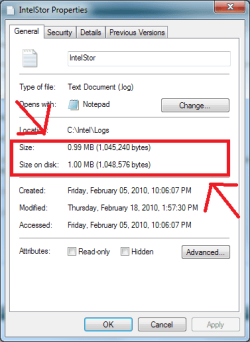
Are you talking about this?
 

Attachments

  • a.PNG
    a.PNG
    49.7 KB · Views: 62

My Computer

Computer Manufacturer/Model Number
Asus G73SW-XN2
OS
Windows 2000 5.0 Build 2195
CPU
Intel Core i7-2630QM@2GHz(2.9GHz Turbo Boost) [Sandy Bridge]
Motherboard
Asus G73SW (Intel HM65 Chipset)
Memory
Kingston DDR3 1333 16GB (4GBx4)
Graphics Card(s)
nVidia GTX 460m 1.5GB
Sound Card
EAX Advanced HD 5.0, THX TruStudio
Monitor(s) Displays
17.3 in. primary & 23 in. secondary
Screen Resolution
1920x1080
Hard Drives
Seagate Momentus XT (SATA II) 500 GB @ 7200 RPM
Hitachi (SATA II) 500GB @ 7200 RPM

Non Raid because ASUS was crappy to choose an HM65 Chipset
Keyboard
Built-in 102-Key Backlit Keyboard
Other Info
It's a Laptop.
Yup... but in your picture, the difference in not too big... but what happen to me is there value difference is about 4GB
 

My Computer

OS
Windows 7 Build 7600
CPU
2.53 GHz
Motherboard
Apple
Memory
4 GB
Yup... but in your picture, the difference in not too big... but what happen to me is there value difference is about 4GB

lol...did you use winzip or winrar??
 

My Computer

Computer Manufacturer/Model Number
built up
OS
windows 7
CPU
Phenom II AMD Dragon 3.5Ghz
Memory
DDR3 4GB
Graphics Card(s)
ATI Radeon 512Mb
Monitor(s) Displays
HP L1506
Screen Resolution
1152 x 864
Hard Drives
WDC 1 TB SATA-II Green Power
Keyboard
HP wireless keyboard
Mouse
HP Optic
Internet Speed
1GB
EDIT: Considering the power outage, try doing a chkdsk /f and see if it find errors, else you'll have to copy the files all over again.

-Original post by me:
Two possibilities: Compression using the default windows .zip interface and sector size. I would go with the latter. It's like this:

Compression is fairly easy to explain. "Size" dictates what the actual size is, and the "size on disk" dictates how much space it is occupying the hard disk after being squished in to a very small size.

Sectors are a bit more complicated. Your hard drive is divided in to many, many things. The smallest and most important are the sectors. Think of sectors as honeycombs in a bee's hive. They combine together to form an actual hive of honey.

Now, Windows 7 has a default sector size of 4KB. That means that for every block of data, it divides it into a 4KB pieces. Now if you have a 6KB file, the first 4KB will occupy sector 1. The next 2KB will occupy sector 2. You cannot add another file on sector 2 since it is already occupied by a file. Considering that, file 1 is actually occupying 8KB even though it is only 6KB.

To give you an example, I'll show you a screenshot of my PC. My sector size is at 32KB (the bigger, the better in performance :P)


See how even if it's 1 byte it takes up 32KB? It's because of my sector size.
21745965.png


That's a loss of 32,767 bytes. Of course, the effect stacks up. Now see what happens when I copy that file 237 times.

21532873.png


Hopefully that should give you a basic understaning on why there's a big difference on "Size" and "Size on disk".
 
Last edited:

My Computer

Computer Manufacturer/Model Number
Asus G73SW-XN2
OS
Windows 2000 5.0 Build 2195
CPU
Intel Core i7-2630QM@2GHz(2.9GHz Turbo Boost) [Sandy Bridge]
Motherboard
Asus G73SW (Intel HM65 Chipset)
Memory
Kingston DDR3 1333 16GB (4GBx4)
Graphics Card(s)
nVidia GTX 460m 1.5GB
Sound Card
EAX Advanced HD 5.0, THX TruStudio
Monitor(s) Displays
17.3 in. primary & 23 in. secondary
Screen Resolution
1920x1080
Hard Drives
Seagate Momentus XT (SATA II) 500 GB @ 7200 RPM
Hitachi (SATA II) 500GB @ 7200 RPM

Non Raid because ASUS was crappy to choose an HM65 Chipset
Keyboard
Built-in 102-Key Backlit Keyboard
Other Info
It's a Laptop.
Durning the copy process, Windows probably made sparse files to pre-allocate large block for the file to be written to. Which might accound for the difference.
 

My Computer

Computer type
PC/Desktop
Computer Manufacturer/Model Number
Alienware Aurora ALX R4
OS
Windows 10 Pro (x64)
CPU
Intel Core i7-3930K (3.2GHz - 4.5GHz)
Motherboard
Alienware Aurora-R4 x79
Memory
4x Samsung 4GB PC3-12800 DDR3 (16GB 1600MHz)
Graphics Card(s)
Nvidia Geforce GTX 690
Sound Card
SteelSeries Siberia Elite
Monitor(s) Displays
Dell UltraSharp U3011
Screen Resolution
2560x1600
Hard Drives
Samsung 850 Pro 256 GB, Seagate 1TB Desktop Hybrid HDD, 2x Western Digital 4TB Green HDD
PSU
875W Some Dell PSU <.<
Case
Alienware Aurora ALX
Cooling
Custom Liquid Cooling (EK CPU & GPU blocks) dual EK 480RAD
Keyboard
Logitech G710+ Mechanical
Mouse
Logitech G700s
Internet Speed
Verizon Fios (50 mbps average)
Other Info
Server: Intel NUC D54250WYK: i5-4250U, 16GB, 256 GB mSATA, Windows Server 2012 R2
I'm transferring files, from external hard disk to an another external hard disk...
from a non-external powered to an external powered one...

I'm using cut & paste...

Suddenly, blackout happens...

There'll be data writing failure...

So I checked some of my files(mostly in .iso)... Some of them have very big difference between Files Size & Size on Disk (around 4 GB)...

So, I tried to open it... Nothing happen...

Does this big difference can make anything goes wrong?


You had a power failure...

The file is incomplete on your destination disk and yes the size difference matters *A LOT*. What you should do is delete the incomplete file and copy it over again.
 

My Computer

Computer Manufacturer/Model Number
Homebrew
OS
XP Pro SP3 X86 / Win7 Pro X86
CPU
Amd 64 x2 4200 (2.4ghz)
Motherboard
Asus M2N-MX SE Plus
Memory
Kingston DDR2 800 2gb
Graphics Card(s)
Nvidia GF-8400
Sound Card
Realtek on Motherboard
Monitor(s) Displays
Acer x-193bw
Screen Resolution
1440 x 900
Hard Drives
Western Digital 500g
PSU
350watt In-Win
Case
In-Win
Cooling
Air
Keyboard
yes
Mouse
yes
Internet Speed
5mpbs
Other Info
Also ASRock ION 330 as HTPC (on XP).
Acer Aspire as GP netbook (on XP).
You had a power failure...

The file is incomplete on your destination disk and yes the size difference matters *A LOT*. What you should do is delete the incomplete file and copy it over again.

But the prob is, I was moving the file, not copying the file... when I checked back the original hard drive, the file is gone.. but it present in the destination hard drive... have same file size (as what I have remembered)... But I'm getting suspicious about the file size & size on disk... By the way, the file is .iso, when I opened it with PowerISO, I get no error message... It means that there's no prob at all, am I right?

So, the file is actually normal, right?
 

My Computer

OS
Windows 7 Build 7600
CPU
2.53 GHz
Motherboard
Apple
Memory
4 GB
why you not try use other...dont use powerISO..

compare it.
 

My Computer

Computer Manufacturer/Model Number
built up
OS
windows 7
CPU
Phenom II AMD Dragon 3.5Ghz
Memory
DDR3 4GB
Graphics Card(s)
ATI Radeon 512Mb
Monitor(s) Displays
HP L1506
Screen Resolution
1152 x 864
Hard Drives
WDC 1 TB SATA-II Green Power
Keyboard
HP wireless keyboard
Mouse
HP Optic
Internet Speed
1GB
But the prob is, I was moving the file, not copying the file... when I checked back the original hard drive, the file is gone.. but it present in the destination hard drive... have same file size (as what I have remembered)... But I'm getting suspicious about the file size & size on disk... By the way, the file is .iso, when I opened it with PowerISO, I get no error message... It means that there's no prob at all, am I right?

So, the file is actually normal, right?

That's very hard to say... If it's an ISO see if PowerISO can extract it without error... merely opening it only verifies the internal directory.

If you can confirm the file is OK... then the disparity in size and disk usage is not a problem... Simply defragment the disk.
 

My Computer

Computer Manufacturer/Model Number
Homebrew
OS
XP Pro SP3 X86 / Win7 Pro X86
CPU
Amd 64 x2 4200 (2.4ghz)
Motherboard
Asus M2N-MX SE Plus
Memory
Kingston DDR2 800 2gb
Graphics Card(s)
Nvidia GF-8400
Sound Card
Realtek on Motherboard
Monitor(s) Displays
Acer x-193bw
Screen Resolution
1440 x 900
Hard Drives
Western Digital 500g
PSU
350watt In-Win
Case
In-Win
Cooling
Air
Keyboard
yes
Mouse
yes
Internet Speed
5mpbs
Other Info
Also ASRock ION 330 as HTPC (on XP).
Acer Aspire as GP netbook (on XP).
EDIT: Considering the power outage, try doing a chkdsk /f and see if it find errors, else you'll have to copy the files all over again.

-Original post by me:
Two possibilities: Compression using the default windows .zip interface and sector size. I would go with the latter. It's like this:

Compression is fairly easy to explain. "Size" dictates what the actual size is, and the "size on disk" dictates how much space it is occupying the hard disk after being squished in to a very small size.

Sectors are a bit more complicated. Your hard drive is divided in to many, many things. The smallest and most important are the sectors. Think of sectors as honeycombs in a bee's hive. They combine together to form an actual hive of honey.

Now, Windows 7 has a default sector size of 4KB. That means that for every block of data, it divides it into a 4KB pieces. Now if you have a 6KB file, the first 4KB will occupy sector 1. The next 2KB will occupy sector 2. You cannot add another file on sector 2 since it is already occupied by a file. Considering that, file 1 is actually occupying 8KB even though it is only 6KB.

To give you an example, I'll show you a screenshot of my PC. My sector size is at 32KB (the bigger, the better in performance :P)


See how even if it's 1 byte it takes up 32KB? It's because of my sector size.
21745965.png


That's a loss of 32,767 bytes. Of course, the effect stacks up. Now see what happens when I copy that file 237 times.

21532873.png


Hopefully that should give you a basic understaning on why there's a big difference on "Size" and "Size on disk".
Very informative arkhi!

How could you change the sector size?
 

My Computer

Computer Manufacturer/Model Number
Custom
OS
Windows 7 Professional x64
CPU
Intel i7 2600K OC'd @ 4620 MHz
Motherboard
Asus P8Z68-V Pro
Memory
16GB GSkill Sniper 2133 Mhz (4x4GB)
Graphics Card(s)
EVGA GeForce GTX 480 SuperClocked+
Sound Card
Realtek High Definition Audio
Monitor(s) Displays
2x Acer S273HLbmii 27"
Screen Resolution
2 x 1920x1080
Hard Drives
64GB Crucial M4 SSD

Storage: Hitachi 1TB 5400RPM, Samsung 1.5TB 5400RPM
PSU
Corsair HW Series 750w (modular)
Case
Cooler Master HAF 932 Advanced Blue Edition
Cooling
CM Hyper 212+ CPU cooler, 3x 230mm + 1x 140mm case fans
Keyboard
Logitech MK320 (wireless)
Mouse
Logitech MK320 (wireless)
Internet Speed
30 Mb/s : 2 Mb/s
Very informative arkhi!
How could you change the sector size?

You cannot change the sector size of the disk that's hard-coded at the factory.
Currently hard disk sectors are 512 Bytes. The new Advanced format disks will be 4k sectors.

You CAN change the cluster size (number of sectors per allocation unit) when you format...


Moreover; larger cluster sizes do NOT give better performance... they simply waste disk space.
 

My Computer

Computer Manufacturer/Model Number
Homebrew
OS
XP Pro SP3 X86 / Win7 Pro X86
CPU
Amd 64 x2 4200 (2.4ghz)
Motherboard
Asus M2N-MX SE Plus
Memory
Kingston DDR2 800 2gb
Graphics Card(s)
Nvidia GF-8400
Sound Card
Realtek on Motherboard
Monitor(s) Displays
Acer x-193bw
Screen Resolution
1440 x 900
Hard Drives
Western Digital 500g
PSU
350watt In-Win
Case
In-Win
Cooling
Air
Keyboard
yes
Mouse
yes
Internet Speed
5mpbs
Other Info
Also ASRock ION 330 as HTPC (on XP).
Acer Aspire as GP netbook (on XP).
Very informative arkhi!
How could you change the sector size?

You cannot change the sector size of the disk that's hard-coded at the factory.
Currently hard disk sectors are 512 Bytes. The new Advanced format disks will be 4k sectors.

You CAN change the cluster size (number of sectors per allocation unit) when you format...


Moreover; larger cluster sizes do NOT give better performance... they simply waste disk space.

Oops, forgot I confused clusters with sectors. Anyway, they DO increase performance, more especially on a setup with huge files. I believe the most should be at 32k as 64k would be too much.

@Jonathan_King
You have to do it at initial setup via command prompt with diskpart or "format /a:32k"
 

My Computer

Computer Manufacturer/Model Number
Asus G73SW-XN2
OS
Windows 2000 5.0 Build 2195
CPU
Intel Core i7-2630QM@2GHz(2.9GHz Turbo Boost) [Sandy Bridge]
Motherboard
Asus G73SW (Intel HM65 Chipset)
Memory
Kingston DDR3 1333 16GB (4GBx4)
Graphics Card(s)
nVidia GTX 460m 1.5GB
Sound Card
EAX Advanced HD 5.0, THX TruStudio
Monitor(s) Displays
17.3 in. primary & 23 in. secondary
Screen Resolution
1920x1080
Hard Drives
Seagate Momentus XT (SATA II) 500 GB @ 7200 RPM
Hitachi (SATA II) 500GB @ 7200 RPM

Non Raid because ASUS was crappy to choose an HM65 Chipset
Keyboard
Built-in 102-Key Backlit Keyboard
Other Info
It's a Laptop.
Back
Top