Test your CPU Stability with IntelBurnTest
Information
Stress-testing is an important step when adding new hardware to a system, or over-clocking individual components of a system over-and-above their stock settings. In particular, components that generate significant heat within the system require careful attention, and the prime suspect in the heat department is the CPU.
IntelBurnTest by AgentGod is a graphical implementation of the Intel LINPACK libraries, which allow you to test the stability of your CPU by means of running several thousand computations. The CPU test of the OCCT stress testing software also makes use of LINPACK. Despite the name of the application, IntelBurnTest can be used on both Intel and AMD processors.
LINPACK is a series of subroutines written in Fortran, originally designed to benchmark supercomputers of the 70's and 80's by measuring their ability to solve a large array of linear equations using matrix manipulation. You can read more about LINPACK here.
IntelBurnTest by AgentGod is a graphical implementation of the Intel LINPACK libraries, which allow you to test the stability of your CPU by means of running several thousand computations. The CPU test of the OCCT stress testing software also makes use of LINPACK. Despite the name of the application, IntelBurnTest can be used on both Intel and AMD processors.
LINPACK is a series of subroutines written in Fortran, originally designed to benchmark supercomputers of the 70's and 80's by measuring their ability to solve a large array of linear equations using matrix manipulation. You can read more about LINPACK here.
Warning
Stress-testing by its nature is exactly that : it is designed to place hardware components under stress to determine their ability to cope with extreme tasks, and you do so entirely at your own risk.
Hardware that is being stressed are working well beyond their normal every-day bounds, and they generate heat. Thus, it is absolutely vital to ensure that your system is adequately cooled. IntelBurnTest stresses your CPU : during these test, the temperature of your CPU will rise extremely rapidly within the first few seconds of the test. For the duration of the test your CPU will operate on average 20 degrees Celcius above the usual temperature range of your CPU. In addition, your CPU fan/s will also be stressed since they will run audibly faster to cope with the heat being generated by the CPU. The onus lies on you to ensure that your CPU temperature never exceeds its quoted maximum operating temperature.
Hardware that is being stressed are working well beyond their normal every-day bounds, and they generate heat. Thus, it is absolutely vital to ensure that your system is adequately cooled. IntelBurnTest stresses your CPU : during these test, the temperature of your CPU will rise extremely rapidly within the first few seconds of the test. For the duration of the test your CPU will operate on average 20 degrees Celcius above the usual temperature range of your CPU. In addition, your CPU fan/s will also be stressed since they will run audibly faster to cope with the heat being generated by the CPU. The onus lies on you to ensure that your CPU temperature never exceeds its quoted maximum operating temperature.
Warning
:note: Requirements:
You will need the following in order to test your CPU for stability:-
1. IntelBurnTest - download it here
2. Reliable temperature monitoring software. I recommend HWINFO:
- 32-bit version
- 64-bit version
3. Determine the maximum operating temperature of your CPU:
- Intel
- AMD
Using my system, I'll demonstrate how to safely run IntelBurnTest in the steps below.
:note: Step 1 - Find the CPU max. operating temperature
I have an Intel Core i7-860. According to the Intel product page for this processor, the maximum operating temperature is 72.7 degrees Celcius.
:note: Step 2 - Install HWINFO temperature monitoring software
Download and install HWINFO64 (I run Windows 7 Ultimate x64). Open HWINFO, and when prompted, check the Sensor Only option and then run as shown below:

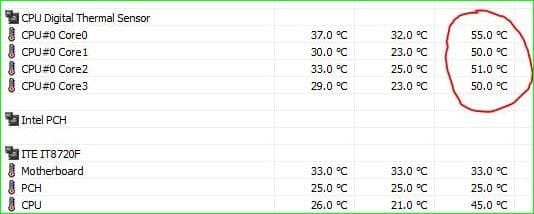
HWINFO will read your system, and then open the Sensor Status panel. Locate the CPU Digital Thermal Sensor items, as shown below:
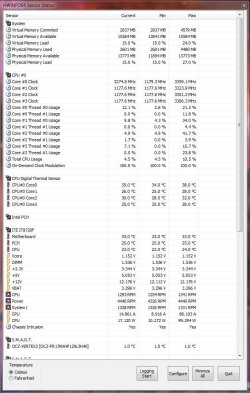
Take note of the current temperatures when the system is idling, and ensure that there is a differential between the system idle temperature and maximum CPU operating temperature in excess of 20 degrees Celcius - recall that IntelBurnTest will cause your CPU to operate approximately 20 degrees above its idle temperature.
:warn: If your differential is less than 20 degrees, then I recommend not to proceed with running IntelBurnTest.
In my case, I have Max. Temp. 72.6 - Idle Temp. 30 = 40.6 Differential, so its safe for me to run IntelBurnTest.
Warning
Ensure that you are operating in the same units of temperature measurement! If your CPU maximum temperature is quoted in Celcius, make 100% sure HWINFO is also reporting in Celcius. Do not mix Celcius with Farenheit. Use the Configure button in HWINFO to change temperature units if neccessary.
:note: Step 3 - Install and Open IntelBurnTest
Download IntelBurnTest, and extract the files from the ZIP file into a folder of your choosing. Open IntelBurnTest by double-clicking the executable. You will see the following panel:
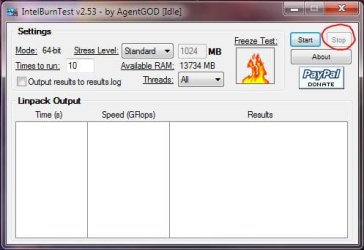
Ensure that you familarise yourself with the location of the Stop button, as shown in red above.
Position the IntelBurnTest and HWINFO application windows next to one another in preparation for the tests.
:note: Step 4 - Run IntelBurnTest
There are 5 Stress Level tests to choose from. I am only going to run Standard, High and the Very High tests. The difference betwen the tests is the amount of RAM available to solve an ever-increasing number of linear equations.
I recommend using the following parameters on the panel:
Time to run : 5
Threads: All
Click Start to run the test and be sure to monitor the temperatures in HWINFO. To stop the test at any time, simply click the Stop button.
Note that Flame Test icon (the animated flame) is a visual indication that the test is still running. If the flames stop animating, then the software is not responding and can be killed from Task Manager.
Warning
If the temperatures approach your CPU maximum operating temperature, you must stop the test immediately, or you risk damaging or destroying your system.
Standard Test:
:info: Time taken to complete : ~3mins
:info: Maximum temperature : 55 degrees Celcius
This is the typical output.
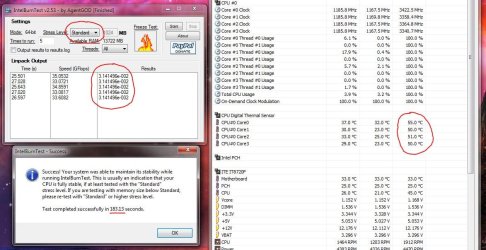
The time for each test is shown. The speed (GFlops) is a measure of the speed at which the equations are solved. In my case, this is about 35 million floating point operations per second. The results is a residual value which is the accuracy to which the equations are solved. A CPU that has passed the test, is one in which the residual values for each individual test is exactly the same.
A Success panel is also shown to confirm the CPU is stable under those test conditions. Note that the maximum temperature attained is 55 degrees Celcius - still well below my TCase temperature of 72.6.
The procedure for the High and Very High test is exactly the same, and the results shown below:
High Test:
:info: Time taken to complete : ~8mins
:info: Maximum temperature : 57 degrees Celcius

Very High Test:
:info: Time taken to complete : ~21mins
:info: Maximum temperature : 58 degrees Celcius
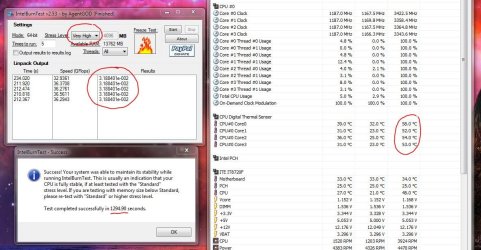
In conclusion you can see that under these 3 tests, my CPU is stable and also that my cooling arrangement (Corsair H60 watercooling kit) is sufficient to keep the CPU well within operating temperatures during these stress tests.
I hope you have found this tutorial useful, and remember : you saw it first at SevenForums.
Regards,
Golden
Note
Special thanks to britton who introduced me to IntelBurnTest.
Last edited: