WD Elements being read as RAW // Contents readable through app

JTizzle

New member
Local time
4:30 AM
Messages
9
Hello! New member, long-time lurker here.

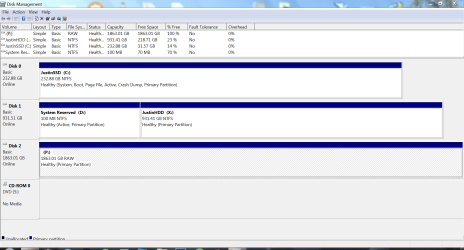
I plugged in my WD Elements for the first time in months but Windows could not explore it. Diskmgmt reads it as RAW. (P: Drive)
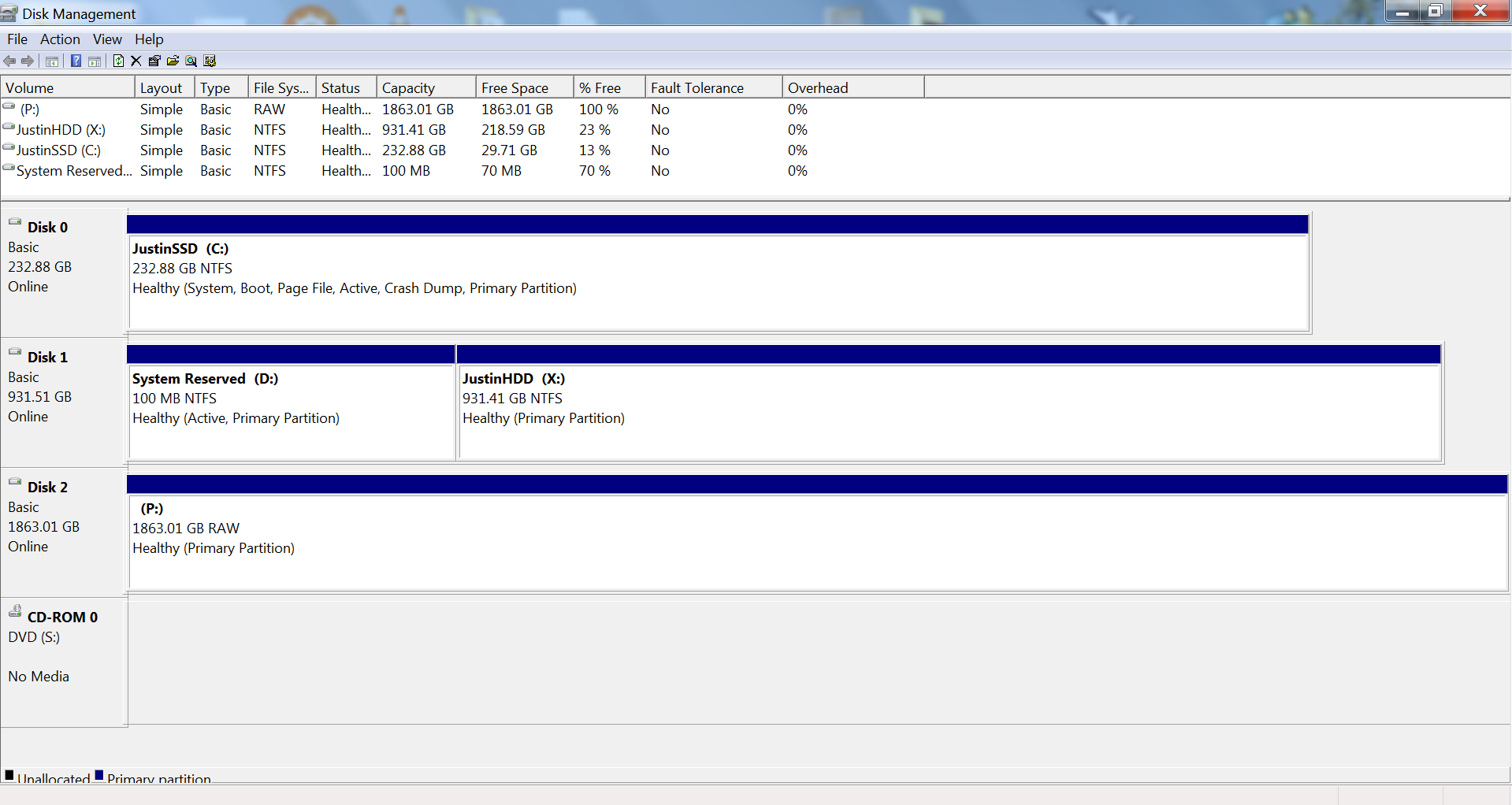
BOjVXwB.png


However, using MiniTool Partition Wizard (which I found somewhere in these forums), I recovered a partition and I could see my files through the app.
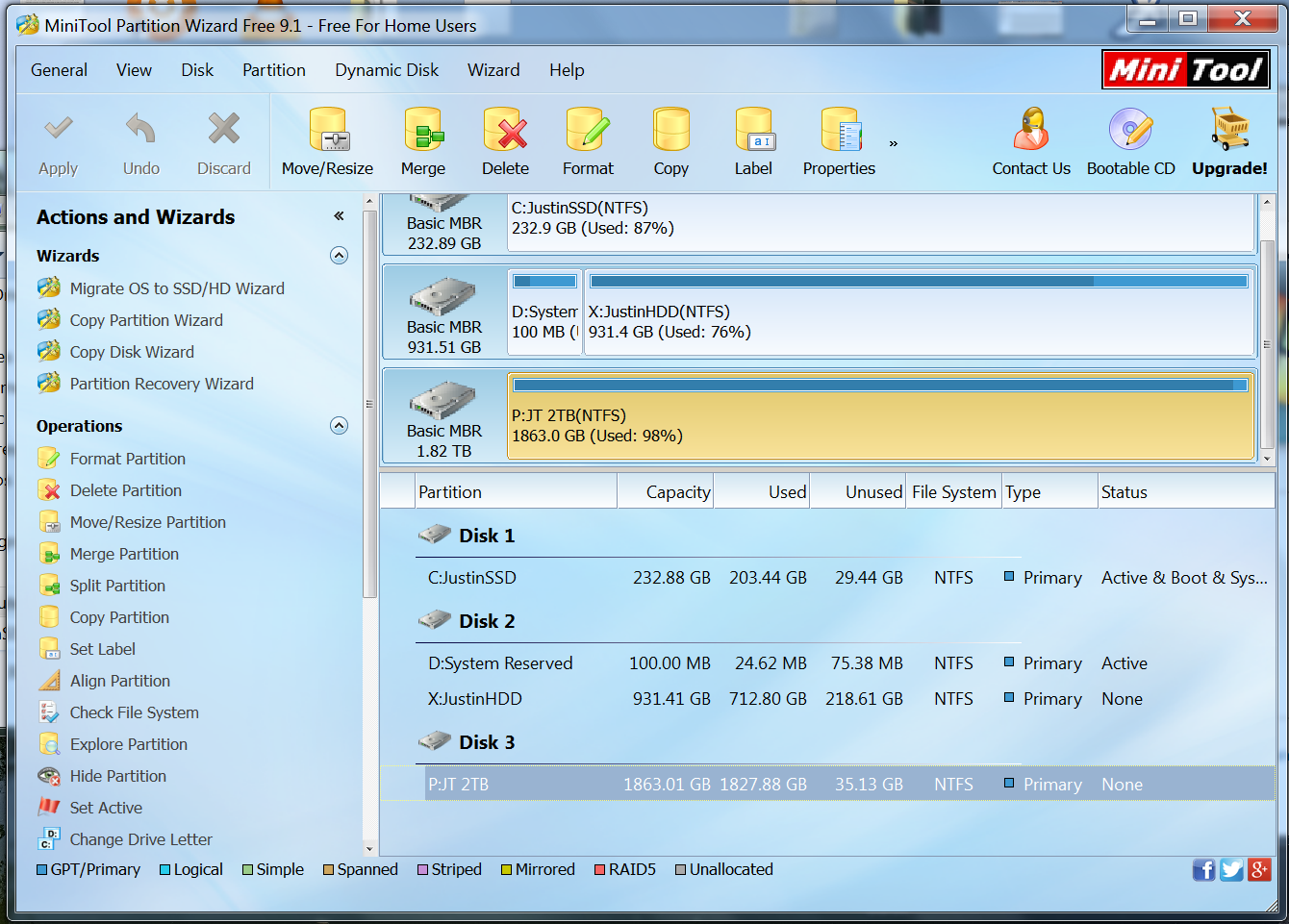
MKFq1hc.png

WSnlTFk.png


Unfortunately, Windows still reads my External HDD as RAW.

I have tried on a different computer and Windows still can't read it.

I want windows to be able to read my HDD properly again.

What do?

Thanks! :)
 
Last edited:

My Computer

Computer type
PC/Desktop
Computer Manufacturer/Model Number
Custom
OS
Win 7 Ultimate x64
CPU
Intel i5 3570K
Motherboard
Asus P8Z77-V LK
Memory
8 GB
Graphics Card(s)
Nvidia GTX 660 Ti
Welcome to Seven Forums.

After recovering the partition, did you reboot and check?

Just to confirm,

Please shut down your PC and boot it.

1.Post a fresh screenshot of Windows Disk Management. Close Windows Disk Management.

2. Run Partition Wizard and post a fresh screenshot of PW. (the first screen that appears as soon as you launch Partition Wizard) Close Partition Wizard.

Note: Do not repost any old screenshots.

Please upload the screenshots to Seven Forum servers.

Follow the guidelines here to post an untruncataed screenshot with all the information clearly visible. Disk Management - Post a Screen Capture Image
Snipping Tool How to Use the Snipping Tool in Vista
Upload to Seven Forums: Screenshots and Files - Upload and Post in Seven Forums
 
Last edited:

My Computer

OS
Windows 7 Home Premium 32 bit
Yeah those screenshots are after a restart; however, as requested, I've rebooted again and added new screenshots.

Diskmgmt

DiskMgmt ss.png

PW

PW New SS.PNG
 

My Computer

Computer type
PC/Desktop
Computer Manufacturer/Model Number
Custom
OS
Win 7 Ultimate x64
CPU
Intel i5 3570K
Motherboard
Asus P8Z77-V LK
Memory
8 GB
Graphics Card(s)
Nvidia GTX 660 Ti
I have seen your post. You are in Australia and that makes it a little difficult to synchronise. Not to worry. We shall do it slowly. You can go to sleep now, and see my detailed post on handling the issue your tomorrow.

In your case we may have to go in for data recovery rather than trying to restore your drive.And I have to do a little bit of research :).

What do you have on your 250GB SSD and your 1TB HDD? OS and bit version. Your 1TB HDD shows a system reserved 100MB partition.

Where is PW installed?

I hope that the PW screenshot and Windows Disk Management are from the same OS.

Just for info. May or May not be relevant for the issue.
 

My Computer

OS
Windows 7 Home Premium 32 bit
250GB SSD has my OS which is Win 7 Ultimate x64.

Contains games and apps I frequent. PW is installed in this drive.

1TB HDD contains more apps but is also where I have videos and pictures.

I don't recall what the System Reserved was there for but it contains a text file named arg1

Were there any specific applications you were looking for in the drives?

Also, the screenshots are from the same PC.
 

My Computer

Computer type
PC/Desktop
Computer Manufacturer/Model Number
Custom
OS
Win 7 Ultimate x64
CPU
Intel i5 3570K
Motherboard
Asus P8Z77-V LK
Memory
8 GB
Graphics Card(s)
Nvidia GTX 660 Ti
OK, we are ready for the show.

First and foremost there is absolutely no need to hurry up. Do things at your leisure and pace. No need to forego sleep :). As far as I can see rather perceive, your data is still there and should be recoverable. Your external drive shows 98% space used and so I have to proceed through a circuitous route without taking any risk. A failed check disk which possibly cannot run with only 2% free space can kill your data or so I would believe.. So out of consideration.

Download TestDisk for Windows from here TestDisk Download - CGSecurity ( The second in the list.)( Do not download " Windows 64 bit" - that is not for you) Extract the testdisk-7.0.win.zip to the root of your system drive C:. You will run testdisk_win.exe in the extracted testdisk-7.0 folder.

Boot your system, plug-in only your faulty external drive and run testdisk_win.exe

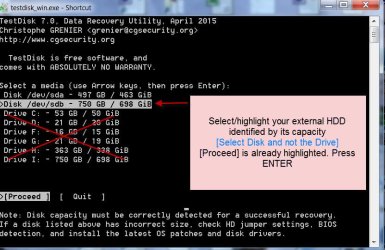
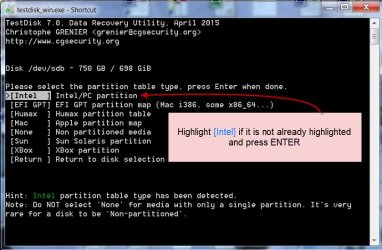
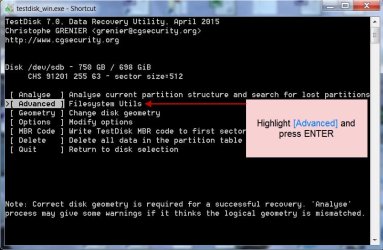
Follow the screenshots below.

First Screen:

1 No Log Enter.jpg

Second Screen:

2 SelectDisk.jpg

Third Screen:

3 Intel Enter.jpg

Fourth Screen:

4 Advanced Enter.jpg

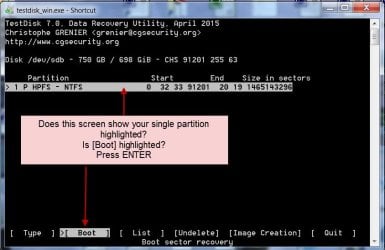
Fifth Screen

5 Boot.jpg

NOTE: On this screen as well as the next screen you can highlight
  • using left/right arrow key and press Enter to see the files. But right now we shall not do it. The aim is to check whether there is any filesystem deficiency which can be corrected. If the deficiency can be corrected the whole drive can be recovered. If the deficiency is beyond correction, then only we will use List to see the files/folders and try to copy those.

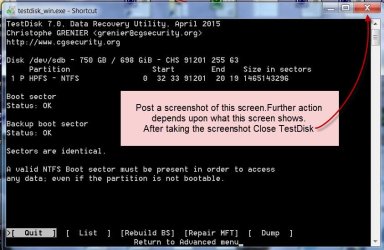
    Sixth Screen:

    6 Close.jpg

    Post this sixth screenshot and close TestDisk. Let me examine it and decide what is to be done further.

    If at any time you get a screen different from what is posted above or you have any doubts on how to proceed further, stop,take that screenshot, close TestDisk and ask for clarification. Do not try to experiment on your own.

    I am now going to bed and comeback only after another 10 hours.
 

My Computer

OS
Windows 7 Home Premium 32 bit
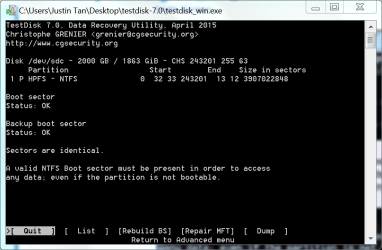
Thanks for that. Here's the screenshot of the 6th part.

testdisk.PNG
 

My Computer

Computer type
PC/Desktop
Computer Manufacturer/Model Number
Custom
OS
Win 7 Ultimate x64
CPU
Intel i5 3570K
Motherboard
Asus P8Z77-V LK
Memory
8 GB
Graphics Card(s)
Nvidia GTX 660 Ti
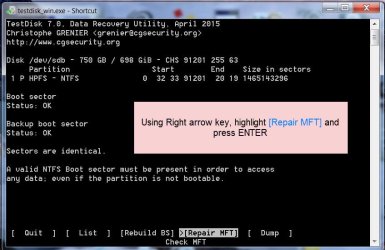
OK, both Boot sector and Backup boot sector are OK. Now repeat till you again get this screen, Move the Highlight to [Repair MFT] and press ENTER

7 Repair MFT.jpg

Post a screenshot of the resulting screen showing the MFT status. After that close TestDisk.
 

My Computer

OS
Windows 7 Home Premium 32 bit
mft.PNG
 

My Computer

Computer type
PC/Desktop
Computer Manufacturer/Model Number
Custom
OS
Win 7 Ultimate x64
CPU
Intel i5 3570K
Motherboard
Asus P8Z77-V LK
Memory
8 GB
Graphics Card(s)
Nvidia GTX 660 Ti
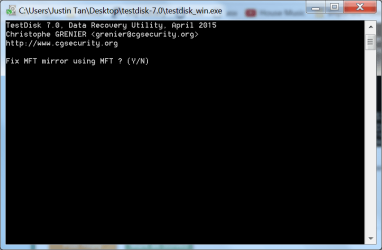
OK, when you reach this screen Press Y and let TestDisk fix it. Let me know what happens by posting the resulting screen. I am online to give further instructions. So do not close TestDisk.

Post the screenshot and wait for my instructions.

If I do not respond within half an hour close Test Disk.
 

My Computer

OS
Windows 7 Home Premium 32 bit
I accidentally closed it before taking a screenshot but it said it MFT fixed or something like that then when I tried going to the same thing I got this new message.

mft mft mirror perfect.PNG

Also, side question: why do I have to keep closing the program? I usually study for an hour every time after I post then look back here which is why I answer in roughly hourly intervals.
 

My Computer

Computer type
PC/Desktop
Computer Manufacturer/Model Number
Custom
OS
Win 7 Ultimate x64
CPU
Intel i5 3570K
Motherboard
Asus P8Z77-V LK
Memory
8 GB
Graphics Card(s)
Nvidia GTX 660 Ti
I want you to close the program since I may not be online to see your post and you may do something else on the PC. I never want data recovery program to remain open while you do other things on the PC.. No multitasking.

OK, now what is the status of your external HDD? Are you able to access the drive after the MFT Mirror repair?

Reboot your PC and check whether Disk Management still shows it as RAW.

Now I am going offline and may not see your post till I return :).
 

My Computer

OS
Windows 7 Home Premium 32 bit
alright, thanks for the info.

Windows still sees it as RAW, unfortunately.
 

My Computer

Computer type
PC/Desktop
Computer Manufacturer/Model Number
Custom
OS
Win 7 Ultimate x64
CPU
Intel i5 3570K
Motherboard
Asus P8Z77-V LK
Memory
8 GB
Graphics Card(s)
Nvidia GTX 660 Ti
OK, we shall now shift to data recovery mode.

To copy all data you must have another external drive of sufficient capacity. On this external drive create a folder named Recovery. This external drive and the Recovery folder in it will be your destination to copy the files.

Boot your PC, plugin your faulty drive (source drive) and your destination drive with Recovery folder..

Open Widnows Disk Management and note down the drive letter of the destination drive. You will require this to navigate to your destination drive in TestDisk. Close Windows Disk Management.

RunTest Disk.( It should now show all the drives including your destination drive) Go upto the fifth screen in my post #6. Move the highlight from [Boot] to
  • and press ENTER.

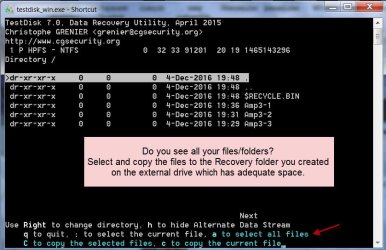
    8 List.jpg


    9copy.jpg

    How to copy the files to the Recovery folder on the Destination Drive:

    See my post #28 here My external hard drive suddenly became unllocated:

    Follow the procedure outlined from screenshot 5 in that post which is akin to the second screenshot in this post.

    : to select the current file ( Shift+: )

    a to select all files: a is lowercase. Just press Key A

    C to copy selected files: C is uppercase (Shift+C)

    c to copy the current file : Lower case Just press Key C

    When you have finished copying the files, check the integrity of the files.

    Report when done or if you need any clarification.
 

My Computer

OS
Windows 7 Home Premium 32 bit
I currently don't have another drive with sufficient space to recover 2TB. I'll be back in a couple of days after purchasing a new device. Unless of course there's a way to make this work without a spare drive?
 

My Computer

Computer type
PC/Desktop
Computer Manufacturer/Model Number
Custom
OS
Win 7 Ultimate x64
CPU
Intel i5 3570K
Motherboard
Asus P8Z77-V LK
Memory
8 GB
Graphics Card(s)
Nvidia GTX 660 Ti
Read this thread External hard drive visible in Partition Magic but not explorer

It was a thread wherein TestDisk found the boot sectors OK and MFT also OK. As a last resort he was advised

"Run check disk from command prompt.

Open Command prompt. Start > All programs > Accessories > Command Prompt

Type
CHKDSK K: /f /v /r /x Press enter. Note: Replace K: with the actual drive letter of the external drive

Allow check disk to complete."

And that resolved the problem.

In your case I would hesitate to recommend this since your HDD seems to have only 2% free space.There is, in my opinion, every chance that check disk may fail with the limited free space for it to operate. A failed checkDisk will leave your data in further shambles. I have already indicated this in my post # 5
"Your external drive shows 98% space used and so I have to proceed through a circuitous route without taking any risk. A failed check disk which possibly cannot run with only 2% free space can kill your data or so I would believe.. So out of consideration."

That is why I strongly recommend that you recover the data first to another external drive.

Do it slowly after getting a new drive. But till such time keep the external drive unplugged safely.

In the meantime, to assess that all your data is there and not corrupt, you may run the trial version of GetDataBack Simple https://www.runtime.org/data-recovery-software.htm and scan your external drive. If it shows all your files, you can open and preview the files and check their integrity. The program does not write anything to the drive and so you can afford to do any number of mistakes :). To copy the files to another drive, you have to buy a licence USD 69/- if I remember correctly. You can do it with TestDisk for free.

After you have copied all the data to another drive, you can try CheckDisk and see whether it restores the drive. Not until then :).
 

My Computer

OS
Windows 7 Home Premium 32 bit
I see. Is there a way to delete some files so I can do the normal chkdsk stuff? I don't necessarily need everything inside the broken drive.
 

My Computer

Computer type
PC/Desktop
Computer Manufacturer/Model Number
Custom
OS
Win 7 Ultimate x64
CPU
Intel i5 3570K
Motherboard
Asus P8Z77-V LK
Memory
8 GB
Graphics Card(s)
Nvidia GTX 660 Ti
I wouldn't go with or buy such a proposition, given the already existing uncertainities in Data Recovery.
 

My Computer

OS
Windows 7 Home Premium 32 bit
Back
Top