

- Local time
- 4:18 AM
- Messages
- 1,325
How a Firewall works
(simplified version)
Welcome to my second guide in Seven Forums.
Before we begin...
In computer networking, we all know the term "Firewall". Before we get into "what is firewall" question, I'd like to explain about frames and packets. If you read my previous guide about "Internetwork Troubleshooting Guide", I talk a lot about packets and frames. For those who read my first guide, this one will shed more light into computer internetworks.
A fast refresh on internetworking terms.
Ok, now let's begin...
To secure a computer network, you need to "limit" what can flow from one side to the other. Computer network are comprised of 2 general types:
When you want to connect one computer to another computer, you will need a "Switched" network. Back in the day, this is done by several devices, Hubs, Switches, Repeaters, Access Points, and several others. A computer network is a network of computers that physically are connected together by means of wired or wireless methods. To make sure this network "works", you need to logically set so that these computers are on the same "Network" (read my first guide about this topic).
Now, in a small lab - this setup works. You can have tens or hundreds of computers networked together, BUT once you hit several hundred computers, it start to get overwhelming. From a security standpoint, having hundreds of computers networked together IS NOT SAFE. If a computer got infected by a malware that can scan local network for other hosts, you are screwed since the malware will have access to hundreds of computers DIRECTLY, thus another type of network came along - the "Routed" network.
To simplify hundreds of computer network, we need to segment the network. Let's say we group those computers by it's physical locations - 15 computers as "Ground office", 20 computers as "2nd floor office", 3 servers "Servers" and so on. Tthat hundreds of computers now look much simpler, instead of hundreds of hosts, we see only several networks. Each network can only communicate with each other, it can't cross over to other networks even if it's on the same switch. This time we need a "Router". This is one AWESOME device. It can route/bridge between networks. It can make inter network communication possible. Let's say if the computers on "Ground floor" got infected by a nasty worm, most of the time you only need to maintain computers in that network, the worm rarely able to move from network to network.
Now, since we understand that computer networks need to be segmented - this is what happened globally. In offices, in schools, at homes, everyone is segmenting their networks. Now why did I say that routers are AWESOME devices? Different than switch, routers understand what's passing over it's interfaces. You see the diagram I showed you above, a Switch only understand the first row. A switch only checks what the receiver/sender MAC address and acts accordingly. A router on the other hand understands EVERY ROW on that diagram, several expensive routers can even see and understand the "Data" part inside a TCP packet.
Since a router can see very deep into the frames/packets that's going in and out of it, it can now do some checking of things that's coming and going through it. This is what's called "Firewall", it checks things and if those things matched a rule (or some rules) stated in the router's memory, the router will act on those frames/packets accordingly as stated in the rule(s).
[Great, I spend too much text just to get to the routing part of computer network... *sigh*]
Now, there are several types of "Firewall" techniques that are common. I say techniques because that's what it is, it's a technique or method to check packets that's coming/going through the router. These are the commonly used techniques:
Here's an example of a simple home network:
PC[10.1.1.10]---[10.1.1.1]Router[60.70.80.90]---[67.195.160.76]Yahoo.com
1. Address translation
Address translation is the most commonly used technique in consumer grade "firewall", it's the easiest to implement, no logging, very safe by default, and moderately fast. What and how does it do to secure our network? There are 2 things it does, first is Network address Translation (NAT) and the second is Port Address Translation (PAT). See my picture above. In an IP packet, there always be a "Sender IP address" and "Receiver IP address" segment in the packets. IP packets contain TCP packet as it's data. In TCP packet, there are informations about destination's port address, ACK, Checksum, etc.
In the home network simple illustration, we have a PC that wants to connect to Yahoo.com through port 80 (common web server listen port is 80), when the PC's browser requests to Yahoo.com, it will send packets to Router[10.1.1.1]. Here's when the magic works. In the router, PC's IP packets will have "Sender IP address" segment filled with "10.1.1.10" and TCP packet's "Sender Port number" with some random port number generated by web browser when it initiates the communication. Now, when that packet arrived, the router will save this "Sender IP address" and "Sender Port number" to a table in the router's memory, CHANGE THE SENDER IP ADDRESS to "60.70.80.90" then send it to Yahoo.com. Once Yahoo received the packet, asking for a webpage, Yahoo will then send it's webpage packets back to your router because the "Sender IP address" now is your router. Once the packet arrived at your router, it will then check against it's "sent packets" table, OH!! it found an entry, so the arrived packets are then again translated the packet's "Receiver IP address" back to "10.1.1.10", send the packet to the PC, then flush the table entry. PC receives the packet reads the data and draw the Yahoo page... This is how NAT do it's thing. PAT does the same thing, but it changed the "Port number" instead "IP address".
[quoted from my own post]
Now how can this simple mechanism protects you? It's easy... Since your router keeps a list of what your computer(s) requests to what/where/when, it also knows what is NOT requested, see the logic? If say some kid from china has your IP and try to send something to your public IP - which then arrived at your router, the packets will be checked against a list of hosts that you previously asked for, and this Chinese IP address is not one of them... So, by default the packets from the Chinese IP gets dropped off just like that, as if nothing happens. See, this is the basic principal of how NAT works. The rogue packets won't even be able to reach your computer, regardless if your computer has firewall or not.
Now, after everything done, you are safe to browse the net, watch youtube, update your status in facebook, read the news, listen to last.fm, and so on... But then you bumped to an issue. As you understand, NAT will drop everything that's not in it's list as if it's a rogue packet. If you play an online game, and you're hosting a session, your computer will "listen" to requests off of the Internet. Now... this is getting frustrating - IF your router doesn't have the list requests and your computer doesn't request anything (it's on "listening" mode), you won't be able to create any game session, your friends won't be able to join your game, because every attempt they make will be dropped by your router. HOLY CRAP !!! But wait, there's a way to "poke a hole" in NAT, it's called "Port Forwarding". In a sense, "Port Forwarding" will forward EVERY packets that arrived at the router that has specific port number in them. When you host a game, usually the game will tell you that it will be using one or more ports (say you're playing CoD:MW2, it uses 1500, 3005, 3101, 27000-27050, 28960 ports). So, to make a hole in your NAT or effectively saying to your router that every packets that are arrived at those ports are to be sent (and translated of course) directly to your PC, you need to make a "Port forwarding rule". Usually in modern routers it has UPnP, it's the magical protocol that will make a hole in your firewall without you making any changes to it (automatically generates a "Port forwarding rule" by it self), sometimes without your consent. In a more conventional router (Cisco business/cloud class routers), usually you need to create your own port forwarding rule, it doesn't have UPnP or UPnP is disabled by default because of security reasons. In some routers it's called "Virtual server". Now, if you're a security concise person, you don't want UPnP running... but on the other hand, it will save your time in configuring port forwarding. I personally disable UPnP because of the security reasons. Imagine you got infected by some new undetected malware botnet client, and it uses UPnP to poke a hole in your firewall and contacted it's master server, the whole NAT firewall technique cannot save you, because the request are made from inside, and what's inside poke a hole to your defense so that what's from outside can go in... That is terrible... But, you know... consumers - they want it easy and secure, which is almost impossible...
[/quoted from my own post]
2. Stateful Checking
In stateful checking, the router will check if it has opened a communication session with the remote host. Using the sample from previous case, the router checks if it already opens a communication session with Yahoo.com, if so, then the packets from Yahoo is then permitted to pass. If let's say someone from china tests your firewall, the packets from china will arrive at your firewall, checked if the router has an open session with the china person, if it doesn't have any sessions, the packets are the dropped.
3. Packet Filtering
Now, this is the FUN one. This technique requires a quite powerful hardware to achieve high throughput. It basically checks EVERY PACKETS to a set of rules it has. Let's say, I don't want the router to be PING-able from the internet. I put a Packet Filter rule that says, "if it receive an ICMP 'Echo' packet in the 'Input' stage, drop the packet". If I don't want any of computers in my LAN to contact Yahoo, I put a packet filter rule that says "Destination IP address = Yahoo.com, drop the packet". You can filter almost anything by using Packet Filtering. You can even cripple the network using Packet Filtering... This technique is VERY POWERFUL.
4. Application layer probe
Several expensive routers (and Linux/BSD Firewall distribution) can inspect a packet very deeply. It can understand the data within the packets and then analyze it. This method requires A VERY POWERFUL HARDWARE to be able to reach a high throughput. Here's an example of the rule: I want if any Yahoo Messanger chat text contains the "F" word, I need that word to be changed with "*peep*" text before it reaches Yahoo's servers, and the router will do just that. This technique is very powerful, but IMHO is very limited in application, since it target certain application. I rarely use this technique in my own router (my Mikrotik router can do ALL techniques I talked about).
Well, that's all for now, I'll write the *not simplified version* some other time... I hope you enjoyed the read
zzz2496
(simplified version)
Welcome to my second guide in Seven Forums.
Before we begin...
In computer networking, we all know the term "Firewall". Before we get into "what is firewall" question, I'd like to explain about frames and packets. If you read my previous guide about "Internetwork Troubleshooting Guide", I talk a lot about packets and frames. For those who read my first guide, this one will shed more light into computer internetworks.
A fast refresh on internetworking terms.
- Frames - Works in Layer 2, in this case I'll be using Ethernet (there are several others). It contains information that needs to be sent/returned to a certain MAC address.
- IP Packets - Works in Layer 3, in this case I'll be using TCP as this is what we primarily use.
- TCP Packets - Works in Layer 4.
Here's the visual presentation of what an Ethernet frame looks like:
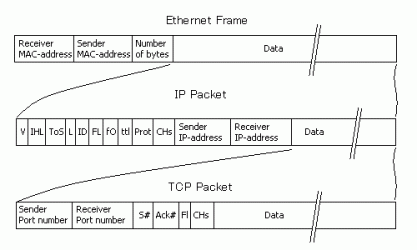
Now, before I made this guide, I wrote quite a bit about firewall in this thread, this guide will complete that post.
Ok, now let's begin...
To secure a computer network, you need to "limit" what can flow from one side to the other. Computer network are comprised of 2 general types:
- "Switched" network, most of the time we call "LAN".
- "Routed" network, most of the time we call "the great wide Internet".
When you want to connect one computer to another computer, you will need a "Switched" network. Back in the day, this is done by several devices, Hubs, Switches, Repeaters, Access Points, and several others. A computer network is a network of computers that physically are connected together by means of wired or wireless methods. To make sure this network "works", you need to logically set so that these computers are on the same "Network" (read my first guide about this topic).
Now, in a small lab - this setup works. You can have tens or hundreds of computers networked together, BUT once you hit several hundred computers, it start to get overwhelming. From a security standpoint, having hundreds of computers networked together IS NOT SAFE. If a computer got infected by a malware that can scan local network for other hosts, you are screwed since the malware will have access to hundreds of computers DIRECTLY, thus another type of network came along - the "Routed" network.
To simplify hundreds of computer network, we need to segment the network. Let's say we group those computers by it's physical locations - 15 computers as "Ground office", 20 computers as "2nd floor office", 3 servers "Servers" and so on. Tthat hundreds of computers now look much simpler, instead of hundreds of hosts, we see only several networks. Each network can only communicate with each other, it can't cross over to other networks even if it's on the same switch. This time we need a "Router". This is one AWESOME device. It can route/bridge between networks. It can make inter network communication possible. Let's say if the computers on "Ground floor" got infected by a nasty worm, most of the time you only need to maintain computers in that network, the worm rarely able to move from network to network.
Now, since we understand that computer networks need to be segmented - this is what happened globally. In offices, in schools, at homes, everyone is segmenting their networks. Now why did I say that routers are AWESOME devices? Different than switch, routers understand what's passing over it's interfaces. You see the diagram I showed you above, a Switch only understand the first row. A switch only checks what the receiver/sender MAC address and acts accordingly. A router on the other hand understands EVERY ROW on that diagram, several expensive routers can even see and understand the "Data" part inside a TCP packet.
Since a router can see very deep into the frames/packets that's going in and out of it, it can now do some checking of things that's coming and going through it. This is what's called "Firewall", it checks things and if those things matched a rule (or some rules) stated in the router's memory, the router will act on those frames/packets accordingly as stated in the rule(s).
[Great, I spend too much text just to get to the routing part of computer network... *sigh*]
Now, there are several types of "Firewall" techniques that are common. I say techniques because that's what it is, it's a technique or method to check packets that's coming/going through the router. These are the commonly used techniques:
- Address Translation
- Stateful Checking
- Packet Filtering
- Application layer probe
Here's an example of a simple home network:
PC[10.1.1.10]---[10.1.1.1]Router[60.70.80.90]---[67.195.160.76]Yahoo.com
1. Address translation
Address translation is the most commonly used technique in consumer grade "firewall", it's the easiest to implement, no logging, very safe by default, and moderately fast. What and how does it do to secure our network? There are 2 things it does, first is Network address Translation (NAT) and the second is Port Address Translation (PAT). See my picture above. In an IP packet, there always be a "Sender IP address" and "Receiver IP address" segment in the packets. IP packets contain TCP packet as it's data. In TCP packet, there are informations about destination's port address, ACK, Checksum, etc.
In the home network simple illustration, we have a PC that wants to connect to Yahoo.com through port 80 (common web server listen port is 80), when the PC's browser requests to Yahoo.com, it will send packets to Router[10.1.1.1]. Here's when the magic works. In the router, PC's IP packets will have "Sender IP address" segment filled with "10.1.1.10" and TCP packet's "Sender Port number" with some random port number generated by web browser when it initiates the communication. Now, when that packet arrived, the router will save this "Sender IP address" and "Sender Port number" to a table in the router's memory, CHANGE THE SENDER IP ADDRESS to "60.70.80.90" then send it to Yahoo.com. Once Yahoo received the packet, asking for a webpage, Yahoo will then send it's webpage packets back to your router because the "Sender IP address" now is your router. Once the packet arrived at your router, it will then check against it's "sent packets" table, OH!! it found an entry, so the arrived packets are then again translated the packet's "Receiver IP address" back to "10.1.1.10", send the packet to the PC, then flush the table entry. PC receives the packet reads the data and draw the Yahoo page... This is how NAT do it's thing. PAT does the same thing, but it changed the "Port number" instead "IP address".
[quoted from my own post]
Now how can this simple mechanism protects you? It's easy... Since your router keeps a list of what your computer(s) requests to what/where/when, it also knows what is NOT requested, see the logic? If say some kid from china has your IP and try to send something to your public IP - which then arrived at your router, the packets will be checked against a list of hosts that you previously asked for, and this Chinese IP address is not one of them... So, by default the packets from the Chinese IP gets dropped off just like that, as if nothing happens. See, this is the basic principal of how NAT works. The rogue packets won't even be able to reach your computer, regardless if your computer has firewall or not.
Now, after everything done, you are safe to browse the net, watch youtube, update your status in facebook, read the news, listen to last.fm, and so on... But then you bumped to an issue. As you understand, NAT will drop everything that's not in it's list as if it's a rogue packet. If you play an online game, and you're hosting a session, your computer will "listen" to requests off of the Internet. Now... this is getting frustrating - IF your router doesn't have the list requests and your computer doesn't request anything (it's on "listening" mode), you won't be able to create any game session, your friends won't be able to join your game, because every attempt they make will be dropped by your router. HOLY CRAP !!! But wait, there's a way to "poke a hole" in NAT, it's called "Port Forwarding". In a sense, "Port Forwarding" will forward EVERY packets that arrived at the router that has specific port number in them. When you host a game, usually the game will tell you that it will be using one or more ports (say you're playing CoD:MW2, it uses 1500, 3005, 3101, 27000-27050, 28960 ports). So, to make a hole in your NAT or effectively saying to your router that every packets that are arrived at those ports are to be sent (and translated of course) directly to your PC, you need to make a "Port forwarding rule". Usually in modern routers it has UPnP, it's the magical protocol that will make a hole in your firewall without you making any changes to it (automatically generates a "Port forwarding rule" by it self), sometimes without your consent. In a more conventional router (Cisco business/cloud class routers), usually you need to create your own port forwarding rule, it doesn't have UPnP or UPnP is disabled by default because of security reasons. In some routers it's called "Virtual server". Now, if you're a security concise person, you don't want UPnP running... but on the other hand, it will save your time in configuring port forwarding. I personally disable UPnP because of the security reasons. Imagine you got infected by some new undetected malware botnet client, and it uses UPnP to poke a hole in your firewall and contacted it's master server, the whole NAT firewall technique cannot save you, because the request are made from inside, and what's inside poke a hole to your defense so that what's from outside can go in... That is terrible... But, you know... consumers - they want it easy and secure, which is almost impossible...
[/quoted from my own post]
2. Stateful Checking
In stateful checking, the router will check if it has opened a communication session with the remote host. Using the sample from previous case, the router checks if it already opens a communication session with Yahoo.com, if so, then the packets from Yahoo is then permitted to pass. If let's say someone from china tests your firewall, the packets from china will arrive at your firewall, checked if the router has an open session with the china person, if it doesn't have any sessions, the packets are the dropped.
3. Packet Filtering
Now, this is the FUN one. This technique requires a quite powerful hardware to achieve high throughput. It basically checks EVERY PACKETS to a set of rules it has. Let's say, I don't want the router to be PING-able from the internet. I put a Packet Filter rule that says, "if it receive an ICMP 'Echo' packet in the 'Input' stage, drop the packet". If I don't want any of computers in my LAN to contact Yahoo, I put a packet filter rule that says "Destination IP address = Yahoo.com, drop the packet". You can filter almost anything by using Packet Filtering. You can even cripple the network using Packet Filtering... This technique is VERY POWERFUL.
4. Application layer probe
Several expensive routers (and Linux/BSD Firewall distribution) can inspect a packet very deeply. It can understand the data within the packets and then analyze it. This method requires A VERY POWERFUL HARDWARE to be able to reach a high throughput. Here's an example of the rule: I want if any Yahoo Messanger chat text contains the "F" word, I need that word to be changed with "*peep*" text before it reaches Yahoo's servers, and the router will do just that. This technique is very powerful, but IMHO is very limited in application, since it target certain application. I rarely use this technique in my own router (my Mikrotik router can do ALL techniques I talked about).
Well, that's all for now, I'll write the *not simplified version* some other time... I hope you enjoyed the read
zzz2496
My Computer
- Computer Manufacturer/Model Number
- Self Built
- OS
- Windows7 Ultimate 64bit
- CPU
- Intel Core 2 Quad Q6600
- Motherboard
- Abit IN9-32X-MMAX
- Memory
- DDR2 Adata 4GB
- Graphics Card(s)
- Nvidia GeForce GTX 285 1024 and Nvidia GeForce 8800GT 512
- Sound Card
- Asus Xonar HDAV 1.3
- Monitor(s) Displays
- Dell 2407WFP and BenQ 2400v and Philips 150v3
- Screen Resolution
- 3840x1200 and 1024x768
- Hard Drives
- 2 WDC 1TB
1 WDC 1.5TB
1 WDC 640GB
1 WDC 320GB
1 Seagate 200GB
- PSU
- Corsair TX 850W
- Case
- Cooler Master HAF932
- Cooling
- Arctic Cooling Freezer Extreme and plenty of fans...
- Keyboard
- MicrosoftNaturalKeyboard 4000/Apple Alu keyboard/Dinovo mini
- Mouse
- Logitech G5/MarbleMouseTrackball/PerformanceMX/SpacePilotPRO
- Internet Speed
- 1.5Mbps down/384Kbps up
- Other Info
- APC SURT 1000XL
Logitech Z-560
Wiimote
Mikrotik Router
Linksys (now Cisco) SD2008 8 port Gigabit switch
Linksys WRT54G (acting as AP)
Apple wireless Aluminium keyboard
Apple Magic Mouse
Xbox360 wired controller


