Regain a lost drive using Test Disk - An Illustrated Guide

jumanji

New member
Guru
VIP
Local time
3:08 AM
Messages
5,915
PART 1:

More often, users report that a hard drive/partition is lost/not recognised and does not show up in My Computer though it can be seen in the Device Manager and Disk Management.

This situation typically arises when Windows is reinstalled or an external drive is moved to another PC.

It is mostly a corrupt/missing partition table which is responsible for this and can easily be fixed with the freeware Test Disk.

Newbies will find this illustrated guide helpful.

1.Download the latest version of Test Disk – Windows version from http://www.cgsecurity.org/wiki/TestDisk_Download

2.Unzip the downloaded file to your C drive.

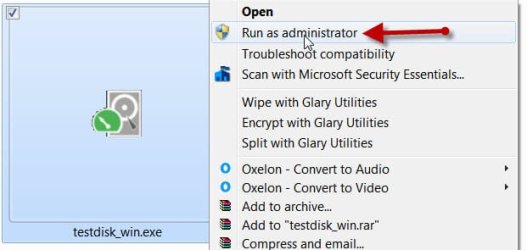
3.Open C:/testdisk-6.12 , right-click the testdisk_win.exe icon and Run as administrator. Click on Yes in the User Account Control Window. Use Keyboard’s arrow keys to navigate.
RasA.jpg

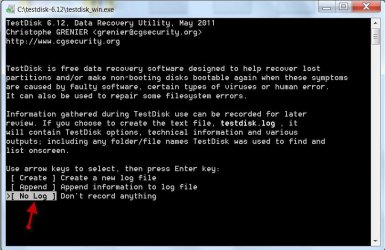
4.First Window: Select No Log, and press the ENTER key.
1st Window.jpg

5.Second Window: Should show up all your drives including the lost drive. The capacities should be indicated correctly. Then you have life. Select the lost drive, Proceed, ENTER.

2nd window.jpg

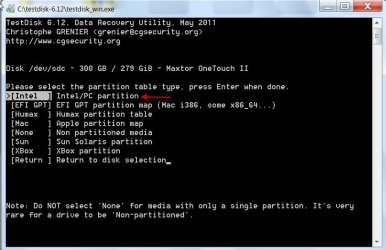
6.Third Window: Select partition type, Intel Intel/PC partition, ENTER.
3rd Window.jpg

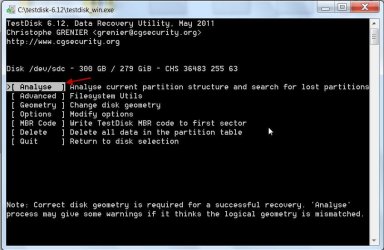
7.Fourth Window: Select Analyze, ENTER.
4th Window.jpg

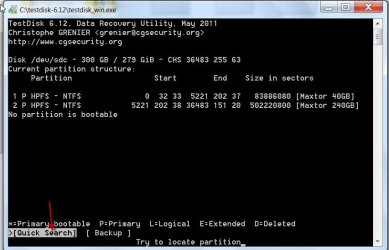
8.Fifth Window: Should show all partition/s in the selected lost drive. Select Quick Search, ENTER.
5th Window.jpg

9.Sixth Window: Confirm whether the partition was created by Vista/(Windows 7). Press Y if yes/not sure. N otherwise.

No screenshot here since I tried Test Disk for this guide on a Maxtor OneTouch II external drive with a valid partition table. You may get this sixth window when trying to fix a lost drive.

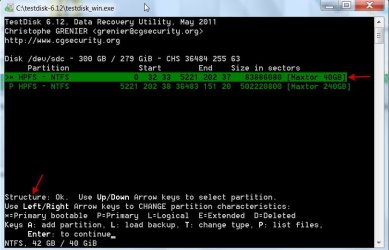
10.Seventh Window: Test Disk should indicate first partition of your lost drive as bootable and "Structure: OK". Press ENTER to continue.
6th window.jpg

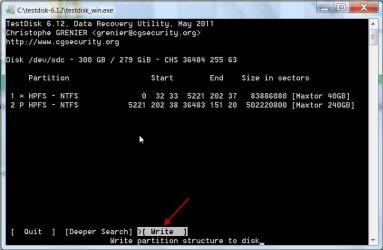
11.Eighth Window: Select Write, ENTER.
7th Window.jpg

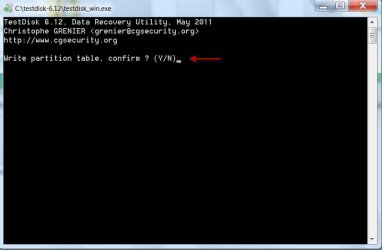
12.Ninth window: Confirm write partition table by pressing Y .
8th Window.jpg

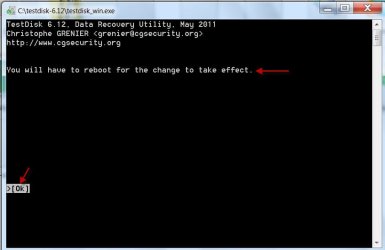
13.Tenth Window: Asks you to reboot, Press ENTER.
9th Window.jpg

14.Close Test Disk and reboot.

At some stage or other Test Disk may take a long time to scan, analyse and process all data necessary to rewrite the partition table. Be patient.

If one looks deeply into the screenshots, it will become evident that Test Disk can perform many other tasks like backing up the data in the lost drive, fixing a corrupt MBR etc.,

I understand that PhotoRec which is part of this program can recover photo and video files even from an accidentally formatted media. Keep this in mind and try should you face such a situation.

Users who actually tried this program to fix/recover may share their experience. We can learn from others’ experiences and help others.

Note: Most content of this thread already appear in another post elsewhere in this forum in response to a query. I have now put that in stand-alone thread with added screenshots so that it can be referenced and users can find it easily.
 
Last edited:

My Computer

OS
Windows 7 Home Premium 32 bit
Awesome guide. Well done :D
 

My Computer

Computer type
PC/Desktop
Computer Manufacturer/Model Number
Custom-built
OS
Windows 7 Professional SP1 32-bit
CPU
Intel Core 2 Duo E6600 2.4GHz
Motherboard
Asus PL5D2
Memory
4GB DDR2-667 (4x1GB in dual-channel config)
Graphics Card(s)
nVidia GeForce 9800 GT
Sound Card
Creative X-Fi XtremeMusic
Monitor(s) Displays
Acer P236H
Screen Resolution
1920x1200 (DVI)
Hard Drives
OCZ SSD Vertex Plus 60GB SATA (Firmware 3.55), 64MB cache
Hitachi HD321KJ SATA, 320GB, 7200rpm, 16MB cache
PSU
Antec TruePower 2.0
Case
Cooler Master Centurion
Cooling
Too many fans
Keyboard
Standard
Mouse
Microsoft wireless optical mouse
Internet Speed
AT&T U-verse (18mbit/sec)
Antivirus
Microsoft Security Essentials
Browser
Firefox
Other Info
Other devices:
Compaq CQ-60 laptop
Google Nexus 7 (2012) tablet
Nvidia SHIELD tablet (US/LTE)
Hardkernel ODROID-XU single-board computer (Samsung Exynos 5420)
Thanks, Corazon. You inspired me.
 

My Computer

OS
Windows 7 Home Premium 32 bit
Thanks for this, jumanji.

I've bookmarked it as an addition to my troubleshooting locker.
 

My Computer

Computer Manufacturer/Model Number
HP Pavilion Elite 495UK
OS
Windows 7 Ultimate SP1 64-Bit
CPU
Intel Core i7 870 @ 2.93GHz
Motherboard
MSI 2A9C (CPU1)
Memory
8Gb Dual-Channel DDR3 @ 664MHz
Graphics Card(s)
nVidia GeForce GTX 460 1024MB dedicated RAM
Sound Card
Realtek HD Audio
Monitor(s) Displays
HP2310i
Screen Resolution
1920 x 1080
Hard Drives
1x1954GB Hitachi HDS22020ALA 330 (RAID), 1x1954GB Hitachi External for backup and storage
PSU
460W
Case
HP Elite
Cooling
Air cooled
Keyboard
Logitech K750 solar-powered keyboard
Mouse
Logitech Wireless M180 mouse
Internet Speed
2Mb
Other Info
Pure Avanti Flow Internet Radio with iPod Dock, 64Gb iPod, HP USB Speakers, Sony MDR-V500 Headphones, Sony Vaio F-Series Laptop
PART 2:

The first part of this topic broadly outlined the steps involved in regaining an inaccessible drive with a corrupt/missing partition table.

In the event, the drive will be seen in the Disk Management without a drive letter and unallocated space.

To actually ascertain how good is Test Disk in regaining the hard drive access, I destroyed the partition table on my Maxtor external drive – using the same Test Disk – and went through the whole process.

( My external drive had two partitions, one containing the backup of D and E drives/partitions of my internal drive and the other the periodical system images of drive C. As a matter of abundant caution, I had copied all this data into another external drive, should something go wrong in this destructive trial and I am unable to regain the drive/data. I had also imaged the MBR and kept it. )

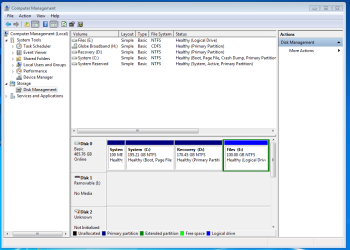
Here is my healthy external drive before the partition table was deleted:

01HealthyExtDrive.jpg

In the fourth Window – Part 1, I selected Delete, Enter, which deletes the partition table.

My external drive is now inaccessible and shows in the Disk Management as below. Now this is the real-life situation one will find that will necessitate calling upon Test Disk.

02PT destroyed.jpg

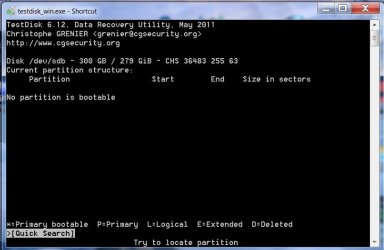
With the drive inacceesible, I hit Analyse, Enter – fourth Window in Part 1. A window with “No Partition is bootable” message appears. ( This in fact replaces the earlier fifth window in Part 1)

03NoBootPart.jpg


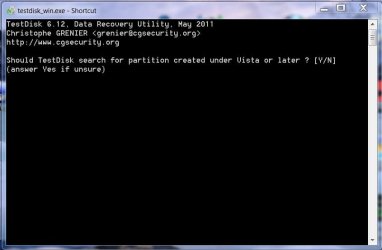
Hit Quick Search, Enter and this sixth window (missing earlier in Part 1 with a healthy drive) appears.


04Sixth Window.jpg

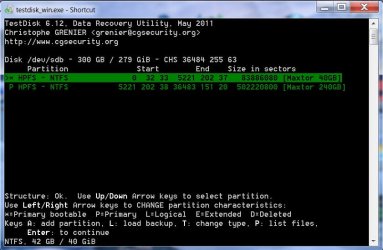
Press Y and voila the seventh window showing both the missing partitions appears. This happened almost instantaneously.

05Partitions.jpg

( Selecting a partition and hitting P as also the List, Enter in any window will show the folders/files which can be copied to any other drive in the PC. Screen shot later in this post)

Yep, Test Disk has done its job. Go ahead with the rest of the steps in Part 1, and the partition table is restored.

The Maxtor drive is back in business. No sweat.

06BacktoBusiness.jpg

So go ahead and try Test Disk when suddenly your external drive becomes inaccessible.

More on Test Disk:

The fourth Window has the following tabs: Analyse, Advanced, Geometry, Options, MBR Code,Delete, Quit. We have already seen the Analyse in the fourth window – Part 1.

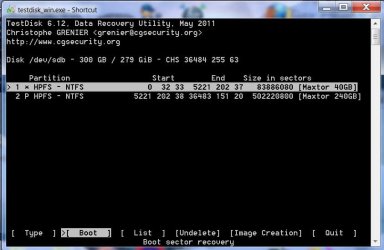
The Advanced Tab brings out the file System Utilities window.

07Advanced.jpg

Here one can select Type – for changing Partition Type, Boot – for Boot Sector Recovery, List – to list and copy files from the selected Partition, Undelete – to recover deleted files and Image Creation – for creating images of the partition. Boot, Enter brings another window with List, Rebuild BS, Repair MFT, and DUMP (dump boot sector and backup boot sector)


MBR Code facilitates writing a new Test Disk MBR code. Users are well-advised to read http://www.cgsecurity.org/wiki/Menu_MBRCode on writing the Test Disk MBR as a last resort.

Apparently these would be used when the system becomes unbootable and one tries to fix the system hard drive and /or recover the files. In such a situation, however, one would run Test Disk from a live-CD. ( A list of liveCDs with Test Disk can be found here .)

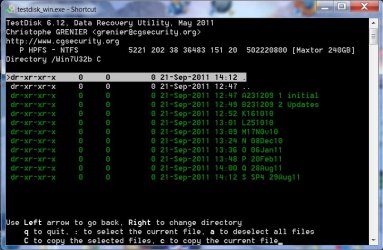
The List, Enter brings the following window which will enable one copy the folders/files to another drive.

08DataPart2.jpg8

(The screenshot shows the system images stored in the second partition of my Maxtor External drive.)

Please keep in mind that Test Disk has to be run as an administrator.
 
Last edited:

My Computer

OS
Windows 7 Home Premium 32 bit
on a suggestion from another forumee I consulted this thread.
I have an older wd1000 drive I'm working on trying to recover files if possible. BIOS does not recognize the device, therefore windows do not either and the drive causes disk management to bail. how 'bout that?

so I used Testdisk to discover and interrogate. no problems seeing drive correctly and shows smart status as good. following your steps I wrote the partition table. rebooted, drive still not coherent to bios.
reloaded Testdisk and am now trying to find some other repair to execute in hopes of making the drive searchable.

could you give me a suggestion or two?
 

My Computer

Computer Manufacturer/Model Number
HP DC7600, HP DC7600[2], HP DC7100, Samsung NC10
OS
Windows XP Pro SP3, Windows 7 Pro 32-bit, Windows 7 Ultimate 64bit, Windows XP Home SP3
CPU
Pentium 4 3.2GHz, Pentium 4 3.4GHz 64bit, Atom,
Motherboard
Dunno
Memory
4GB matched, 1GB, 2.5GB, 4.0 GB
Graphics Card(s)
Geforce 8400 GS and others
Sound Card
RealteK ALC260 and others
Monitor(s) Displays
Asus HD
Screen Resolution
1920x1080
Hard Drives
WD Caviar 640gb SATA
Cooling
We Be Cool
PART 2:........

View attachment 178524

( Selecting a partition and hitting P as also the List, Enter in any window will show the folders/files which can be copied to any other drive in the PC. Screen shot later in this post).........

Assuming that the partition was shown correctly (Structure:OK) did you hit P and did it show any files /folders ?

If none were shown, I would assume there was none to show or Test Disk was unable to do the job.

You may try some other Recovery software.
 

My Computer

OS
Windows 7 Home Premium 32 bit
There are two partitions: a 100mb recovery partition that is intact, readable, writeable, has dos boot thingies and PC Doctor on it. then there is the big NTFS partition which is damaged, or there is a hardware issue. In doing a 'deep search' on that partition, the program bails at 3%, encountering a cylinder that cannot be queried.
what i am wondering: if I can make the dos/doc partition active/bootable, is there a way to write to that partition the utils needed to do a NTFS rebuild? chkdsk???:(

PART 2:........

View attachment 178524

( Selecting a partition and hitting P as also the List, Enter in any window will show the folders/files which can be copied to any other drive in the PC. Screen shot later in this post).........

Assuming that the partition was shown correctly (Structure:OK) did you hit P and did it show any files /folders ?

If none were shown, I would assume there was none to show or Test Disk was unable to do the job.

You may try some other Recovery software.
 

My Computer

Computer Manufacturer/Model Number
HP DC7600, HP DC7600[2], HP DC7100, Samsung NC10
OS
Windows XP Pro SP3, Windows 7 Pro 32-bit, Windows 7 Ultimate 64bit, Windows XP Home SP3
CPU
Pentium 4 3.2GHz, Pentium 4 3.4GHz 64bit, Atom,
Motherboard
Dunno
Memory
4GB matched, 1GB, 2.5GB, 4.0 GB
Graphics Card(s)
Geforce 8400 GS and others
Sound Card
RealteK ALC260 and others
Monitor(s) Displays
Asus HD
Screen Resolution
1920x1080
Hard Drives
WD Caviar 640gb SATA
Cooling
We Be Cool
unable to see disk drive on testdisk

can you help me? i am unable to see my external disk drive on test disk.. i have followed your instruction carefully:(
 

My Computer

OS
Windows 7 Ultimate x64
Does the BIOS and/or Disk Management recognize the drive?
 

My Computer

OS
Windows 7 Ultimate x64
the bios do recognize my external hdd but the disk management dont recognize it. it says unable to initialize drive.:(
 

My Computer

OS
Windows 7 Ultimate x64
the BIOS do recognize the drive but the disk management dont recognizes it. It says unable to initialize disk.
 

My Computer

OS
Windows 7 Ultimate x64
Post a screenshot of Disk Management (maximize the window and adjust columns and such to display max info).

And if you're trying to recover data from it, don't do anything to it using Disk Management. Just wanna see what it shows...
 

My Computer

OS
Windows 7 Ultimate x64
i have had success with Testdisk and a few other programs [found on Ultimate Boot Disc] but running from bootable media instead of via windows - in same situation where the OS could not deal with the external drive though it is "there" on the bus. corrupted file systems unrecognizable can make it thus appear
 

My Computer

Computer Manufacturer/Model Number
HP DC7600, HP DC7600[2], HP DC7100, Samsung NC10
OS
Windows XP Pro SP3, Windows 7 Pro 32-bit, Windows 7 Ultimate 64bit, Windows XP Home SP3
CPU
Pentium 4 3.2GHz, Pentium 4 3.4GHz 64bit, Atom,
Motherboard
Dunno
Memory
4GB matched, 1GB, 2.5GB, 4.0 GB
Graphics Card(s)
Geforce 8400 GS and others
Sound Card
RealteK ALC260 and others
Monitor(s) Displays
Asus HD
Screen Resolution
1920x1080
Hard Drives
WD Caviar 640gb SATA
Cooling
We Be Cool
Screenshot of my disk management

as you can see my external hdd is mark as unknown and no volume that refers to my external hdd can be found

cap1.PNG

P.S. i really need help here..all my files are stored in here.. i dont use my external hdd as a bootable drive instead i only use it for storage.. this happened when i accidentally unplugged the drive while it is still copying..hope you can help me
 

My Computer

OS
Windows 7 Ultimate x64
What brand/model number is it?

Do you feel the drive platters start spinning when you power it up? Any slight vibration?

You might try running testdisk from a bootable CD: Ultimate Boot CD - Overview
 

My Computer

OS
Windows 7 Ultimate x64
this.
+1

as sibbil says - if its spinning up.

having used it a good bit, a couple of suggestions: one is to google up the tutorials and follow them. second one is my opinion: scan for a limited filetype first and see what you get: takes less time and will reveal a little about the state of your files.
for instance, you might search first for documents instead of images, or vice-versa.
on a sick drive it can take a lot of time.

also, I realize this is going to sound very scary but if the above is unproductive, you have less and less to lose: you may have to format the drive. "quick" ntfs format will not destroy data. it will make the drive discoverable, then you can look for and restore lost partitions, etc if the drive is healthy enough to keep spinning.

finally, there is a small possibility that you have an issue with your usb interface. if other measures fail, you will need to crack open the box and remove the drive, put it on the bus in your pc
z
What brand/model number is it?

Do you feel the drive platters start spinning when you power it up? Any slight vibration?

You might try running testdisk from a bootable CD: Ultimate Boot CD - Overview
 

My Computer

Computer Manufacturer/Model Number
HP DC7600, HP DC7600[2], HP DC7100, Samsung NC10
OS
Windows XP Pro SP3, Windows 7 Pro 32-bit, Windows 7 Ultimate 64bit, Windows XP Home SP3
CPU
Pentium 4 3.2GHz, Pentium 4 3.4GHz 64bit, Atom,
Motherboard
Dunno
Memory
4GB matched, 1GB, 2.5GB, 4.0 GB
Graphics Card(s)
Geforce 8400 GS and others
Sound Card
RealteK ALC260 and others
Monitor(s) Displays
Asus HD
Screen Resolution
1920x1080
Hard Drives
WD Caviar 640gb SATA
Cooling
We Be Cool
My external hdd is western digital my passport. Its model is wd 0740. Whenever I plugged it in the usb interface it gives a clicking sound and after a minute or two the sound went away and i can feel a weak spinning from inside. by the way my external hdd is 3-week old.
 

My Computer

OS
Windows 7 Ultimate x64
Download WD diagnostics utility from here: WD Support / Downloads / SATA & SAS / WD VelociRaptor

Don't worry if it's not for your specific model; it's the same for most of their hard drives.

Run the quick (short) test to see if the drive is healthy and post back with results. If it doesn't fare well on the quick test don't do anything else.

The clicking is typically not good; is it a single click?

The weak spinning you feel sounds good, as long as it's quiet and constant.
 

My Computer

OS
Windows 7 Ultimate x64
Just want to subscribe to this thread.
 

My Computer

OS
Win 7, 32bit, Premium
Back
Top