Solved Can shell32.dll remove explorer toolbar using custom classic theme?

shoober

New member
Member
Local time
8:39 AM
Messages
38
I've tried this tutorial, and I still can't remove the explorer toolbar. I use a customized windows classic theme, and I think this might be the reason its not working for me. So, I found another thread with this post and I'm thinking of trying to edit the shell32.dll and see if this method will remove the explorer toolbar.

Before I do this, I was wondering if anyone knew if this method will remove the explorer toolbar on a customized windows classic theme. I have my customized windows classic theme to resemble the Windows 95/98 grey theme. Does anyone know if this method works on a customized classic theme?
 

My Computer

OS
Windows 7 64-bit
I have finally removed this explorer toolbar. I just followed the instructions from that thread in my first post and edited the shell32.dll. It is now gone. w00t!

So if anyone else has trouble removing that toolbar using that shellstyle.dll from the tutorial from my first post, just edit the shell32.dll instead and it will remove it.
 

My Computer

OS
Windows 7 64-bit
That's good to hear, could you explain how you edited the shell32.dll and post it here.

Jerry
 

My Computer

Computer type
Laptop
Computer Manufacturer/Model Number
Sager NP9170
OS
Win 7 Pro x64 / Win 10 Pro
CPU
Intel(R) Core(TM) i7-3630QM CPU @ 2.40GHz
Motherboard
CLEVO P170EM
Memory
12 GB
Graphics Card(s)
(1) Intel(R) HD Graphics 4000 (2) NVIDIA GeForce GTX 675M
Sound Card
(1) Realtek High Definition Audio (2) Intel(R) Display Aud
Monitor(s) Displays
17.3
Screen Resolution
1920x1080
Hard Drives
(1) Samsung 860 EVO 500GB(OS) (1) Samsung 860 EVO 500GB(Data)
Keyboard
Backlite
Antivirus
MSE, Malwarebytes Pro
Browser
Firefox
Other Info
DESKTOP: Custom-built.
OS: Win 10 Pro x64.
CASE: Rosewill R5.
CPU: Intel I5 4670K CPU @ 3.40GHz.
CPU COOLER: Cool Master Hyper 212 EVO.
MOTHERBOARD: Asus Z87-A.
MEMORY: Kingston HyperX 2x4 GB.
GPU: Nvidia Geforce 650 TI.
PSU: Corsair TX750.
DRIVES: (1) Samsung 840 120 GB SSD (2) Western Digital blue 500 GB 7200 RPM.
Here's the link to the post with the instructions. I didn't use XN Resource Editor, I used Resource Hacker instead.

http://www.sevenforums.com/customization/20032-remove-explorer-toolbar-2.html#post540536

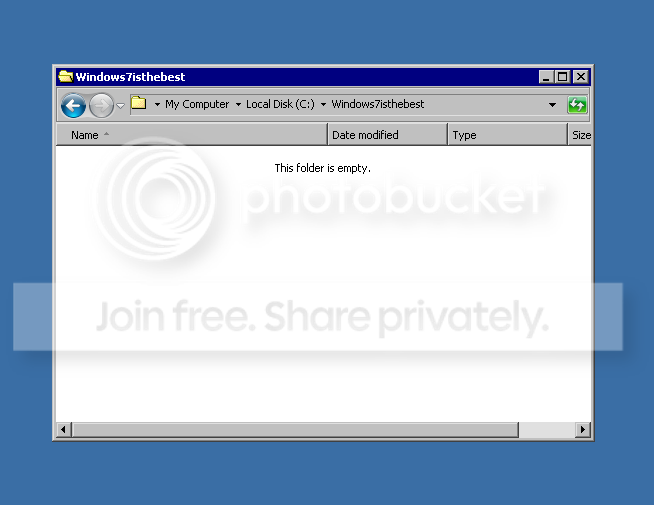
Here are the results:

windows8sucks_zps869856bb.png


I disabled all the folder panes to give it a very Windows 95 look.
 
Last edited:

My Computer

OS
Windows 7 64-bit
Thanks for posting that just in case somebody else stumbles across this thread and wants to do it.

Jerry
 

My Computer

Computer type
Laptop
Computer Manufacturer/Model Number
Sager NP9170
OS
Win 7 Pro x64 / Win 10 Pro
CPU
Intel(R) Core(TM) i7-3630QM CPU @ 2.40GHz
Motherboard
CLEVO P170EM
Memory
12 GB
Graphics Card(s)
(1) Intel(R) HD Graphics 4000 (2) NVIDIA GeForce GTX 675M
Sound Card
(1) Realtek High Definition Audio (2) Intel(R) Display Aud
Monitor(s) Displays
17.3
Screen Resolution
1920x1080
Hard Drives
(1) Samsung 860 EVO 500GB(OS) (1) Samsung 860 EVO 500GB(Data)
Keyboard
Backlite
Antivirus
MSE, Malwarebytes Pro
Browser
Firefox
Other Info
DESKTOP: Custom-built.
OS: Win 10 Pro x64.
CASE: Rosewill R5.
CPU: Intel I5 4670K CPU @ 3.40GHz.
CPU COOLER: Cool Master Hyper 212 EVO.
MOTHERBOARD: Asus Z87-A.
MEMORY: Kingston HyperX 2x4 GB.
GPU: Nvidia Geforce 650 TI.
PSU: Corsair TX750.
DRIVES: (1) Samsung 840 120 GB SSD (2) Western Digital blue 500 GB 7200 RPM.
Back
Top