
Cannot see System Reserved during image backup etc

damien76

New member
Power User
Local time
9:42 PM
Messages
180
Cannot see System Reserved during image backup etc

Just earlier I was to make an image backup of my Win7 pc. I am using DiscWizard and just went through the it but was rprised to see that there is no "system reserved" in the Partition Selection box. Previously there was a checkbox and a System Reserved. Please see image attached.
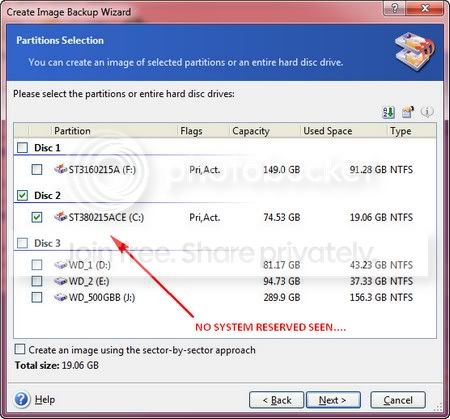
DiscWizard1.jpg


It always had that there as a selection. I remember it vividly because I also asked it here in a pevious thread and made it a point to remember to include it(check the checkbox) because it would cause a non-boot.

I exited DiscWizard and went to My Computer and I am surprised to see that there is also no System Reserved reflected there. Please see image attached.
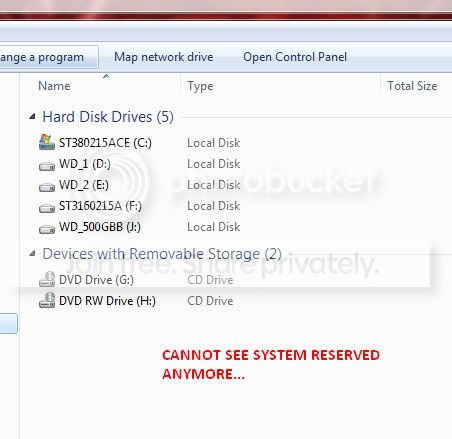
DiscWizard2.jpg


Previously I installed Paragon Backup and Restore 10 Suite(Twitter edition) and removed Seagate DiscWizard. PBR10 has file/folder backup option that I would like to test. Encountered problems as PBR would not recognize the folder backup did(3 out of 3 errors. It would detect the archive but when I was to verify the integrity I cannot go to "Next"because of it). So uninstalled PBR. Re-installed Seagate DiscWizad.

Now I see that there is no System Reserved.

(1)What is wrong there...? Am I missing something...? What can I do to make it appear again?

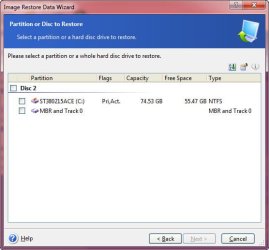
I went through making the image backup and validate it. It was okay. I attempted to do a restore via the Linux cd at boot. It went through normally (Partition and Disc to restore > Primary/Active and the MBR).

f0uonl.jpg


After the restore. I rebooted and I had an autocheck error..skipping autocheck..then it would not boot up and Windows recommended to perform troubleshooting. This is the first time I encountered using an image backup (using DiscWizard) and did not boot. This one made without the System Reserved. So I think that is the problem..the reason I sought help here.

Short of re-formatting again. I booted to XP( I am dual booting) and performed the DiscWizard image restore there in Windows(did not use the Linux cd). I restored the same image backup created without the System Reserved seen. It booted and continued to Windows 7 (using it now actually).

Thinkig it was a glitch of some sort with DiscWizard, I uninstalled it and re-installed it again. The System Reserved is also not there...

Some questions if I may again:

(2) Is it really the absence of the System Reserved upon the creation of the image who is at fault?
(3) If so, why was I able to successfully "boot-continue-to-Windows" with the same image created with the System Reserved not seen?

(4)As I am dual-booting,

i. when I create a Windows 7 image backup in XP can I/or is it advisable to restore Windows 7 in XP (in Windows)..? vice versa(create an XP image backup within Windows 7 and restore it via Windows 7)
ii. or is it more advisable to restore on it's own OS(Windows mode)

(5) again as mentioned in "1", how can I make the System Reserved appear again to I can select it when I make an image backup..?

(6) What just happened to me there...? I am at a loss there and the only culprit I see is that the installation/uinstallation of Paragon BR10 Suite and DiscWizard...

I really am confused right now about this one. I have created a new image backup from what I have restored from but have not tested it yet. Got tired all too suddenly and I need to have a grasp of what happened first before deciding what to do.

Please help me.

Thank you all.

damien
 

Attachments
  • f0uonl.jpg
    f0uonl.jpg
    29.1 KB · Views: 3
Last edited:

My Computer

Computer type
PC/Desktop
Computer Manufacturer/Model Number
Custom Build
OS
Win7 Ultimate 64bit
CPU
AMD A8 5600K APU
Motherboard
Gigabyte F2A75MD3H
Memory
16gb DDR3
Graphics Card(s)
Radeon 7560
Sound Card
onboard
Monitor(s) Displays
kingston lcd 23inch wide
Hard Drives
WD 500gb (2)
WD 1TB
Antivirus
EAM + Online Armor Premium -- desktop
Please post back a screenshot of your maximized full Disk Mgmt drive map with listings, using SNipping Tool in Start Menu.

Have you tried running Win7 Backup imaging? Type backup in Start Search box, see what it wants to save to another HD.
 
Didn't follow all your post. But assuming your PC is booting ok, the system reserved partition booting functions have been transferred to the Windows OS partition (called Boot!!!). Maybe you did a system repair at some stage.
Open Disk management C: should show (system,boot,active...).

Windows imaging automatically (no choice) includes the system reserved partition. With 3rd party imaging YOU must explicitly include it in the image partition set.

To recreate a system reserved see
http://www.sevenforums.com/tutorials/119151-system-reserved-create-using-disk-management.html
 

My Computer

Computer type
PC/Desktop
Computer Manufacturer/Model Number
Own build
OS
Windows 7x64 Home Premium SP1
CPU
Intel i7 2600k
Motherboard
ASUS P8Z68 Deluxe
Memory
G.Skill Ripjaws (DDR3-1600) 2x4GB
Graphics Card(s)
Nvidia GeForce GTS 450; Intel HD Graphics 3000(GT2+)
Monitor(s) Displays
Dell Ultrasharp IPS panel U2311H, Samsung SyncMaster P2350
Screen Resolution
1920x1080
Hard Drives
Samsung 850 Pro SSD 256GB, Samsung SSD 840 120GB, Seagates 1TB Barracuda ST31000528AS x2
PSU
Seasonic M12II 520W
Case
Lian Li Lancool PC-K60
Cooling
Case: 1x120mm, 3x140mm CPU: Hyper 212+
Keyboard
Logitech MK520 (wireless)
Mouse
Logitech MK520
Internet Speed
6-7 Mbps
Antivirus
Norton Security Premium, Malwarebytes on 2 (MSE on 3rd PC)
Browser
FireFox
Other Info
Audio: Logitech Z523 2.1
Hello;

Thank for the reply guys.

@gregrocker;

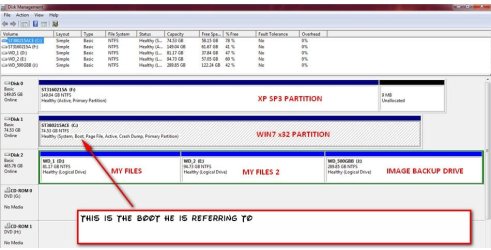
Please see image attached on Disc Managament. Labeled with the drives I use. I do dual boot via the BIOS where I change the boot options.


Have you tried running Win7 Backup imaging? Type backup in Start Search box, see what it wants to save to another HD.
--Will try this one later and will be back here.

@mjf;

Kindly see image attached. Is that the Boot Folder you are referring to in C:\...?
How can I get it back from that folder..?


Maybe you did a system repair at some stage.
-- I do not remember. Seems I had. When I encounter problems with booting or freezing I load the image backup. Have not used this pc for quite sometime.

----

What can I do further? What steps should I do now?

Thanks again guys!

damien
 
Last edited:

My Computer

Computer type
PC/Desktop
Computer Manufacturer/Model Number
Custom Build
OS
Win7 Ultimate 64bit
CPU
AMD A8 5600K APU
Motherboard
Gigabyte F2A75MD3H
Memory
16gb DDR3
Graphics Card(s)
Radeon 7560
Sound Card
onboard
Monitor(s) Displays
kingston lcd 23inch wide
Hard Drives
WD 500gb (2)
WD 1TB
Antivirus
EAM + Online Armor Premium -- desktop
Looks fine to me - why do you want to change anything?

Installing/uninstalling a program, or attempting to make folder backups cannot delete a partition, resize the windows partition, and make it system.


BOOT.jpg
 

My Computers

System One System Two

  • Computer type
    PC/Desktop
    OS
    7 X64
    CPU
    i5 8400
    Motherboard
    gigabyte b365m ds3h
    Memory
    2x8gb 3200mhz
    Hard Drives
    various
    PSU
    pure power 11 400w cm
    Case
    Coolermaster
    Cooling
    cryorig m9i
  • Computer type
    PC/Desktop
    OS
    7x64
    CPU
    g5400
    Motherboard
    ga b365m ds3h
    Memory
    8gb ddr4 2400
    PSU
    xfx pro 450w
Not sure how your Disk mgmt screenshot ended up in SIW2's reply post above, but it looks correct.

We know XP is booting off the Win7 partition since it's the only one which is marked System (hold the boot files), which is fine as long as DIsk 1 Win7 HD stays set first HD to boot in BIOS setup.

There is no System Reserved partition. Adding one will be difficult and may not succeed.
 
Not sure how your Disk mgmt screenshot ended up in SIW2's reply post above, but it looks correct.
OP's post #4

The OP had a question about my reference to ..(system, boot, active)...
I didn't respond because I assumed SIW2 did.

He could add a system reserved partition to C: I think. It's not necessary but it may better separate Windows 7 from XP by having the BCD in a separate System reserved partition.
 
Last edited:

My Computer

Computer type
PC/Desktop
Computer Manufacturer/Model Number
Own build
OS
Windows 7x64 Home Premium SP1
CPU
Intel i7 2600k
Motherboard
ASUS P8Z68 Deluxe
Memory
G.Skill Ripjaws (DDR3-1600) 2x4GB
Graphics Card(s)
Nvidia GeForce GTS 450; Intel HD Graphics 3000(GT2+)
Monitor(s) Displays
Dell Ultrasharp IPS panel U2311H, Samsung SyncMaster P2350
Screen Resolution
1920x1080
Hard Drives
Samsung 850 Pro SSD 256GB, Samsung SSD 840 120GB, Seagates 1TB Barracuda ST31000528AS x2
PSU
Seasonic M12II 520W
Case
Lian Li Lancool PC-K60
Cooling
Case: 1x120mm, 3x140mm CPU: Hyper 212+
Keyboard
Logitech MK520 (wireless)
Mouse
Logitech MK520
Internet Speed
6-7 Mbps
Antivirus
Norton Security Premium, Malwarebytes on 2 (MSE on 3rd PC)
Browser
FireFox
Other Info
Audio: Logitech Z523 2.1
 
Hello guys;


Thanks very much for the reply there and explanations. Allow me to ask further.


@gregrocker;
We know XP is booting off the Windows 7 partition since it's the only one which is marked System (hold the boot files), which is fine as long as DIsk 1 Windows 7 HD stays set first HD to boot in BIOS setup.
--I set it the Windows 7 partition as boot1 when I use Windows 7 but when I use Autocad I set boot1 to XP. That is the way I use this pc though not always(reserved pc only). Does that "changing the boot options scheme" have any bad effect?

@SIW2;

Installing/uninstalling a program, or attempting to make folder backups cannot delete a partition, resize the windows partition, and make it system.
--Thanks there. Now I know that "Installing/uninstalling a program..." does not have an effect with what happened to the System Reserved. That is what confuses me now...I remember that this set-up has a System Reserved partition (I seem to remember that it was 100mb or 67mb..)...but since it's okay, the dilemma I am having is that I might be experiencing another "autocheck error" of some sort and Windows 7 will fail to boot... Any ideas here...?

@gregrocker/SIW2/mjf;

It is unanimously stated that the partitions are okay at this point, and the safe advice is "no need to change". I previously have been adviced here from a previous post
re: http://www.sevenforums.com/backup-restore/153731-system-reserve-image-backup-question.html

Originally posted by Bare Foot Kid: If the "System" boot files are stored on the Windows 7 System Reserved partition and you don't include it in the image/backup the system will not boot when the image is used.
,that I need to select the System Reserved during image backup for successful booting of the backup when used. Correct..?

In the Disk Management image wherein the "Boot" is in the Windows 7 partition and there is no System Reserve..will the advice still apply..?

Now going back to the first post (sorry realy need to understand what happened..thank you..) the event I had with the "autocheck something error" was a no-boot scenario. Here's what I did in detail:

a) boot to cd (I used the Linux cd of Seatools for Seagate)
b) Did a timed-erase(5 minutes) on the Windows 7 partition.
c) Exited Seatools. Removed the Seatools cd and loaded Linux cd of DiscWizard.
d) Rebooted to cd.
c) Created new partition in DiscWizard.
d) Image restore using image backup(without the System Reserved)
e) Exited DiscWizard. Rebooted.
f) Autocheck something error.
g) Rebooted again to Win7 partition. Autocheck error again.
h) Repeated image restore via DiscWizard Linux cd. Same autocheck error.
i) Booted to XP and restored image there.

The image (with no System Rerserved selected) successfully booted only when I booted to XP did the image restore in there(in Windows).

Does this mean that having no System Reserved selected during image backup creation will always require me to do an image restore in Windows now and not the Linux cd?

Or,

Because I do not have a System Reserved partition (as seen in the Disk Management), image backup created regardless of having a System Reserved or not "should" be sufficient to boot to Windows either using the Linux cd or in normal Windows mode..?

Is the procedure (I mean --time-erase in Seagate Seatools then DiscWizard Linux cd) I did okay..? or not necessary to erase/create partition because DiscWizard will erase it just the same prior image restore?

I seem to have observed that doing that method the successfully restored image files (wether in XP or Win7) are bundled closely to each other(at the beginning of the drive --like an unfragmented drive)..or I am just wrong on this observation....

Guys, I really appreciate the help/support given here. Thanks really..for a non-techy guy still trying to learn this is a great help.

Will wait for your explanations again.

Regards,

damien
 
Last edited:

My Computer

Computer type
PC/Desktop
Computer Manufacturer/Model Number
Custom Build
OS
Win7 Ultimate 64bit
CPU
AMD A8 5600K APU
Motherboard
Gigabyte F2A75MD3H
Memory
16gb DDR3
Graphics Card(s)
Radeon 7560
Sound Card
onboard
Monitor(s) Displays
kingston lcd 23inch wide
Hard Drives
WD 500gb (2)
WD 1TB
Antivirus
EAM + Online Armor Premium -- desktop
Your windows 7 partition is the "System" partition - you don't have a separate one.

I think BFK meant IF you have a separate "System" partition - you need to back that up as well.

You don't have that.


Because I do not have a System Reserved partition (as seen in the Disk Management), image backup created "should" be sufficient to boot to Windows either using the Linux cd or in normal Windows mode..?


Yes, it should.


or not necessary to erase/create partition because DiscWizard will erase it just the same prior image restore?

You're right - it is not necessary
 

My Computers

System One System Two

  • Computer type
    PC/Desktop
    OS
    7 X64
    CPU
    i5 8400
    Motherboard
    gigabyte b365m ds3h
    Memory
    2x8gb 3200mhz
    Hard Drives
    various
    PSU
    pure power 11 400w cm
    Case
    Coolermaster
    Cooling
    cryorig m9i
  • Computer type
    PC/Desktop
    OS
    7x64
    CPU
    g5400
    Motherboard
    ga b365m ds3h
    Memory
    8gb ddr4 2400
    PSU
    xfx pro 450w
BFK's comments are quite correct taken in context.

So I take it that drive 0 that XP resides on is able to self boot. That is if you physically unplug drive 1 (the win 7 drive) XP will boot. If the answer is yes then you are BIOS booting and what you are doing boot wise is ok.

If the answer is no then you are still booting XP through the Windows 7 partition and not an independent system reserved partition. Sure this works ok but it is not a robust approach.
 

My Computer

Computer type
PC/Desktop
Computer Manufacturer/Model Number
Own build
OS
Windows 7x64 Home Premium SP1
CPU
Intel i7 2600k
Motherboard
ASUS P8Z68 Deluxe
Memory
G.Skill Ripjaws (DDR3-1600) 2x4GB
Graphics Card(s)
Nvidia GeForce GTS 450; Intel HD Graphics 3000(GT2+)
Monitor(s) Displays
Dell Ultrasharp IPS panel U2311H, Samsung SyncMaster P2350
Screen Resolution
1920x1080
Hard Drives
Samsung 850 Pro SSD 256GB, Samsung SSD 840 120GB, Seagates 1TB Barracuda ST31000528AS x2
PSU
Seasonic M12II 520W
Case
Lian Li Lancool PC-K60
Cooling
Case: 1x120mm, 3x140mm CPU: Hyper 212+
Keyboard
Logitech MK520 (wireless)
Mouse
Logitech MK520
Internet Speed
6-7 Mbps
Antivirus
Norton Security Premium, Malwarebytes on 2 (MSE on 3rd PC)
Browser
FireFox
Other Info
Audio: Logitech Z523 2.1
Hello;

@SIW2;

Thanks for the reply. Very clear there. Any tips/ideas to share in this regard...? Maybe on folder backup via Paragon BR..? Thanks again!

@mjf;

So I take it that drive 0 that XP resides on is able to self boot. That is if you physically unplug drive 1 (the win 7 drive) XP will boot. If the answer is yes then you are BIOS booting and what you are doing boot wise is ok.
--No I do not physically unplug drive 1. All I do is go to the BIOS and select in the 'Boot Priority' the drive I formatted with Windows 7(ST380215ACE) or ST3160215A (with XP)as drive 1. When I started formatting the Windows 7 drive it was the only one plugged. The same was with XP.

Did that because I experienced previously problems with the boot selection even I had removed the Windows 7 partition and XP remained as sole hdd in an old pc. When rebooting/starting-up it would ask to select Windows 7 or a later version....I was not able to cure that even with EasyBCD(neosmarts).

If the answer is no then you are still booting XP through the Windows 7 partition and not an independent system reserved partition. Sure this works ok but it is not a robust approach.
--What may the apparent ill effects of such..?
--What may be the best approach there..?
 

My Computer

Computer type
PC/Desktop
Computer Manufacturer/Model Number
Custom Build
OS
Win7 Ultimate 64bit
CPU
AMD A8 5600K APU
Motherboard
Gigabyte F2A75MD3H
Memory
16gb DDR3
Graphics Card(s)
Radeon 7560
Sound Card
onboard
Monitor(s) Displays
kingston lcd 23inch wide
Hard Drives
WD 500gb (2)
WD 1TB
Antivirus
EAM + Online Armor Premium -- desktop
I'm not suggesting that you normally unplug disk 1 (Windows 7 partition). I'm saying as a test, unplug it and see if XP self boots.
If it does then you are doing a BIOS boot which I think is best in your situation. If one OS goes belly up it's straightforward to boot the other.
 

My Computer

Computer type
PC/Desktop
Computer Manufacturer/Model Number
Own build
OS
Windows 7x64 Home Premium SP1
CPU
Intel i7 2600k
Motherboard
ASUS P8Z68 Deluxe
Memory
G.Skill Ripjaws (DDR3-1600) 2x4GB
Graphics Card(s)
Nvidia GeForce GTS 450; Intel HD Graphics 3000(GT2+)
Monitor(s) Displays
Dell Ultrasharp IPS panel U2311H, Samsung SyncMaster P2350
Screen Resolution
1920x1080
Hard Drives
Samsung 850 Pro SSD 256GB, Samsung SSD 840 120GB, Seagates 1TB Barracuda ST31000528AS x2
PSU
Seasonic M12II 520W
Case
Lian Li Lancool PC-K60
Cooling
Case: 1x120mm, 3x140mm CPU: Hyper 212+
Keyboard
Logitech MK520 (wireless)
Mouse
Logitech MK520
Internet Speed
6-7 Mbps
Antivirus
Norton Security Premium, Malwarebytes on 2 (MSE on 3rd PC)
Browser
FireFox
Other Info
Audio: Logitech Z523 2.1
Hello mjf;

Thanks very much for the reply. Really appreciate it..really a newbie here.

That is if you physically unplug drive 1 (the win 7 drive) XP will boot.
-- Oh I get it now..oops sorry on that(English is not my native language..got confused). Yes, if I unlug drive 1 XP will boot. Actually I tested that on both drives when I started using Windows 7 to make sure if I seem to have trouble with Win7 I can move back to XP.

Thanks so much very clear there.

I'd like to thank you guys here for extending me the help to understand what happend there and point me toward the right perspective. Lot of learning here.

You all have a good one:)

damien:)
 

My Computer

Computer type
PC/Desktop
Computer Manufacturer/Model Number
Custom Build
OS
Win7 Ultimate 64bit
CPU
AMD A8 5600K APU
Motherboard
Gigabyte F2A75MD3H
Memory
16gb DDR3
Graphics Card(s)
Radeon 7560
Sound Card
onboard
Monitor(s) Displays
kingston lcd 23inch wide
Hard Drives
WD 500gb (2)
WD 1TB
Antivirus
EAM + Online Armor Premium -- desktop
Back
Top