Custom keyboard shortcut key not working properly

solution does not work when using remote desktop

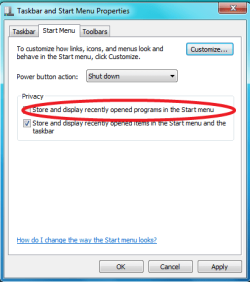
After dogging this same problem for hours it appears that in Windows 7 "Store and display recently opened programs in the Start menu" needs to be enable (checked) for shortcuts to persist across logoff/logon events.

Reference this post for more information

Windows 7 - Custom keyboard shortcut key not working properly [SOLVED] - [H]ard|Forum

Enabling this setting cleared the problems while all other suggested remedies did not.

The solution provided by this link is great, but it appears to not fix the issue entirely. Specifically, when you remote desktop into a Windows 7 computer that has custom keyboard shortcuts assigned, once you have rdp'd into that computer, it loses all of the custom keyboard shortcuts until you logout, and then log back into the computer non-remotely (ie. at the machine itself).

I second the motion that Microsoft should fix the way custom keyboard shortcuts persist on all Windows 7 OS's.
 

My Computer My Computer

At a glance

Windows 7 Enterprise x64
OS
Windows 7 Enterprise x64
re: #9 I too created a new admin user, but one change I gave the shortcuts different letters. when I rebooted the admin user could open the .exe from the new admin user account, but not from the main admin user account. bazaar.
 

My Computer My Computer

At a glance

Windows 7 Home 64bit sp1AMD Athelon II x4 630 processor ~2.8 ghz6 GBRadeon 3000
Computer Manufacturer/Model Number
HP Pavillion p6597c
OS
Windows 7 Home 64bit sp1
CPU
AMD Athelon II x4 630 processor ~2.8 ghz
Motherboard
Foxconn H-alpinia RS780L-uATX
Memory
6 GB
Graphics Card(s)
Radeon 3000
Sound Card
HD 8 channel ALC-888S-VD chipset (HP provides no name)
Monitor(s) Displays
HP 2310m 23" full HD LCD monitor
Hard Drives
1 TB SATA 3G 7200rpm
PSU
unnamed 250 watts
Case
not on spec sheet - upright desktop
Cooling
not on spec sheet
I had several times incredible trouble in Win 7 with key shortcuts. This feature had been a bit corrupted. I have CTRL+SHIFT+O to run Outlook. Then it stopped to work "sometimes". To fix it, you have to unassign. However it is not possible because when I deleted the key shortcut from the desktop shortcut, the key was still active "somewhere" and I could not re-establish the key shortcut since it fired Outlook all the time. Finally I figured out that I had to go to Start menu and find another instance of Outlook shortcut where this key shortcut was also assigned. Then all starts to work suddenly.

yuck!
awkward bug in Win 7 and lots of wasted time among people
 

My Computer My Computer

At a glance

Windows 7 64-bit
OS
Windows 7 64-bit
Yuck! I have accidentally assigned Ctrl+Shift+T to the Task Scheduler, that's the combination I use on Firefox to reopen the tabs. It will unmercifully launch the TS now, unless another combination is set. The TS has two shortcuts in the Start Menu, both have None for key shortcut. Go figure! It's the same problem I had with another custom shortcut, so I'm looking for any unregistered combo now for the TS and won't ever assign key shortcuts on Windows again.
 

My Computer My Computer

At a glance

Seven Home Premium x64Intel Core i3 330M
OS
Seven Home Premium x64
CPU
Intel Core i3 330M
Internet Speed
2Mbps
As someone mentioned, this is the ONLY place in the WHOLE internet for this particular problem. In a way I found it amusing reading this.

Thank you David Wilhite!

Your solution, making a "_hotkeys" folder into "C:\Users\username\AppData\Roaming\Microsoft\Windows\Start Menu\" and putting the shortcuts there, works perfectly fine for Windows 8 too.:party:

Greets
 

My Computer My Computer

At a glance

Win 8 64bit
Computer type
PC/Desktop
OS
Win 8 64bit
^^^
exactly what haxtibel said.

I think it's really cool to see how at first, it was regular forum users trying to help OP, but then people who only signed up for this one issue took over the thread, and eventually found a solution to the problem. Its like a small, fleeting micro community that sprang up over this one issue.
 

My Computer My Computer

At a glance

64bit Windows 7 Ultimate
Computer type
PC/Desktop
OS
64bit Windows 7 Ultimate
No luck with the solutions to date

I have been trying to get this to work so I can launch FreeCommander XE using Ctrl+Alt+E (i.e. as an alternative to WinKey+E). Tried everything suggested including making the shortcut in the _hotkeys sub-directory. All I get when I try is a 'bell' sound. [Already had the recommended Start menu settings enabled.]
So, I tried with another app (NetBeans) - same thing.
I then tried a few of the Win 7 predefined Ctrl+Alt+<keystroke> as listed in Keyboard shortcuts - Microsoft Windows Help. Some were silent, some rang the 'bell', but the Ctrl+Alt+<arrow keys>, instead of panning the screen, rotated it!
Whole thing seems to be a mess - can anybody please kick MS to take notice of the issues?
 

My Computer My Computer

At a glance

Windows 7 Professional 64bitIntel i3 64bit8GByteOn-board graphics
Computer type
PC/Desktop
Computer Manufacturer/Model Number
Custom build
OS
Windows 7 Professional 64bit
CPU
Intel i3 64bit
Motherboard
Gigabyte B75M-D3H
Memory
8GByte
Graphics Card(s)
On-board graphics
Hard Drives
C: SSD 128G OCX
D: HDD 300G WDC
E: HDD 500G Hitachi
Antivirus
AVG Internet Security Suite
Browser
Firefox
I think I may have found a solution, or at least the cause of the Flip 3d shortcut breaking. Because I have it set to a macro, when Flip 3d is launched sometimes I mistakenly press the macro key a second time. It seems that when the key combination Ctrl + Alt + N is pressed a second time after the program has launched (and only when the program is still active), the shortcut doesn't work again until the system reboots. I hope this helps anyone else who has this issue.

I'm not sure if you solved this problem, but I know that so-called "fullscreen" applications will mess up the keyboard shortcuts. For example "Windows Photo Viewer" or any media player but also, and most importantly, one of my own applications for which I can say with 100% certainty does not do anything "different" or "special" from any other application. It creates a window whose dimensions are exactly equal to the dimensions of the primary display device, and uses that window like any other. It so happens that it's a window whose style has the value "WS_POPUP" (ie. no sidebars or borders, no titlebar, no menu, etc.) So it's just a window that's equal to its own client area.

Now such windows are permitted to do a strange thing that no other windows are capable of. And that is, they can draw over top of the taskbar (ie. they can be "fullscreen" windows).

So I suspect the reason the shortcut keys become disabled is because explorer either loses the keyboard focus or is unable to gain the keyboard focus through some standard hack (as in faking a mouse click at position (0, display height). A lot of Microsoft's wonderful :sarc: operating system relies on childish hacks just like that.

One instance is the "Windows+D" sequence which apparently minimizes (ie. fakes minimizing) everything revealing the desktop. Then Windows+D brings them all back. Great feature, except it doesn't do what it's supposed to do. Instead it uses a hack. The hack is that it relocates all of the visible windows to positions far off-screen, because that's faster and doesn't involve the extra overhead needed to animate minimizing all of the visible windows. The problem with faking it is that applications don't know they've been hidden as they would normally. An application in that state might do something unexpected (ie. like crash say, because they've cached "left" and unfortunately retrieved "right" during this bizarre and unexpected relocation).

So, in fact, Windows+D brings the shortcut keys back (presumably because it allows another hack to work).

- Alan
 

My Computer My Computer

At a glance

Windows 7 Ultimate 32 bitPentium P6200 dual core@1GHz2 GigIntel
Computer type
PC/Desktop
Computer Manufacturer/Model Number
Acer
OS
Windows 7 Ultimate 32 bit
CPU
Pentium P6200 dual core@1GHz
Motherboard
Acer Aspire 5742Z
Memory
2 Gig
Graphics Card(s)
Intel
Hard Drives
1
Antivirus
MS Security Essentials
Browser
Chrome
I read your replays and did all of your suggestions but my problem still exist so I googled it and I found this
It was so useful for me, and I though that I should share this with you guys:p

So here's a problem I just figured out how to fix. You install a fresh copy of Windows 7 and setup some custom keyboard shortcuts such as CTRL+ALT N for Notepad. You test it out and it works. Then after you reboot or log off, it stops working.

You can temporarily make it work again by removing the shortcut key and adding it back but after a reboot/log off, it stops working.

What gives? Well here's a workaround.
Go to Taskbarand Start Menu properties, Start Menu tab, under Privacy, enable the "Store and dispaly recently opened programs in the Start menu". For recent items, I left that uncheked but that's my personal preference.

have fun. :cool:
 

Attachments

  • ClearRecentlyUsedPrograms.png
    ClearRecentlyUsedPrograms.png
    12.3 KB · Views: 15

My Computer My Computer

At a glance

Windows 7 Ultimate 32 Bit
Computer type
PC/Desktop
OS
Windows 7 Ultimate 32 Bit
How have you assigned Ctrl+Alt+N to be "notepad.exe"? The only way I know is to make a shortcut somewhere, either on the desktop, start menu (and possibly the taskbar but I don't know how to access those shortcut's properties).

In those cases the keyboard shortcut should and will be remembered because explorer loads up all the start menu and desktop shortcuts at startup and hence loads up their shortcut keys. If you used some other mechanism to associate Ctrl+Alt+N to notepad that isn't part of explorer's startup sequence then it will not load the shortcut and hence not "remember" the shortcut key sequence. What you've done instead, so it seems, is create a temporary shortcut on the start menu by including it in the recent items list causing it to be loaded at startup along with the rest.

Why not just bind it permanently to the start menu?

- A
 

My Computer My Computer

At a glance

Windows 7 Ultimate 32 bitPentium P6200 dual core@1GHz2 GigIntel
Computer type
PC/Desktop
Computer Manufacturer/Model Number
Acer
OS
Windows 7 Ultimate 32 bit
CPU
Pentium P6200 dual core@1GHz
Motherboard
Acer Aspire 5742Z
Memory
2 Gig
Graphics Card(s)
Intel
Hard Drives
1
Antivirus
MS Security Essentials
Browser
Chrome
I'm not sure if you solved this problem, but I know that so-called "fullscreen" applications will mess up the keyboard shortcuts. […]

So, in fact, Windows+D brings the shortcut keys back (presumably because it allows another hack to work).

- Alan

Thank you so much!
This is exactly the problem I have been failing to fix for ages and I couldn't figure out why Fullscreen flash player for example would void the functionality of my shortcuts.
Finally a way to fix it.
A shame Microsoft uses bad programming habits that even non-professional programmers would certainly frown upon.
 

My Computer My Computer

At a glance

Windows 7 Professional 64bit
Computer type
PC/Desktop
OS
Windows 7 Professional 64bit
I'm having the same issue, but none of these fixes are working for me. The shortcuts were in my start menu with show recent programs allowed to begin with, but then even after creating a new folder in the start menu it wouldn't work. You'd think this would be simpler to do, but I haven't even been able to do this reliably since Windows XP... :huh:
 

My Computer My Computer

At a glance

Windows 7 Ultimate x64i7-4702M
Computer type
Laptop
Computer Manufacturer/Model Number
Lenovo Thinkpad E540
OS
Windows 7 Ultimate x64
CPU
i7-4702M
Antivirus
Norton 360
Browser
Pale Moon
I had the same problem. Here's what worked for me:

The issue seems to be that Windows won't look just anywhere for shortcut files when it is restoring hotkey (shortcut key) assignments after login. It DOES seem to look in the Start Menu for these. So I created a folder called C:\Users\username\AppData\Roaming\Microsoft\Windows\Start Menu\_hotkeys

Hotkey assignments within shortcuts in there are remembered/restored at next login.

Hope that works for you!


This worked 100% Thanks!
 

My Computer My Computer

At a glance

Windows 7 Premium
Computer type
PC/Desktop
Computer Manufacturer/Model Number
Lenovo
OS
Windows 7 Premium
YouDaMan

I had the same problem. Here's what worked for me:

The issue seems to be that Windows won't look just anywhere for shortcut files when it is restoring hotkey (shortcut key) assignments after login. It DOES seem to look in the Start Menu for these. So I created a folder called C:\Users\username\AppData\Roaming\Microsoft\Windows\Start Menu\_hotkeys

Hotkey assignments within shortcuts in there are remembered/restored at next login.

Hope that works for you!

Dude, you are awesome. If you hear that a lot, it's because you are
 

My Computer My Computer

At a glance

Windows 7 64 bit
Computer type
PC/Desktop
OS
Windows 7 64 bit
Back
Top