Solved Deleting Image Restore Points

leelord

New member
Local time
10:41 AM
Messages
16
I'm using Windows 7 Backup and Restore and have created Images (only), (System, C:, Recovery D:) on two different external drives, 0ne the first week on drive 1 and one on drive 2 the second week. I do this because both drive are old and want to ensure if one goes I'll have a second backup.

I've done the setup for the first drive and delete the image restore point from "Manage Space" before backing up the new image on that drive, but the other drive I don't see a way to delete that system restore Image/shadow copy that's created prior to the actual backup.

I could, from Setup, "Change Setting" for the second drive but I can't delete the previous Image from either of the two selections in "Manage Space" unless I configure the setup to "Save & Backup" that second drive first. When I overwrite the image on the second drive then I have two image restore points for that drive, the previous and the current I just did.

Is there a place on the computer itself where these image restore points can be manually deleted. Where are they saved to on the hard drive? I hope I made sense in explaining my problem. Thanks for any help.
 

My Computer

Computer Manufacturer/Model Number
HP DV7-4285dx
OS
Windows 7 SP1
When you took the image, you had to select the drive to where the image was written - or the system chose it for you which you can reconstruct by starting another imaging session.

The image itself is a folder called windowsimagebackup which you can delete like any other folder.
 

My Computer

Computer Manufacturer/Model Number
HP, Dell, Gateway, Toshiba - 4 laptops and 2 desktops
OS
Vista, Windows7, Mint Mate, Zorin, Windows 8
CPU
from 1.6GHz Duo to i7
Monitor(s) Displays
2x HP w2207
Hard Drives
5x HDD, 7x SSD, 12x Externals
Keyboard
with trackball - no mices
Mouse
Trackball mice
Internet Speed
DSL 6000
Thanks for the reply. I understand you can delete windowsimagebackup manually through windows explorer but my question is how do I get rid of the image restore points created in system restore that have been eliminated?

Its not a problem deleting those system restore image entries if I choose "manage space" from the 'setup" location but if I choose another drive (my second backup, not the setup loacation) I can not eliminate the image backup entry in system restore. My question is how do I do this? Where is that entry(s) stored on my hard drive, if it is? By the way, are those the "shadow copies" that appear in system restore?

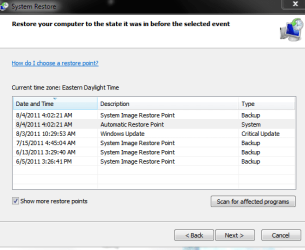
I've attached a .png of my system restore image points (4). Only two are current backup and restore images. The other two have been deleted manually through windows explorer or overwritten. How do I eliminate those deleted images out of system restore?

Thanks again!
 

Attachments

  • Capture.PNG
    Capture.PNG
    12.7 KB · Views: 89

My Computer

Computer Manufacturer/Model Number
HP DV7-4285dx
OS
Windows 7 SP1
Solution Found

I found the answer to the mysterious rogue System Image Restore Backup points today; it involves what is (for me) an obscure command called wbadmin. Below you will see my use of this in an elevated command prompt. I had originally made a backup, as a test honestly, back in July of last year, and somewhere along the way I deleted that backup from my external (FreeAgent) drive. This "Restore Point Backup" continued to appear despite all attempts to clear-out Restore Points, not only w/Disk Cleanup but also turning-off and back on again. The solution is to execute:

wbadmin delete catalog

as described here!

Hope this helps--I am happy to have this confusing System Restore entry gone myself!

Code:
[I]Microsoft Windows [Version 6.1.7601]
Copyright (c) 2009 Microsoft Corporation.  All rights reserved.

C:\Windows\system32>wbadmin /?
wbadmin 1.0 - Backup command-line tool
(C) Copyright 2004 Microsoft Corp.

---- Commands Supported ----

START BACKUP              -- Runs a one-time backup.
STOP JOB                  -- Stops the currently running backup or recovery
                              operation.
GET VERSIONS              -- List details of backups recoverable from a
                              specified location.
GET ITEMS                 -- Lists items contained in a backup.
GET STATUS                -- Reports the status of the currently running
                              operation.

C:\Windows\system32>wbadmin get versions
wbadmin 1.0 - Backup command-line tool
(C) Copyright 2004 Microsoft Corp.

Backup time: 7/18/2010 1:50 PM
Backup target: 1394/USB Disk labeled FreeAgent(J:)
Version identifier: 07/18/2010-18:50
Can recover: Volume(s), File(s), Application(s), Bare Metal Recovery, System State
Snapshot ID: {ee710e2e-2994-4c00-b646-399e0ecf0b53}


C:\Windows\system32>wbadmin delete catalog
wbadmin 1.0 - Backup command-line tool
(C) Copyright 2004 Microsoft Corp.

Are you sure that you want to delete the backup catalog? If you delete the
catalog, you will need to create a new set of backups.
[Y] Yes [N] No y

The backup catalog has been successfully deleted.

C:\Windows\system32>wbadmin get versions
wbadmin 1.0 - Backup command-line tool
(C) Copyright 2004 Microsoft Corp.

ERROR - No backup was found.
[/I]

Of course, you only want to do this if you want to get rid of all instances of your backup files!!!!
 

My Computer

Computer type
Laptop
Computer Manufacturer/Model Number
Dell Latitude E6540 Laptop
OS
Windows 7 Professional 64bit
CPU
Intel Core i7 4600M @ 2.90GHz
Motherboard
Dell Inc. 0CYT5F (SOCKET 0)
Memory
16.0GB Dual-Channel DDR3 @ 797MHz (11-11-11-28)
Graphics Card(s)
Intel HD Graphics 4600 (Dell) 2048MB ATI AMD Radeon HD 8790M
Sound Card
Realtek High Definition Audio
Monitor(s) Displays
HP ZR30w (2560x1600@60Hz)
Hard Drives
256GB LITEONIT LMT-256M6M-41 mm SATA (SSD)
1TB Samsung SSD 860 EVO mSATA SATA (SSD)
2TB USB 3.0 USB Device
115GB SanDisk Ultra Fit USB
Other Info
Multiple Dell E-Port Plus II Port Replicator/Docking Stations 0Y72NH USB 3.0 + 130W AC Adapters
Wbadmin is a command mostly used in the Windows server editions. It creates images as VHDs. I sometimes play around with it because you can attach the VHDs and pick data off.
 

My Computer

Computer Manufacturer/Model Number
HP, Dell, Gateway, Toshiba - 4 laptops and 2 desktops
OS
Vista, Windows7, Mint Mate, Zorin, Windows 8
CPU
from 1.6GHz Duo to i7
Monitor(s) Displays
2x HP w2207
Hard Drives
5x HDD, 7x SSD, 12x Externals
Keyboard
with trackball - no mices
Mouse
Trackball mice
Internet Speed
DSL 6000
Thanks you so much for the answer. I didn't think there was one. I still have 3 rogue restore points which are old which now I'll eliminate. Not that do any harm but it's annoying to me that they're still there. Obviously I'm somewhat of a techie. Thanks again! Lee
 

My Computer

Computer Manufacturer/Model Number
HP DV7-4285dx
OS
Windows 7 SP1
Deleting (very) old system image restore points

The solution is to execute: wbadmin delete catalog

Maxseven!

Old thread (last post in this thread was 1698 days ago), but, never mind, your suggestion fixed my problem with deleting (very) old system image restore points. Thanks, CBA
 

My Computer

Computer type
PC/Desktop
OS
Windows 7 Pro 32-bit
The solution is to execute: wbadmin delete catalog

Maxseven!

Old thread (last post in this thread was 1698 days ago), but, never mind, your suggestion fixed my problem with deleting (very) old system image restore points. Thanks, CBA
Ha, I had to re-read my five-year-old post and still can't recall this particular problem. Which is why we have to write stuff down!

Glad it helped you!
 

My Computer

Computer type
Laptop
Computer Manufacturer/Model Number
Dell Latitude E6540 Laptop
OS
Windows 7 Professional 64bit
CPU
Intel Core i7 4600M @ 2.90GHz
Motherboard
Dell Inc. 0CYT5F (SOCKET 0)
Memory
16.0GB Dual-Channel DDR3 @ 797MHz (11-11-11-28)
Graphics Card(s)
Intel HD Graphics 4600 (Dell) 2048MB ATI AMD Radeon HD 8790M
Sound Card
Realtek High Definition Audio
Monitor(s) Displays
HP ZR30w (2560x1600@60Hz)
Hard Drives
256GB LITEONIT LMT-256M6M-41 mm SATA (SSD)
1TB Samsung SSD 860 EVO mSATA SATA (SSD)
2TB USB 3.0 USB Device
115GB SanDisk Ultra Fit USB
Other Info
Multiple Dell E-Port Plus II Port Replicator/Docking Stations 0Y72NH USB 3.0 + 130W AC Adapters
Back
Top