Different Display Settings: WMWare & VirtualBox

amflores

New member
I'm new to virtualization machines.
On my system (Win7 Home Premium 32bits) I'm trying VMWare Player and VirtualBox in order to choose the one that suits me best.
Don't know why, but display settings (Control Panel) are different.
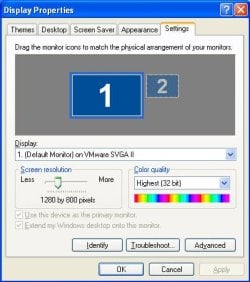
For example, I'm running 1280x800 pixels 32bits on VMWare, what gives me access to a full window screen without those annoying side and bottom slide bars.
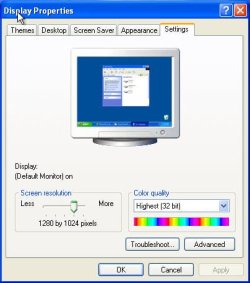
On VirtualBox, on the contrary, the available display settings are not the same (1280x800 pixels) is not available using the display settings slide bar)and I choose to use 1152x864 pixels 32 bits.
It is not a full screen window and the slide bars are there to use to navigate through the screen what pisses me off.
Is there a way to have both machines running full screen without those slide bars?
What am I doing wrong?
Any help will be appreciated.
Flores
 

My Computer

Computer type
Laptop
Computer Manufacturer/Model Number
DELL Vostro 1510
OS
Windows 7 Home Premium 32bits
Hard Drives
Seagate external HD 500Gb
Browser
IE11 and Chrome
Other Info
DELL Vostro 1510
Hi amflores. I take it that you are speaking about a Windows 7 guest. Have you installed the Guest additions in the VM?
 

My Computer

Computer type
Laptop
Computer Manufacturer/Model Number
Hewlett-Packard/G62-107SA Notebook
OS
Microsoft Windows 7 Home Premium 64-bit Service Pack 1
CPU
Intel(R) Core(TM) i3 CPU M 330 @ 2.13GHz
Motherboard
Hewlett-Packard 1425
Memory
8 GB DDR3
Graphics Card(s)
Intel(R) HD Graphics
Sound Card
Realtek High Definition Audio
Monitor(s) Displays
Builtin
Screen Resolution
1366 x 768 x 32 bits (4294967296 colors) @ 60 Hz
Hard Drives
250 GB SATA Hard Disk Drive 7200 rpm
2TB Seagate GoFlex USB 2 Drive
1TB Iomega Prestige USB 2 Drive
1.5TB Iomega Prestige USB 2 Drive (Samsung)
2TB WD MyBook Live NAS.
Mouse
Logitech Anywhere MX
Internet Speed
152 Mbs download 10 Mbs upload
Antivirus
Norton 360
Browser
Chrome
....I take it that you are speaking about a Windows 7 guest. Have you installed the Guest additions in the VM?

Hi kado897,

Yes, I am and I did install guest additions to VMWare.
The problem (annoying slide bars) happens on VirtualBox only, as there is no display settings to make VB to opem full screen with no slide bars.

Regards,
Flores
 

My Computer

Computer type
Laptop
Computer Manufacturer/Model Number
DELL Vostro 1510
OS
Windows 7 Home Premium 32bits
Hard Drives
Seagate external HD 500Gb
Browser
IE11 and Chrome
Other Info
DELL Vostro 1510
VBox does full screen just fine. Two ways: Menu bar or Hot Keys.

Menu bar: View > Switch to Full Screen

Hot Keys: Host + F (Host on mine is right CTRL)

Regards,
GEWB
 

My Computer

Computer type
PC/Desktop
Computer Manufacturer/Model Number
(7 different computers booting up to 10 systems)
OS
Linux Mint / XP / Win7 Home, Pro, Ultimate / Win8.1 / Win10
Other Info
Four desktops, two laptops, one notebook and one tablet
....I take it that you are speaking about a Windows 7 guest. Have you installed the Guest additions in the VM?

Hi kado897,

Yes, I am and I did install guest additions to VMWare.
The problem (annoying slide bars) happens on VirtualBox only, as there is no display settings to make VB to opem full screen with no slide bars.

Regards,
Flores

You said you installed Guest additions in VMWare did you also install them in the VirtualBox W7 VM.

Just in case you didn't here are some instructions.

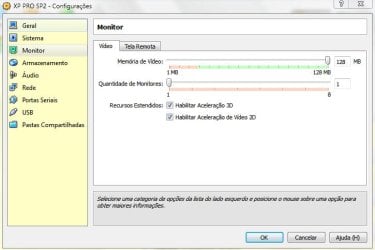
1. Before starting the VM go into settings.
2. Select the Display tab.
3. Tick both 3D and 2D boxes.
4. Set the Video memory slider to at least 128MB. 256MB is better.
5. Save the changes and start the VM.
6. When you are logged on to Windows in the VM hover your mouse at the bottom ceter oth the screen to pop up the VirtualBox mini toolbar
7. Select Devices and from the popup menu select Install Guest Additions...
8. An autoplay prompt should appear. Select "Install VirtualBox Windows Additions.
9. follow the install wizard instructions. When you are asked what to install check the Experimental 3D box and reply "No" to the prompt asking if you want basic 3D support.
10. Reboot when asked. When Win 7 is loaded again it should automatically detect your display size and adjust to it. You should also be able to use an aero theme.

It is some time since I installed Win 7 in VMPlayer but the principle is the same.
 
Last edited:

My Computer

Computer type
Laptop
Computer Manufacturer/Model Number
Hewlett-Packard/G62-107SA Notebook
OS
Microsoft Windows 7 Home Premium 64-bit Service Pack 1
CPU
Intel(R) Core(TM) i3 CPU M 330 @ 2.13GHz
Motherboard
Hewlett-Packard 1425
Memory
8 GB DDR3
Graphics Card(s)
Intel(R) HD Graphics
Sound Card
Realtek High Definition Audio
Monitor(s) Displays
Builtin
Screen Resolution
1366 x 768 x 32 bits (4294967296 colors) @ 60 Hz
Hard Drives
250 GB SATA Hard Disk Drive 7200 rpm
2TB Seagate GoFlex USB 2 Drive
1TB Iomega Prestige USB 2 Drive
1.5TB Iomega Prestige USB 2 Drive (Samsung)
2TB WD MyBook Live NAS.
Mouse
Logitech Anywhere MX
Internet Speed
152 Mbs download 10 Mbs upload
Antivirus
Norton 360
Browser
Chrome
VBox does full screen just fine. Two ways: Menu bar or Hot Keys.

Hello GEWB,

Thanks, but .....

1 - Using the Menu bar: Now I have a full screen without the bottom toolbar and no access to the START button, as there are no more slide bars;

2 - Hot keys: My DELL laptop has no right CTRL key :cry:. I used the top toolbar. As in #1, I have no access to the START button, as there are no more slide bars.
Cheers,
Flores
 

My Computer

Computer type
Laptop
Computer Manufacturer/Model Number
DELL Vostro 1510
OS
Windows 7 Home Premium 32bits
Hard Drives
Seagate external HD 500Gb
Browser
IE11 and Chrome
Other Info
DELL Vostro 1510
..... 7. Select Devices and from the popup menu select Install Guest Additions...
8. An autoplay prompt should appear. Select "Install VirtualBox Windows Additions".


Hello kado897,

I had a problem installing "Install VirtualBox Windows Additions".
Coul not proceed. Don't know why.

Give me some time. OK?

Many thanks,
Flores
 

My Computer

Computer type
Laptop
Computer Manufacturer/Model Number
DELL Vostro 1510
OS
Windows 7 Home Premium 32bits
Hard Drives
Seagate external HD 500Gb
Browser
IE11 and Chrome
Other Info
DELL Vostro 1510
You may have to do it in safe mode although I did it OK on Saturday without safe mode.


We have a bit of a time zone incompatibility here. I'm going to have to leave you to get some sleep. I have to be up and about in 7hrs so best of luck. I will pick up in the morning.
 

My Computer

Computer type
Laptop
Computer Manufacturer/Model Number
Hewlett-Packard/G62-107SA Notebook
OS
Microsoft Windows 7 Home Premium 64-bit Service Pack 1
CPU
Intel(R) Core(TM) i3 CPU M 330 @ 2.13GHz
Motherboard
Hewlett-Packard 1425
Memory
8 GB DDR3
Graphics Card(s)
Intel(R) HD Graphics
Sound Card
Realtek High Definition Audio
Monitor(s) Displays
Builtin
Screen Resolution
1366 x 768 x 32 bits (4294967296 colors) @ 60 Hz
Hard Drives
250 GB SATA Hard Disk Drive 7200 rpm
2TB Seagate GoFlex USB 2 Drive
1TB Iomega Prestige USB 2 Drive
1.5TB Iomega Prestige USB 2 Drive (Samsung)
2TB WD MyBook Live NAS.
Mouse
Logitech Anywhere MX
Internet Speed
152 Mbs download 10 Mbs upload
Antivirus
Norton 360
Browser
Chrome
...You may have to do it in safe mode ......I will pick up in the morning.

No hurry.;)
I will try Safe Mode.

Regards,
Flores
 

My Computer

Computer type
Laptop
Computer Manufacturer/Model Number
DELL Vostro 1510
OS
Windows 7 Home Premium 32bits
Hard Drives
Seagate external HD 500Gb
Browser
IE11 and Chrome
Other Info
DELL Vostro 1510
I'm back online if you need me.
 

My Computer

Computer type
Laptop
Computer Manufacturer/Model Number
Hewlett-Packard/G62-107SA Notebook
OS
Microsoft Windows 7 Home Premium 64-bit Service Pack 1
CPU
Intel(R) Core(TM) i3 CPU M 330 @ 2.13GHz
Motherboard
Hewlett-Packard 1425
Memory
8 GB DDR3
Graphics Card(s)
Intel(R) HD Graphics
Sound Card
Realtek High Definition Audio
Monitor(s) Displays
Builtin
Screen Resolution
1366 x 768 x 32 bits (4294967296 colors) @ 60 Hz
Hard Drives
250 GB SATA Hard Disk Drive 7200 rpm
2TB Seagate GoFlex USB 2 Drive
1TB Iomega Prestige USB 2 Drive
1.5TB Iomega Prestige USB 2 Drive (Samsung)
2TB WD MyBook Live NAS.
Mouse
Logitech Anywhere MX
Internet Speed
152 Mbs download 10 Mbs upload
Antivirus
Norton 360
Browser
Chrome
I'm back online if you need me.

Thanks, kado897.

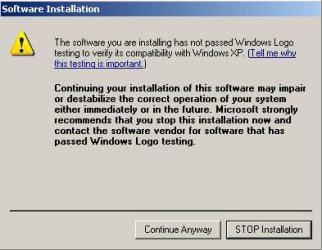
I opened VBox in Safe Mode but got the same error message when installing VBox Guest Additions.

Don't hurry and worry.
Regards,

Flores
 

Attachments

  • VB Guest.jpg
    VB Guest.jpg
    36.8 KB · Views: 5
  • VBox Display Settings.jpg
    VBox Display Settings.jpg
    80.2 KB · Views: 5

My Computer

Computer type
Laptop
Computer Manufacturer/Model Number
DELL Vostro 1510
OS
Windows 7 Home Premium 32bits
Hard Drives
Seagate external HD 500Gb
Browser
IE11 and Chrome
Other Info
DELL Vostro 1510
Are you installing XP in VBox as that message suggests? I though it was Win 7 you were installing.

Try and see what happens if you reply yes to the earlier message about basic 3D support.

If not then see what happens if you don't check the box for experimental 3D support.
 

My Computer

Computer type
Laptop
Computer Manufacturer/Model Number
Hewlett-Packard/G62-107SA Notebook
OS
Microsoft Windows 7 Home Premium 64-bit Service Pack 1
CPU
Intel(R) Core(TM) i3 CPU M 330 @ 2.13GHz
Motherboard
Hewlett-Packard 1425
Memory
8 GB DDR3
Graphics Card(s)
Intel(R) HD Graphics
Sound Card
Realtek High Definition Audio
Monitor(s) Displays
Builtin
Screen Resolution
1366 x 768 x 32 bits (4294967296 colors) @ 60 Hz
Hard Drives
250 GB SATA Hard Disk Drive 7200 rpm
2TB Seagate GoFlex USB 2 Drive
1TB Iomega Prestige USB 2 Drive
1.5TB Iomega Prestige USB 2 Drive (Samsung)
2TB WD MyBook Live NAS.
Mouse
Logitech Anywhere MX
Internet Speed
152 Mbs download 10 Mbs upload
Antivirus
Norton 360
Browser
Chrome
OK time has run out again.

If the above fail to give you what you need there is one other thing you can try.

You need to edit the .VBOX file in a text editor and locate the <ExtraData> section

<ExtraData>
<ExtraDataItem name="CustomVideoMode1" value="1366x768x32"/>
<ExtraDataItem name="GUI/Fullscreen" value="on"/>
<ExtraDataItem name="GUI/LastCloseAction" value="powerOff"/>
<ExtraDataItem name="GUI/LastGuestSizeHint" value="1024,768"/>
<ExtraDataItem name="GUI/LastNormalWindowPosition" value="8,27,1024,687"/>
<ExtraDataItem name="GUI/LastScaleWindowPosition" value="122,108,1128,608"/>
<ExtraDataItem name="GUI/MiniToolBarAlignment" value="top"/>
<ExtraDataItem name="GUI/SaveMountedAtRuntime" value="yes"/>
<ExtraDataItem name="GUI/ShowMiniToolBar" value="yes"/>
</ExtraData>

Add the highlighted line. The fields are width,height,color depth. Change those to whatever you need and you should then have that option in the screen sizes dropdown in windows.
 

My Computer

Computer type
Laptop
Computer Manufacturer/Model Number
Hewlett-Packard/G62-107SA Notebook
OS
Microsoft Windows 7 Home Premium 64-bit Service Pack 1
CPU
Intel(R) Core(TM) i3 CPU M 330 @ 2.13GHz
Motherboard
Hewlett-Packard 1425
Memory
8 GB DDR3
Graphics Card(s)
Intel(R) HD Graphics
Sound Card
Realtek High Definition Audio
Monitor(s) Displays
Builtin
Screen Resolution
1366 x 768 x 32 bits (4294967296 colors) @ 60 Hz
Hard Drives
250 GB SATA Hard Disk Drive 7200 rpm
2TB Seagate GoFlex USB 2 Drive
1TB Iomega Prestige USB 2 Drive
1.5TB Iomega Prestige USB 2 Drive (Samsung)
2TB WD MyBook Live NAS.
Mouse
Logitech Anywhere MX
Internet Speed
152 Mbs download 10 Mbs upload
Antivirus
Norton 360
Browser
Chrome
Are you installing XP in VBox as that message suggests? I though it was Win 7 you were installing.Try and see what happens if you reply yes to the earlier message about basic 3D support.If not then see what happens if you don't check the box for experimental 3D support.

Hello kado,

My system is Win7 Home Premium 32 bits. Sorry for not making myself clear from the beginning.

Yes, I have XP running in both VBox and VMWare.

Why?
Because of very important data collected along the years by old programs that don't run on Win7 and of my old and faithful HP flatbed scanner not supported by both Microsoft and HP.
Both these goals I have met using XP on VMWare and VBox.

My only (and not so important) problem now concerns the VBox display settings in which I'm not being able to adjust to (1280x800 pixels 32 bits), the one that gives me access to a full window screen without those annoying side and bottom slide bars, as when using VMW.

Regards,

Flores
 

My Computer

Computer type
Laptop
Computer Manufacturer/Model Number
DELL Vostro 1510
OS
Windows 7 Home Premium 32bits
Hard Drives
Seagate external HD 500Gb
Browser
IE11 and Chrome
Other Info
DELL Vostro 1510
Hi amflores. thanks for letting me know. Did you try my other suggestions?

I wonder whether XP is able handle widescreen displays. It is some time since I used XP and in those days the best you could get was 1024x768.

If it cant you may want to try running in a window in scale mode. View->scale mode (host+C)
 

My Computer

Computer type
Laptop
Computer Manufacturer/Model Number
Hewlett-Packard/G62-107SA Notebook
OS
Microsoft Windows 7 Home Premium 64-bit Service Pack 1
CPU
Intel(R) Core(TM) i3 CPU M 330 @ 2.13GHz
Motherboard
Hewlett-Packard 1425
Memory
8 GB DDR3
Graphics Card(s)
Intel(R) HD Graphics
Sound Card
Realtek High Definition Audio
Monitor(s) Displays
Builtin
Screen Resolution
1366 x 768 x 32 bits (4294967296 colors) @ 60 Hz
Hard Drives
250 GB SATA Hard Disk Drive 7200 rpm
2TB Seagate GoFlex USB 2 Drive
1TB Iomega Prestige USB 2 Drive
1.5TB Iomega Prestige USB 2 Drive (Samsung)
2TB WD MyBook Live NAS.
Mouse
Logitech Anywhere MX
Internet Speed
152 Mbs download 10 Mbs upload
Antivirus
Norton 360
Browser
Chrome
I wonder whether XP is able handle widescreen displays.

Hi kado897,

No, I haven't tried your suggestions yet, but I will for sure.

Yes, XP handles 1280x800 pixels 32 bits, the one I'm using with VMWare, which gives me access to a full window screen without those annoying side and bottom slide bars.

1280x800 pixels 32 bits is not available on VBox "List All Modes" settings window.


Pls, check the attached different display settings windows (VMW x VBox). VMW is the left image.

This is what a newbie like me don't understand: How they can be different if I have used the same XP installation CD? :confused:

Regards,
Flores
 

Attachments

  • VMWare Display Settings Window.jpg
    VMWare Display Settings Window.jpg
    63.9 KB · Views: 2
  • VBox Display Settings Window.jpg
    VBox Display Settings Window.jpg
    55.3 KB · Views: 2

My Computer

Computer type
Laptop
Computer Manufacturer/Model Number
DELL Vostro 1510
OS
Windows 7 Home Premium 32bits
Hard Drives
Seagate external HD 500Gb
Browser
IE11 and Chrome
Other Info
DELL Vostro 1510
The problem is not with XP. Sometimes things work better in VBox and sometimes in VMPlayer. I'll ask others on the forum if they have any ideas.
 

My Computer

Computer type
Laptop
Computer Manufacturer/Model Number
Hewlett-Packard/G62-107SA Notebook
OS
Microsoft Windows 7 Home Premium 64-bit Service Pack 1
CPU
Intel(R) Core(TM) i3 CPU M 330 @ 2.13GHz
Motherboard
Hewlett-Packard 1425
Memory
8 GB DDR3
Graphics Card(s)
Intel(R) HD Graphics
Sound Card
Realtek High Definition Audio
Monitor(s) Displays
Builtin
Screen Resolution
1366 x 768 x 32 bits (4294967296 colors) @ 60 Hz
Hard Drives
250 GB SATA Hard Disk Drive 7200 rpm
2TB Seagate GoFlex USB 2 Drive
1TB Iomega Prestige USB 2 Drive
1.5TB Iomega Prestige USB 2 Drive (Samsung)
2TB WD MyBook Live NAS.
Mouse
Logitech Anywhere MX
Internet Speed
152 Mbs download 10 Mbs upload
Antivirus
Norton 360
Browser
Chrome
Hi amflores. thanks for letting me know. Did you try my other suggestions?

I wonder whether XP is able handle widescreen displays. It is some time since I used XP and in those days the best you could get was 1024x768.

If it cant you may want to try running in a window in scale mode. View->scale mode (host+C)

FWIW, XP on bare metal handles full 1940x1080 without any problem, given a decent card :)
 

My Computer

Computer type
Laptop
Computer Manufacturer/Model Number
Asus K52F or Lenovo B51-80
OS
Win 7 x64 Home Premium (and x86 VirtualBox VM)/Win10
CPU
i3 370M/i7 6500U
Motherboard
Asus/Lenovo
Memory
8GB - finally :)/8GB
Graphics Card(s)
it's an i3, dude!/dual Intel&nVidia
Sound Card
onboard
Monitor(s) Displays
15.6" built-in
Screen Resolution
1366x768/1920x1080
Hard Drives
750GB Seagate internal
Sundry external drives attached to other computers on the local network
1TB SSD on the Lenovo
PSU
n/a
Internet Speed
as much as I can get - usually on a dongle/phone, so <1MB/s
Antivirus
MSE/Defender
Browser
IE11/12/Edge/Chrome/FF(if I must)
I'll ask others on the forum if they have any ideas.


Hello kado987,

I'm thankful for your efforts to help me.

Don't worry and hurry. ;)

As I mentioned before, my only (and not so important) problem now concerns the VBox display settings in which I'm not being able to adjust to (1280x800 pixels 32 bits), the one that gives me access to a full window screen without those annoying side and bottom slide bars, as when using VMW.

Cheers,
Flores
 

My Computer

Computer type
Laptop
Computer Manufacturer/Model Number
DELL Vostro 1510
OS
Windows 7 Home Premium 32bits
Hard Drives
Seagate external HD 500Gb
Browser
IE11 and Chrome
Other Info
DELL Vostro 1510
Yes, XP handles 1280x800 pixels 32 bits, the one I'm using with VMWare, which gives me access to a full window screen without those annoying side and bottom slide bars.

1280x800 pixels 32 bits is not available on VBox "List All Modes" settings window.


Pls, check the attached different display settings windows (VMW x VBox). VMW is the left image.

This is what a newbie like me don't understand: How they can be different if I have used the same XP installation CD? :confused:

Regards,
Flores

That settings box looks like you don't have a decent driver installed in VBox? (Which version of VBox are you using?)
My install says 'Default Monitor on VirtualBox Graphics Adapter' (I don't have the experimental 3D installed, but do have the standard 3D)

I have to admit that the drivers do act buggy - but it may be that I'm playing hard and fast with the settings - and I frequently end up with a black screen
Try this

Start the VM with the standard settings, then stretch the window until it's the size you want. Now click on the View menu, and select 'Autoresize Guest Display'.

See what happens.
 

My Computer

Computer type
Laptop
Computer Manufacturer/Model Number
Asus K52F or Lenovo B51-80
OS
Win 7 x64 Home Premium (and x86 VirtualBox VM)/Win10
CPU
i3 370M/i7 6500U
Motherboard
Asus/Lenovo
Memory
8GB - finally :)/8GB
Graphics Card(s)
it's an i3, dude!/dual Intel&nVidia
Sound Card
onboard
Monitor(s) Displays
15.6" built-in
Screen Resolution
1366x768/1920x1080
Hard Drives
750GB Seagate internal
Sundry external drives attached to other computers on the local network
1TB SSD on the Lenovo
PSU
n/a
Internet Speed
as much as I can get - usually on a dongle/phone, so <1MB/s
Antivirus
MSE/Defender
Browser
IE11/12/Edge/Chrome/FF(if I must)
Back
Top