Disk numbers in Disk Management matters?

ypm

New member
Local time
5:52 AM
Messages
2
After adding two new SATA hard drives in my computer, I noticed that Disk Management lists SATA Drive C (which contains Win 7) as Disk 2. The other two drives are listed as Disk 0 and Disk 1.

Since I connected SATA Drive C in SATA port 1, I was expecting to see it listed as Disk 0. SATA drives D and E are connected to SATA port 2 and 3 but are listed before the one connected in SATA port 1. Weird!

And since the computer seems to work fine, I'm wondering if the disk numbers listed in Disk Management matter at all? Please let me know if this is normal or if I should change something.

Thanks!
 

My Computer My Computer

Computer Manufacturer/Model Number
Clone
OS
Win 7 Pro 6.1.7600 X86-based PC
CPU
Intel Core 2 Duo E8400 @ 3.00 GHz
Motherboard
Asus P5K SE
Memory
3 GB
Graphics Card(s)
NVIDIA GeForce 8600 GT @ 512 MB
Sound Card
High Definition Audio Device
Monitor(s) Displays
ViewSonic
Screen Resolution
1600 x 1200 x 75 hertz
Hard Drives
WD SATA 320 GB
WD SATA 500 GB
WD SATA 1 TB
PSU
?
Case
Antec
Cooling
? 1 CPU Fan and 1 Case Fan
Keyboard
Standard PS/2
Mouse
Microsoft USB Wheel Mouse Optical
Internet Speed
Moreless 100K/s downloads
I had the same issue, physically by connecting sata cables disk 1 for XP, disk 2 for Data and disk 3 for Win 7. When initially booting into XP system and going to computer/properties/manage/disk mgr, it showed XP on 0, data on 1 and Win7 on 2. Booting into Win7 and doing the same, the disks were listed as the same, i.e. XP = Win7 = actual physical cable layout. However, on a number of occassions booting into Win7, the drives can be in any order. Machine works and boots OK, guess they are using virtual drives. BTW W7 seems a million times faster than XP :) Mike
 

My Computer My Computer

Computer Manufacturer/Model Number
Various desktops, laptops and network storage devices.
OS
Windows 7 32bit, Windows XP Pro., Ubunto.
Other Info
Also main desktop set up as dual boot with XP Pro and Win7 Pro 32bit.
Check your HD listing in BIOS.
 

My Computer My Computer

OS
ME/XP/Vista/Win7
And since the computer seems to work fine, I'm wondering if the disk numbers listed in Disk Management matter at all? Please let me know if this is normal or if I should change something.

Thanks!

The assigned disk numbers should not matter.

You just need to be able to understand what Disc 0, Disc 1, etc really mean so you are not personally confused. Confusion could lead to writing to the wrong partition, re-formatting he wrong partition, etc.

But as long as you have it straight in your mind which is which, I wouldn't change things--unless you are obsessive enough that you will lay in bed thinking about it.
 

My Computer My Computer

Computer type
PC/Desktop
Computer Manufacturer/Model Number
Ignatz Special; 4 speed manual gearbox; factory air conditioning; one of one
OS
Windows 7 Home Premium SP1, 64-bit
CPU
Intel Skylake i5-6600K, not overclocked
Motherboard
AsRock Z170M Extreme 4, micro ATX
Memory
8 GB HyperX DDR4-2666 (2 x 4 GB)
Graphics Card(s)
none; graphics are integrated on CPU
Sound Card
onboard: Realtek ALC1150; external: USB Behringer UF0-202
Monitor(s) Displays
Dell S2340M 23 inch IPS
Screen Resolution
1600 x 900
Hard Drives
System: Crucial MX100 series SSD, 128 GB;
Data: Samsung Spinpoint 103SJ, 1 TB;
Backup: WD Caviar Green WD30EZRX-00D8PB0, 3 TB
PSU
Rosewill SilentNight 500 watt fanless, semi-modular
Case
Antec Solo II
Cooling
Noctua NH-U12S; Noctua F12 intake, Noctua S12A exhaust
Keyboard
Microsoft 200 6JH-00001 USB
Mouse
Dell or Microsoft optical wired; USB
Antivirus
Microsoft Security Essentials and Malwarebytes Premium
Browser
Pale Moon
Other Info
All fans PWM; speeds at idle: CPU circa 500 rpm; intake circa 600 rpm; exhaust circa 600 rpm; CPU temps 27 idle and 47 C load in a warm room (27 C/81 F) when running Intel Extreme Tuning Utility stress test.
[/QUOTE]
But as long as you have it straight in your mind which is which, I wouldn't change things--unless you are obsessive enough that you will lay in bed thinking about it.[/QUOTE]

Thanks for confirming that these disk numbers do not matter. I didn't lose sleep over it and now I won't even have a second thought about them!
 

My Computer My Computer

Computer Manufacturer/Model Number
Clone
OS
Win 7 Pro 6.1.7600 X86-based PC
CPU
Intel Core 2 Duo E8400 @ 3.00 GHz
Motherboard
Asus P5K SE
Memory
3 GB
Graphics Card(s)
NVIDIA GeForce 8600 GT @ 512 MB
Sound Card
High Definition Audio Device
Monitor(s) Displays
ViewSonic
Screen Resolution
1600 x 1200 x 75 hertz
Hard Drives
WD SATA 320 GB
WD SATA 500 GB
WD SATA 1 TB
PSU
?
Case
Antec
Cooling
? 1 CPU Fan and 1 Case Fan
Keyboard
Standard PS/2
Mouse
Microsoft USB Wheel Mouse Optical
Internet Speed
Moreless 100K/s downloads
But as long as you have it straight in your mind which is which, I wouldn't change things--unless you are obsessive enough that you will lay in bed thinking about it.
Thanks for confirming that these disk numbers do not matter. I didn't lose sleep over it and now I won't even have a second thought about them!
They could possibly matter in one instance. When Windows logs an event about a disk (bad sector, error detecting during paging operation, etc.) it will use the disk number to identify the disk in question.

So if the disk numbers can change each time you boot this could cause some problems identifying the disk mentioned in the event.

And yes, I have noticed the same phenomenon. First I had one disk only connected to SATA1. After installing Windows 7 it had disk number 0 as expected. Then I added two more disks to SATA2 and SATA3. And now I just noticed that these are getting disk numbers 0 and 1 respectively in Disk Management while my first disk (an SSD) have to be satisfied with getting disk number 2.

(Can mention that I changed the assigned drive letters of some card reader drives after installing Windows and before noticing this; I removed the drive letters for those and set them to mount in NTFS folders instead to save the drive letters for more important things. Could possibly have affected the disk numbering I guess)

Edit: http://support.microsoft.com/kb/937251

Well, now I understand the advice to remove all but the target disk while installing Windows. You don't want to get the hidden boot partition set to another hard drive. :)
 

My Computer My Computer

OS
Windows 7 Home Premium x64
That's pretty good for your first post nickbackm.
 

My Computer My Computer

Computer type
PC/Desktop
Computer Manufacturer/Model Number
Own build
OS
Windows 7x64 Home Premium SP1
CPU
Intel i7 2600k
Motherboard
ASUS P8Z68 Deluxe
Memory
G.Skill Ripjaws (DDR3-1600) 2x4GB
Graphics Card(s)
Nvidia GeForce GTS 450; Intel HD Graphics 3000(GT2+)
Monitor(s) Displays
Dell Ultrasharp IPS panel U2311H, Samsung SyncMaster P2350
Screen Resolution
1920x1080
Hard Drives
Samsung 850 Pro SSD 256GB, Samsung SSD 840 120GB, Seagates 1TB Barracuda ST31000528AS x2
PSU
Seasonic M12II 520W
Case
Lian Li Lancool PC-K60
Cooling
Case: 1x120mm, 3x140mm CPU: Hyper 212+
Keyboard
Logitech MK520 (wireless)
Mouse
Logitech MK520
Internet Speed
6-7 Mbps
Antivirus
Norton Security Premium, Malwarebytes on 2 (MSE on 3rd PC)
Browser
FireFox
Other Info
Audio: Logitech Z523 2.1
I have the same issue (drive numbering does not match SATA numbering). This changes the Windows Experience index for my primary hard drive from 7.8 (when my SSD drive is correctly identified as primary) to 5.9 (when my HDD is incorrectly identified as primary).

Brandon
 

My Computer My Computer

OS
Windows 7 Professional x64
ola,
i'm new at this forum and i know that this is an older thread but I have the same problem. previusly i had 3 sata disks connected through standard sata2 ports 1, 2 and 3 with my os on 1st disk and 1st partition withouth 100mb sys. reservated partition. now i bought ssd sata 6gb and connected him on first of two sata 6gb ports to be my system disk. I expected to see him on the position of disk 0 in disk management especially becouse I disconnected disk 0 from sata 1 port during the installation of windows after that I connected him format and repartition it. what I get is properly assigned drive letter C: for my ssd but position is disk 3 in disk management, not to mention sys. res. 100mb partition in front of system C: partition with drive letter I: wich is not the main problem becouse with fresh installation of win could be solved. main problem is hdd's lineup becouse i belive that for proper comunication between components they should be sort in some kind of hierarcy order depending on port physical position. maybe i'm wrong but in worst case it looks decent. i was looking through this topic for solution but i saw only conclusions and simlarities with my problems also on the microsoft site. does someone have concrete solution for this problem, please help.
 

My Computer My Computer

Computer Manufacturer/Model Number
minimvs 1
OS
windows 7 ultimate x64
CPU
intel i7 950
Motherboard
asus rampage III extreme
Memory
8gb ddr3 corsair xms3
Graphics Card(s)
asus ngtx480
Sound Card
onboard realtek
Monitor(s) Displays
syncmaster p2370 & hyundai L90D+
Hard Drives
corsair ssd force 3 sata 6gb 120gb
seagate baracuda 200gb x2pcs
seagate baracuda 1,5Tb
PSU
corsair tx760
Case
coolermaster stacker stc-01
Cooling
noctua NHD-14
There isn't any hierarchical order but as a rule of thumb it's best to have the OS HD in SATA1/DIsk0 slot so that the boot files can't be derailed to an earlier partition that is accidentally marked "Active."

The installer and Startup Repair will write or move the System boot files to the first Active partition.
 
maybe it's bad word chioce but the same thing and i undrstand that but situation on motherboard is like this physicaly first sata 6gb port 1 and 2 than standard sata port 1,2,3,4,5 and 6. till now i had everithing on standard sata without using sata 6gb ports and now i have besides that sata 3 device on 1st sata 6gb port. if you think that what you wrote is solution for my problem please explain it to me a little bit becouse i didn't understand it.
 

My Computer My Computer

Computer Manufacturer/Model Number
minimvs 1
OS
windows 7 ultimate x64
CPU
intel i7 950
Motherboard
asus rampage III extreme
Memory
8gb ddr3 corsair xms3
Graphics Card(s)
asus ngtx480
Sound Card
onboard realtek
Monitor(s) Displays
syncmaster p2370 & hyundai L90D+
Hard Drives
corsair ssd force 3 sata 6gb 120gb
seagate baracuda 200gb x2pcs
seagate baracuda 1,5Tb
PSU
corsair tx760
Case
coolermaster stacker stc-01
Cooling
noctua NHD-14

My Computer My Computer

Computer type
PC/Desktop
Computer Manufacturer/Model Number
Own build
OS
Windows 7x64 Home Premium SP1
CPU
Intel i7 2600k
Motherboard
ASUS P8Z68 Deluxe
Memory
G.Skill Ripjaws (DDR3-1600) 2x4GB
Graphics Card(s)
Nvidia GeForce GTS 450; Intel HD Graphics 3000(GT2+)
Monitor(s) Displays
Dell Ultrasharp IPS panel U2311H, Samsung SyncMaster P2350
Screen Resolution
1920x1080
Hard Drives
Samsung 850 Pro SSD 256GB, Samsung SSD 840 120GB, Seagates 1TB Barracuda ST31000528AS x2
PSU
Seasonic M12II 520W
Case
Lian Li Lancool PC-K60
Cooling
Case: 1x120mm, 3x140mm CPU: Hyper 212+
Keyboard
Logitech MK520 (wireless)
Mouse
Logitech MK520
Internet Speed
6-7 Mbps
Antivirus
Norton Security Premium, Malwarebytes on 2 (MSE on 3rd PC)
Browser
FireFox
Other Info
Audio: Logitech Z523 2.1
thanks man i allready start to think that i'm crazy. i had this issue before with sata 2 devices but i allways manage to sort them in order of port numbers. yesterday when I connect ssd on sata 3 and without thinking install win7 i tought maybe that is the problem. now i've done fresh install of win7 on sata 3 ssd where i disconnect all other disks on sata 2 ports and i'm even get rid of 100mb system reserved partition. i must tell that i didn't solve the problem after i installed everithing what windows needs from drivers i connect all other( 3 of them they are all logical drives) disks and they are sort in order of port numbers from 1-3 (disk 0-2) but ssd was again in place of disk 3 containing only one system partition. makes me crazy. thanks
 

My Computer My Computer

Computer Manufacturer/Model Number
minimvs 1
OS
windows 7 ultimate x64
CPU
intel i7 950
Motherboard
asus rampage III extreme
Memory
8gb ddr3 corsair xms3
Graphics Card(s)
asus ngtx480
Sound Card
onboard realtek
Monitor(s) Displays
syncmaster p2370 & hyundai L90D+
Hard Drives
corsair ssd force 3 sata 6gb 120gb
seagate baracuda 200gb x2pcs
seagate baracuda 1,5Tb
PSU
corsair tx760
Case
coolermaster stacker stc-01
Cooling
noctua NHD-14
Old but neither forgotten not irrelevant

I'm so glad this old thread is still here. It shows that what I am seeing is normal in its abnormality. I'm still happily using Windows 7 years after it passed into non-support. It still works just fine.

I had a W7 system with 2 hard drives. They were always numbered 0 & 1. They weren't particularly large drives.

I added 2 6T drives because, of course, that's the way of computers. You run out of disk space. They were consistently numbered 2 & 3. The numbering never changed.

A couple of years passed & tell me you're surprised, I decided I needed more disk space. So I added 2 18T drives. You'd think they would be numbered 4 & 5. You would be wrong. They became 2 & 3. The ones that were originally 2 & 3 became 4 & 5. This stayed like this pretty consistently.

But it bugged me. I had the 2 18T drives connected to connectors that were labeled 4 & 5 on the motherboard. But they kept coming up in Disk Management as 2 & 3. I thought it might be because of the drive lettering. I formatted the 6T drives as single partitions & gave them letters M & N. When I got the 2 18T drives, I formatted them as well as single partitions & gave them letters I & J. So I & J are alphabetically before M & N. I assumed this made the disk numbering go the way it went.

Thing is, I've got partitions with letters C, E, G, H, K, L, & Q scattered across the 2 original drives & not in alphabetical order. So my theory about the system keeping the drives in alphabetical order by drive letter is just made up & immediately disproven.

On multiple occasions, I spent a few hours swapping the data cables around on the 6 hard drives. This involved multiple shut downs/power offs, of course. I'm crazy but I'm not dumb. I never could get Disk Management to number them corresponding to the labels printed on the motherboard. I did see odd things in the Resource Monitor on the Disk tab showing drive letters like S:3, S:7, weird junk like that. For a time, Resource Monitor didn't even list all 6 drives. In the body of the tab, in the Disk Activity pane, all my drive letters would appear. But in the bottom of the window, in the Storage pane, it listed only 4 of my drives. When this was going on, Disk Management still listed all 6 drives . . . always in what I considered to be the wrong order.

I finally got fed up with the whole thing earlier today & very carefully recabled all 6 drives in numerical order according to the labels on the connectors on the motherboard. The weird S:3, S:7 junk is now gone. Resource Monitor refers to files using their correct drive letters & shows letters on all 6 drives. But the order of the drive numbering is still out of whack with the labeling on the motherboard.

Here's where it gets completely crazy. Shortly after I booted up, I looked in Disk Management & saw the numbering I kind of expected to see. Disks 0 & 1 were as I expected. Disks I & J were 2 & 3. Disks M & N were 4 & 5. But now, a couple of hours after my most recent boot up, Disk Management is showing this:

Disk 0 is I, Disk 1 is J, Disk 2 is C & a couple of others (this has always been Disk 0), Disk 3 is K & a couple of others (this disk has always been Disk 1), Disk 4 is M, Disk 5 is N.

In other words, since I booted up, there have been at least 2 configurations in place for my disk numbers. I can only imagine what I'll see tomorrow.

Somebody put a reference above to a post in another thread authored by somebody under the name Dwarf. His explanation makes as much sense as any. It's certainly deeper than I've ever gotten into it.

But how does my system run? Perfectly. As ever. Time to just throw my hands up & walk away. I was going to give up on this anyway but I decided I'd check in here on the off chance I'd get some advice on how to change things. Instead, I've found out I should just leave well enough alone. Thanks to all who participated in this thread . . . OVER TEN YEARS AGO!!!!

- - - Updated - - -

Words are always nice but sometimes pictures tell so much more. So here I've taken a couple of pictures. I did this by opening 2 instantiations of Computer Management. It was the only way I could think of to open the items I needed to show side by side. For example, for the information on a given disk, I wanted to show what was on both the General tab & the Volumes tab. But I can't open the Device Properties dialog twice from the same instantiation of Computer Management in the Device Manager function. Similarly, in order to show the full mapping of my partitions in the Disk Management function, I needed to use 2 instantiations of Computer Management. These images take advantage of both my monitors. You will probably have to magnify the images to actually understand what's in them.

I've highlighted some of the Location information for one hard drive. Every hard drive shows that it's at Location 0, Target 0, Lun 0. I'm guessing Lun means logical unit number. The only thing that's different about the Locations is the Channel number. These numbers indicate the actual port numbers of the SATA interfaces printed on my motherboard. This proves that I do indeed have the data cable for each drive attached to the SATA interface I claim it's attached to. But the Disk Numbers selected by Windows are scrambled from that order. Also, what Disk Management shows now, which is what I'm showing in the second attached image, is not what I saw shortly after I booted up yesterday. (I have not rebooted since then.)

The only curiosity is the 2 small system partitions. On my boot drive, it has the label system (all lower case) & no drive letter. If I understand things correctly, this is a special bootloader partition created by the Windows installer. On my other legacy drive, there is another such partition, but here it's got the label system (again all lower case) & drive letter S has been assigned to it. This drive did used to be my boot drive in a past life so the system partition must have been created by a Windows install I did rather a while ago. I have never even attempted to look inside those partitions to figure out what's there. I seem to be no worse off for this ignorance.

I suppose if Dwarf is correct in his description, that the order of disk numbers reflects the relative speed of each device to respond to the request for enumeration, then the order of my Disk Numbers reflects the speed of my devices. My two 18T drives came back first, then my 2 small legacy drives, & finally my two 6T drives. But this response order occurred rather a while after I booted. Shortly after I booted the order was this: my 2 small legacy drives, then my two 18T drives, & finally my two 6T drives. At boot time, Windows numbered the drives one way, then later decided to shuffle the numbering. I suppose in the end, the only important thing is whether the system runs properly. Like I said before, mine does. Everything is normal. I consider that I have contemplated my navel quite enough on this subject now.
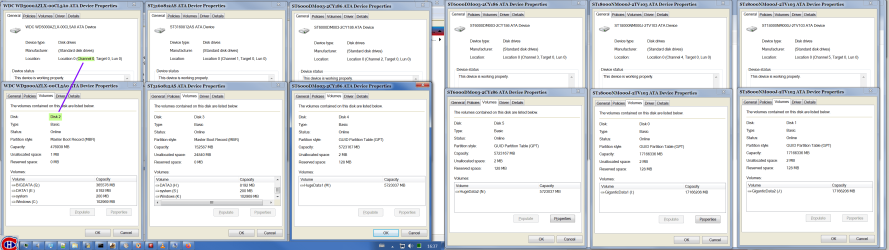
Device Info.pngPartition Layout.png
 

My Computer My Computer

Computer type
PC/Desktop
Computer Manufacturer/Model Number
ASUS (assembled myself)
OS
Windows 7 Professional 64-bit
CPU
Intel Core i7-4790K Quad CPU @ 4.00 GHz
Motherboard
ASUS Z97-AR, Intel Z97 Express chipset, ATX form factor
Memory
2x4G DDR3 1600MHz DIMMs
Graphics Card(s)
Intel HD Graphics 4600 on mobo; NVidia GeForce GT 710 PCI-E
Sound Card
Realtek High Definition Audio, integrated on mobo
Monitor(s) Displays
Dell SE2417HGX, 20.5"x11.5" viewable area; 32" Toshiba HDTV
Screen Resolution
1920 x 1080 @ 60 Hz, 32-bit color depth
Hard Drives
Western Digital 500G SATA
Seagate 150G SATA
2 x Seagate 6T SATA
2 x Seagate 18T SATA
PSU
EVGA 500B (500 Watts)
Case
NZXT H230 mid-tower
Cooling
CPU fan, PSU fan, 2 case fans, NVidia fan
Keyboard
Perixx 513H
Mouse
Touch pad integrated into keyboard
Internet Speed
Intel Ethernet Conn(2)I218-V, on mobo, ISP=cableTV 400Mbps
Antivirus
Comodo
Browser
Firefox
Other Info
Ext'l DVD rec: LG HL-DT-ST DVDRAM GP10NB20 USB
Monitor conn to VideoPort via HDMI-to-VideoPort adap
Realtek ALC892 8-channel High Definition Audio CODEC featuring Crystal Sound 2
Audio conn to surr recv via 25' optical S/PDIF TOSLINK audio cable
SYSINFO: 11 NIC ports but only 1 actively conn via DHCP to ISP
ISP bundled w/ cable TV+cell, claims 400Mbps,
but really 50 million bytes/sec
WildWilly
Disk drive numbers may not correspond to the SATA channel numbers when you install Windows on a computer that has multiple SATA or RAID disks

drives are enumerated in the order in which they are presented to the operating system through Plug and Play.

Therefore, hard disks may have different disk numbers across multiple system startups.

Disk drive numbers may not correspond to the SATA channel numbers when you install Windows on a computer that has multiple SATA or RAID disks
 

My Computers My Computers

System One System Two

  • Computer type
    PC/Desktop
    OS
    7 X64
    CPU
    i5 8400
    Motherboard
    gigabyte b365m ds3h
    Memory
    2x8gb 3200mhz
    Hard Drives
    various
    PSU
    pure power 11 400w cm
    Case
    Coolermaster
    Cooling
    cryorig m9i
  • Computer type
    PC/Desktop
    OS
    7x64
    CPU
    g5400
    Motherboard
    ga b365m ds3h
    Memory
    8gb ddr4 2400
    PSU
    xfx pro 450w
Back
Top
