Dual Boot Installation with Windows 7 and XP

How to Setup a Dual Boot Installation with Windows 7 and XP


   Information
This will show you how to install Windows 7 and XP to dual boot with when you already have either Windows 7 or XP installed first.
   Note
With a dual boot installaton, you will have two operating systems (OS) installed. When you start the computer, you will have the choice to choose which OS you would like to start up to. This method is the easiest way of doing a dual boot with these two operating systems.
   Tip
When dual booting with another OS (ex: Vista or XP), you may not always have that OS partition show up in Computer with a driver letter in Windows 7. If this happens, then you will just need to add a drive letter to the OS (ex: Vista or XP) partition in Windows 7 Disk Management for it to show up in Computer with a driver letter.
   Warning
To stop XP from deleting your Windows 7 System Restore Points everytime XP is started, then see System Restore Points - Stop XP Dual Boot Delete to hide Windows 7 from XP.

Windows 7 Minimum Hardware Requirements


NOTE: For more information on this, see: Windows 7 system requirements
  • 1 GHz 32-bit or 64-bit processor
  • 1 GB RAM for 32-bit Windows 7 OR 2 GB RAM for 64-bit Windows 7
  • 16 GB available disk space 32-bit Windows 7 OR 20 GB for 64-bit Windows 7
  • Support for DirectX 9 graphics with 128 MB memory (in order to enable Aero theme)
  • DVD-R/W Drive
  • Internet or phone access to activate Windows 7.
Windows XP Minimum Hardware Requirements

NOTE: For more information on this, see: System requirements for Windows XP operating systems
  • PC with 300 megahertz (MHz) or higher processor clock speed recommended; 233-MHz minimum required;* Intel Pentium/Celeron family, AMD K6/Athlon/Duron family, or compatible processor recommended
  • 128 megabytes (MB) of RAM or higher recommended (64 MB minimum supported; may limit performance and some features)
  • 1.5 gigabyte (GB) of available hard disk space.*
  • Super VGA (800 × 600) or higher resolution video adapter and monitor
  • CD-ROM or DVD drive
  • Keyboard and Microsoft Mouse or compatible pointing device
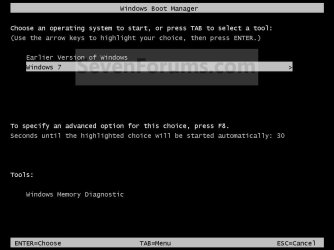
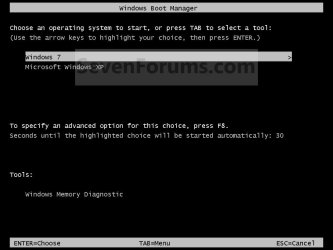
EXAMPLE: Windows Boot Manager
NOTE: This is the boot screen where you select what operating system that you would like to start. By default, you have 30 seconds to choose another operating system before the default operating system will start automatically.
Example.jpg


OPTION ONE

When XP is Installed First


NOTE: If you have a RAID setup, you will need to have the Windows 7 RAID drivers on a USB flash drive available to select and load while installing Windows 7.
1. Do step 2 or 3 below for where you wanted to install Windows 7 at.

2. To Create a New Partition from the XP Hard Disk Drive
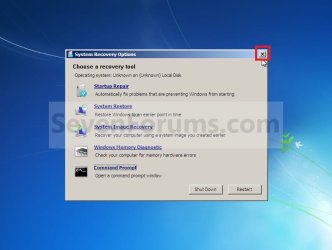
A) With your Windows 7 installation disc boot into the Command Prompt from the System Recovery Options screen.
NOTE: Make sure that the CD/DVD drive is selected first in the boot order in the BIOS.

B) In the command prompt, select and shrink the XP volume by how many MB (1024 MB = 1 GB) you want to have for this Windows 7 partition. (See screenshot below)
NOTE: You would do steps 2 to 9 in METHOD TWO at that link. Windows 7 will need a minimum of 16 GB (16384 MB).
XP-W7_1.jpg
C) Click on the X at the top right corner to close the command prompt. (See screenshot above)

D) Click on the X at the top right corner to close System Recovery Options. (See screenshot below)
XP-W7_2.jpg
E) Go to step 4.
3. To Use a Separate Hard Disk Drive than the XP Drive
A) Boot from your Windows 7 installation disc.
NOTE: Make sure that the CD/DVD drive is selected first in the boot order in the BIOS.
4. Click on the Install now button. (See screenshot below)
XP-W7_3.jpg
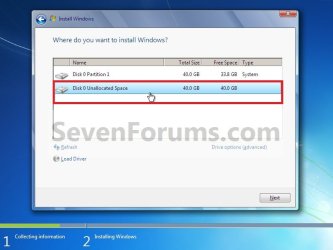
5. When you get to this point, select the partition (step 2) or hard drive to install Windows 7 on. (See screenshot below)
XP-W7_4.jpg
6. Finish installing Windows 7.
NOTE: You would start at step 9 in that link to finish installing Windows 7.

7. When finished, restart the computer to have the option to boot from XP (Earlier Verision of Windows) or Windows 7. (See screenshot below)

   Note
If you are only booting into Windows 7 and do not have XP listed in the Windows Boot Manager, then you can install only EasyBCD (step 8 Option Two below) to add XP (or Windows 7) while started in Windows 7 the same way to the boot list.

Example.jpg


OPTION TWO

When Windows 7 is Installed First


   Warning

1. To Create a New Partition from the Windows 7 Hard Disk Drive
NOTE: If you want to install XP on a separate internal hard drive instead, then skip this step and go to step 2.
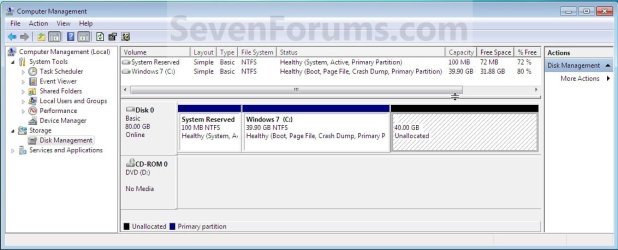
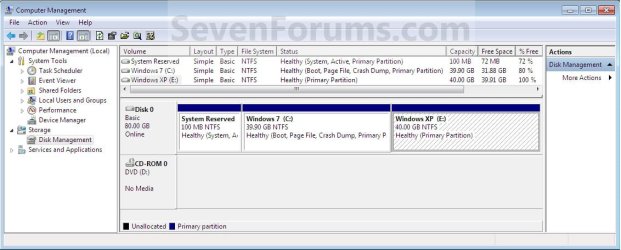
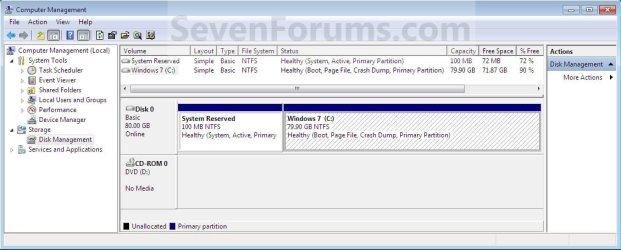
A) In Windows 7, select and shrink the Windows 7 volume in Disk Management by how many MB (1024 MB = 1 GB) you want to have for this XP partition. (See screenshots below)
NOTE: You would do all of Method One at that link.
W7-XP-1.jpg

W7-XP-2.jpg

W7-XP-3.jpg
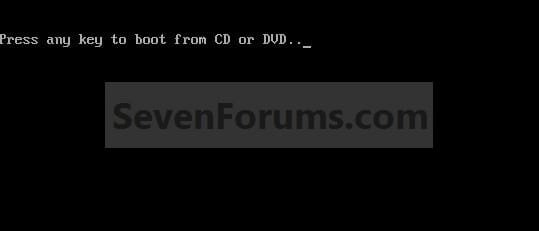
2. Insert your XP installation disc, then restart the computer and press any key to boot from it when prompted. (See screenshot below)
NOTE: Make sure that the CD/DVD drive is selected first in the boot order in the BIOS.
Step1.jpg
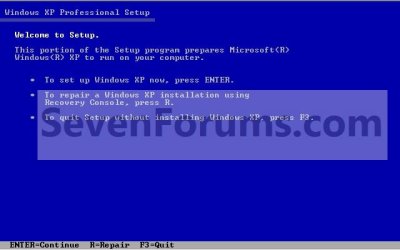
3. From XP Setup, Press Enter. (See screenshot below)


   Warning

W7-XP-4.jpg
4. Press F8. (See screenshot below)
NOTE: On some multimedia keyboards, you may need to press the F-Lock or Function key before pressing F8.
W7-XP-5.jpg
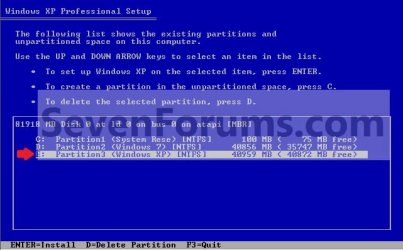
5. Select the partition (step 1) or hard drive that you want to install XP on using the arrow keys and press Enter.
W7-XP-6.jpg
6. Finish installing XP.


   Tip
If you get Error loading Operating System after XP restarts:
  • Using your Windows 7 installation disc, boot to the command prompt at startup.
  • Type in these comands below, and press enter after each one.
    • bootrec /FixMbr
    • bootrec /FixBoot
    • bootrec /RebuildBcd
  • Exit the command prompt and restart the computer.
  • At this point, Windows 7 should boot up the same way before trying to install XP.
  • Continue to step 8 below and run EasyBCD from Windows 7 instead.

7. In XP, download and install .Net Framework 2.0 (32-bit) version or .Net Framework 2.0 (64-bit) version first, and EasyBCD (free version) for your 32-bit (x86) or 64-bit (x86) XP.
NOTE: In XP, Net Framework is required to be installed to run EasyBCD. After you click on Register (at bottom of link) for the free EasyBCD, registration is not required to download it.

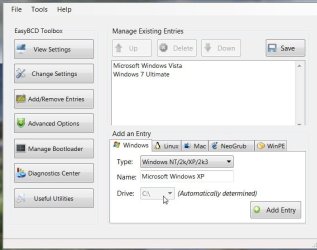
8. Run EasyBCD (free version).
NOTE: This is required to repair the Windows 7 boot file and add XP to the Windows Boot Manager list.

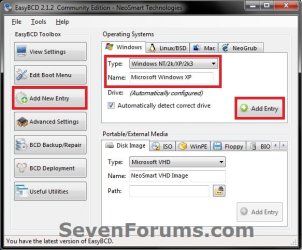
9. On the left side of EasyBCD, click on the Add New Entry button. (See screenshot below)
A) In the top section under Operating Systems, click on the Windows tab. (See screenshot below)
B) To the right of Type, select Windows NT/2k/XP/2k3 from the drop down menu. (See screenshot below)
:warn:WARNING: Be sure to leave the Automatically detect correct drive box checked.

C) To the right of Name, you can leave the default Microsoft Windows XP as the name to be displayed in the Windows Boot Manager, or you can type whatever name you would like to have instead. (See screenshot below)
D) Click on the Add Entry button. (See screenshot below)
W7-XP-7.jpg
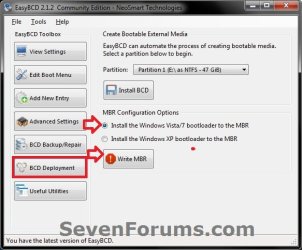
10. On the left side of EasyBCD, click on the BCD Deployment button, select (dot) the Install the Windows Vista/7 bootloader to the MBR option, and click on the Write MBR button. (See screenshot below)
W7-XP-9.jpg
11. Close EasyBCD.

12. Restart the computer to have the option to boot from Microsoft Windows XP or Windows 7. (See screenshot below)
Example2.jpg
   Tip
If Windows 7 will not start up when selected, then use your Windows 7 installation DVD to do a Startup Repair.

That's it,
Shawn


Last edited:
OK. If that doesn't work , try booting the XP install cd:

At the first screen select SETUP WINDOWS XP

At the second screen press R to repair your XP install.

If still no joy, use this:

View attachment bootsect.zip

Extract it from the zip and copy it onto a cd

OR, if you have PowerIso ( the free , unregistered version will be fine) open the downloaded Vista recovery disc .iso and paste bootsect.exe into the Boot folder. Then hit Save. The new .iso will contain bootsect.exe. Burn it to cd.


Try the bootrec commands first.

If it isn't working:

To run bootsect, Boot the Vista recovery cd to command prompt,

( if bootsect is on a separate cd, take Vista rec cd out, put bootsect cd in )

Type :

Dvdriveletter:\boot\Bootsect.exe /NT60 All /mbr {enter}

[ Obviously if it on a separate cd , and not inside the boot folder, the command is: Dvdriveletter:Bootsect.exe /NT60 All /mbr {enter} ]

To find dvddriveletter, type:

Diskpart {enter}

lis vol {enter}

to leave diskpart, type :

exit {enter}
 
Last edited by a moderator:

My Computers

System One System Two

  • Computer type
    PC/Desktop
    OS
    7 X64
    CPU
    i5 8400
    Motherboard
    gigabyte b365m ds3h
    Memory
    2x8gb 3200mhz
    Hard Drives
    various
    PSU
    pure power 11 400w cm
    Case
    Coolermaster
    Cooling
    cryorig m9i
  • Computer type
    PC/Desktop
    OS
    7x64
    CPU
    g5400
    Motherboard
    ga b365m ds3h
    Memory
    8gb ddr4 2400
    PSU
    xfx pro 450w
Fantastic! Bootsect fixed it immediately. Now I'm just fixing the entries in EasyBcd. Thanks a bunch!
 

My Computer

OS
Windows 7
Great, glad it's working for you.:D
 

My Computers

System One System Two

  • Computer type
    PC/Desktop
    OS
    7 X64
    CPU
    i5 8400
    Motherboard
    gigabyte b365m ds3h
    Memory
    2x8gb 3200mhz
    Hard Drives
    various
    PSU
    pure power 11 400w cm
    Case
    Coolermaster
    Cooling
    cryorig m9i
  • Computer type
    PC/Desktop
    OS
    7x64
    CPU
    g5400
    Motherboard
    ga b365m ds3h
    Memory
    8gb ddr4 2400
    PSU
    xfx pro 450w
Hello folks,
I would like to refer back to the problem Luciak described back on page 1, which almost made my eyes roll straight out of my skull...
I've never used a dual boot system before, but my friend told me he had one and that one Windows claimed to be on C and the other on D, just like he installed them.
So wherever I install Win7, it will claim being located on C? Isn't that a mess? Maybe my understanding of partition letters is completely wrong, but I thought they should appear the same on every Windows in a dual boot. However here I see that on Win7 G became C while it's still G on XP.
I mean, how do I now tell for sure what is what? Let's say I make two partitions of the same size and install Win7 on both, so that i can make risky experiments on one of them. Both would be installed on C? If one broke or I just decided I didn't want it anymore, how would I know which partition letter I need to concentrate on?
I was planning to try out an XP + 7 dual boot, but this issue left me utterly confused and I don't think I can proceed before this is sorted out in my head.
 

My Computer

Computer Manufacturer/Model Number
home brewed
OS
WinXPPro32SP3, WinXPPro64SP2, Win7Ult32SP1, Win7Ult64SP1
CPU
Athlon II X2 240 2.8GHz
Motherboard
ASRock ALiveNF7G-GLAN
Memory
4GB
Graphics Card(s)
Radeon HD 5670 1024MB
Sound Card
integrated Realtek
Monitor(s) Displays
BENQ
Screen Resolution
1280x1024
Hard Drives
Barracuda 500GB,
Barracuda 2TB,
Maxtor 500GB,
Barracuda 1,5TB
PSU
Gigabyte Superb 550P
Internet Speed
30Mbit/3Mbit
You could use a different drive label.
 

My Computers

System One System Two

  • Computer type
    PC/Desktop
    OS
    7 X64
    CPU
    i5 8400
    Motherboard
    gigabyte b365m ds3h
    Memory
    2x8gb 3200mhz
    Hard Drives
    various
    PSU
    pure power 11 400w cm
    Case
    Coolermaster
    Cooling
    cryorig m9i
  • Computer type
    PC/Desktop
    OS
    7x64
    CPU
    g5400
    Motherboard
    ga b365m ds3h
    Memory
    8gb ddr4 2400
    PSU
    xfx pro 450w
...I was planning to try out an XP + 7 dual boot, but this issue left me utterly confused and I don't think I can proceed before this is sorted out in my head.
SIW is correct - just label the drive (rename via right click). C, D, E etc are relative to the individual OS. In XP, for legacy reasons, I have a drive R and in 7 it is Drive G (no legacy to satisfy). The label itself remains visible in all OS - as the label is physically on the drive.

Also, From within Win7, it may be wise to use diskmgmt.msc to remove the drive letter assignment for the XP volume; vice versa from within XP - remove the drive letter assignmet for the Win7 volume. "Confusion not enabled."
 
K, thanks a lot.
So labels, which are in fact much easier to change (I always forget where the letters are managed from), are always absolutely reliable in every systems environment?
Good, second question: I read that boot.ini, responsible for the booting of every NT-based multi boot system, is always located on "C:\", which means that formatting this partition dooms the entire multi boot system. If C is no magical letter which keeps the world together, then I would like to inquire what determines which partition will carry this duty. I also read that Vista and Win7 booting works differently, but I assume there's a key boot.ini-esque file there too. So which one is it and where can it be found?
I'm sure I'll grow tired of one of the systems sooner or later, so I would like to avoid losing them all with the formatting of one partition.
 

My Computer

Computer Manufacturer/Model Number
home brewed
OS
WinXPPro32SP3, WinXPPro64SP2, Win7Ult32SP1, Win7Ult64SP1
CPU
Athlon II X2 240 2.8GHz
Motherboard
ASRock ALiveNF7G-GLAN
Memory
4GB
Graphics Card(s)
Radeon HD 5670 1024MB
Sound Card
integrated Realtek
Monitor(s) Displays
BENQ
Screen Resolution
1280x1024
Hard Drives
Barracuda 500GB,
Barracuda 2TB,
Maxtor 500GB,
Barracuda 1,5TB
PSU
Gigabyte Superb 550P
Internet Speed
30Mbit/3Mbit
Hi madhatter,

On my system (see my specs), I installed Vista 32-bit first, followed by the 64-bit version. I then installed W7 32-bit and finally 64-bit. The main boot partition is that on which you installed your first OS on, in my case Vista 32-bit.

Unless you are deleting the first OS installed, you should have no problems in deleting any of the others. If you delete the first OS, you might need to perform a repair install on the remaining OSes. The first OS that you repair will then contain the main boot partition.

Here is my layout as an example. As you can see, I am currently running W7 64-bit (the partition that is currently C). The main boot partition, where the boot manager resides, is D because that is Vista 32-bit and it is the first OS that I installed on my system. If I choose to run a different OS, the running OS will always be C and the boot manager will be on the partition containing Vista 32-bit even though the drive letters dynamically change between OSes.

Code:
Microsoft Windows [Version 6.1.7229]
Copyright (c) 2009 Microsoft Corporation.  All rights reserved.
C:\Windows\system32>bcdedit
Windows Boot Manager
--------------------
identifier              {bootmgr}
device                  partition=D:
description             Windows Boot Manager
locale                  en-US
inherit                 {globalsettings}
default                 {current}
resumeobject            {427d3eb0-4d34-11de-af38-d2fd5eee9bdb}
displayorder            {current}
                        {427d3ead-4d34-11de-af38-d2fd5eee9bdb}
                        {04e874fd-4cc5-11de-a4b6-9306ff4e7520}
                        {0db4c38a-4bf4-11de-8a82-d3a442d052a3}
toolsdisplayorder       {memdiag}
timeout                 10
Windows Boot Loader
-------------------
identifier              {current}
device                  partition=C:
path                    \Windows\system32\winload.exe
description             Windows 7 RC 7229 64-bit
locale                  en-US
inherit                 {bootloadersettings}
recoverysequence        {427d3eb2-4d34-11de-af38-d2fd5eee9bdb}
recoveryenabled         Yes
osdevice                partition=C:
systemroot              \Windows
resumeobject            {427d3eb0-4d34-11de-af38-d2fd5eee9bdb}
nx                      OptIn
Windows Boot Loader
-------------------
identifier              {427d3ead-4d34-11de-af38-d2fd5eee9bdb}
device                  partition=F:
path                    \Windows\system32\winload.exe
description             Windows 7 RC 7229 32-bit
locale                  en-US
inherit                 {bootloadersettings}
recoverysequence        {427d3eae-4d34-11de-af38-d2fd5eee9bdb}
recoveryenabled         Yes
osdevice                partition=F:
systemroot              \Windows
resumeobject            {427d3eac-4d34-11de-af38-d2fd5eee9bdb}
nx                      OptIn
Windows Boot Loader
-------------------
identifier              {04e874fd-4cc5-11de-a4b6-9306ff4e7520}
device                  partition=E:
path                    \Windows\system32\winload.exe
description             Windows Vista Ultimate SP2 64-bit
locale                  en-US
inherit                 {bootloadersettings}
osdevice                partition=E:
systemroot              \Windows
resumeobject            {04e874fe-4cc5-11de-a4b6-9306ff4e7520}
nx                      OptIn
Windows Boot Loader
-------------------
identifier              {0db4c38a-4bf4-11de-8a82-d3a442d052a3}
device                  partition=D:
path                    \Windows\system32\winload.exe
description             Windows Vista Home Premium SP2 32-bit
locale                  en-US
inherit                 {bootloadersettings}
osdevice                partition=D:
systemroot              \Windows
resumeobject            {0db4c38b-4bf4-11de-8a82-d3a442d052a3}
nx                      OptIn
C:\Windows\system32>

If you wish to change any of these settings, have a look here http://www.sevenforums.com/tutorials/2676-bcdedit-how-use.html
 

My Computer

Computer type
PC/Desktop
Computer Manufacturer/Model Number
Dwarf Dwf/11/2012 r09/2013
OS
Windows 8.1 Pro RTM x64
CPU
Intel Core-i5-3570K 4-core @ 3.4GHz (Ivy Bridge) (OC 4.4GHz)
Motherboard
ASRock Z77 Extreme4-M
Memory
4 x 4GB DDR3-1600 Corsair Vengeance CMZ8GX3M2A1600C9B (16GB)
Graphics Card(s)
MSI GeForce GTX770 Gaming OC 2GB
Sound Card
Realtek High Definition on board solution (ALC 898)
Monitor(s) Displays
ViewSonic VA1912w Widescreen (VGA)
Screen Resolution
1440x900
Hard Drives
OCZ Agility 3 SSD 120GB SATA III x2 (RAID 0)
Samsung HD501LJ 500GB SATA II x2
Hitachi HDS721010CLA332 1TB SATA II
Iomega 1.5TB Ext USB 2.0
WD 2.0TB Ext USB 3.0
PSU
XFX Pro Series 850W Semi-Modular
Case
Gigabyte IF233
Cooling
1 x 120mm Front Inlet 1 x 120mm Rear Exhaust
Keyboard
Microsoft Comfort Curve Keyboard 3000 (USB)
Mouse
Microsoft Comfort Mouse 3000 for Business (USB)
Internet Speed
NetGear DG834Gv3 ADSL Modem/Router (Ethernet) ~4.0 Mb/s (O2)
Antivirus
Avast! 8.0.1497
Browser
IE 11
Other Info
Optical Drive: HL-DT-ST BD-RE BH10LS30 SATA Bluray
Lexmark S305 Printer/Scanner/Copier (USB)
WEI Score: 8.1/8.1/8.5/8.5/8.25
Asus Eee PC 1011PX Netbook (Windows 7 x86 Starter)
Ah, finally I think I'm getting the hang of it.
Thanks Dwarf.
Still, looking at the contents of that file, I see heavy use of drive letters. Since drive letters have been said to be rather meaningless, there must be another file which translates the letters into concrete partitions. What and where is that file?
 

My Computer

Computer Manufacturer/Model Number
home brewed
OS
WinXPPro32SP3, WinXPPro64SP2, Win7Ult32SP1, Win7Ult64SP1
CPU
Athlon II X2 240 2.8GHz
Motherboard
ASRock ALiveNF7G-GLAN
Memory
4GB
Graphics Card(s)
Radeon HD 5670 1024MB
Sound Card
integrated Realtek
Monitor(s) Displays
BENQ
Screen Resolution
1280x1024
Hard Drives
Barracuda 500GB,
Barracuda 2TB,
Maxtor 500GB,
Barracuda 1,5TB
PSU
Gigabyte Superb 550P
Internet Speed
30Mbit/3Mbit
Ah, finally I think I'm getting the hang of it.
Thanks Dwarf.
Still, looking at the contents of that file, I see heavy use of drive letters. Since drive letters have been said to be rather meaningless, there must be another file which translates the letters into concrete partitions. What and where is that file?

Secondary drive letters can be specified for each boot. The volume labels remain consistent. Nontheless the drive letters ARE NOT "meaningless" as the applications refer to the drive letters not the Volume label.

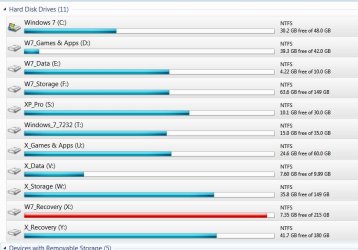
IE: All my personal "USER" folders for Windows 7 Windows 7 7232 and Vista (soon to be restored over W7 7232 in that partition after migration to Windows 7 RTM) reside on W7_Data.

See below. Guess what happens to drive letters when I boot to XP Pro or Windows 7 7232? Drive letters are reassigned in a consistent fashion but they cannot be changed arbitrarily.

Capture 11.JPG
 

My Computer

OS
XP Pro & Vista Home Premium (x86); Windows Ultimate 7600 x64 Retail
Yes yes, not entirely meaningless of course, but what I'm trying to understand here is how exactly the computer knows whats written inside the boot file, when I don't see any definitions which would assign letters to partitions inside of it and the assignments can be completely unique for each Windows on the same machine. So in other words, the way I understand it now, the boot file must be read with the help of some reference file, because let's say
device partition=F:
path \Windows\system32\winload.exe
means something entirely different when viewed by this or that operating system, or not? How does the boot file know which letter assignments are to be used so that its contents make sense?
You mentioned "Secondary drive letters". Does that mean there are primary ones too? Do those determine what the contents of the boot file say?
 

My Computer

Computer Manufacturer/Model Number
home brewed
OS
WinXPPro32SP3, WinXPPro64SP2, Win7Ult32SP1, Win7Ult64SP1
CPU
Athlon II X2 240 2.8GHz
Motherboard
ASRock ALiveNF7G-GLAN
Memory
4GB
Graphics Card(s)
Radeon HD 5670 1024MB
Sound Card
integrated Realtek
Monitor(s) Displays
BENQ
Screen Resolution
1280x1024
Hard Drives
Barracuda 500GB,
Barracuda 2TB,
Maxtor 500GB,
Barracuda 1,5TB
PSU
Gigabyte Superb 550P
Internet Speed
30Mbit/3Mbit
Hi there.

After reading this guide and others on the web, I finally managed to get dual boot Windows 7 and XP working. Like to share my experience with others here.
I am using Windows 7 RTM and Windows XP SP3 Install CD, with a new unformatted 1 TB HDD, and a backup WinXP running on a different HDD.

Attempt 1:
I used my old XP installation to partition my new HDD for Windows 7 and XP partitions. I then rebooted from Win 7 DVD and tried to install Win 7 on the pre-formatted partitions. No go. Win 7 won't install unless I delete the existing partitions and recreate it from scratch.

Attempt 2:
I removed all partitions and let Win7 DVD create a 200GB partition (via Advanced > New..) . Win 7 created the System Reserved partition (100MB) and and the OS partition. (Note that at this time there is no unallocated 1MB partition in front of the System Reserved Partition.) I then started Win XP CD, created a new partition 200GB partition using WInXP CD (text based menu) and started the installation there. Upon rebooting, I get the following message.
"Error Loading Operating System"
Using the Win 7 DVD startup repair tool does NOT resolve this issue. When I booted up using my backup OS on another drive, I noticed 1MB unallocated space in front of every partition on my new drive.

Attempt 3:
I restarted and assigned a drive letter to "System Reserved". Does not help. Same error and mysterious unallocated 1MB space appears before each partition after Win XP CD partitioning and formatting.

Attempt 4:
Stuck at the previous issue for several hours, I decided to try another approach. I deleted all partitions on my new drive. I started WIn 7 DVD, and this time let Win 7 OS partition take my whole 1TB drive. (emulate pre-install conditions) After WIn7 installation is done, I booted in Win 7, went to Disk Management and re-partitioned the drive to free up 800GB of unallocated space. I then rebooted and started my WinXP installation CD. Upon entering Win XP CD text-based partitioning menu, I noticed a WinXP CD detected a 1MB unallocated space before my "System Reserved" partition which wasn't there in previous tries. I let XP take the remaining 800GB space and started XP installation. Upon rebooting, instead of "Error Loading Operating System", I get...
_
...(a blinking cursor.)
Sensing some hope, I put in my Win 7 Installation CD and ran startup repair tool. Upon reboot, my system was able to boot into WIn 7 OS again.(But no dual boot menu).
From then on I just installed EasyBCD Download EasyBCD 1.7.2 - NeoSmart Technologies, created a WinXP entry, and rebooted. This time the dual boot menu came up, I selected XP option and the XP install continued from there.Success!

Attempt 5:
I varied Attempt 4 by pre-creating the XP partition beforehand in Win 7 Disk management Tool (as I couldn't resize the XP partition to the size I want after Attempt 4), loading Win XP CD, reformatted that partition (as I heard XP NTFS not truly compatible with Win7 NTFS), and installed XP into that partition. Re-run startup-repair tool, and the repeated the rest of the steps. This method also works. Seems like as long as the unallocated 1MB partition was created by Win 7 Disk management tool, the startup repair tool works. However, If you use the Win 7 DVD (Advanced > New..) partitioning method, the unallocated 1MB space will not be created at the front of disk and Win 7 startup repair tool will fail.

I then spent the other 1/2 of the day figuring out how to get Kubuntu booted as the 3rd OS, but that's a story for another day.
tongue.gif
 

My Computer

OS
Multiple
Hi there.

After reading this guide and others on the web, I finally managed to get dual boot Windows 7 and XP working. Like to share my experience with others here.
I am using Windows 7 RTM and Windows XP SP3 Install CD, with a new unformatted 1 TB HDD, and a backup WinXP running on a different HDD.

Attempt 1:
I used my old XP installation to partition my new HDD for Windows 7 and XP partitions. I then rebooted from Win 7 DVD and tried to install Win 7 on the pre-formatted partitions. No go. Win 7 won't install unless I delete the existing partitions and recreate it from scratch.

Attempt 2:
I removed all partitions and let Win7 DVD create a 200GB partition (via Advanced > New..) . Win 7 created the System Reserved partition (100MB) and and the OS partition. (Note that at this time there is no unallocated 1MB partition in front of the System Reserved Partition.) I then started Win XP CD, created a new partition 200GB partition using WInXP CD (text based menu) and started the installation there. Upon rebooting, I get the following message.
"Error Loading Operating System"
Using the Win 7 DVD startup repair tool does NOT resolve this issue. When I booted up using my backup OS on another drive, I noticed 1MB unallocated space in front of every partition on my new drive.

Attempt 3:
I restarted and assigned a drive letter to "System Reserved". Does not help. Same error and mysterious unallocated 1MB space appears before each partition after Win XP CD partitioning and formatting.

Attempt 4:
Stuck at the previous issue for several hours, I decided to try another approach. I deleted all partitions on my new drive. I started WIn 7 DVD, and this time let Win 7 OS partition take my whole 1TB drive. (emulate pre-install conditions) After WIn7 installation is done, I booted in Win 7, went to Disk Management and re-partitioned the drive to free up 800GB of unallocated space. I then rebooted and started my WinXP installation CD. Upon entering Win XP CD text-based partitioning menu, I noticed a WinXP CD detected a 1MB unallocated space before my "System Reserved" partition which wasn't there in previous tries. I let XP take the remaining 800GB space and started XP installation. Upon rebooting, instead of "Error Loading Operating System", I get...
_
...(a blinking cursor.)
Sensing some hope, I put in my Win 7 Installation CD and ran startup repair tool. Upon reboot, my system was able to boot into WIn 7 OS again.(But no dual boot menu).
From then on I just installed EasyBCD Download EasyBCD 1.7.2 - NeoSmart Technologies, created a WinXP entry, and rebooted. This time the dual boot menu came up, I selected XP option and the XP install continued from there.Success!

Attempt 5:
I varied Attempt 4 by pre-creating the XP partition beforehand in Win 7 Disk management Tool (as I couldn't resize the XP partition to the size I want after Attempt 4), loading Win XP CD, reformatted that partition (as I heard XP NTFS not truly compatible with Win7 NTFS), and installed XP into that partition. Re-run startup-repair tool, and the repeated the rest of the steps. This method also works. Seems like as long as the unallocated 1MB partition was created by Win 7 Disk management tool, the startup repair tool works. However, If you use the Win 7 DVD (Advanced > New..) partitioning method, the unallocated 1MB space will not be created at the front of disk and Win 7 startup repair tool will fail.

I then spent the other 1/2 of the day figuring out how to get Kubuntu booted as the 3rd OS, but that's a story for another day.
tongue.gif
Nice testing you have done there...I can see this to be valuable for other people out there that one day may have this issue
 

My Computer

Computer Manufacturer/Model Number
Compal JFT02 (Custom Build Laptop)
OS
Windows 7 Home Premium x64 - Mac OS X 10.6.4 x64
CPU
Intel Core 2 Duo T9300 2.5 GHz
Motherboard
JFT02
Memory
4GB Kingston DDR2-800
Graphics Card(s)
NVIDIA Geforce 8600M GT (512MB Model)
Sound Card
Realtek HD Audio
Monitor(s) Displays
WUXGA Standard Laptop Display
Screen Resolution
1680*1050
Hard Drives
Toshiba 320GB 5400RPM Laptop HD
PSU
Standard Laptop Power Supply
Case
Standard Laptop Case
Cooling
Standard Laptop Cooling
Keyboard
Standard Laptop 105 Key-Keyboard
Mouse
Synaptics Touchpad
Internet Speed
Verizion Online DSL 3360/864 kbs (dl/up)
Hi all, I would like to thank you VERY much! i spent about 4 hours trying to be able to boot back into windows 7 after installing XP on a partition until i came here and it was a quick and easy fix! thank you once again.
 

My Computer

Computer Manufacturer/Model Number
Myself
OS
Win 7 RC
CPU
Intel C2Q Q6600 2.4Ghz
Motherboard
ASUS P5QC
Memory
OCZ 2x2GB 800Mhz
Graphics Card(s)
ATI RADEON HD4870
Sound Card
Motherboard sound
Monitor(s) Displays
Samsung T220HD 1680x1050
Hard Drives
Some 500GB HDD (forgot the make)
PSU
Jeantech 700W
Case
Coolermaster Stacker 832
Cooling
8 Fans + EVO CPU fan cooler.
You're welcome ZombieZomG, and welcome to Seven Forums. I'm happy to hear that you got it sorted. :)

Shawn
 

My Computer

Computer type
PC/Desktop
Computer Manufacturer/Model Number
Self built custom
OS
64-bit Windows 11 Pro for Workstations
CPU
Intel i7-8700K OC'd to 5 GHz
Motherboard
ASUS ROG Maximus XI Formula Z390
Memory
64 GB (4x16GB) G.SKILL TridentZ RGB DDR4 3600 MHz
Graphics Card(s)
ASUS ROG-STRIX-GTX1080TI-O11G-GAMING
Sound Card
Integrated
Monitor(s) Displays
2 x Samsung Odyssey G7 27"
Screen Resolution
2560x1440
Hard Drives
1TB Samsung 990 PRO M.2,
4TB Samsung 990 PRO PRO M.2,
TerraMaster F8 SSD Plus NAS
PSU
Seasonic Prime Titanium 850W
Case
Thermaltake Core P3
Cooling
Corsair Hydro H115i
Keyboard
Logitech wireless K800
Mouse
Logitech MX Master 4
Internet Speed
2 Gb/s Download and 100 Mb/s Upload
Antivirus
Malwarebyte Anti-Malware Premium
Browser
Google Chrome
Other Info
Logitech Z625 speaker system,
Logitech BRIO 4K Pro webcam,
HP Color LaserJet Pro MFP M477fdn,
APC SMART-UPS RT 1000 XL - SURT1000XLI,
Galaxy S23 Plus phone
Hope this hasn't been asked

So I have Win 7 64 installed on my C drive - a 1TB Raid 0.
I installed Win XP Home 32 on a different 750 GB Non raid

I tried to boot to Win 7 after XP install. Failed. I didn't find this forum, but instead, put the Win 7 CD in and recovered my Win 7 MBR through that.
I'm now unable to boot to Win XP even though I manually adjusted the MBR in Win 7 via the command prompt.

When I try to load Win XP at OS select it tells me Win XP MBR is corrupt and to put in the disc.

So...which steps should I follow to finish this process Win 7 side only?
I installed Easy ECB, deleted the manual entry I established in the MBR for Win XP and used Easy to create a new one.

Do I have to copy anything over to my Win XP partition to get this to work? Am I missing any steps? The XP option is pointed to the correct drive I think. In my win 7 setup it shows as drive E, though in the XP setup it shows as drive D (and My 7 setup shows as drive C across both.)
 

My Computer

OS
Windows 7
Hi binkky,

It seems you had the 7 HD attached when installing XP.

The XP bootfiles would be on the Active partition on 7 HD.

You should be able to add ntldr to 7 bcd - try pointing Easybcd at the System, Active partition to do that ( sounds like that would be C).

EASYBCD-ADD-ENTRY2009-08-18_172402.jpg

Then click Add Entry, then Save.

Remove any incorrect ntldr entries with Easybcd as well.
 

My Computers

System One System Two

  • Computer type
    PC/Desktop
    OS
    7 X64
    CPU
    i5 8400
    Motherboard
    gigabyte b365m ds3h
    Memory
    2x8gb 3200mhz
    Hard Drives
    various
    PSU
    pure power 11 400w cm
    Case
    Coolermaster
    Cooling
    cryorig m9i
  • Computer type
    PC/Desktop
    OS
    7x64
    CPU
    g5400
    Motherboard
    ga b365m ds3h
    Memory
    8gb ddr4 2400
    PSU
    xfx pro 450w
I think that did the trick. I tried that out before your post, and I just had my wife test it at home (god bless remote access).
I was just able to select either or in boot up and it booted successfully to both. This is a fantastic forum and I'm going to do all I can to never lose it. Great stuff guys, thanks so much!
 

My Computer

OS
Windows 7
You're welcome - glad it's working for you.:D
 

My Computers

System One System Two

  • Computer type
    PC/Desktop
    OS
    7 X64
    CPU
    i5 8400
    Motherboard
    gigabyte b365m ds3h
    Memory
    2x8gb 3200mhz
    Hard Drives
    various
    PSU
    pure power 11 400w cm
    Case
    Coolermaster
    Cooling
    cryorig m9i
  • Computer type
    PC/Desktop
    OS
    7x64
    CPU
    g5400
    Motherboard
    ga b365m ds3h
    Memory
    8gb ddr4 2400
    PSU
    xfx pro 450w
When I install Win7 and select XP from the boot loader my computer reboots. I tried repairing my XP install since I couldn't boot from it any longer. I ended up having to reformat, it was suggested to install 7 from within XP. This did not work, because I have x86 xp and x64 7.

I am trying again using your tutorial (which is how I did it initally, lets hope it works this time).

I have 3 hard drives, one for XP with a 10gig partition for a page file, one for 7 with same 10 gig for page file and a final drive I store non-program data on.

If XP first then 7 install doesn't work this time I'll try 7 then XP and as a last resort I will use the boot loader from SUSE 10. Never used it with 2 windows installs though.

Has anyone else had dual boot issues with a 64 bit and non-64 bit version?

Sorry to reply to an old post, but just so others know it is possible to use Win7 x64 and XP x86 as a dual boot. Got mine setup last night, they are on the same HDD. Everything seems to be working fine. :)
 

My Computer

Computer Manufacturer/Model Number
custom built
OS
Windows 7 RC 64bit
CPU
amd
Motherboard
msi
Memory
2gb
Graphics Card(s)
nvidia
Sound Card
audigy 2 zs
Monitor(s) Displays
21" lcd widescreen
Hard Drives
300gb in 3 partitions (1 for winxp, 1 for win7-64, and 1 for data)
Keyboard
old HP
Mouse
5 button
Internet Speed
cable
Other Info
xpmode installed and working :)
dualbooting with xp pro on same hdd
Back
Top