Dual Boot Installation with Windows 7 and XP

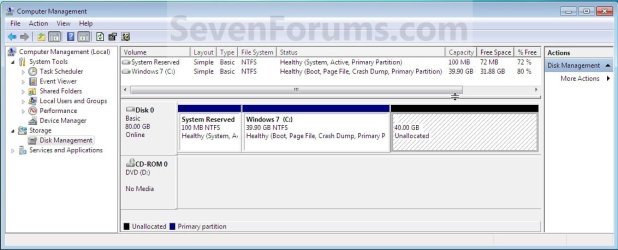
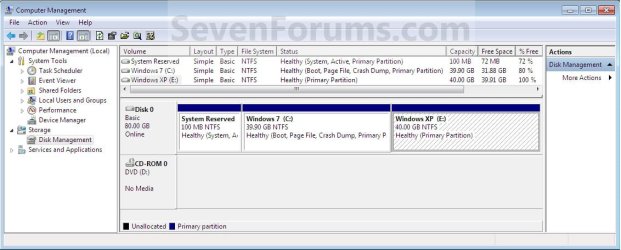
How to Setup a Dual Boot Installation with Windows 7 and XP


   Information
This will show you how to install Windows 7 and XP to dual boot with when you already have either Windows 7 or XP installed first.
   Note
With a dual boot installaton, you will have two operating systems (OS) installed. When you start the computer, you will have the choice to choose which OS you would like to start up to. This method is the easiest way of doing a dual boot with these two operating systems.
   Tip
When dual booting with another OS (ex: Vista or XP), you may not always have that OS partition show up in Computer with a driver letter in Windows 7. If this happens, then you will just need to add a drive letter to the OS (ex: Vista or XP) partition in Windows 7 Disk Management for it to show up in Computer with a driver letter.
   Warning
To stop XP from deleting your Windows 7 System Restore Points everytime XP is started, then see System Restore Points - Stop XP Dual Boot Delete to hide Windows 7 from XP.

Windows 7 Minimum Hardware Requirements


NOTE: For more information on this, see: Windows 7 system requirements
  • 1 GHz 32-bit or 64-bit processor
  • 1 GB RAM for 32-bit Windows 7 OR 2 GB RAM for 64-bit Windows 7
  • 16 GB available disk space 32-bit Windows 7 OR 20 GB for 64-bit Windows 7
  • Support for DirectX 9 graphics with 128 MB memory (in order to enable Aero theme)
  • DVD-R/W Drive
  • Internet or phone access to activate Windows 7.
Windows XP Minimum Hardware Requirements

NOTE: For more information on this, see: System requirements for Windows XP operating systems
  • PC with 300 megahertz (MHz) or higher processor clock speed recommended; 233-MHz minimum required;* Intel Pentium/Celeron family, AMD K6/Athlon/Duron family, or compatible processor recommended
  • 128 megabytes (MB) of RAM or higher recommended (64 MB minimum supported; may limit performance and some features)
  • 1.5 gigabyte (GB) of available hard disk space.*
  • Super VGA (800 × 600) or higher resolution video adapter and monitor
  • CD-ROM or DVD drive
  • Keyboard and Microsoft Mouse or compatible pointing device
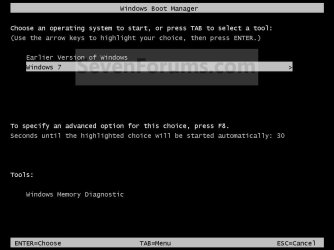
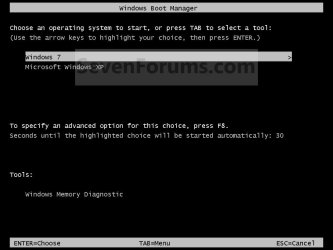
EXAMPLE: Windows Boot Manager
NOTE: This is the boot screen where you select what operating system that you would like to start. By default, you have 30 seconds to choose another operating system before the default operating system will start automatically.
Example.jpg


OPTION ONE

When XP is Installed First


NOTE: If you have a RAID setup, you will need to have the Windows 7 RAID drivers on a USB flash drive available to select and load while installing Windows 7.
1. Do step 2 or 3 below for where you wanted to install Windows 7 at.

2. To Create a New Partition from the XP Hard Disk Drive
A) With your Windows 7 installation disc boot into the Command Prompt from the System Recovery Options screen.
NOTE: Make sure that the CD/DVD drive is selected first in the boot order in the BIOS.

B) In the command prompt, select and shrink the XP volume by how many MB (1024 MB = 1 GB) you want to have for this Windows 7 partition. (See screenshot below)
NOTE: You would do steps 2 to 9 in METHOD TWO at that link. Windows 7 will need a minimum of 16 GB (16384 MB).
XP-W7_1.jpg
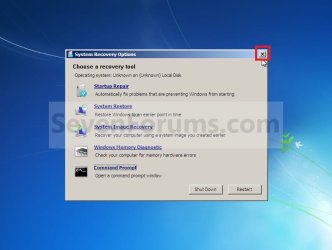
C) Click on the X at the top right corner to close the command prompt. (See screenshot above)

D) Click on the X at the top right corner to close System Recovery Options. (See screenshot below)
XP-W7_2.jpg
E) Go to step 4.
3. To Use a Separate Hard Disk Drive than the XP Drive
A) Boot from your Windows 7 installation disc.
NOTE: Make sure that the CD/DVD drive is selected first in the boot order in the BIOS.
4. Click on the Install now button. (See screenshot below)
XP-W7_3.jpg
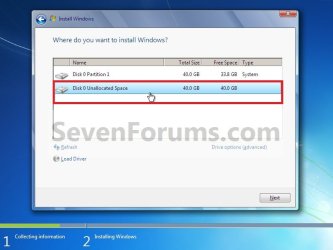
5. When you get to this point, select the partition (step 2) or hard drive to install Windows 7 on. (See screenshot below)
XP-W7_4.jpg
6. Finish installing Windows 7.
NOTE: You would start at step 9 in that link to finish installing Windows 7.

7. When finished, restart the computer to have the option to boot from XP (Earlier Verision of Windows) or Windows 7. (See screenshot below)

   Note
If you are only booting into Windows 7 and do not have XP listed in the Windows Boot Manager, then you can install only EasyBCD (step 8 Option Two below) to add XP (or Windows 7) while started in Windows 7 the same way to the boot list.

Example.jpg


OPTION TWO

When Windows 7 is Installed First


   Warning

1. To Create a New Partition from the Windows 7 Hard Disk Drive
NOTE: If you want to install XP on a separate internal hard drive instead, then skip this step and go to step 2.
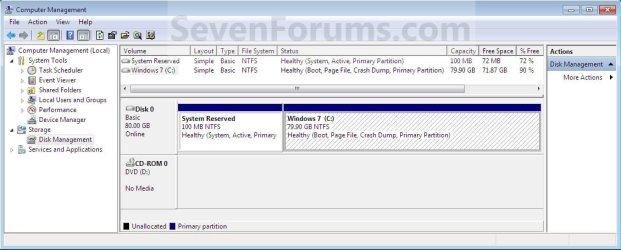
A) In Windows 7, select and shrink the Windows 7 volume in Disk Management by how many MB (1024 MB = 1 GB) you want to have for this XP partition. (See screenshots below)
NOTE: You would do all of Method One at that link.
W7-XP-1.jpg

W7-XP-2.jpg

W7-XP-3.jpg
2. Insert your XP installation disc, then restart the computer and press any key to boot from it when prompted. (See screenshot below)
NOTE: Make sure that the CD/DVD drive is selected first in the boot order in the BIOS.

Step1.jpg
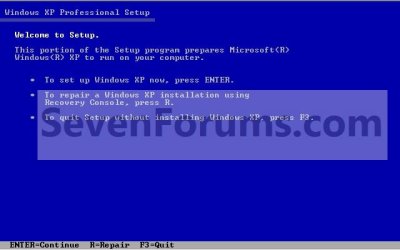
3. From XP Setup, Press Enter. (See screenshot below)


   Warning

W7-XP-4.jpg
4. Press F8. (See screenshot below)
NOTE: On some multimedia keyboards, you may need to press the F-Lock or Function key before pressing F8.
W7-XP-5.jpg
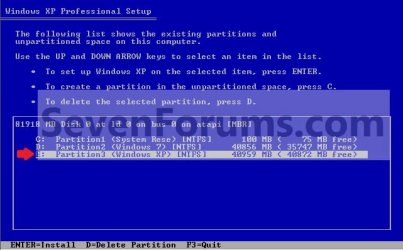
5. Select the partition (step 1) or hard drive that you want to install XP on using the arrow keys and press Enter.
W7-XP-6.jpg
6. Finish installing XP.


   Tip
If you get Error loading Operating System after XP restarts:
  • Using your Windows 7 installation disc, boot to the command prompt at startup.
  • Type in these comands below, and press enter after each one.
    • bootrec /FixMbr
    • bootrec /FixBoot
    • bootrec /RebuildBcd
  • Exit the command prompt and restart the computer.
  • At this point, Windows 7 should boot up the same way before trying to install XP.
  • Continue to step 8 below and run EasyBCD from Windows 7 instead.

7. In XP, download and install .Net Framework 2.0 (32-bit) version or .Net Framework 2.0 (64-bit) version first, and EasyBCD (free version) for your 32-bit (x86) or 64-bit (x86) XP.
NOTE: In XP, Net Framework is required to be installed to run EasyBCD. After you click on Register (at bottom of link) for the free EasyBCD, registration is not required to download it.

8. Run EasyBCD (free version).
NOTE: This is required to repair the Windows 7 boot file and add XP to the Windows Boot Manager list.

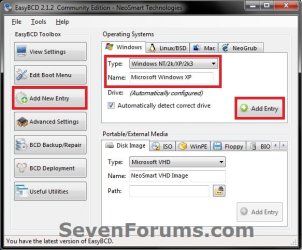
9. On the left side of EasyBCD, click on the Add New Entry button. (See screenshot below)
A) In the top section under Operating Systems, click on the Windows tab. (See screenshot below)
B) To the right of Type, select Windows NT/2k/XP/2k3 from the drop down menu. (See screenshot below)
:warn:WARNING: Be sure to leave the Automatically detect correct drive box checked.

C) To the right of Name, you can leave the default Microsoft Windows XP as the name to be displayed in the Windows Boot Manager, or you can type whatever name you would like to have instead. (See screenshot below)
D) Click on the Add Entry button. (See screenshot below)
W7-XP-7.jpg
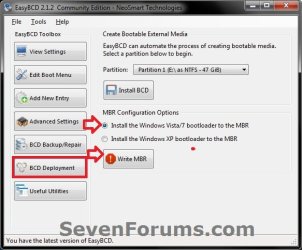
10. On the left side of EasyBCD, click on the BCD Deployment button, select (dot) the Install the Windows Vista/7 bootloader to the MBR option, and click on the Write MBR button. (See screenshot below)
W7-XP-9.jpg
11. Close EasyBCD.

12. Restart the computer to have the option to boot from Microsoft Windows XP or Windows 7. (See screenshot below)
Example2.jpg
   Tip
If Windows 7 will not start up when selected, then use your Windows 7 installation DVD to do a Startup Repair.

That's it,
Shawn


Last edited:
Ouick question
I set up my backup system to dual boot XP and Win7 x64 on 2 seperate SSD's. I have it set up as the tutorial states using BCD installed on the win7 drive. It works fine except when I turn the system on for the first time (cold-boot) power off state. It just beeps and does nothing but when I hit restart it comes up fine and it doesn't happen again until the next startup after being shutdown.
Thanks
 

My Computer

Computer type
PC/Desktop
Computer Manufacturer/Model Number
Black Shadow IV
OS
Win7 x64
CPU
i5-3570K
Motherboard
Asrock Z77 Extreme4
Memory
2x4GB Rip Jaws 8-9-9-24
Graphics Card(s)
Asus R9 280X
Sound Card
X-Fi Extreme Music
Monitor(s) Displays
Dell U2412M
Screen Resolution
1920x1200
Hard Drives
Samsung Evo 250GB /
OCZ Vertex 4 128GB
PSU
Seasonic 660XP2
Case
Fractal Design R4
Cooling
Noctua NH-U12S
Someone else may recognize it as harmless but I would research the beep codes for your mobo or PC to see what a single beep at boot means. It may be trying to tell you something.
 
Here's the result. It's Windows 7 Ultimate 64bit, so why x86?

Volume in drive C has no label.
Volume Serial Number is 10F5-90E0

Directory of C:\Windows\System32\oobe

FirstUXRes.WIM
1 File(s) 637,052 bytes

Directory of C:\Windows\winsxs\x86_microsoft-windows-setup-component_31bf3856ad364e35_6.1.7600.16385_none_3202d4720e95de08

FirstUXRes.WIM
1 File(s) 636,800 bytes

Directory of C:\Windows\winsxs\x86_microsoft-windows-setup-component_31bf3856ad364e35_6.1.7601.17514_none_3433e83a0b8461a2

FirstUXRes.WIM
1 File(s) 637,052 bytes

Total Files Listed:
3 File(s) 1,910,904 bytes
0 Dir(s) 447,863,287,808 bytes free
 

My Computer

OS
windows 7 ultimate (64 I think)
Hello All. Looking for help, just about at wit's end. Have scoured the net for 2 days now, and the answer to my riddle does not seem to be posted, have tried a whole whack of things to no avail.

The issue in short, is I have a laptop with Win 7 32bit on it, and can't get XP to finish its install. It is on a separate partition, and that was formatted before install. When that gave me grief and after trying many other things, I tried again letting XP do a FULL format, and that gave me the same damn result.

The result, and where I am stuck, is after XP loads all the setup files and does its very first reboot, I get an error that says Windows could not start because the following file is missing or corrupt:

<Windows root>\system32\hal.dll

And that is it, XP will not resume its install no matter what I have tried.

Things to note:

- I am using XP Pro with SP2 slipped, that I used just 6 months ago so I know its good
- It is a Sata drive and XP sees it and all partitions no problem before the install without doing F6
- Win 7 does not reboot, of course, unless I boot from Recover CD I made prior and repair boot
- Once in Win 7, I do see boot.ini, ntdetect and other file in the 200mb system partition that Win 7 made, right where they should be. I have tried changing the partition number in the boot.ini file to no avail, maybe I didn't try all the numbers though (there are 4 partitions counting the 200mb one)
- The Hal.dll file IS in the Windows folder on the drive XP is being installed on.
- I tried installing NOT giving the 200mb partition a letter, AND giving it a letter, no difference (files were in right place)
- I even tried editing the Boot manager with EasyBCD to include XP, so I get a choice of Xp or 7, when I pick XP I get some kind of error instead of the "install" resuming.
- I also tried booting the XP disc and trying a repair install but this goes no where.

I hope someone will have an idea or two on what to do and what is happening, because I am ready to ditch 7 or something and dont want to go that route.

TIA
 

My Computer

OS
Win XP 32
An XPired OS won't install on new hardware and the answer is to get rid of Win7? :huh:

Please post back a screenshot of your maximized Disk Mgmt drive map and listings, using the Snipping Tool in Start menu. Tell us what is on each partition.
 
Hi thanks for reply. Yeah I guess I am pointing the finger at 7 in my frustration... :D

Not able to take a snippet atm, but what I have is 4 healthy primary NTFS partitions, first is the only active one 100mb with all the boot stuff (7 and XP), 2nd is 244gig with 7, 3rd is storage 185 gig, last is 265 gig with the windows xp setup files.

I forgot to mention this is an HP compaq nw9440, I got it with 7 on it, and judging by the sticker on the bottom XP was on it sometime ago in the past.
 

My Computer

OS
Win XP 32
Then I'd reinstall that OEM version of XP using the Product Key on sticker.

Do you have the packaging with COA sticker for Win7, because it they had installed a bootleg copy it could well be interfering. The only way to know for sure if this is the case is to wipe the HD with Diskpart Clean Command, so you'd need to know you have Genuine Windows 7 to reinstall.

Are you booting XP CD to install? The reason I ask is because you said you have the XP Setup files on your fourth partition. You should install from booted CD. Is this a known-good XP CD which is clean and unscratched.
 
Then I'd reinstall that OEM version of XP using the Product Key on sticker.

Do you have the packaging with COA sticker for Win7, because it they had installed a bootleg copy it could well be interfering. The only way to know for sure if this is the case is to wipe the HD with Diskpart Clean Command, so you'd need to know you have Genuine Windows 7 to reinstall.

Are you booting XP CD to install? The reason I ask is because you said you have the XP Setup files on your fourth partition. You should install from booted CD. Is this a known-good XP CD which is clean and unscratched.

The XP I have is a good copy I used 6 months ago, but it is not the one that matches the sticker on the back of laptop. When I do the install I boot from CD, then it loads the Windows files to the fourth, and the ntdetect, etc to the 100 meg partition but when it does the first reboot I get the hal.dll error and have an unbootable PC. Only with the 7 repair disc can I get back in, by repairing the start up files.

Since I have posted, I tried editing the boot.ini again with 4 different lines under [operating systems] one with each number 1,2,3,4 (maybe I should try 5?). When I reboot I get a dual-boot option only because I edited the bootmgr (otherwise there was NO option to go to XP at all and it justs boots to 7 after repairing the startup files), but when I choose XP from HERE, I get a different error (not hal) as I mentioned.

I think there are two things going on here. I mean trying to boot XP from the dualboot menu gives a completely different error likely for good reason (if only I knew what that was... :sarc: ) Trying to boot right after the XP file setup seems to go a different path, and this is before I can edit boot.ini since an XP install will replace any boot.ini file that is there. Right after the install when I check boot.ini, it has the path of (4) for which partition to look at, and maybe this is the whole issue (I seen others with this problem). 4 SEEMS right, but maybe in fact it is not, and I should try editing it a different way BEFORE repairing the 7 files.

http://support.microsoft.com/kb/314477 kind of hints at what I am pointing to. What I should probably try is editing boot.ini right after the install gets stuck, by booting from CD and going to repair. I am not totally sure how to do this, and hope if I do do it I won't totally screw up 7 in case what I do doesn't work.

I'm stuck in a never-ending loop. The 7 does say it is not genuine unfortunately. I am trying to avoid a full wipe as there is a bunch of stuff I want to keep on here, and I have no where else to put it currently its a 750gig drive. I do have another 7 CD that is OEM 64bit, and am contemplating putting it on the 4th partition instead of XP, but this is backwards to what I was hoping, since then I will be faced with the same problem, trying to install XP from 7 machine, instead of getting XP on it first, then putting the good copy of 7 over the bad one. (and apparently doing 7 dualboot from an XP machine is much easier than vice versa)
 

My Computer

OS
Win XP 32
If you were sold a PC with bootleg Win7 then you'll need to Clean Reinstall with Genuine Windows after wiping the HD with Diskpart Clean Command first.

Since you must do this you might as well correctly install XP first as is optimal in a Dual Boot with Win7, even if you install it to the last created partition so it can be more easily removed later. You can create your partitions after wiping HD using the XP CD then full format the XP partition before install.

Then Win7 installer will configure the Dual Boot during Clean Reinstall - OEM Windows 7 .

I would buy or borrow an external HD to store my data, or upload up to 7gb with each Windows Live ID to Skydrive, which can also Sync your user folders to storage and other devices. Sync Any Folder to Your SkyDrive Account | PCWorld
 
If you were sold a PC with bootleg Win7 then you'll need to Clean Reinstall with Genuine Windows after wiping the HD with Diskpart Clean Command first.

Since you must do this you might as well correctly install XP first as is optimal in a Dual Boot with Win7, even if you install it to the last created partition so it can be more easily removed later. You can create your partitions after wiping HD using the XP CD then full format the XP partition before install.

Then Win7 installer will configure the Dual Boot during Clean Reinstall - OEM Windows 7 .

I would buy or borrow an external HD to store my data, or upload up to 7gb with each Windows Live ID to Skydrive, which can also Sync your user folders to storage and other devices. Sync Any Folder to Your SkyDrive Account | PCWorld

Okay thanks, as I say was hoping not to go this route but you are making it sound like I must (have never seen anyone say that could be cause before, usually sata drivers, boot.ini etc)

Looking at the link you posted, it begs the question of could I not just "clean" or "clean all" (which should I do btw?) the 100 meg partition and the C:system partition with all the windows stuff on it? Then install XP from there avoiding the need to delete ALL the data on the drive (all that would be left is a bunch of movies and music on one of the partitions, the other 3 would be empty)?

Edit, ok I think that utility will wipe the whole thing, and no option for parts only. Are there not utilities I can use to wipe only the ones I need to? (Windows stuff)
 

My Computer

OS
Win XP 32
You can try partition-specific wipe using Partition Wizard - Use the Bootable CD.

In that case I'd resize enough space at the right end of the HD to store data, then wipe the preceding partitions, repartition for Win7 and XP, boot XP CD to full format the XP partition and install, then boot Win7 DVD to format and install to its partition. Take care not to touch the data partition.

Be aware this is not a truly safe way to backup data, which should always be backed up elsewhere.
 
Last edited:
You can try partition-specific wipe using Partition Wizard - Use the Bootable CD.

In that case I'd resize enough space at the right end of the HD to store data, then delete and wipe the preceding partitions, repartition for Win7 and XP, boot XP CD to full format the XP partition and install, then boot Win7 DVD to format and install to its partition. Take care not to touch the data partition.

Be aware this is not a truly safe way to backup data, which should always be backed up elsewhere.

Thanks again. I think I will try this route, and will see if I can't backup the data somewhere first before I do
 

My Computer

OS
Win XP 32
Do you have the packaging with COA sticker for Win7, because it they had installed a bootleg copy it could well be interfering.

Been thinking about this some more, and it seems impossible for 7 to interfere with a XP install since none of its files are called or able to execute at any time during the process (and is likely why I have never on the entire internet see anyone mention it before).

This thing has become somewhat personal; between me, the laptop and Windows since in 25 years I can't remember ever having a problem I was not able to eventually solve (very experienced user with a tad of programming knowledge, but no expert to be certain).

Again it would seem just one small thing is out of sync here, and the Microsoft bulletin points to the boot.ini or the like, but it would seem I have exhausted those possibilities.

There must be a solution to this, other than giving up and formatting. Again the XP setup files loaded to the partition I chose, and boot.ini, ntdetect and the other (cant remember name atm) loaded to first 100meg partition. Then it goes to its first reboot in the process, and either comes up with hal.dll error OR hardware configuration problem (depending on which partition it tries to go to apparently) both mentioned in same Microsoft bullentin (and hal.dll is in the files loaded). I have tried changing the default partition and path in boot.ini in order for it to make the connection to the Windows files, yet it does not seem to. What exactly is supposed to happen after the first reboot in the XP installation anyway?

I am likely going to "give up" and take one of several other paths, but this is really bugging me. It may be interesting to note (or not), that OPH Crack shows 4 partitions, numbered sda1, 2, 3 and 5. For some reason 4 is skipped here. All boot files are on 1, 7 on 2, and XP on 5. After XP installs the boot.ini has default and path set to 4, which I think is correct (tried 1 - 5 now).
 

My Computer

OS
Win XP 32
My understanding is the way which the BIOS SLIC table is emulated (all I know to quote) in a cracked activation can indeed interfere since it involves the boot sector of the HD. We regularly see problems with installs here that are remedied by wiping the boot sector with Diskpart Clean Command.

I do not know what OPH crack is but no discussion of cracks are allowed here and can lead quite easily to being banned. So I'd wipe it clean to install Genuine Win7.
 
Well I have "given up" on the first course of action, and went ahead and zeroed out the entire 750G drive in prep to install XP, and then once done, 7.

So I inserted the XPSP2 disc, made 3 partitions, formatted one and started installing XP.

Do you want to guess what happened on the first reboot?

Yep, 7 had nothing to do with the error whatsoever, its still there :(

So it appears that it is likely a Sata driver issue, even though XP has NO trouble seeing the whole drive, and even partitioning it etc. Unless someone has some other idea on what is wrong here? I checked the Bios at this point, and Sata Native Mode is actual disabled. So when 7 was installed prior, it was done under this suboptimal condition. It also means that if the Bios was running in IDE mode, that this is why XP has no trouble seeing anything, which would seem to rule out Sata issues at all.

I am just about ready to throw the laptop off my Condo roof, any help would be appreciated to figure out what the actual issue is here. This is why I didn't want to give up in the first place, since the actual problem is still there.

TIA

ps - Just for kicks, I am going to try slipstreaming XP with SP3 and Sata Driver, and try to start over AGAIN with Sata Native Mode enabled, but I really have my doubts this is going to work.

pss - XP disc has no scratches and worked 6 months ago

btw - oph crack is a free and very handy program to help you figure out what your admin password is if you forgot, and has a few other handy tools built in. During the first part of this process when I went to Recovery from the XP install disc and tried to go to command prompt, the stupid thing told me to put in an admin password (XP Pro) and just hitting enter would not work. oph crack did not find a password, so I still have no idea why this was even happening. Once, after restoring 7 and fooling around, I got into XP restore command prompt without the password prompt, but have forget how I did it now
 
Last edited:

My Computer

OS
Win XP 32
Use an XP SP3 installer. Full format the partition using XP CD.

If installer sees the HD then it is not a SATA driver issue. But I would try install in IDE mode.
 
I FINALLY got it to work, holy crap what a nightmare.

Turns out it did have nothing to do with Sata As far as I can tell, as we figured. The Bios DID have Sata mode disabled as I mentioned and explains why XP had no issue seeing the drive (though I thought SP2 had Sata drivers included....).

I don't know what was wrong, and it still bugs me, but my best guess is that I was trying to install to the 3rd or 4th partition each of the two times I tried prior, and somehow the lettering or something else was throwing it off. When it worked this last time, I installed it to the very first C partition.

The only other thing I did differently was slipstream SP3 into the install instead of only SP2. I did use the SP2 disc that I was using to do this, so nothing must have been wrong with the disc as I figured.

So either SP3 has something important for my hardware or otherwise that SP2 does not (doesn't seem that likely really), or installing on the first partition was the solution. When I try to enable Sata mode now it won't boot, so I need to install a driver first and go through a little process, then I should have my Sata running optimally hopefully.

Thanks for the help, I would sure still like to know what was wrong
 

My Computer

OS
Win XP 32
Thanks. I found slipstreaming and using nLite to be a breeze. I got my original xp cd and was able to to slip in SP3 and remove a lot of bloat [who needs omega tape drives ect ]. I installed xp on D [windows 7 was already installed to C] . I got a problem with booting 7 and followed the restore/repair with a win 7 install disk , afterwards I used easyBCD to success. Now I get a boot menu without problems. I did the same for a frieind using Tinyxp . Its not rocket science. However I read about hiding the Win 7 drive from XP here and wondered if it was necessary. If so can anybody let me know how? Is it an administrator too in 7?
 

My Computer

OS
Windows 7 Ultimate x 64
Hello Sibo,

There has been many that had issues with their restore points and shadow copies in Windows 7 being deleted everytime they started XP. The workaround for that was to hide the Windows 7 partition/drive from XP inside XP.

System Restore Points - Stop XP Dual Boot Delete - Vista Forums

Hope this helps, :)
Shawn
 

My Computer

Computer type
PC/Desktop
Computer Manufacturer/Model Number
Self built custom
OS
64-bit Windows 11 Pro for Workstations
CPU
Intel i7-8700K OC'd to 5 GHz
Motherboard
ASUS ROG Maximus XI Formula Z390
Memory
64 GB (4x16GB) G.SKILL TridentZ RGB DDR4 3600 MHz
Graphics Card(s)
ASUS ROG-STRIX-GTX1080TI-O11G-GAMING
Sound Card
Integrated
Monitor(s) Displays
2 x Samsung Odyssey G7 27"
Screen Resolution
2560x1440
Hard Drives
1TB Samsung 990 PRO M.2,
4TB Samsung 990 PRO PRO M.2,
TerraMaster F8 SSD Plus NAS
PSU
Seasonic Prime Titanium 850W
Case
Thermaltake Core P3
Cooling
Corsair Hydro H115i
Keyboard
Logitech wireless K800
Mouse
Logitech MX Master 4
Internet Speed
2 Gb/s Download and 100 Mb/s Upload
Antivirus
Malwarebyte Anti-Malware Premium
Browser
Google Chrome
Other Info
Logitech Z625 speaker system,
Logitech BRIO 4K Pro webcam,
HP Color LaserJet Pro MFP M477fdn,
APC SMART-UPS RT 1000 XL - SURT1000XLI,
Galaxy S23 Plus phone
Back
Top