Dual Boot Installation with Windows 7 and XP

How to Setup a Dual Boot Installation with Windows 7 and XP


   Information
This will show you how to install Windows 7 and XP to dual boot with when you already have either Windows 7 or XP installed first.
   Note
With a dual boot installaton, you will have two operating systems (OS) installed. When you start the computer, you will have the choice to choose which OS you would like to start up to. This method is the easiest way of doing a dual boot with these two operating systems.
   Tip
When dual booting with another OS (ex: Vista or XP), you may not always have that OS partition show up in Computer with a driver letter in Windows 7. If this happens, then you will just need to add a drive letter to the OS (ex: Vista or XP) partition in Windows 7 Disk Management for it to show up in Computer with a driver letter.
   Warning
To stop XP from deleting your Windows 7 System Restore Points everytime XP is started, then see System Restore Points - Stop XP Dual Boot Delete to hide Windows 7 from XP.

Windows 7 Minimum Hardware Requirements


NOTE: For more information on this, see: Windows 7 system requirements
  • 1 GHz 32-bit or 64-bit processor
  • 1 GB RAM for 32-bit Windows 7 OR 2 GB RAM for 64-bit Windows 7
  • 16 GB available disk space 32-bit Windows 7 OR 20 GB for 64-bit Windows 7
  • Support for DirectX 9 graphics with 128 MB memory (in order to enable Aero theme)
  • DVD-R/W Drive
  • Internet or phone access to activate Windows 7.
Windows XP Minimum Hardware Requirements

NOTE: For more information on this, see: System requirements for Windows XP operating systems
  • PC with 300 megahertz (MHz) or higher processor clock speed recommended; 233-MHz minimum required;* Intel Pentium/Celeron family, AMD K6/Athlon/Duron family, or compatible processor recommended
  • 128 megabytes (MB) of RAM or higher recommended (64 MB minimum supported; may limit performance and some features)
  • 1.5 gigabyte (GB) of available hard disk space.*
  • Super VGA (800 × 600) or higher resolution video adapter and monitor
  • CD-ROM or DVD drive
  • Keyboard and Microsoft Mouse or compatible pointing device
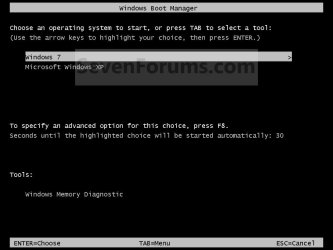
EXAMPLE: Windows Boot Manager
NOTE: This is the boot screen where you select what operating system that you would like to start. By default, you have 30 seconds to choose another operating system before the default operating system will start automatically.
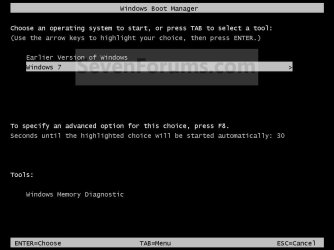
Example.jpg


OPTION ONE

When XP is Installed First


NOTE: If you have a RAID setup, you will need to have the Windows 7 RAID drivers on a USB flash drive available to select and load while installing Windows 7.
1. Do step 2 or 3 below for where you wanted to install Windows 7 at.

2. To Create a New Partition from the XP Hard Disk Drive
A) With your Windows 7 installation disc boot into the Command Prompt from the System Recovery Options screen.
NOTE: Make sure that the CD/DVD drive is selected first in the boot order in the BIOS.

B) In the command prompt, select and shrink the XP volume by how many MB (1024 MB = 1 GB) you want to have for this Windows 7 partition. (See screenshot below)
NOTE: You would do steps 2 to 9 in METHOD TWO at that link. Windows 7 will need a minimum of 16 GB (16384 MB).
XP-W7_1.jpg
C) Click on the X at the top right corner to close the command prompt. (See screenshot above)

D) Click on the X at the top right corner to close System Recovery Options. (See screenshot below)
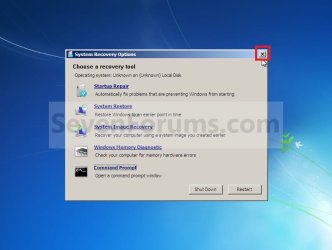
XP-W7_2.jpg
E) Go to step 4.
3. To Use a Separate Hard Disk Drive than the XP Drive
A) Boot from your Windows 7 installation disc.
NOTE: Make sure that the CD/DVD drive is selected first in the boot order in the BIOS.
4. Click on the Install now button. (See screenshot below)
XP-W7_3.jpg
5. When you get to this point, select the partition (step 2) or hard drive to install Windows 7 on. (See screenshot below)
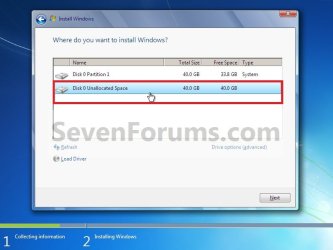
XP-W7_4.jpg
6. Finish installing Windows 7.
NOTE: You would start at step 9 in that link to finish installing Windows 7.

7. When finished, restart the computer to have the option to boot from XP (Earlier Verision of Windows) or Windows 7. (See screenshot below)

   Note
If you are only booting into Windows 7 and do not have XP listed in the Windows Boot Manager, then you can install only EasyBCD (step 8 Option Two below) to add XP (or Windows 7) while started in Windows 7 the same way to the boot list.

Example.jpg


OPTION TWO

When Windows 7 is Installed First


   Warning

1. To Create a New Partition from the Windows 7 Hard Disk Drive
NOTE: If you want to install XP on a separate internal hard drive instead, then skip this step and go to step 2.
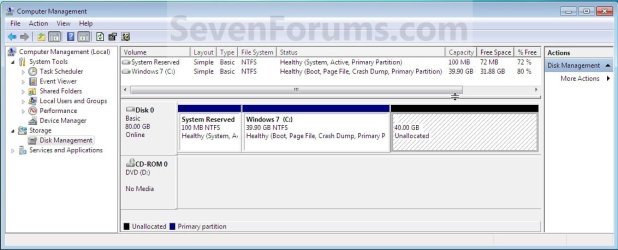
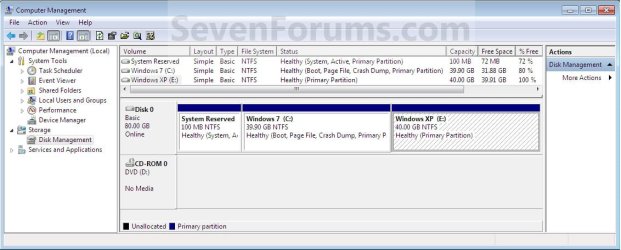
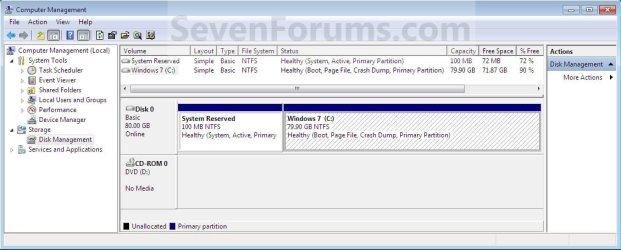
A) In Windows 7, select and shrink the Windows 7 volume in Disk Management by how many MB (1024 MB = 1 GB) you want to have for this XP partition. (See screenshots below)
NOTE: You would do all of Method One at that link.
W7-XP-1.jpg

W7-XP-2.jpg

W7-XP-3.jpg
2. Insert your XP installation disc, then restart the computer and press any key to boot from it when prompted. (See screenshot below)
NOTE: Make sure that the CD/DVD drive is selected first in the boot order in the BIOS.

Step1.jpg
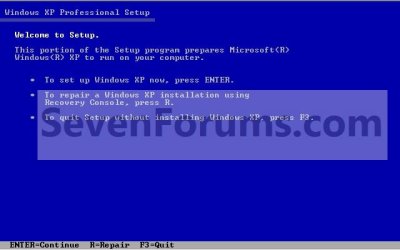
3. From XP Setup, Press Enter. (See screenshot below)


   Warning

W7-XP-4.jpg
4. Press F8. (See screenshot below)
NOTE: On some multimedia keyboards, you may need to press the F-Lock or Function key before pressing F8.
W7-XP-5.jpg
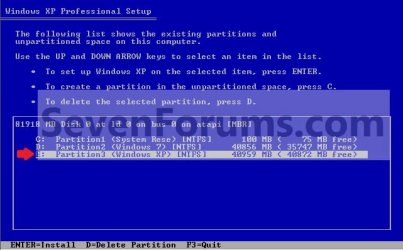
5. Select the partition (step 1) or hard drive that you want to install XP on using the arrow keys and press Enter.
W7-XP-6.jpg
6. Finish installing XP.


   Tip
If you get Error loading Operating System after XP restarts:
  • Using your Windows 7 installation disc, boot to the command prompt at startup.
  • Type in these comands below, and press enter after each one.
    • bootrec /FixMbr
    • bootrec /FixBoot
    • bootrec /RebuildBcd
  • Exit the command prompt and restart the computer.
  • At this point, Windows 7 should boot up the same way before trying to install XP.
  • Continue to step 8 below and run EasyBCD from Windows 7 instead.

7. In XP, download and install .Net Framework 2.0 (32-bit) version or .Net Framework 2.0 (64-bit) version first, and EasyBCD (free version) for your 32-bit (x86) or 64-bit (x86) XP.
NOTE: In XP, Net Framework is required to be installed to run EasyBCD. After you click on Register (at bottom of link) for the free EasyBCD, registration is not required to download it.

8. Run EasyBCD (free version).
NOTE: This is required to repair the Windows 7 boot file and add XP to the Windows Boot Manager list.

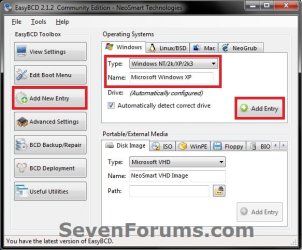
9. On the left side of EasyBCD, click on the Add New Entry button. (See screenshot below)
A) In the top section under Operating Systems, click on the Windows tab. (See screenshot below)
B) To the right of Type, select Windows NT/2k/XP/2k3 from the drop down menu. (See screenshot below)
:warn:WARNING: Be sure to leave the Automatically detect correct drive box checked.

C) To the right of Name, you can leave the default Microsoft Windows XP as the name to be displayed in the Windows Boot Manager, or you can type whatever name you would like to have instead. (See screenshot below)
D) Click on the Add Entry button. (See screenshot below)
W7-XP-7.jpg
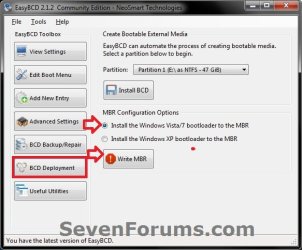
10. On the left side of EasyBCD, click on the BCD Deployment button, select (dot) the Install the Windows Vista/7 bootloader to the MBR option, and click on the Write MBR button. (See screenshot below)
W7-XP-9.jpg
11. Close EasyBCD.

12. Restart the computer to have the option to boot from Microsoft Windows XP or Windows 7. (See screenshot below)
Example2.jpg
   Tip
If Windows 7 will not start up when selected, then use your Windows 7 installation DVD to do a Startup Repair.

That's it,
Shawn


Last edited:
hey there, i'm currently attempting a dual boot with xp from a windows 7 laptop using the very helpful tutorial i found here: http://www.sevenforums.com/tutorials/8057-dual-boot-installation-windows-7-xp.html

i've sucessfully created a new partition by closely following the instructions, i restarted, booted from the windows XP disc, it said "Setup did not find any hard disk drives installed on your computer."

what did i do wrong?

Is your Lenovo NoteBook Windows 7 x64 installed in UEFI mode?
 

My Computer

OS
ME/XP/Vista/Win7
Try loading and running the Windows 7 Upgrade Advisor. It will provide you with a full report regarding compatability of your System, Devices and Programs. Also check compatability of components such as memory and sound cards. When I try loading Win7 Ultimate in my newly built PC, it failed to recognize the two separate video cards (HD 6000 series) I installed although these cards worked in my other PC. I had to buy a new Radeon HD 7000 series to make it work.
 

My Computer

Computer type
PC/Desktop
Computer Manufacturer/Model Number
Custom Built
OS
Windows XP Home Edition 32-Bit
CPU
3.2 GHz AMD Phenom II X4 955
Motherboard
Asus M3A32-MVP DeLuxe
Memory
3328 MBytes
Graphics Card(s)
AMD Radeon HD 6670
Hard Drives
WDC WD4000AAKS-00YGA0
Maxtor 6L300S0
Antivirus
Microsoft Security Essential
Browser
IE8
No offense but if you have 7 why have XP too? They have windows XP mode now for 7.
 

My Computer

Computer Manufacturer/Model Number
AsusTeK Computer Inc.
OS
Windows 7 Ultimate x64
CPU
AMD Athlon X2 x64
Motherboard
AsusTeK Computer Inc. M2N4-SLI
Memory
2GB
Graphics Card(s)
ATi Radeon HD 4600 Series
Sound Card
C-Media PCI Audio Card
Monitor(s) Displays
LG W2242TQ
Hard Drives
2 Seagate 320GB
PSU
Coolingman Black
Case
Too ancient to remember but is black.
Cooling
Fan
Why XP

There are lots of reasons why you still need XP, my printer for one is an old Lexmark X75 which runs fine and the cartridges are easily refillable. I refill them myself and have had a black cartridge last 2 years and must have refilled it 10 times at least. It wiill not run on 64 bit systems.
Some of the older games will not install properly either. Worms 3D being one, it will install but not run completly true to the old XP install, it misses the little movies. you can hear the sound but not the picture. Probably a codec issue, iv'e not bothered to find out.
On my new pc I have a triple boot, 7 Ultimate a new installation of XP and I managed to get my old version of XP running as well.
There are doubtless other older programs out there that will not run on 64 bit systems and what the hell I still like XP.
 

My Computer

Computer type
PC/Desktop
Computer Manufacturer/Model Number
ASUS N56VM
OS
Windows 7 Ultimate x64
CPU
intel i7 3610QM
Memory
8GB
Graphics Card(s)
Nvidia 630 M 2GB
Sound Card
Realtek HD Audio
Monitor(s) Displays
Laptop Display
Screen Resolution
1920 x1080 Native Resolution
Hard Drives
Seagate ST500LM012 HN-M500MBB 500GB
Keyboard
English UK
Mouse
Microsoft Trackball Explorer, Synaptics Touchpad
Internet Speed
17 Meg Broadfband
Browser
Chrome
Dual boot XP problem

I am currently using Win7 64bit and attempting to dual boot with 32bit XP on the same HDD. When installing XP things appear fine until the installation goes through a reboot which is followed by a blinking "underscore" cursor. In order to be able to boot back to Win7, I must go to the "system repair disk" and open a command prompt at boot in Win7. After entering the three commands I am then able to get back to the boot menu and then into Win7. However, this is a failed install of XP.

It looks as though my attempted installation of XP is corrupting the boot record and I am unable to get beyond the first automatic reboot of the XP installation. I have tried it both ways, from the original two XP disks and also from the iso disk created in nLite with the SATA driver files from the MB ASUS website.

Any suggestions?
 

My Computer

Computer type
PC/Desktop
OS
Win7 64bit
AHCI textmode drivers?

Have you nlited the AHCI textmode drivers? And of course the right one?

Somehow I had the trouble with a different mobo when trying it and it keeps rebooting after the initial reboot after the blue screen setup.
 

My Computer

Computer type
PC/Desktop
OS
Windows 8
If it sees the HD to select its partition then it shouldn't need the SATA driver. Are you using XP with SP3? This can be important.

Otherwise try deleting and then full formatting the target partition from the disk. Where did you get the disk? How are both being activated?
 
Blue Screen when booting to WinXP

Below is my situation-
I have a DELL precision 7500 (old PC) with WinXP 32 bit, no RAID configuration which is leased and is due to be returned. My new DELL precision 7600 (new PC) has Win7 64 bit by default , with RAID0 configuration (2HDD shown as a single virtual drive).
All HDD from both PCs are SATA disks

I want to have both Win7 and WinXP in dual boot configuration on the new PC.

I have done the steps below following the instructions from this forum
1. Added the WinXP drive (300 GB) from the old PC to the new PC.
2.Booted into the Win7 as usual. The WinXP drive was detected as D drive and the new PC HDD is C drive.
3. Installed EasyBCD 2.2 and followed the steps
3a. Add New Entry->Windows NT/2k/XP/2k3 (Automatically determined drive)->Add Entry
3b. BCD Deployment->Install the Windows Vista/7 bootloader to the MBR -> Write MBR
4. Restarted the machine, now I get the two options in boot screen
Win7- no problem, loads fine and works as usual
WinXP - enters the select boot type for WinXP (i.e safe mode, last known config.. and other options screen) and enters blue screen on selection of any option

I looked into the EasyBCD->Advanced Settings. For the "Microsoft Windows XP" the settings show the drive as C:\ which does not look right as the drive which has XP is D:\ drive from old pc.

Request to suggest on how to resolve my issue!
Are steps 3a & 3b correct? Where did I go wrong? Should I install any SATA drivers?
I have any programs installed in WinXP and want to retain 32bit platform for development along with 64bit for increased RAM access..
thanks in advance!!
 

My Computer

Computer type
PC/Desktop
Computer Manufacturer/Model Number
Dell
OS
Windows 7
CPU
Precision
Below is my situation-
I have a DELL precision 7500 (old PC) with WinXP 32 bit, no RAID configuration which is leased and is due to be returned. My new DELL precision 7600 (new PC) has Win7 64 bit by default , with RAID0 configuration (2HDD shown as a single virtual drive).
All HDD from both PCs are SATA disks

I want to have both Win7 and WinXP in dual boot configuration on the new PC.

I have done the steps below following the instructions from this forum
1. Added the WinXP drive (300 GB) from the old PC to the new PC.
2.Booted into the Win7 as usual. The WinXP drive was detected as D drive and the new PC HDD is C drive.
3. Installed EasyBCD 2.2 and followed the steps
3a. Add New Entry->Windows NT/2k/XP/2k3 (Automatically determined drive)->Add Entry
3b. BCD Deployment->Install the Windows Vista/7 bootloader to the MBR -> Write MBR
4. Restarted the machine, now I get the two options in boot screen
Win7- no problem, loads fine and works as usual
WinXP - enters the select boot type for WinXP (i.e safe mode, last known config.. and other options screen) and enters blue screen on selection of any option

I looked into the EasyBCD->Advanced Settings. For the "Microsoft Windows XP" the settings show the drive as C:\ which does not look right as the drive which has XP is D:\ drive from old pc.

Request to suggest on how to resolve my issue!
Are steps 3a & 3b correct? Where did I go wrong? Should I install any SATA drivers?
I have any programs installed in WinXP and want to retain 32bit platform for development along with 64bit for increased RAM access..
thanks in advance!!

You could use Paragon Adaptive Restore 3.0 for adjusting WinXP for the new hardware.
Paragon Paragon Adaptive Restore - Overview
but you will need a new Win XP licence for the new hardware.
 

My Computer

OS
ME/XP/Vista/Win7
In addition you only needed to add XP using EasyBCD, not any other procedure. You can alway Delete it in Easy Edit OS tab and add it again to be sure.

But you're likely running into lack of SATA drivers and any OS when moved to new hardware almost always needs adjustment using a program like PAR which Theog mentions, Acronis Universal Restore or a free method would be on the old PC using SysPrep to move HD to another computer.

If this was preinstalled XP OEM then as Theog says you'll need a new license.
 
Dual boot on 2 separates SSD, is my win7 raid1 extra data drives safe?

Hello everyone,

I'm unsure if my current configuration is ok to try a dualboot. I've read the tutos many times but cant figure it all out :o.

My current configuration is as follow :
Board: P55-GD65 (v1.0), bios V1.10
SSD1: INTEL SSDSA2M080G2GC (windows 7 x64 on it)
SSD2: planning to buy one to host WinXP PRO SP2 x32
RAID1: 2 SATA SAMSUNG 1TO drives

So i already have win7 installed, and i need a winXp to play an old game (Priston tale) that does run poorly on win7 (I have another pc with inferior specs running the game much better, but it's very noisy and cant stand having it powered on).

My main concern :zip: is :
Will I loose the RAID1 data when installing XP ? If i did get the tutorial right, i do not need to load the RAID drivers (F6) at boot time, but then I'm afraid of winXP reverting the raid drives to normal, clearing them or messing it up...

I plan on doing a "create a system image" from Win7 first, but I'm not sure if that will help in case of a failure (some win7 files -user docs data, app data- were moved on the raid, via symlink).

On a note: having a 2nd SSD is not a requirement, I have nothing against installing XP on the raid array as long as i don't loose any existent data on it...

I hope that I gave enough info's for you guys to understand my concerns, and that you can give me some advice.

Any insight appreciated !
 

My Computer

Computer type
PC/Desktop
OS
Windows 7 Home Premium SP1

My Computer

Computer type
PC/Desktop
Computer Manufacturer/Model Number
Self built custom
OS
64-bit Windows 11 Pro for Workstations
CPU
Intel i7-8700K OC'd to 5 GHz
Motherboard
ASUS ROG Maximus XI Formula Z390
Memory
64 GB (4x16GB) G.SKILL TridentZ RGB DDR4 3600 MHz
Graphics Card(s)
ASUS ROG-STRIX-GTX1080TI-O11G-GAMING
Sound Card
Integrated
Monitor(s) Displays
2 x Samsung Odyssey G7 27"
Screen Resolution
2560x1440
Hard Drives
1TB Samsung 990 PRO M.2,
4TB Samsung 990 PRO PRO M.2,
TerraMaster F8 SSD Plus NAS
PSU
Seasonic Prime Titanium 850W
Case
Thermaltake Core P3
Cooling
Corsair Hydro H115i
Keyboard
Logitech wireless K800
Mouse
Logitech MX Master 4
Internet Speed
2 Gb/s Download and 100 Mb/s Upload
Antivirus
Malwarebyte Anti-Malware Premium
Browser
Google Chrome
Other Info
Logitech Z625 speaker system,
Logitech BRIO 4K Pro webcam,
HP Color LaserJet Pro MFP M477fdn,
APC SMART-UPS RT 1000 XL - SURT1000XLI,
Galaxy S23 Plus phone
Hello Brink,

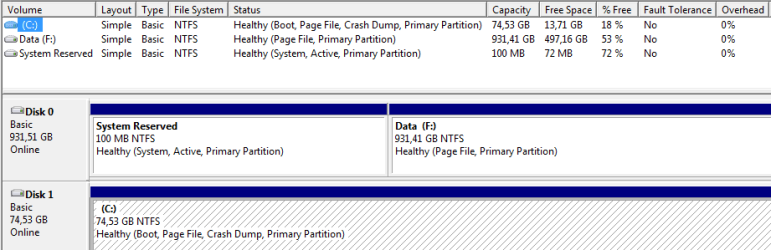
Here is the screenshot of the disk management view.

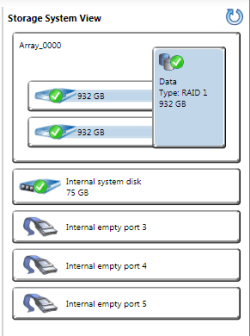
I've also added the Storage System View shown by Intel Rapid Storage Technology.

I was having issues with the SATA DVD/RW drive (it was disappearing randomly from the system) so I've disconnected it, and you can't see the 2nd SSD drive yet (on my way buying one today).

Thank you for your help! :D
 

Attachments

  • rykho_disk_management.PNG
    rykho_disk_management.PNG
    21.9 KB · Views: 151
  • rykho_intel_rst_view.PNG
    rykho_intel_rst_view.PNG
    25.6 KB · Views: 158

My Computer

Computer type
PC/Desktop
OS
Windows 7 Home Premium SP1
By installing to the SSD with the 1tb still plugged in, it placed the boot files on the 1tb System Reserved partition. This is why all other HD's should be unplugged during install.

You can either leave this as it is keeping mindful that Win7 cannot boot without the 1tb plugged in, or you can repair it by marking C Active, then unplugging the 1tb array long enough to run Startup Repair - Run up to 3 Separate Times until the System flag is on C signifying it has its own boot files now.

Once this is done you'd plug back in the 1tb making sure the SSD remains first to boot in BIOS setup, mark System Reserved Inactive so you can delete it: Partition - Mark as Inactive - Windows 7 Forums.
Partition or Volume - Delete

Likewise you'd unplug all other drives when you install XP to the SSD, afterwards setting Win7 SSD to boot first and using the one-time BIOS Boot Menu key to boot into XP if needed. If you don't like this arrangement, you can install EasyBCD (click Download - no Name or Email required) to Win7 to add XP to a Windows Dual Boot menu.

If unplugging the RAID to do the repairs is not something you want to do then you can move the System boot files to C using EasyBCD, mark Inactive and Delete System Reserved, then unplug Win7 SSD during XP install. The downside to this method is you will lose WinRe from the F8 boot tools menu since Easy does not rewrite the link. http://www.sevenforums.com/tutorials/209885-bootmgr-move-c-easybcd.html
 
In addition to what Greg posted: :)

If Disk 0 is your RAID drive, then you are going to need to have your RAID drivers handy to load during the start of installation of XP since your "System Reserved" (MBR) partition is on the RAID (Disk 0) drive.

XP will be need to be able to see the RAID drive to add it's MBR to the "System Reserved" partition. Your data on the 932 GB partition will remain unaffected though.

You could do what Greg posted to work around the "System Reserved" partition, or this to install XP with it.
 

My Computer

Computer type
PC/Desktop
Computer Manufacturer/Model Number
Self built custom
OS
64-bit Windows 11 Pro for Workstations
CPU
Intel i7-8700K OC'd to 5 GHz
Motherboard
ASUS ROG Maximus XI Formula Z390
Memory
64 GB (4x16GB) G.SKILL TridentZ RGB DDR4 3600 MHz
Graphics Card(s)
ASUS ROG-STRIX-GTX1080TI-O11G-GAMING
Sound Card
Integrated
Monitor(s) Displays
2 x Samsung Odyssey G7 27"
Screen Resolution
2560x1440
Hard Drives
1TB Samsung 990 PRO M.2,
4TB Samsung 990 PRO PRO M.2,
TerraMaster F8 SSD Plus NAS
PSU
Seasonic Prime Titanium 850W
Case
Thermaltake Core P3
Cooling
Corsair Hydro H115i
Keyboard
Logitech wireless K800
Mouse
Logitech MX Master 4
Internet Speed
2 Gb/s Download and 100 Mb/s Upload
Antivirus
Malwarebyte Anti-Malware Premium
Browser
Google Chrome
Other Info
Logitech Z625 speaker system,
Logitech BRIO 4K Pro webcam,
HP Color LaserJet Pro MFP M477fdn,
APC SMART-UPS RT 1000 XL - SURT1000XLI,
Galaxy S23 Plus phone
Hi Greg, Brink, thank you for your prompt reply.:)

So, I went to the store and came back with a Kingston SV300 (60gb).

1- I first deleted the "System Reserved" volume and relocate the MBR on the win7' SSD

2- I then tried to claim the unallocated space (100MB) after reading http://www.sevenforums.com/tutorials/2670-partition-volume-extend.html, option 2. But no chance : it seems I would need Partition Wizard according to Brink (that 100MB lost isn't a problem after all)

3- After disconnecting all drives but the SV300 and the DVD, I did try to install XP on it following Greg's steps, but I was banging my head on a BSOD, until I'd changed the on-chip SATA Controler RAID mode in bios setup (from RAID to IDE)
Problem is I didn't follow Brink's advice to get XP's RAID driver handy during setup (no floppy)

4- I've modified the MBR using easybcd to add the winXP boot


So both OS are now booting properly! :cool:, but only if I choose on-chip SATA=RAID to boot win7, and IDE to boot XP (if I set to RAID, xp boots then BSOD followed by instant reboot): not very practical to enter Setup, change this setting, and the boot order that is also messed up everytime i switch the raid mode.

I'm doing some research to see if letting the raid mode to IDE would cause any trouble to my win7 setup, but I'm not sure yet.
Maybe I'm better off trying to reinstall winXP with RAID or AHCI loaded (USB drive, slipstream ? not sure again). I've browsed XP forums and some users managed to activate the drivers post-installation, with a bit of registry hacking, but I feel it's not worth it in my case.

I'm close to my goal, so thanks a lot to you guys!:D.
If you got any other advice, I'd be glad to read it :)
 

My Computer

Computer type
PC/Desktop
OS
Windows 7 Home Premium SP1
Hi Rykho

3- After disconnecting all drives but the SV300 and the DVD, I did try to install XP on it following Greg's steps, but I was banging my head on a BSOD, until I'd changed the on-chip SATA Controler RAID mode in bios setup (from RAID to IDE)
Problem is I didn't follow Brink's advice to get XP's RAID driver handy during setup (no floppy)

Set the BIOS to raid,
You could use Paragon Adaptive Restore 3.0 for adjusting the WinXP SATA Controller drivers.
Paragon Paragon Adaptive Restore - Overview
 

My Computer

OS
ME/XP/Vista/Win7
Hi theog,

thanks for the tip, but I could not get my hand on a working demo of the adaptive restore product, so i opted for the reinstall with a slipstreamed iso, although it was painful.:mad:

Now everything seems to be working perfectly.:D

Lots of thanks to you guys for all the help!

So long !
 

My Computer

Computer type
PC/Desktop
OS
Windows 7 Home Premium SP1
Hello!

I have this... I brought a laptop, few years ago with preinstalled Win7. I'd love to install XP on it too, but what if I don't have an installation disc of Seven? Just non-used XP disc.

I'm really scared of damaged Seven.

(I don't know if it is consulted, there is too many pages :confused:)
 

My Computer

Computer type
Laptop
Computer Manufacturer/Model Number
Lenovo ThinkPad SL500
OS
Windows 7 Ultimate 64-bit
CPU
Intel Core 2 Duo T6570 @ 2.1Ghz 2.1Ghz
Motherboard
Intel Cantiga GM45
Memory
DDR2 4GB
Graphics Card(s)
Intel GMA X4500
Monitor(s) Displays
15,6"
Screen Resolution
1280x800
Hard Drives
90GB (5400M)
470GB (5400M)
Antivirus
Eset Smart Security
Browser
Mozilla Firefox

My Computer

Computer type
PC/Desktop
Computer Manufacturer/Model Number
Golden Mk. I.4
OS
Windows 10 Pro x64 ; Xubuntu x64
CPU
Intel i7 860 @ 2.80 GHz O/C'ed to 4.0GHz
Motherboard
Gigabyte P55A-UD3R Rev.1. Award BIOS F13
Memory
16GB Corsair Vengance DDR3 @ 661 MHz Dual Channel (9-9-9-24)
Graphics Card(s)
EVGA NVidia GTX 560 1024MB
Sound Card
Realtek Integrated
Monitor(s) Displays
Dual Samsung SyncMaster 2494HS
Screen Resolution
1920*1080 and 1920*1080
Hard Drives
1*Samsung 840 EVO 120GB SSD;
1*OCZ Vertex 2 60GB SSD;
2*Samsung F3 SpinPoint 1TB in RAID0;
1*Samsung F1 SpinPoint 1TB;
2*Western Digital 1TB External USB 3.0
1*Western Digital 500GB External USB 3.0
1*Seagate 500GB External USB 2.0
PSU
Thermaltake ToughPower QFan 750W
Case
Thermaltake Element S VK60001W2Z
Cooling
Corsair H60 Water Cooling, 2*230mm and 2*80mm case fans
Keyboard
Logitech G110
Mouse
Logitech MX518
Back
Top