Dual Boot Installation with Windows 7 and XP

How to Setup a Dual Boot Installation with Windows 7 and XP


   Information
This will show you how to install Windows 7 and XP to dual boot with when you already have either Windows 7 or XP installed first.
   Note
With a dual boot installaton, you will have two operating systems (OS) installed. When you start the computer, you will have the choice to choose which OS you would like to start up to. This method is the easiest way of doing a dual boot with these two operating systems.
   Tip
When dual booting with another OS (ex: Vista or XP), you may not always have that OS partition show up in Computer with a driver letter in Windows 7. If this happens, then you will just need to add a drive letter to the OS (ex: Vista or XP) partition in Windows 7 Disk Management for it to show up in Computer with a driver letter.
   Warning
To stop XP from deleting your Windows 7 System Restore Points everytime XP is started, then see System Restore Points - Stop XP Dual Boot Delete to hide Windows 7 from XP.

Windows 7 Minimum Hardware Requirements


NOTE: For more information on this, see: Windows 7 system requirements
  • 1 GHz 32-bit or 64-bit processor
  • 1 GB RAM for 32-bit Windows 7 OR 2 GB RAM for 64-bit Windows 7
  • 16 GB available disk space 32-bit Windows 7 OR 20 GB for 64-bit Windows 7
  • Support for DirectX 9 graphics with 128 MB memory (in order to enable Aero theme)
  • DVD-R/W Drive
  • Internet or phone access to activate Windows 7.
Windows XP Minimum Hardware Requirements

NOTE: For more information on this, see: System requirements for Windows XP operating systems
  • PC with 300 megahertz (MHz) or higher processor clock speed recommended; 233-MHz minimum required;* Intel Pentium/Celeron family, AMD K6/Athlon/Duron family, or compatible processor recommended
  • 128 megabytes (MB) of RAM or higher recommended (64 MB minimum supported; may limit performance and some features)
  • 1.5 gigabyte (GB) of available hard disk space.*
  • Super VGA (800 × 600) or higher resolution video adapter and monitor
  • CD-ROM or DVD drive
  • Keyboard and Microsoft Mouse or compatible pointing device
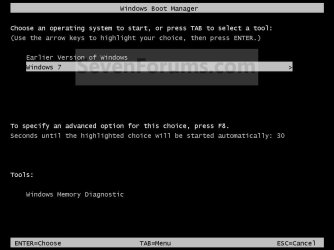
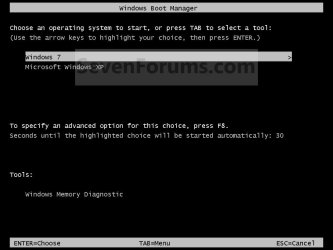
EXAMPLE: Windows Boot Manager
NOTE: This is the boot screen where you select what operating system that you would like to start. By default, you have 30 seconds to choose another operating system before the default operating system will start automatically.
Example.jpg


OPTION ONE

When XP is Installed First


NOTE: If you have a RAID setup, you will need to have the Windows 7 RAID drivers on a USB flash drive available to select and load while installing Windows 7.
1. Do step 2 or 3 below for where you wanted to install Windows 7 at.

2. To Create a New Partition from the XP Hard Disk Drive
A) With your Windows 7 installation disc boot into the Command Prompt from the System Recovery Options screen.
NOTE: Make sure that the CD/DVD drive is selected first in the boot order in the BIOS.

B) In the command prompt, select and shrink the XP volume by how many MB (1024 MB = 1 GB) you want to have for this Windows 7 partition. (See screenshot below)
NOTE: You would do steps 2 to 9 in METHOD TWO at that link. Windows 7 will need a minimum of 16 GB (16384 MB).
XP-W7_1.jpg
C) Click on the X at the top right corner to close the command prompt. (See screenshot above)

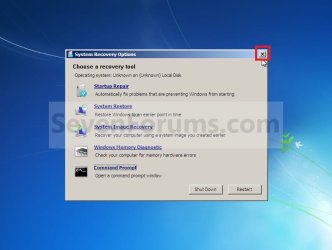
D) Click on the X at the top right corner to close System Recovery Options. (See screenshot below)
XP-W7_2.jpg
E) Go to step 4.
3. To Use a Separate Hard Disk Drive than the XP Drive
A) Boot from your Windows 7 installation disc.
NOTE: Make sure that the CD/DVD drive is selected first in the boot order in the BIOS.
4. Click on the Install now button. (See screenshot below)
XP-W7_3.jpg
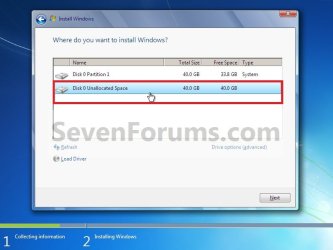
5. When you get to this point, select the partition (step 2) or hard drive to install Windows 7 on. (See screenshot below)
XP-W7_4.jpg
6. Finish installing Windows 7.
NOTE: You would start at step 9 in that link to finish installing Windows 7.

7. When finished, restart the computer to have the option to boot from XP (Earlier Verision of Windows) or Windows 7. (See screenshot below)

   Note
If you are only booting into Windows 7 and do not have XP listed in the Windows Boot Manager, then you can install only EasyBCD (step 8 Option Two below) to add XP (or Windows 7) while started in Windows 7 the same way to the boot list.

Example.jpg


OPTION TWO

When Windows 7 is Installed First


   Warning

1. To Create a New Partition from the Windows 7 Hard Disk Drive
NOTE: If you want to install XP on a separate internal hard drive instead, then skip this step and go to step 2.
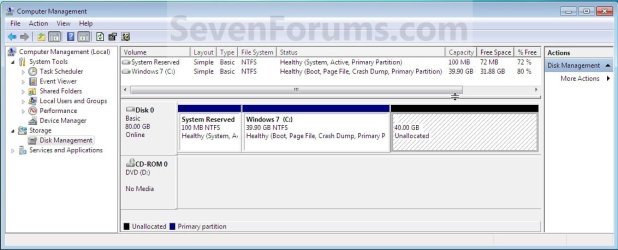
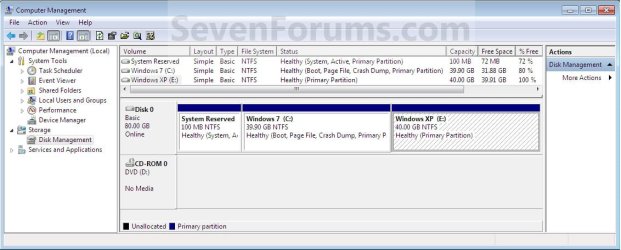
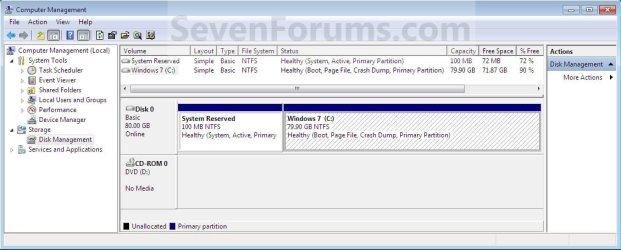
A) In Windows 7, select and shrink the Windows 7 volume in Disk Management by how many MB (1024 MB = 1 GB) you want to have for this XP partition. (See screenshots below)
NOTE: You would do all of Method One at that link.
W7-XP-1.jpg

W7-XP-2.jpg

W7-XP-3.jpg
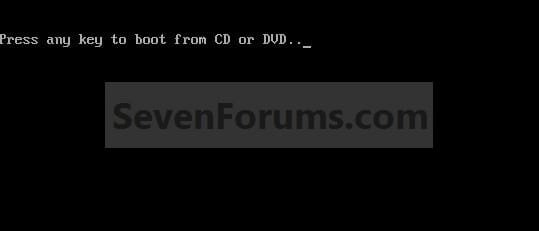
2. Insert your XP installation disc, then restart the computer and press any key to boot from it when prompted. (See screenshot below)
NOTE: Make sure that the CD/DVD drive is selected first in the boot order in the BIOS.
Step1.jpg
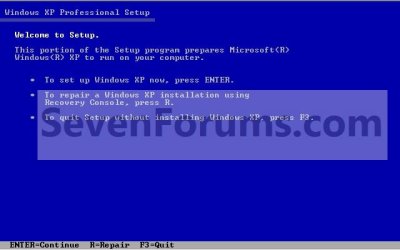
3. From XP Setup, Press Enter. (See screenshot below)


   Warning

W7-XP-4.jpg
4. Press F8. (See screenshot below)
NOTE: On some multimedia keyboards, you may need to press the F-Lock or Function key before pressing F8.
W7-XP-5.jpg
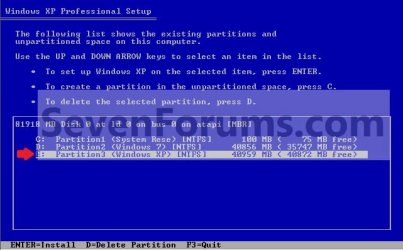
5. Select the partition (step 1) or hard drive that you want to install XP on using the arrow keys and press Enter.
W7-XP-6.jpg
6. Finish installing XP.


   Tip
If you get Error loading Operating System after XP restarts:
  • Using your Windows 7 installation disc, boot to the command prompt at startup.
  • Type in these comands below, and press enter after each one.
    • bootrec /FixMbr
    • bootrec /FixBoot
    • bootrec /RebuildBcd
  • Exit the command prompt and restart the computer.
  • At this point, Windows 7 should boot up the same way before trying to install XP.
  • Continue to step 8 below and run EasyBCD from Windows 7 instead.

7. In XP, download and install .Net Framework 2.0 (32-bit) version or .Net Framework 2.0 (64-bit) version first, and EasyBCD (free version) for your 32-bit (x86) or 64-bit (x86) XP.
NOTE: In XP, Net Framework is required to be installed to run EasyBCD. After you click on Register (at bottom of link) for the free EasyBCD, registration is not required to download it.

8. Run EasyBCD (free version).
NOTE: This is required to repair the Windows 7 boot file and add XP to the Windows Boot Manager list.

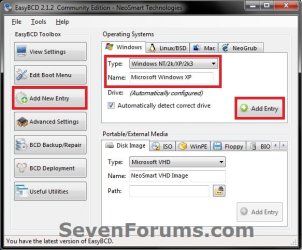
9. On the left side of EasyBCD, click on the Add New Entry button. (See screenshot below)
A) In the top section under Operating Systems, click on the Windows tab. (See screenshot below)
B) To the right of Type, select Windows NT/2k/XP/2k3 from the drop down menu. (See screenshot below)
:warn:WARNING: Be sure to leave the Automatically detect correct drive box checked.

C) To the right of Name, you can leave the default Microsoft Windows XP as the name to be displayed in the Windows Boot Manager, or you can type whatever name you would like to have instead. (See screenshot below)
D) Click on the Add Entry button. (See screenshot below)
W7-XP-7.jpg
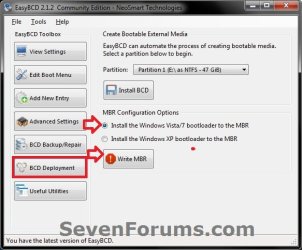
10. On the left side of EasyBCD, click on the BCD Deployment button, select (dot) the Install the Windows Vista/7 bootloader to the MBR option, and click on the Write MBR button. (See screenshot below)
W7-XP-9.jpg
11. Close EasyBCD.

12. Restart the computer to have the option to boot from Microsoft Windows XP or Windows 7. (See screenshot below)
Example2.jpg
   Tip
If Windows 7 will not start up when selected, then use your Windows 7 installation DVD to do a Startup Repair.

That's it,
Shawn


Last edited:

My Computer

Computer type
Laptop
Computer Manufacturer/Model Number
Lenovo ThinkPad SL500
OS
Windows 7 Ultimate 64-bit
CPU
Intel Core 2 Duo T6570 @ 2.1Ghz 2.1Ghz
Motherboard
Intel Cantiga GM45
Memory
DDR2 4GB
Graphics Card(s)
Intel GMA X4500
Monitor(s) Displays
15,6"
Screen Resolution
1280x800
Hard Drives
90GB (5400M)
470GB (5400M)
Antivirus
Eset Smart Security
Browser
Mozilla Firefox
XP showing wrong letter for C drive

Hi All!

I'd like to say thanks for the great tutorial, as it worked great for me except for one thing...

(This is in reference to using a SINGLE drive for dual boot)

Has anyone come up with a solution for folks who install 7 first, and have the unfortunate side effect of XP assigning the C drive letter to the "System Reserved" 100mb partition? Everywhere I look, I read that it is impossible to change the letter of the boot drive. Assuming that this is a universal issue (I certainly found plenty of unsolved examples of it online) I think it would be a great service to readers if the post author would add this caveat into the instructions for dual booting with 7 as the initial installation.....or maybe a note encouraging users NOT to install 7 first if at all possible.

For the folks who may ask the question "why does it matter if your boot drive is F and not C?", it is because some older programs (ostensibly the reason one chooses to dual boot XP in the first place) do not offer the option of choosing which drive they install to, and default to C: Program Files.

As it stands, I'm looking at a weekend of removing 7 from my HDD (which I had gotten nicely settled into already and all set up) as well as XP, and reinstalling them in the reverse order. To be completely honest, this is a bit frustrating, considering that I feel I followed the instructions to the letter, only to receive a nasty surprise at the end.

Sorry about the venting, and I really do appreciate the help I've received so far from this forum...I'm just bummed cos this could've been avoided so easily, considering that I started with a fresh HDD and chose to install 7 first, all things being equal, because the directions looked easier. Unfortunately, all things were not equal. ;)
 
Last edited:

My Computer

Computer type
PC/Desktop
Computer Manufacturer/Model Number
Self built custom
OS
Windows 7 Ultimate x64 & Windows XP Professional
CPU
Intel i3 3220 3.3ghz Ivy Bridge w/ stock cooler
Motherboard
ASRock B75 Pro3-M
Memory
Corsair Vengeance Blue 8 GB
Graphics Card(s)
Nvidia 8800GTS 512
Screen Resolution
1440x900 & 1080p
Hard Drives
WD Blue 1 TB, 7200 RPM, SATA 6 Gb/s, 64
MB Cache - WD10EZEX
Case
NZXT Apollo
Internet Speed
FIOS 25/15?
Antivirus
Avast
Browser
FF/IE
This might be avoidable by marked the intended XP partition Active first, so the boot files are directed to there. Mark Partition Active It is unusual enough I can't remember it.


That sounds interesting, but it says:

"There can be only one active partition per physical hard disk."

Doesn't that spell trouble for my Windows 7 installation?

Also a concern is this:

"Do not mark a partition as active if it doesn't contain the loader for an operating system. Doing so will make your computer unbootable."

Thoughts?
 

My Computer

Computer type
PC/Desktop
Computer Manufacturer/Model Number
Self built custom
OS
Windows 7 Ultimate x64 & Windows XP Professional
CPU
Intel i3 3220 3.3ghz Ivy Bridge w/ stock cooler
Motherboard
ASRock B75 Pro3-M
Memory
Corsair Vengeance Blue 8 GB
Graphics Card(s)
Nvidia 8800GTS 512
Screen Resolution
1440x900 & 1080p
Hard Drives
WD Blue 1 TB, 7200 RPM, SATA 6 Gb/s, 64
MB Cache - WD10EZEX
Case
NZXT Apollo
Internet Speed
FIOS 25/15?
Antivirus
Avast
Browser
FF/IE
Yes but XP normally steals the System flag to its partition from Win7 anyway, requiring 7 to be repaired to add XP to a Dual Boot. Adding Win7 from XP has become increasingly troublesome over time - is this what you did?

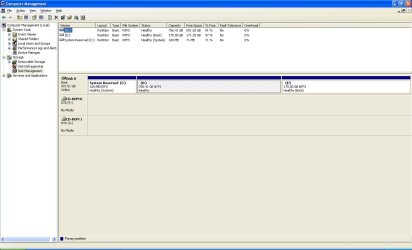
Can you post back a screenshot of your Disk Management - Post a Screen Capture Image - Windows 7 Help Forums as viewed from both XP and Win7. For XP you'll need to Print Screen and paste to Paint: Screenshot with Paint

I can definitely post a screenshot, but it probably won't be for another 2 hours, if you're still online then. Everything looked as expected, per the tutorial, but I'll post it up soon.

As for switching the active partition, which of the 3 methods would you recommend? I'm guessing the 3rd one, but if it can be done within 7, that would save me a little time.

Edit: yes, I did add 7 from inside of XP using EasyBCD.
 
Last edited:

My Computer

Computer type
PC/Desktop
Computer Manufacturer/Model Number
Self built custom
OS
Windows 7 Ultimate x64 & Windows XP Professional
CPU
Intel i3 3220 3.3ghz Ivy Bridge w/ stock cooler
Motherboard
ASRock B75 Pro3-M
Memory
Corsair Vengeance Blue 8 GB
Graphics Card(s)
Nvidia 8800GTS 512
Screen Resolution
1440x900 & 1080p
Hard Drives
WD Blue 1 TB, 7200 RPM, SATA 6 Gb/s, 64
MB Cache - WD10EZEX
Case
NZXT Apollo
Internet Speed
FIOS 25/15?
Antivirus
Avast
Browser
FF/IE
What letter is XP booting as? Is its partition Logical?

XP is booting as E and I can't remember the designation, but I believe it was the same as my Windows 7 partition. I'll get the specifics for you as soon as I can get to the machine :)

I really appreciate the help!
 
Last edited:

My Computer

Computer type
PC/Desktop
Computer Manufacturer/Model Number
Self built custom
OS
Windows 7 Ultimate x64 & Windows XP Professional
CPU
Intel i3 3220 3.3ghz Ivy Bridge w/ stock cooler
Motherboard
ASRock B75 Pro3-M
Memory
Corsair Vengeance Blue 8 GB
Graphics Card(s)
Nvidia 8800GTS 512
Screen Resolution
1440x900 & 1080p
Hard Drives
WD Blue 1 TB, 7200 RPM, SATA 6 Gb/s, 64
MB Cache - WD10EZEX
Case
NZXT Apollo
Internet Speed
FIOS 25/15?
Antivirus
Avast
Browser
FF/IE
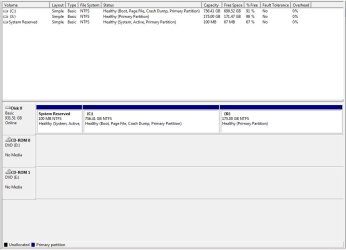
OK, here they go. Thanks again, :)

I don't see any mention of logical, alas.
 

Attachments

  • Capture.JPG
    Capture.JPG
    79.4 KB · Views: 110
  • CaptureXP.JPG
    CaptureXP.JPG
    117.9 KB · Views: 117

My Computer

Computer type
PC/Desktop
Computer Manufacturer/Model Number
Self built custom
OS
Windows 7 Ultimate x64 & Windows XP Professional
CPU
Intel i3 3220 3.3ghz Ivy Bridge w/ stock cooler
Motherboard
ASRock B75 Pro3-M
Memory
Corsair Vengeance Blue 8 GB
Graphics Card(s)
Nvidia 8800GTS 512
Screen Resolution
1440x900 & 1080p
Hard Drives
WD Blue 1 TB, 7200 RPM, SATA 6 Gb/s, 64
MB Cache - WD10EZEX
Case
NZXT Apollo
Internet Speed
FIOS 25/15?
Antivirus
Avast
Browser
FF/IE
I don't remember this situation from the days when we dealt with several of these Dual Boots a day here. Maybe someone else does.

What I remember is that XP is only smart enough to place its own boot files on its own partition, clumsily stealing the boot from Win7 if installed last.

But the rule of thumb when an OS can place it's boot files on another Active partition as Win7 does is to mark the target partition Active if that's where you want the boot files to go.

This is assuming it gave System Reserved the letter C because the boot files were written there.

After XP install, Mark Win7 Partition Active and run Startup Repair - Run up to 3 Separate Times until Win7 starts, install Easy BCD to add XP.
 
I don't remember this situation from the days when we dealt with several of these Dual Boots a day here. Maybe someone else does.

What I remember is that XP is only smart enough to place its own boot files on its own partition, clumsily stealing the boot from Win7 if installed last.

But the rule of thumb when an OS can place it's boot files on another Active partition as Win7 does is to mark the target partition Active if that's where you want the boot files to go.

This is assuming it gave System Reserved the letter C because the boot files were written there.

After XP install, Mark Win7 Partition Active and run Startup Repair - Run up to 3 Separate Times until Win7 starts, install Easy BCD to add XP.

I'm confused. How will that help XP install to the X drive (as its labelled in 7) instead of the system reserved partition?

Could you elaborate? Am I reinstalling XP but leaving my current 7 installation alone since everything is where it should be?

Edit: apparently I found the magical google search keyword sequence: dual boot xp made "system reserved" the c drive - Google Search

Investigating...
 
Last edited:

My Computer

Computer type
PC/Desktop
Computer Manufacturer/Model Number
Self built custom
OS
Windows 7 Ultimate x64 & Windows XP Professional
CPU
Intel i3 3220 3.3ghz Ivy Bridge w/ stock cooler
Motherboard
ASRock B75 Pro3-M
Memory
Corsair Vengeance Blue 8 GB
Graphics Card(s)
Nvidia 8800GTS 512
Screen Resolution
1440x900 & 1080p
Hard Drives
WD Blue 1 TB, 7200 RPM, SATA 6 Gb/s, 64
MB Cache - WD10EZEX
Case
NZXT Apollo
Internet Speed
FIOS 25/15?
Antivirus
Avast
Browser
FF/IE
Marking XP partition Active in advance of install may tell the XP installer where to place the boot files so that it becomes self contained and views itself as C.

You can do this in Win7 Disk Mgmt, delete XP partition, create it again NTFS Primary and mark Active. Partition or Volume - Create New
Partition - Mark as Active (Method Two)

Install XP. After install boot Win7 DVD to change Active flag to System Reserved, run Startup Repair - Run up to 3 Separate Times until Win7 boots.

Install EasyBCD, add XP from Win7.
 
Marking XP partition Active in advance of install may tell the XP installer where to place the boot files so that it becomes self contained and views itself as C.

You can do this in Win7 Disk Mgmt, delete XP partition, create it again NTFS Primary and mark Active. Partition or Volume - Create New
Partition - Mark as Active (Method Two)

Install XP. After install boot Win7 DVD to change Active flag to System Reserved, run Startup Repair - Run up to 3 Separate Times until Win7 boots.

Install EasyBCD, add XP from Win7.

It worked! C is what it should be. :) Thanks! Would it be possible to update the tutorial to include those steps as a precaution?

Unfortunately, it didn't take long for me to break it. You see, when it booted, there were 2 entries for XP.

I decided to try and delete the extra entry with EasyBCD's Edit function (after checking to make sure both XP entries booted) and...oopsies! Now I'm getting an "NST/ntldr" error on XP startup, and when I try to repair it, as the error suggests, the XP disc just tries to reinstall. I can't get into recovery mode (this disturbs me and I can't solve it). Researching it now...

I suck! :cry:

Edit: I fixed it using your instructions here.

Thanks a bunch for all the help!
 

My Computer

Computer type
PC/Desktop
Computer Manufacturer/Model Number
Self built custom
OS
Windows 7 Ultimate x64 & Windows XP Professional
CPU
Intel i3 3220 3.3ghz Ivy Bridge w/ stock cooler
Motherboard
ASRock B75 Pro3-M
Memory
Corsair Vengeance Blue 8 GB
Graphics Card(s)
Nvidia 8800GTS 512
Screen Resolution
1440x900 & 1080p
Hard Drives
WD Blue 1 TB, 7200 RPM, SATA 6 Gb/s, 64
MB Cache - WD10EZEX
Case
NZXT Apollo
Internet Speed
FIOS 25/15?
Antivirus
Avast
Browser
FF/IE
Really glad to hear you got it fixed, and to bring us up to date on the fix for XP installing boot files to SysReserved and assigning it C at the same time. The other thread you linked here that refers to that ends without being resolved. I'll try to find it again to update it or you can do it if you want.

Marking XP target partition Active tells it to keep it's boot files and C letter on its partition, where Win7 can find it after repairs and add it to a Dual Boot.

You can also always delete the other entries on EasyBCD to Add them again, which often resolves issues.
 
You can also always delete the other entries on EasyBCD to Add them again, which often resolves issues.

That's exactly what I did, per your suggestion in that thread. ;)

A new and interesting problem I'm having that (according to my google results) only seems to happen to Linux users, oddly enough....every time I switch OSes, the system clock gets changed. LOL

I'm glad I found this thread, and hopefully my stumbles can help somebody else avoid the same problems. :D

I really appreciate your help. You're a super dude!
 

My Computer

Computer type
PC/Desktop
Computer Manufacturer/Model Number
Self built custom
OS
Windows 7 Ultimate x64 & Windows XP Professional
CPU
Intel i3 3220 3.3ghz Ivy Bridge w/ stock cooler
Motherboard
ASRock B75 Pro3-M
Memory
Corsair Vengeance Blue 8 GB
Graphics Card(s)
Nvidia 8800GTS 512
Screen Resolution
1440x900 & 1080p
Hard Drives
WD Blue 1 TB, 7200 RPM, SATA 6 Gb/s, 64
MB Cache - WD10EZEX
Case
NZXT Apollo
Internet Speed
FIOS 25/15?
Antivirus
Avast
Browser
FF/IE
Yeah I don't recognize that as a Windows issue. Do you have Linux on there now, or did you at one time?

Start in BIOS setup to set clock there if given. Then boot into each OS and from the System tray click on clock to sync the time on the internet.

The CMOS battery also holds the time when unplugged but mainly for BIOS, so I don't think it should affect OS time which comes from the internet. However I don't know what sets OS time if there is no internet connection.
 
Yeah I don't recognize that as a Windows issue. Do you have Linux on there now, or did you at one time?

Start in BIOS setup to set clock there if given. Then boot into each OS and from the System tray click on clock to sync the time on the internet.

The CMOS battery also holds the time when unplugged but mainly for BIOS, so I don't think it should affect OS time which comes from the internet. However I don't know what sets OS time if there is no internet connection.

It's a brand new machine I built myself. The HDD had never had anything on it til I installed 7, following the tutorial. The time was fine until I installed XP. Really weird!

Maybe it's something weird with the ASRock BIOS. I'll check into it and post back.
 

My Computer

Computer type
PC/Desktop
Computer Manufacturer/Model Number
Self built custom
OS
Windows 7 Ultimate x64 & Windows XP Professional
CPU
Intel i3 3220 3.3ghz Ivy Bridge w/ stock cooler
Motherboard
ASRock B75 Pro3-M
Memory
Corsair Vengeance Blue 8 GB
Graphics Card(s)
Nvidia 8800GTS 512
Screen Resolution
1440x900 & 1080p
Hard Drives
WD Blue 1 TB, 7200 RPM, SATA 6 Gb/s, 64
MB Cache - WD10EZEX
Case
NZXT Apollo
Internet Speed
FIOS 25/15?
Antivirus
Avast
Browser
FF/IE
Once you identify the pattern of how the time changes start a new thead in General as someone may recognize the issue. I haven't heard that one before.
 
Once you identify the pattern of how the time changes start a new thead in General as someone may recognize the issue. I haven't heard that one before.

It seems to be fine now. I wonder if I was just noticing it after doing XP reinstalls. That might have been changing the time somehow perhaps. I still can't get to the recovery console, but hopefully I'll figure it out soon. :)
 

My Computer

Computer type
PC/Desktop
Computer Manufacturer/Model Number
Self built custom
OS
Windows 7 Ultimate x64 & Windows XP Professional
CPU
Intel i3 3220 3.3ghz Ivy Bridge w/ stock cooler
Motherboard
ASRock B75 Pro3-M
Memory
Corsair Vengeance Blue 8 GB
Graphics Card(s)
Nvidia 8800GTS 512
Screen Resolution
1440x900 & 1080p
Hard Drives
WD Blue 1 TB, 7200 RPM, SATA 6 Gb/s, 64
MB Cache - WD10EZEX
Case
NZXT Apollo
Internet Speed
FIOS 25/15?
Antivirus
Avast
Browser
FF/IE
Don't forget to update the tutorial! :)

Nobody should have to make the mistakes I did, now that we know better.
 

My Computer

Computer type
PC/Desktop
Computer Manufacturer/Model Number
Self built custom
OS
Windows 7 Ultimate x64 & Windows XP Professional
CPU
Intel i3 3220 3.3ghz Ivy Bridge w/ stock cooler
Motherboard
ASRock B75 Pro3-M
Memory
Corsair Vengeance Blue 8 GB
Graphics Card(s)
Nvidia 8800GTS 512
Screen Resolution
1440x900 & 1080p
Hard Drives
WD Blue 1 TB, 7200 RPM, SATA 6 Gb/s, 64
MB Cache - WD10EZEX
Case
NZXT Apollo
Internet Speed
FIOS 25/15?
Antivirus
Avast
Browser
FF/IE
Back
Top