Elevated Program Shortcut without UAC Prompt - Create

How to Create an Elevated Program Shortcut without a UAC Prompt in Windows


   Information
This will show you how to create an elevated "Run as administrator" shortcut of any installed program using Task Scheduler so that it will not give you a UAC prompt for permission when you start it while still having UAC turned on in Vista, Windows 7, and Windows 8.

In the tutorial, you will first create a new task, then a new shortcut to run the task. Afterwards, how to change the icon of the shortcut.

   Note
Special thanks to OEM for pointing this out, and the previous Vista version by DMEX.

   Warning


  • This shortcut and task can only be created and work while logged in as an administrator account.
  • This shortcut will not work in a standard user account.


Here's How:
1. Press the Windows + R keys to open the Run dialog, type taskschd.msc, and press Enter.
NOTE: This will open Task Scheduler. This file is located at:
C:\Windows\system32\taskschd.msc.

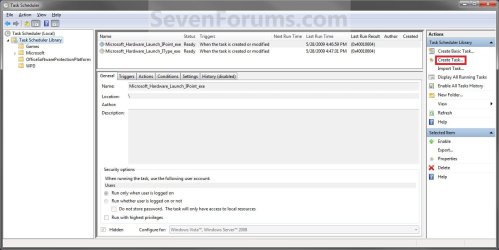
2. While having Task Scheduler Library selected in the left pane, click/tap on Create task in the far right pane. (see screenshot below)
Step1.jpg
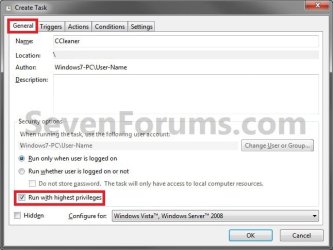
3. Under the General tab, type in the "Name" of the program you want to create this shortcut for. (see screenshot below)
NOTE: This will be the name of the task. As an example, I will use CCleaner for that program. Make note of this name, you will need it later in step 12 and 14 below.
Step2.jpg
4. Check the Run with highest privileges box. (See screenshot below)
Step3.jpg
5. Click/tap on the Configure for drop down box to open it, and select Windows® 7, Windows Server™ 2008 R2 or the Windows you are currently in. (see screenshot above and below)
NOTE: This is like compatibility mode. If the program does not support running in Windows 7 normally, then you can select the OS that is does support running in instead to have it run in compatibility mode as if it was running in that OS instead of Windows 7.

Drop_Down_Box.jpg
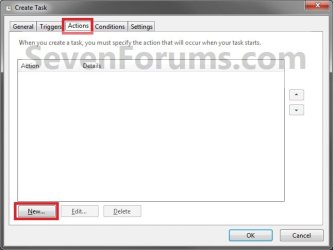
6. Click/tap on the Actions tab, then on the New button. (see screenshot below)
Step4.jpg
7. In the Program/script: box in the Actions tab, copy and paste the path below. (see screenshot below step 9)
NOTE: Thank you to chillz for the updated steps 7 and 8.
%windir%\System32\cmd.exe
8. In the Add arguments (optional): box in the Actions tab, type in the argument below. (see screenshot below step 9)

NOTE: Substitute Task Name in the argument below with the name you entered in step 3 (ex: CCleaner) within quotes, and substitute Full Path of Program in the argument below with the actual full path of the program's .exe file within quote.
/c start "Task Name" "Full Path of Program"


For example:

Code:
/c start "CCleaner" "C:\Program Files\CCleaner\CCleaner64.exe"
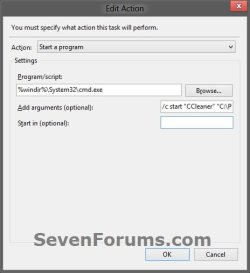
9. Click/tap on OK. (see screenshot below)
step7.jpg
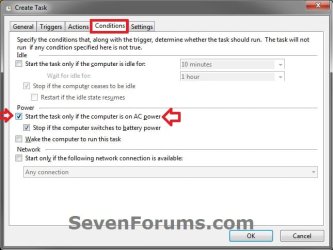
10. Click/tap on the Conditions tab, and uncheck the Stop if the computer switches to battery power box first, then uncheck the Start the task only if the computer is on AC power box. (see screenshots below)
NOTE: This step is mostly for laptops, so that you will be able to run the program when the laptop is running on battery power.
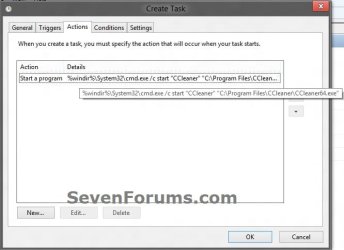
step8.jpg

Conditions.jpg

11. Click/tap on OK. (See screenshots above)

12. You will now see your new task created with the name (ex: CCleaner) you gave it in step 3. Close Task Scheduler. (see screenshot below)
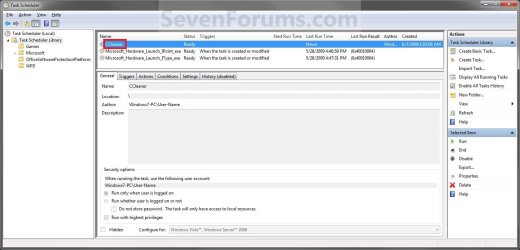
Step9.jpg
13. Right click or press and hold on an empty area of your desktop, then click/tap on New and Shortcut.

14. Type in the target below for the location field, then click/tap on the Next button. (see screenshot below)
NOTE: Subsitute task-name in the target with the name (ex: CCleaner) within quotes that you used in step 3.
schtasks /run /tn "task-name"

For example: For my task name CCleaner I used from step 3, I would type:
schtasks /run /tn "CCleaner"
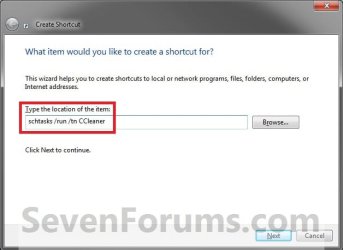
Step10.jpg
15. Type in a name you want for the shortcut (ex: CCleaner), then click/tap on the Finish button. (see screenshot below)
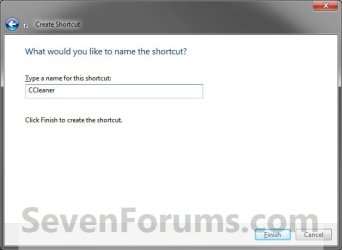
Step11.jpg
16. Right click on the new shortcut (ex: CCleaner) on the desktop, then click/tap on Properties.

17. Click/tap on the Shortcut tab, and on the Change Icon button. (see screenshot below)
Step12.jpg
18. Click/tap on OK. (see screenshot below)
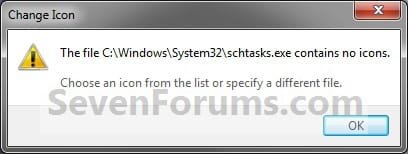
Step13.jpg
19. Click/tap on the Browse button. (see screenshot below)
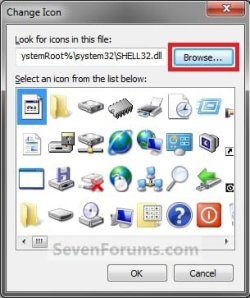
Step14.jpg
20. Navigate to the .exe file of the program that you have created this shortcut with, select it, and click/tap on Open. (see screenshot below)
NOTE: If you have a icon of your own that you would prefer to use instead, then navigate to where you have that icon saved at instead.
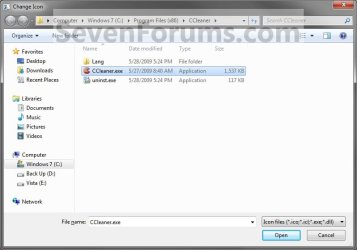
Step15.jpg
21. Select the icon you want for the shortcut, then click/tap on OK. (see screenshot below)
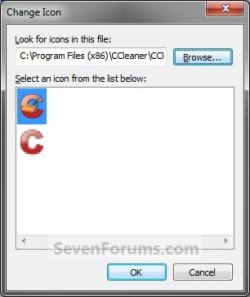
Step16.jpg
22. Click/tap on OK. (see screenshot below)
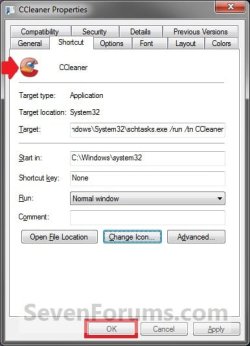
Step17.jpg
23. You can now use this elevated shortcut to run at startup in your "Startup" folder, run at startup as a task, Pin to Start Menu, Pin to Taskbar, assign a keyboard shortcut, or move to where you like for easy use.

24. When you run this new elevated shortcut, you will now no longer have to click/tap on YES to approve the UAC prompt to allow the program run as administrator.


   Tip
To Undo and Remove this Task:
  • While having Task Scheduler Library selected in the left pane, right click on the task in the right pane that you created in step 12, then click on Delete and Yes to approve.
  • Delete the shortcut.
That's it,
Shawn


Last edited:
Very nicely done, thanks a lot.
But what should i enter in program/script, if i am running portable program, that is not installed.
Namely, i have a problem with drag and drop in my photoshop6, since i installed win10, dropping the photos in won't work, which is quite frustrating.
After i tried with code in powershell:
Get-AppXPackage -AllUsers | Foreach {Add-AppxPackage -DisableDevelopmentMode -Register “$($_.InstallLocation)\AppXManifest.xml”}

drag and drop worked, but ..... it corrupted all other windows apps, @N#%$%&/ .... so i had to re-install the wins again.

Photoshop is portable - not installed. Its not checked to run as admin, but still there is a yellow and blue shield on the icon and i can not do darn thing to change it.
Before i had win7 and no problems with dropping.

Can somebody help please :geek:


Hello Mina, :)

I'm not sure what you're wanting to do.

If you're wanting to remove the UAC shield from the icon, then it's just there to let you know that you will be prompted by UAC to approve to open it with elevated rights (run as administrator) when you open it.

Are you wanting to run the program without being prompted by UAC?
 

My Computer

Computer type
PC/Desktop
Computer Manufacturer/Model Number
Self built custom
OS
64-bit Windows 11 Pro for Workstations
CPU
Intel i7-8700K OC'd to 5 GHz
Motherboard
ASUS ROG Maximus XI Formula Z390
Memory
64 GB (4x16GB) G.SKILL TridentZ RGB DDR4 3600 MHz
Graphics Card(s)
ASUS ROG-STRIX-GTX1080TI-O11G-GAMING
Sound Card
Integrated
Monitor(s) Displays
2 x Samsung Odyssey G7 27"
Screen Resolution
2560x1440
Hard Drives
1TB Samsung 990 PRO M.2,
4TB Samsung 990 PRO PRO M.2,
TerraMaster F8 SSD Plus NAS
PSU
Seasonic Prime Titanium 850W
Case
Thermaltake Core P3
Cooling
Corsair Hydro H115i
Keyboard
Logitech wireless K800
Mouse
Logitech MX Master 4
Internet Speed
2 Gb/s Download and 100 Mb/s Upload
Antivirus
Malwarebyte Anti-Malware Premium
Browser
Google Chrome
Other Info
Logitech Z625 speaker system,
Logitech BRIO 4K Pro webcam,
HP Color LaserJet Pro MFP M477fdn,
APC SMART-UPS RT 1000 XL - SURT1000XLI,
Galaxy S23 Plus phone
Hi Brink,

by "prompted by UAC" you mean windows asking me whether i allow the app to make changes on my pc?
i disabled that.

but since i have that shield on the icon (since i installed win10) i can not drag and drop the photos in the photoshop as i did before
 

My Computer

Computer type
PC/Desktop
OS
Win 7
CPU
@ 3.40 GHz
Screen Resolution
LG IPS 234 digital
Does it work if you enable UAC again?
 

My Computer

Computer type
PC/Desktop
Computer Manufacturer/Model Number
Self built custom
OS
64-bit Windows 11 Pro for Workstations
CPU
Intel i7-8700K OC'd to 5 GHz
Motherboard
ASUS ROG Maximus XI Formula Z390
Memory
64 GB (4x16GB) G.SKILL TridentZ RGB DDR4 3600 MHz
Graphics Card(s)
ASUS ROG-STRIX-GTX1080TI-O11G-GAMING
Sound Card
Integrated
Monitor(s) Displays
2 x Samsung Odyssey G7 27"
Screen Resolution
2560x1440
Hard Drives
1TB Samsung 990 PRO M.2,
4TB Samsung 990 PRO PRO M.2,
TerraMaster F8 SSD Plus NAS
PSU
Seasonic Prime Titanium 850W
Case
Thermaltake Core P3
Cooling
Corsair Hydro H115i
Keyboard
Logitech wireless K800
Mouse
Logitech MX Master 4
Internet Speed
2 Gb/s Download and 100 Mb/s Upload
Antivirus
Malwarebyte Anti-Malware Premium
Browser
Google Chrome
Other Info
Logitech Z625 speaker system,
Logitech BRIO 4K Pro webcam,
HP Color LaserJet Pro MFP M477fdn,
APC SMART-UPS RT 1000 XL - SURT1000XLI,
Galaxy S23 Plus phone
No, not even opening the photoshop with the new shortcut :(
it only blink one window on the screen for a sec but then nothing happens, doesn't open
 

My Computer

Computer type
PC/Desktop
OS
Win 7
CPU
@ 3.40 GHz
Screen Resolution
LG IPS 234 digital
Are you able to use "Open with" to select the Photoshop .exe file to be the default program?
 

My Computer

Computer type
PC/Desktop
Computer Manufacturer/Model Number
Self built custom
OS
64-bit Windows 11 Pro for Workstations
CPU
Intel i7-8700K OC'd to 5 GHz
Motherboard
ASUS ROG Maximus XI Formula Z390
Memory
64 GB (4x16GB) G.SKILL TridentZ RGB DDR4 3600 MHz
Graphics Card(s)
ASUS ROG-STRIX-GTX1080TI-O11G-GAMING
Sound Card
Integrated
Monitor(s) Displays
2 x Samsung Odyssey G7 27"
Screen Resolution
2560x1440
Hard Drives
1TB Samsung 990 PRO M.2,
4TB Samsung 990 PRO PRO M.2,
TerraMaster F8 SSD Plus NAS
PSU
Seasonic Prime Titanium 850W
Case
Thermaltake Core P3
Cooling
Corsair Hydro H115i
Keyboard
Logitech wireless K800
Mouse
Logitech MX Master 4
Internet Speed
2 Gb/s Download and 100 Mb/s Upload
Antivirus
Malwarebyte Anti-Malware Premium
Browser
Google Chrome
Other Info
Logitech Z625 speaker system,
Logitech BRIO 4K Pro webcam,
HP Color LaserJet Pro MFP M477fdn,
APC SMART-UPS RT 1000 XL - SURT1000XLI,
Galaxy S23 Plus phone
The programs doesn't have "open with" option

and as far as i know if i right-click on the photo, there was never an option to "open with" photoshop not even with "open with another app"
 

My Computer

Computer type
PC/Desktop
OS
Win 7
CPU
@ 3.40 GHz
Screen Resolution
LG IPS 234 digital

My Computer

Computer type
PC/Desktop
Computer Manufacturer/Model Number
Self built custom
OS
64-bit Windows 11 Pro for Workstations
CPU
Intel i7-8700K OC'd to 5 GHz
Motherboard
ASUS ROG Maximus XI Formula Z390
Memory
64 GB (4x16GB) G.SKILL TridentZ RGB DDR4 3600 MHz
Graphics Card(s)
ASUS ROG-STRIX-GTX1080TI-O11G-GAMING
Sound Card
Integrated
Monitor(s) Displays
2 x Samsung Odyssey G7 27"
Screen Resolution
2560x1440
Hard Drives
1TB Samsung 990 PRO M.2,
4TB Samsung 990 PRO PRO M.2,
TerraMaster F8 SSD Plus NAS
PSU
Seasonic Prime Titanium 850W
Case
Thermaltake Core P3
Cooling
Corsair Hydro H115i
Keyboard
Logitech wireless K800
Mouse
Logitech MX Master 4
Internet Speed
2 Gb/s Download and 100 Mb/s Upload
Antivirus
Malwarebyte Anti-Malware Premium
Browser
Google Chrome
Other Info
Logitech Z625 speaker system,
Logitech BRIO 4K Pro webcam,
HP Color LaserJet Pro MFP M477fdn,
APC SMART-UPS RT 1000 XL - SURT1000XLI,
Galaxy S23 Plus phone
i know what you mean,
but like i said, there is no option "open with" for the photoshop and i never noticed that option for any other program.
it would be the same as you would want to open VLC player with "open with" option
???

"open with" works only with photos and docs, but never with programs. do you know what i am talking about?

try to find a portable photoshop on the web and run it (if you have win10) and see for yourself
 

My Computer

Computer type
PC/Desktop
OS
Win 7
CPU
@ 3.40 GHz
Screen Resolution
LG IPS 234 digital
Yeah, that's what I mean. Set the default program to be the Photoshop .exe file by using "Open with" from the photo files. This way you would just need to click on the photos file to have them open in Photoshop by default.

Are you not able to select the .exe file using Open with how I posted above?
 

My Computer

Computer type
PC/Desktop
Computer Manufacturer/Model Number
Self built custom
OS
64-bit Windows 11 Pro for Workstations
CPU
Intel i7-8700K OC'd to 5 GHz
Motherboard
ASUS ROG Maximus XI Formula Z390
Memory
64 GB (4x16GB) G.SKILL TridentZ RGB DDR4 3600 MHz
Graphics Card(s)
ASUS ROG-STRIX-GTX1080TI-O11G-GAMING
Sound Card
Integrated
Monitor(s) Displays
2 x Samsung Odyssey G7 27"
Screen Resolution
2560x1440
Hard Drives
1TB Samsung 990 PRO M.2,
4TB Samsung 990 PRO PRO M.2,
TerraMaster F8 SSD Plus NAS
PSU
Seasonic Prime Titanium 850W
Case
Thermaltake Core P3
Cooling
Corsair Hydro H115i
Keyboard
Logitech wireless K800
Mouse
Logitech MX Master 4
Internet Speed
2 Gb/s Download and 100 Mb/s Upload
Antivirus
Malwarebyte Anti-Malware Premium
Browser
Google Chrome
Other Info
Logitech Z625 speaker system,
Logitech BRIO 4K Pro webcam,
HP Color LaserJet Pro MFP M477fdn,
APC SMART-UPS RT 1000 XL - SURT1000XLI,
Galaxy S23 Plus phone
What I would like to do is get this to work on a couple of programs that need a admin group user to work whilst I am using a limited user account.

The two programs are evga precision X and rivatuningstatistics server.

Probably also applies to any program that access hardware monitoring.

The problem is when adding them to task scheduler I have to use the credentials for admin account but then they dont appear on the limited user's system tray, so because of this I cannot use a limited user account for increased security.
 

My Computer

Computer type
PC/Desktop
Computer Manufacturer/Model Number
home built
OS
windows 8.1 Pro x64
CPU
intel i5 4670k @ 4.3ghz
Motherboard
asus z87-plus
Memory
16 gig ram ddr3 @ 1600 corsair vengeance
Graphics Card(s)
evga 970 GTX 4 GIG FTW ACX 2.0
Sound Card
asus xonar D2X
Monitor(s) Displays
benq gw2765ht
Screen Resolution
2560x1440
Hard Drives
Samsung 850 pro SSD 512gig - boot device wooosh
WD black cavalier 640gig WD6401AALS
Seagate 500gig ST3500630AS
WD 2TB Green WDC20EARS
2 x WD Red 3TB WD30EFRX
Samsung 750gig HD753LG - on asmedia controller
PSU
coolermaster silent pro 600watt modular
Case
fractal define R4
Cooling
artic freezer i30, 3 case fans
Keyboard
microsoft business ps2 keyboard
Mouse
microsoft optical black mouse
Internet Speed
80/20 FTTC SkyBB
Antivirus
Nod32 AV v8, HitmanProAlert, SRP, System Hardening
Browser
Chrome x64
Other Info
Intel controller is in AHCI mode currently using IaSTOR 12.8.0.1016 drivers

My Computer

Computer type
PC/Desktop
Computer Manufacturer/Model Number
Self built custom
OS
64-bit Windows 11 Pro for Workstations
CPU
Intel i7-8700K OC'd to 5 GHz
Motherboard
ASUS ROG Maximus XI Formula Z390
Memory
64 GB (4x16GB) G.SKILL TridentZ RGB DDR4 3600 MHz
Graphics Card(s)
ASUS ROG-STRIX-GTX1080TI-O11G-GAMING
Sound Card
Integrated
Monitor(s) Displays
2 x Samsung Odyssey G7 27"
Screen Resolution
2560x1440
Hard Drives
1TB Samsung 990 PRO M.2,
4TB Samsung 990 PRO PRO M.2,
TerraMaster F8 SSD Plus NAS
PSU
Seasonic Prime Titanium 850W
Case
Thermaltake Core P3
Cooling
Corsair Hydro H115i
Keyboard
Logitech wireless K800
Mouse
Logitech MX Master 4
Internet Speed
2 Gb/s Download and 100 Mb/s Upload
Antivirus
Malwarebyte Anti-Malware Premium
Browser
Google Chrome
Other Info
Logitech Z625 speaker system,
Logitech BRIO 4K Pro webcam,
HP Color LaserJet Pro MFP M477fdn,
APC SMART-UPS RT 1000 XL - SURT1000XLI,
Galaxy S23 Plus phone
this did not work for me, i was trying to execute zotac firestorm app without uac prompt on startup , but microsoft application compatibility toolkit worked for me, much simpler than this method (windows 7 )
 

My Computer

Computer type
PC/Desktop
Computer Manufacturer/Model Number
Self Assembeled
OS
Windows 7 Pro x64
CPU
i7 6700k 4.5Ghz
Motherboard
Gigabyte Z170x Gaming 7
Memory
Crucial 32gb DDR4 2400mhz
Graphics Card(s)
Zotac GTX1070 Amp Extreme
Sound Card
Creative Sound Blaster Recon3Di (Onboard)
Monitor(s) Displays
Asus VG278HE 27 Inch 144hz
Screen Resolution
1920x1080
Hard Drives
1 TB SSD, 1TB HDD, 2TB HDD
PSU
Cooler Master G650M
Case
Cooler Master Stryker
Cooling
Cooler Masterliquid Lite 120
Keyboard
Redgear MK881 Mechanical Keyboard
Mouse
LogiTech Wireless Mouse
Internet Speed
Excitel 75mbps/Unlimited
Antivirus
Kaspersky Antivirus 2016
Browser
Chrome/Firefox
Other Info
Xbox One S Controller / Logitech F710 Wireless GamePad
So I've tried this method about ten times now, and for the path (in the argument box) I first copy and pasted the path from my .exe's properties (all that did was open the file folder :mad: ), then I typed in nvidiaInspector.exe for the end of the path and it does absolutely nothing. A flash of a box will sometimes appear but nothing else. All I want to do is open nvidiaInpector without having to type in a password. Any help?
 

My Computer

Computer type
PC/Desktop
Computer Manufacturer/Model Number
custom build
OS
Windows 10 64 bit.

My Computer

Computer type
PC/Desktop
Computer Manufacturer/Model Number
Self built custom
OS
64-bit Windows 11 Pro for Workstations
CPU
Intel i7-8700K OC'd to 5 GHz
Motherboard
ASUS ROG Maximus XI Formula Z390
Memory
64 GB (4x16GB) G.SKILL TridentZ RGB DDR4 3600 MHz
Graphics Card(s)
ASUS ROG-STRIX-GTX1080TI-O11G-GAMING
Sound Card
Integrated
Monitor(s) Displays
2 x Samsung Odyssey G7 27"
Screen Resolution
2560x1440
Hard Drives
1TB Samsung 990 PRO M.2,
4TB Samsung 990 PRO PRO M.2,
TerraMaster F8 SSD Plus NAS
PSU
Seasonic Prime Titanium 850W
Case
Thermaltake Core P3
Cooling
Corsair Hydro H115i
Keyboard
Logitech wireless K800
Mouse
Logitech MX Master 4
Internet Speed
2 Gb/s Download and 100 Mb/s Upload
Antivirus
Malwarebyte Anti-Malware Premium
Browser
Google Chrome
Other Info
Logitech Z625 speaker system,
Logitech BRIO 4K Pro webcam,
HP Color LaserJet Pro MFP M477fdn,
APC SMART-UPS RT 1000 XL - SURT1000XLI,
Galaxy S23 Plus phone
For those who want to run a task like Process Explorer and have it sitting in the system tray and minimised, all you have to do is, in section 8 on page 1, just add the optional argument "/min"

eg.

/c start /min "ProcExp64" "C:\Program Files\SysInternals\ProcExp64.exe"


(Sorry if I'm teaching granny to suck eggs, but it took me a while to realise this! :o )

(And this is for Windows 10)
 
Last edited:

My Computer

Computer type
PC/Desktop
Computer Manufacturer/Model Number
Custom Build
OS
XP SP3
CPU
Intel Core i5 3550 @ 3.30GHz
Motherboard
Gigabyte Technology Co., Ltd. Z77X-UD3H (Intel Core i5-3550
Memory
4.00GB Single-Channel DDR3 @ 667MHz (9-9-9-24)
Graphics Card(s)
S24B370 (1920x1080@60Hz) 1024MB ATI AMD Radeon HD 6670
Hard Drives
1863GB Western Digital WDC WD20EARX-00PASB0 (SATA)
466GB Western Digital WDC WD5003AZEX-00RKKA0 (SATA)
1397GB Western Digital WDC WD15EARS-00Z5B1 (SATA)
1863GB Western Digital WDC WD20EARX-00MMMB0 (SATA)
1863GB Western Digital WDC WD2002FAEX-007B
Antivirus
Microsoft MSE
Browser
Firefox
Elevated Program Shortcut without UAC Prompt

Hello Shawn,

I followed your instructions in the above noted section. Thank you. However, it works only if I use the icon to start the program, but not if the program is called by another prompt. The old program is a picture/photo manager. If I select a picture file in my computer using Start/Pictures, eg, the menu has an option for "Open with..." When I select my program from this menu I still get the pop-up asking me if I want to run this program. It is extremely aggravating to have to respond to and wait for this prompt every time I open a picture file. I simply cannot see why there is no way to tell Windows that I trust this file and it is OK to open it whenever it is invoked.

Is there a way to get rid of the UAC pop-up when the Windows Photo Manager calls this file from its "Open with..." menu?

Many thanks,

BILL
 

My Computer

Computer type
PC/Desktop
Computer Manufacturer/Model Number
Dell
OS
Windows 7 x64
Antivirus
Microsoft AV
Browser
Chrome
Hello Shawn,

I followed your instructions in the above noted section. Thank you. However, it works only if I use the icon to start the program, but not if the program is called by another prompt. The old program is a picture/photo manager. If I select a picture file in my computer using Start/Pictures, eg, the menu has an option for "Open with..." When I select my program from this menu I still get the pop-up asking me if I want to run this program. It is extremely aggravating to have to respond to and wait for this prompt every time I open a picture file. I simply cannot see why there is no way to tell Windows that I trust this file and it is OK to open it whenever it is invoked.

Is there a way to get rid of the UAC pop-up when the Windows Photo Manager calls this file from its "Open with..." menu?

Many thanks,

BILL


Hello Bill, and welcome to Seven Forums. :-)

Unfortunately, it will only work using the elevated shortcut. Are you able to open the pictures from within this elevated running app to avoid getting a UAC prompt when opening the picture direct instead?

UAC is designed to let you know and approve before anything runs with elevated rights that have full access to everything on the computer. Just imaging if malware was able to run with elevated rights without you knowing about it.

UAC will not let you have exceptions by design since if a white listed app was to be hijacked by malware, you would never know it until it's too late.
 

My Computer

Computer type
PC/Desktop
Computer Manufacturer/Model Number
Self built custom
OS
64-bit Windows 11 Pro for Workstations
CPU
Intel i7-8700K OC'd to 5 GHz
Motherboard
ASUS ROG Maximus XI Formula Z390
Memory
64 GB (4x16GB) G.SKILL TridentZ RGB DDR4 3600 MHz
Graphics Card(s)
ASUS ROG-STRIX-GTX1080TI-O11G-GAMING
Sound Card
Integrated
Monitor(s) Displays
2 x Samsung Odyssey G7 27"
Screen Resolution
2560x1440
Hard Drives
1TB Samsung 990 PRO M.2,
4TB Samsung 990 PRO PRO M.2,
TerraMaster F8 SSD Plus NAS
PSU
Seasonic Prime Titanium 850W
Case
Thermaltake Core P3
Cooling
Corsair Hydro H115i
Keyboard
Logitech wireless K800
Mouse
Logitech MX Master 4
Internet Speed
2 Gb/s Download and 100 Mb/s Upload
Antivirus
Malwarebyte Anti-Malware Premium
Browser
Google Chrome
Other Info
Logitech Z625 speaker system,
Logitech BRIO 4K Pro webcam,
HP Color LaserJet Pro MFP M477fdn,
APC SMART-UPS RT 1000 XL - SURT1000XLI,
Galaxy S23 Plus phone
Elevated Program Shortcut without UAC Prompt

Hello Brink,

Thank you so much for the prompt and enlightening response. Once my old photo manager program is opened with the new Elevated Shortcut I can use the program to access files anywhere without the UAC prompt popping up.

I do find it unusual that, even if I have that program already opened with the new shortcut, I get a UAC prompt if I try to open a file via the "Open with..." option in Windows Photo Viewer, eg. Doesn't that program know the requested program is already open?

Thank you again,

BILL
 

My Computer

Computer type
PC/Desktop
Computer Manufacturer/Model Number
Dell
OS
Windows 7 x64
Antivirus
Microsoft AV
Browser
Chrome
Hello Brink,

Thank you so much for the prompt and enlightening response. Once my old photo manager program is opened with the new Elevated Shortcut I can use the program to access files anywhere without the UAC prompt popping up.

I do find it unusual that, even if I have that program already opened with the new shortcut, I get a UAC prompt if I try to open a file via the "Open with..." option in Windows Photo Viewer, eg. Doesn't that program know the requested program is already open?

Thank you again,

BILL


The elevated shortcut would only get applied to that single instance of the program.

If you try to open the program using any other method, it would still require a UAC prompt. :(
 

My Computer

Computer type
PC/Desktop
Computer Manufacturer/Model Number
Self built custom
OS
64-bit Windows 11 Pro for Workstations
CPU
Intel i7-8700K OC'd to 5 GHz
Motherboard
ASUS ROG Maximus XI Formula Z390
Memory
64 GB (4x16GB) G.SKILL TridentZ RGB DDR4 3600 MHz
Graphics Card(s)
ASUS ROG-STRIX-GTX1080TI-O11G-GAMING
Sound Card
Integrated
Monitor(s) Displays
2 x Samsung Odyssey G7 27"
Screen Resolution
2560x1440
Hard Drives
1TB Samsung 990 PRO M.2,
4TB Samsung 990 PRO PRO M.2,
TerraMaster F8 SSD Plus NAS
PSU
Seasonic Prime Titanium 850W
Case
Thermaltake Core P3
Cooling
Corsair Hydro H115i
Keyboard
Logitech wireless K800
Mouse
Logitech MX Master 4
Internet Speed
2 Gb/s Download and 100 Mb/s Upload
Antivirus
Malwarebyte Anti-Malware Premium
Browser
Google Chrome
Other Info
Logitech Z625 speaker system,
Logitech BRIO 4K Pro webcam,
HP Color LaserJet Pro MFP M477fdn,
APC SMART-UPS RT 1000 XL - SURT1000XLI,
Galaxy S23 Plus phone
Troubleshooting

This is incredibly helpful and I got it to work for CCleaner, but I'm having difficulties with a different task. I'm trying to link two .exes to run together, without the Windows prompt for unverified applications. I checked and double-checked to make sure I have the locations correct in the Actions section. It's not running either program. I tried messing with the trigger section, even though you didn't indicate that was necessary in your tutorial. It doesn't seem to make a difference. No matter how I click on it, either through the run button in the list of tasks or from the shortcut on my desktop. I can provide screenshots but I don't really know what you would need to see why it's not working.
The two 'Add arguments' sections are:
/c/start "ESO AddOn Clients" "C:\Users\Veronica\AppData\Local\Minion\Minion.exe"
/c/start "ESO AddOn Clients" "C:\Documents\Elder Scrolls Online\live\AddOns\TamrielTradeCentre\Client\Client.exe"

They are two clients that run separate from the game The Elder Scrolls Online, to provide additional information and functionality in-game. Currently, I launch each one individually, each time clicking the yes button on the UAC prompt. It's rather annoying and I thought this little shortcut was just what I needed.
Is the problem that I'm trying to run two programs with one prompt? If so, is there a different solution? Like, can I make two separate tasks and then link them together somehow? It would just be so much easier if I only had to click one button for both apps to run.

Thanks in advance! :-)
 

My Computer

Computer type
PC/Desktop
Computer Manufacturer/Model Number
Custom build
OS
Windows 10 64-bit Version 1909
CPU
Intel i7-4790K @ 4.0 GHz
Motherboard
ASRock Z97 Pro3
Memory
16 GB
Graphics Card(s)
NVIDIA 1070
Hard Drives
2 SSDs=1250GB
2 HDDS=1.5TB
Antivirus
Malwarebytes
Browser
Chrome
Back
Top