After doing some research I have come up with something we can try, but before we get into that I need to know a few things.
Please answer my questions in the order I am asking, and wait until I see your response, and reply back to you.
I only added the information below these eleven questions to help if we need to go there. I don't mind if you read on, but please do not go any further than question 11 until you hear back from me about your responses.
Thank you.
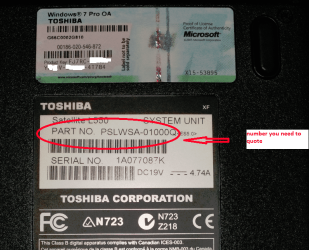
- I need to know the full model number of your Toshiba machine so I can understand the various connections it has.
- Are you using wi-fi for the E1553, and wired for the modem, if different how?
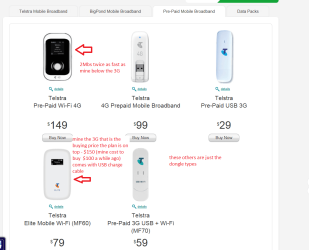
- Are you using vodafone's equipment, i.e. modem, and would that be a Huawai E1553 USB dongle?
- Please go to Control Panel\All Control Panel Items\Device Manager and check to see if you have any warnings or errors. Especially, open and look under Network Adapters, and Portable Devices.
- If you don't have any warning or errors, have you tried to use the modem in a different phone connection on your machine, and have you tried to use the E1553 in a different USB slot? I ask this because I don't know the connections your machine has.
- Are you sure you have the latest drivers for each?
- When was the last time you ran a CHKDSK?
- When was the last time you ran a SFC /scannow?
- What are you using as an antivirus/malware/firewall product?
- When was the last time you checked for any virus's or malware, are you sure your machine is clean?
- Have you tried anything since our last contact, such as running that Vodafone troubleshooter?
If you have any difficulty in understanding these questions please reply back and I will help you get the answers.
~ ~ ~ Please stop here until you reply, and hear back from me. ~ ~ ~
I may want you to switch to
Microsoft's Security Essentials (MSE) only to test. If I do, I need to know what antivirus/malware/firewall product you have because it has to be completely uninstalled first before installing MSE.
Do not install until I know what you are using, we may be able to adjust or disable your present product.
Procedure to install MSE:
- Click on the link and select your version (Windows Vista / Windows 7 32bit).
- Click on Download, then Save File.
- Save File to your Desktop,
- Save any previous work, then close all other programs.
- Go to desktop, click on MSE to start the wizard and finish install.
- Reboot your machine.
Depending on your answers we will proceed to flushing your Domain Name System (DNS), then:
- Registering your DNS
- Reset/Renew TCP/IP connection
- Repair & Reset Winsock Catalog
I will guide you how to do these three commands, but will wait to show you until we need to.
It would be helpful if you know how to open an
Elevated Command Prompt.