Error message at boot : Hard Disk:SMART Status Bad, Backup and replace

Hi jumanji. I'm in the midst of the ddrescue and so far there have been no errors. I'm writing a recovery map file as well. My question is, if I interrupt with Ctrl-c, will I be able to switch off the computer and resume? Or will it have to be switched on throughout?
 

My Computer

Computer type
PC/Desktop
OS
Windows 7 Professional 64 bit SP1
CPU
AMD Athlon II X4 620 2.6GHz
Motherboard
Biostar TA 790GX A3+
Memory
8GB DDR3 RAM
Graphics Card(s)
Sapphire Radeon HD6850
Monitor(s) Displays
Dell Ultrasharp U2312HM
Screen Resolution
1920x1080
PSU
Scythe Gouriki-2 600W
Case
NZXT Beta Evo
...in the midst of the ddrescue...if I interrupt with Ctrl-c, will I be able to switch off the computer and resume? Or will it have to be switched on throughout?
My educated guess is: leave computer on until it is finished.
 

My Computer

Computer type
PC/Desktop
Computer Manufacturer/Model Number
Antec desktop; Acer Aspire laptops
OS
Windows 7 Professional 64-bit
CPU
Desktop i5; Acers i5 & i7
Memory
desktop 16GB; 1 Acer 8GB & 1 Acer 16GB
Hard Drives
1TB split into 2 equal partitions [OS and data] usable by RJS
Internet Speed
AT&T DSL
Browser
FF, GChrome, msIE
Other Info
Windows 7 Firewall, Emsisoft AM/AV, MSE [scan-only], SpywareBlaster, Ruiware/BillP combine
Ok after running it overnight, it seems like it would take months to complete. Only had done 7GB in 14 hours. So I ctrl-c to interrupt. Booted into Windows and wasn't able to see the new hdd in My Computer, but it was there in Disk Management. Is there some way to see what has been recovered in that disk?
 

My Computer

Computer type
PC/Desktop
OS
Windows 7 Professional 64 bit SP1
CPU
AMD Athlon II X4 620 2.6GHz
Motherboard
Biostar TA 790GX A3+
Memory
8GB DDR3 RAM
Graphics Card(s)
Sapphire Radeon HD6850
Monitor(s) Displays
Dell Ultrasharp U2312HM
Screen Resolution
1920x1080
PSU
Scythe Gouriki-2 600W
Case
NZXT Beta Evo
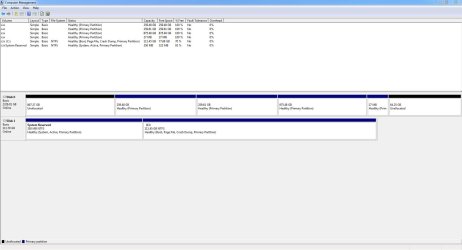
Here is a screenshot of my Disk Management Window :

Capture.JPG
 

My Computer

Computer type
PC/Desktop
OS
Windows 7 Professional 64 bit SP1
CPU
AMD Athlon II X4 620 2.6GHz
Motherboard
Biostar TA 790GX A3+
Memory
8GB DDR3 RAM
Graphics Card(s)
Sapphire Radeon HD6850
Monitor(s) Displays
Dell Ultrasharp U2312HM
Screen Resolution
1920x1080
PSU
Scythe Gouriki-2 600W
Case
NZXT Beta Evo
With ctrl+c you can pause and then resume as long as you do not shut down the computer.

If you shut down the PC, the logfile written into the RAM drive is lost and therefore you cannot resume.(The whole ddrescue runs from the RAM drive.If you want the logfile to be written into some other media like another HDD or pendrive you have to take the help of some one proficient in Linux who can write the correct command for it in the command string)

In the WDM screenshot you posted, you can try assigning drive letters to the partitions shown as healthy and check whether they show up thereafter.
 

My Computer

OS
Windows 7 Home Premium 32 bit
Hi Jumanji. That Disk 0 is actually the destination drive that I was cloning to. I'm not able to assign drive letters to the healthy partitions.
 

My Computer

Computer type
PC/Desktop
OS
Windows 7 Professional 64 bit SP1
CPU
AMD Athlon II X4 620 2.6GHz
Motherboard
Biostar TA 790GX A3+
Memory
8GB DDR3 RAM
Graphics Card(s)
Sapphire Radeon HD6850
Monitor(s) Displays
Dell Ultrasharp U2312HM
Screen Resolution
1920x1080
PSU
Scythe Gouriki-2 600W
Case
NZXT Beta Evo
Best is to run ddrescue to its completion, without shutting down the PC . Beyond that I cannot advise you any further.-

BTW, what command options are you using? Just curious.
 

My Computer

OS
Windows 7 Home Premium 32 bit
I have decided to cut my losses and just retire the drive. Like you mentioned before, the risk-reward ratio is nil, as the remaining time was in months!

What I intend to do now is use that disk 0 as a normal HDD in my computer. That's why I wish to solve this disk not showing up.

I used ddrescue -d -f -r3 /dev/sdb2 /dev/sdc recovery.mapfile , where sdb2 was the C partition of my damaged drive.
 

My Computer

Computer type
PC/Desktop
OS
Windows 7 Professional 64 bit SP1
CPU
AMD Athlon II X4 620 2.6GHz
Motherboard
Biostar TA 790GX A3+
Memory
8GB DDR3 RAM
Graphics Card(s)
Sapphire Radeon HD6850
Monitor(s) Displays
Dell Ultrasharp U2312HM
Screen Resolution
1920x1080
PSU
Scythe Gouriki-2 600W
Case
NZXT Beta Evo
OK.

Now I remember. On your bad drive the first sector is bad.

Now only the bad sector has been written/cloned to the destination drive.

Run PW. On the left Pane click on "Rebuild MBR" and then "APPLY". This will write the MBR code into sector 0 of the new destination drive.

Next run Partition Recovery Wizard Quick Scan, select all the found partitions, Finish and Apply to write the partition table into sector 0.

After that try to assign the drive letters to the healthy partitions and Apply.

If all this does not help/is not executable ......give up.

As for the bad source drive the first sector, the heart of the drive is dead. That drive is now a scrap. There is no way you can use it. >>>>>>into the electronic waste bin.

For the new destination drive, you can delete all the partitions to make the whole drive unallocated and then format it.

If for some reason it is not possible, run a low level format using the HDD Low level Format Tool HDDGURU: HDD LLF Low Level Format Tool that will completely wipe the drive. You can then initialise it and do a regular format. Make sure you wipe the correct drive.(Remove all other external drives/pendrives so that you do not accidentally wipe those)
 
Last edited:

My Computer

OS
Windows 7 Home Premium 32 bit
OK.

Now I remember. On your bad drive the first sector is bad.

Now only the bad sector has been written to the destination drive.

Run PW. On the left Pane click on "Rebuild MBR" and then "APPLY". This will write the MBR code into sector 0 of the new destination drive.

Next run Partition Recovery Wizard Quick Scan, select all the found partitions, Finish and Apply to write the partition table into sector 0.

After that try to assign the drive letters to the healthy partitions and Apply.

If all this does not help ......give up.

As for the bad source drive the first sector, the heart of the drive is dead. That drive is now a scrap. There is no way you can use it. >>>>>>into the electronic waste bin.

I shall try what you mentioned Jumanji. Just to clarify, PW refers to Partition Wizard, right? And Partition Recovery Wizard is just a wizard in that same program?

P.S. If this doesn't work, I can still wipe out the drive and use it as per normal ?
 

My Computer

Computer type
PC/Desktop
OS
Windows 7 Professional 64 bit SP1
CPU
AMD Athlon II X4 620 2.6GHz
Motherboard
Biostar TA 790GX A3+
Memory
8GB DDR3 RAM
Graphics Card(s)
Sapphire Radeon HD6850
Monitor(s) Displays
Dell Ultrasharp U2312HM
Screen Resolution
1920x1080
PSU
Scythe Gouriki-2 600W
Case
NZXT Beta Evo
.......I shall try what you mentioned Jumanji. Just to clarify, PW refers to Partition Wizard, right? And Partition Recovery Wizard is just a wizard in that same program?

P.S. If this doesn't work, I can still wipe out the drive and use it as per normal ?

1. Yes. PW is Partition Wizard. You can find Partition Recovery Wizard on the left pane in PW. Rebuild MBR also in the left Pane.

2. Yes you can wipe the drive and format it.. I had already added it to my last post. Reread my last post.
 

My Computer

OS
Windows 7 Home Premium 32 bit
I've managed to format the drive Jumanji, after some problems. PW hung at Windows, and I switched off my computer and turned it on again, and it had to Startup Repair automatically. When it booted into Windows subsequently, I found that PW had been uninstalled automatically! I installed PW again, and it again hung while just trying to look at the drives. So I decided to format the drive by deleting all the partitions and did a format. The drive finally shows up in My Computer.

However, now when I plug in any external drive, it doesn't show up. It's there in disk management, but it doesn't show up in My Computer. And in disk management, it says 100% free even though there is data inside. On my laptop when I plug it in, it works fine. Any ideas on this? Does it have anything to do wit AHCI, as I enabled it as I am using an ssd. In safely remove hardware, I'm able to see my ssd and the other new hdd. Is that normal?
 

My Computer

Computer type
PC/Desktop
OS
Windows 7 Professional 64 bit SP1
CPU
AMD Athlon II X4 620 2.6GHz
Motherboard
Biostar TA 790GX A3+
Memory
8GB DDR3 RAM
Graphics Card(s)
Sapphire Radeon HD6850
Monitor(s) Displays
Dell Ultrasharp U2312HM
Screen Resolution
1920x1080
PSU
Scythe Gouriki-2 600W
Case
NZXT Beta Evo
Back
Top