That's not good
Your welcome ottoitti, I was hoping you would have come back with good news, such as "Yeah that worked, or must be the drive". I really see no reason to waste additional money on taking a single drive to a repair shop.
Drives have two operational modes, they either work or they don't

Sometimes the data on them can be corrupted in a way that makes the drive appear to be junk when it actually isn't. However the only way I know of to check it for physical issues (when it won't show in the operating system) is to connect it to different SATA interface, preferably connecting it to a functional PC (as a secondary storage device) directly using the internal sata connection and dedicated voltage from the power supply. If the drive fails to show up when connect directly to an onboard sata port then the chances of it being recovered are much lower.
Chances are you have done what I have done to a couple of laptop hard drives over the years, which is to use them in an external case on a USB port that fails to deliver enough voltage to properly power the device. This will cause errors on the drive and can even lead to surface damage of the platters due to the drive not reaching the correct speed and filling the chamber inside it with the proper amount of air as to cause the heads of the drive to float as they normally would. If that happens the read/write heads will drag across the surface of the platters causing irreparable damage and can cause it to develop the "click of death". Which shows up as a drive that will no long initialize. Once that has occurred the only thing you can do is get a different one, as fixing that would pretty much mean you have to rebuild the drive internally. But before you sling it out the window, try working with it. No one likes to have buy a new hard drive when they already have one, so its worth a shot to try and fix it, if possible. Below are some rudimentary instructions on how to carry out the procedure I outlined in the previous post.
Taking the drive out of its factory case shouldn't cause to much alarm. The hard drive itself is completely sealed and can be handled safely, just be sure to ground yourself by touching something metal before handling it and be sure to lay it down on a plastic bag with the controller assembly facing upwards. If your concerned about the case it's sealed in, well your right there. Usually the USB box is sealed and requires hidden clips to be broken to get the case out from around the drive. Unless you got a more advanced model which allows for easy drive removal. The case the drive is in may not be salvageable but if you can fix your drive I doubt you'll care about the carry case. Plus even if it doesn't snap back together like it should (the case, not the drive) you can always just put the drive back in the case and tape it shut.
As for hooking it into your PC, you only need a few things. Most important are cables, a power cable and the sata data cable. As well as a regular Phillips screwdriver to open the case with. First thing you do is power off the computer and disconnect it so you can lay the whole case on a table or bed, whatever you have. Then you would open you case and simply examine the motherboard to find the sata ports and hopefully a power leed from the powersupply. Once you've found those things you simply plug the drive in question up to those two sets of wires and then place the computer back where it was, connect the wires and power it on. There is no reason to touch or unhook the wiring already in place inside your computer, you're only in there to attach the drive also known as "mounting the drive". Though it won't be permanently mounted, while the drive is connected like that you would then turn on your system and look in BIOS or the info at start up to see if the drive appears in the hardware list. If it does then you can proceed to load the OS and attempt to access/format the drive. If it does not show up in BIOS or your OS while installed this way then the drive is, in my opinion, dead and you can either throw it out or keep it for its controller board, paper weight etc.
It may already be to late, but I would suggest you stop trying to connect it via the USB port for now, as it will only make it less likely that the data on it can be accessed again. Chances are that to make the drive useful again a full format of the drive would be necessary, and only if you can get it to show up in the operating system, while its connected to a working computer as a second drive.

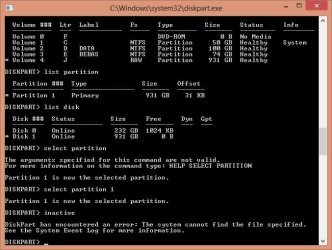

 , that's my last option.

