Folder Template - Default

How to Set a Default Folder Template for All Folders in Windows 7


   Information
This will show you how to either set a folder template of your choice to be the default for all folders, or reset all folder templates back to default in all folders in Windows 7.

   Note
The folder template for Library folders cannot be changed in Windows 7.

   Tip
Automatic Folder Type Discovery is when Windows will automatically change the folder template of a folder to match the file type of the last file added or saved in the folder. For example, if your folder contains music files and you add a picture file, then Windows may change the folder template and view to the "Picture" template to match the new picture file.

By setting a specific template (steps 2 to 6) to be the default, you will disable Automatic Folder Type Discovery. Afterwards, you will still be able to set folder views and templates how you like, but without Automatic Folder Type Discovery changing them for you.

By restoring the default templates (step 1), you will enable Automatic Folder Type Discovery.


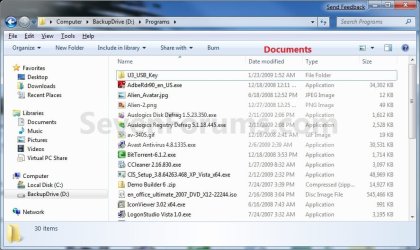
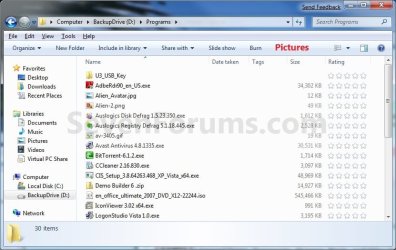
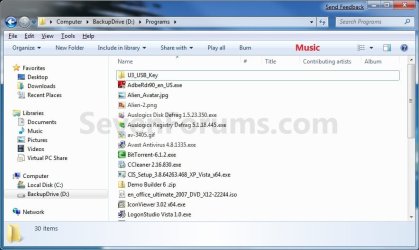
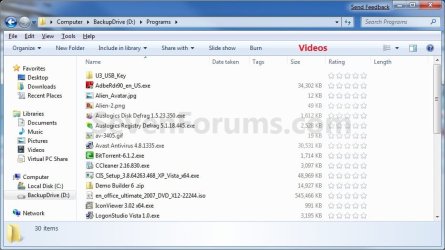
EXAMPLE: General Items, Documents, Pictures, Music, and Video templates
NOTE: These screenshots are with using the Details view. What you see in your window will also depend on what you have the View arrangement, Group by, Sort by, Stack by arrangement, or icon size set as.
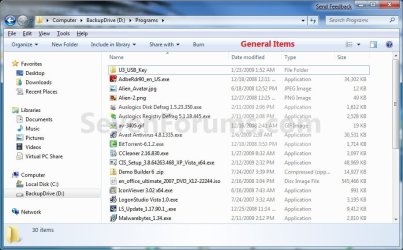
General_Items.jpg

Documents.jpg

Pictures.jpg

Music.jpg

Videos.jpg

Here's How:
1. To Restore Default Folder Templates for All Folders
NOTE: This will also reset all folder views back to default as well.
A) Click on the Download button below to download the file below.
Restore_Default_Folder_Templates.bat


Download


B) Go to step 7.
2. To Set General Items Folder Template as Default for All Folders
A) Click on the Download button below to download the file below.
All_Folders_Use_General_Items_Folder_Template.bat


Download


B) Go to step 7.
3. To Set Documents Folder Template as Default for All Folders
A) Click on the Download button below to download the file below.
All_Folders_Use_Documents_Folder_Template.bat


Download


B) Go to step 7.
4. To Set Pictures Folder Template as Default for All Folders
A) Click on the Download button below to download the file below.
All_Folders_Use_Pictures_Folder_Template.bat


Download


B) Go to step 7.
5. To Set Music Folder Template as Default for All Folders
A) Click on the Download button below to download the file below.
All_Folders_Use_Music_Folder_Template.bat


Download


B) Go to step 7.
6. To Set Videos Folder Template as Default for All Folders
A) Click on the Download button below to download the file below.
All_Folders_Use_Videos_Folder_Template.bat

Download


B) Go to step 7.
7. Save the .bat file to your desktop.

8. Close all running programs and opened windows, and run the downloaded .bat file.

9. If prompted, click on Run.
NOTE: If you like, you can stop getting the Run prompt by unblocking the downloaded .bat file.

10. You will now notice your screen flicker as explorer is restarted to apply the registry changes.

11. You can delete the downloaded .bat file if you like.

That's it,
Shawn


Attachments

Last edited:
Hello Noel, and thank you.

You should be able to set the width you like for a column in a folder, then close it. Whenever you open that specific folder from that specific location (ex: Start menu vs Windows Explorer) next, it should be set the same as it was when last closed.

Hope this helps,
Shawn
 

My Computer

Computer type
PC/Desktop
Computer Manufacturer/Model Number
Self built custom
OS
64-bit Windows 11 Pro for Workstations
CPU
Intel i7-8700K OC'd to 5 GHz
Motherboard
ASUS ROG Maximus XI Formula Z390
Memory
64 GB (4x16GB) G.SKILL TridentZ RGB DDR4 3600 MHz
Graphics Card(s)
ASUS ROG-STRIX-GTX1080TI-O11G-GAMING
Sound Card
Integrated
Monitor(s) Displays
2 x Samsung Odyssey G7 27"
Screen Resolution
2560x1440
Hard Drives
1TB Samsung 990 PRO M.2,
4TB Samsung 990 PRO PRO M.2,
TerraMaster F8 SSD Plus NAS
PSU
Seasonic Prime Titanium 850W
Case
Thermaltake Core P3
Cooling
Corsair Hydro H115i
Keyboard
Logitech wireless K800
Mouse
Logitech MX Master 4
Internet Speed
2 Gb/s Download and 100 Mb/s Upload
Antivirus
Malwarebyte Anti-Malware Premium
Browser
Google Chrome
Other Info
Logitech Z625 speaker system,
Logitech BRIO 4K Pro webcam,
HP Color LaserJet Pro MFP M477fdn,
APC SMART-UPS RT 1000 XL - SURT1000XLI,
Galaxy S23 Plus phone
Brink,

Thanks. That sounds so simple!! I read you to say that I can set the column size (say after I open that folder in Explorer) and as long as I continue to use Explorer to open that folder afterwards, it will be the same size?

Could I also image that folder and have the same response after I recover it? Or does that that change the parameters? I think I must have changed something to lose the "settings."

Thanks again, Noel
 

My Computer

Computer Manufacturer/Model Number
Self built
OS
PC, Windows 7 32 bit
CPU
Intel E8400
Motherboard
Gigabyte GA-EPP45-UD3R
Memory
4GB Mushkin DDR2
Graphics Card(s)
Nvidia GeForce 8800GTS
Sound Card
on Motherboard
Monitor(s) Displays
Dell 1907FP (19" LCD)
Screen Resolution
1024x768
Hard Drives
OCZ Vertex 30GB for OS
WD 320GB for programs and WD 500GB for pictures and music and WD 1.5 TB for backup
PSU
Ultra X3 600 W Modular
Case
Cooler Master HAF 922
Cooling
Fans: 200MM on front, top and side, 120mm rear
Keyboard
Saitek Eclipse II
Mouse
Logitech Wireless
Noel,

As an example, you can open your "My Music" user folder from the Start Menu location and set it how you like. It will remember that setting from that location as it was when last closed, but your setting will not be set at the "C:\User\(user-name)\My Music" location though. Only from the Start Menu location.

Setting folder view settings will not change the size of anything since it's just a setting and not a file.

A system image will create a complete clone of the Windows 7 system drive, so all your settings will be saved in the image as well.
 

My Computer

Computer type
PC/Desktop
Computer Manufacturer/Model Number
Self built custom
OS
64-bit Windows 11 Pro for Workstations
CPU
Intel i7-8700K OC'd to 5 GHz
Motherboard
ASUS ROG Maximus XI Formula Z390
Memory
64 GB (4x16GB) G.SKILL TridentZ RGB DDR4 3600 MHz
Graphics Card(s)
ASUS ROG-STRIX-GTX1080TI-O11G-GAMING
Sound Card
Integrated
Monitor(s) Displays
2 x Samsung Odyssey G7 27"
Screen Resolution
2560x1440
Hard Drives
1TB Samsung 990 PRO M.2,
4TB Samsung 990 PRO PRO M.2,
TerraMaster F8 SSD Plus NAS
PSU
Seasonic Prime Titanium 850W
Case
Thermaltake Core P3
Cooling
Corsair Hydro H115i
Keyboard
Logitech wireless K800
Mouse
Logitech MX Master 4
Internet Speed
2 Gb/s Download and 100 Mb/s Upload
Antivirus
Malwarebyte Anti-Malware Premium
Browser
Google Chrome
Other Info
Logitech Z625 speaker system,
Logitech BRIO 4K Pro webcam,
HP Color LaserJet Pro MFP M477fdn,
APC SMART-UPS RT 1000 XL - SURT1000XLI,
Galaxy S23 Plus phone
Brink,

Thanks so much for your help. The answer is as I suspected, but glad to hear your confirmation.

I'll set my folders up from Explorer and use Explorer to open them in the future. And if I open them from Start, then I won't expect the settings to be there also.

Thanks again, Noel
 

My Computer

Computer Manufacturer/Model Number
Self built
OS
PC, Windows 7 32 bit
CPU
Intel E8400
Motherboard
Gigabyte GA-EPP45-UD3R
Memory
4GB Mushkin DDR2
Graphics Card(s)
Nvidia GeForce 8800GTS
Sound Card
on Motherboard
Monitor(s) Displays
Dell 1907FP (19" LCD)
Screen Resolution
1024x768
Hard Drives
OCZ Vertex 30GB for OS
WD 320GB for programs and WD 500GB for pictures and music and WD 1.5 TB for backup
PSU
Ultra X3 600 W Modular
Case
Cooler Master HAF 922
Cooling
Fans: 200MM on front, top and side, 120mm rear
Keyboard
Saitek Eclipse II
Mouse
Logitech Wireless
You're most welcome Noel. :)
 

My Computer

Computer type
PC/Desktop
Computer Manufacturer/Model Number
Self built custom
OS
64-bit Windows 11 Pro for Workstations
CPU
Intel i7-8700K OC'd to 5 GHz
Motherboard
ASUS ROG Maximus XI Formula Z390
Memory
64 GB (4x16GB) G.SKILL TridentZ RGB DDR4 3600 MHz
Graphics Card(s)
ASUS ROG-STRIX-GTX1080TI-O11G-GAMING
Sound Card
Integrated
Monitor(s) Displays
2 x Samsung Odyssey G7 27"
Screen Resolution
2560x1440
Hard Drives
1TB Samsung 990 PRO M.2,
4TB Samsung 990 PRO PRO M.2,
TerraMaster F8 SSD Plus NAS
PSU
Seasonic Prime Titanium 850W
Case
Thermaltake Core P3
Cooling
Corsair Hydro H115i
Keyboard
Logitech wireless K800
Mouse
Logitech MX Master 4
Internet Speed
2 Gb/s Download and 100 Mb/s Upload
Antivirus
Malwarebyte Anti-Malware Premium
Browser
Google Chrome
Other Info
Logitech Z625 speaker system,
Logitech BRIO 4K Pro webcam,
HP Color LaserJet Pro MFP M477fdn,
APC SMART-UPS RT 1000 XL - SURT1000XLI,
Galaxy S23 Plus phone
Hello Berryman,

Correct, you can do only step 2 for the "General Items" template for what you want. :)

Hi Brink; :cool:

I'm at work on an XP box so I have not had a chance to try this tutorial - I'm hopeful it will fix what has been a major Win7 annoyance for me.

In XP, I first set the view for all folders to be the way I want it, essentially all possible details. But, in XP, if for example in a particular folder I choose Thumbnails, that folder will always show thumbnails (until I change it to something else). I'd like to make Win 7 behave this way.

From reading your tutorial, I plan to use the reg file to set the default view for all folders to General, then customize the General view to have all the columns I want (for example, NO "Date" but YES "Date Modified" ! - grrrr - :mad: )

At that point, if I understand correctly, any folder I open in Explorer will look the same and Win 7 will not try to decide for me what view I want! (BTW I only use Explorer, never Start, to view a folder).

But, if I then go to a particular folder, set it to thumbnails, perhaps add some columns, will that "stick" with that (and only that!) folder?

I just want Win 7 to behave like XP when it come to Explorer folder views.

Thanks for all your patient work in this forum, could not deal with Win 7's annoyances without your help! :D

Steve
 

My Computer

Computer Manufacturer/Model Number
Dell T3400
OS
Windows 7 Pro x64 (dual-booting XPSP3 and Win7)
CPU
Intel Core-2 Quad
Memory
4GB 800 Mhz PC2 unbuffered ECC
Graphics Card(s)
NVIDIA Quadro FX 570
Sound Card
Creative SB X-Fi model SB0770
Monitor(s) Displays
Dell 19" FP
Screen Resolution
1680x1050
Hard Drives
SATA disk0 250GB disk1 500GB
Internet Speed
TW RR
Other Info
Just a baby compared to my work box!

My Computer

Computer type
PC/Desktop
Computer Manufacturer/Model Number
Self built custom
OS
64-bit Windows 11 Pro for Workstations
CPU
Intel i7-8700K OC'd to 5 GHz
Motherboard
ASUS ROG Maximus XI Formula Z390
Memory
64 GB (4x16GB) G.SKILL TridentZ RGB DDR4 3600 MHz
Graphics Card(s)
ASUS ROG-STRIX-GTX1080TI-O11G-GAMING
Sound Card
Integrated
Monitor(s) Displays
2 x Samsung Odyssey G7 27"
Screen Resolution
2560x1440
Hard Drives
1TB Samsung 990 PRO M.2,
4TB Samsung 990 PRO PRO M.2,
TerraMaster F8 SSD Plus NAS
PSU
Seasonic Prime Titanium 850W
Case
Thermaltake Core P3
Cooling
Corsair Hydro H115i
Keyboard
Logitech wireless K800
Mouse
Logitech MX Master 4
Internet Speed
2 Gb/s Download and 100 Mb/s Upload
Antivirus
Malwarebyte Anti-Malware Premium
Browser
Google Chrome
Other Info
Logitech Z625 speaker system,
Logitech BRIO 4K Pro webcam,
HP Color LaserJet Pro MFP M477fdn,
APC SMART-UPS RT 1000 XL - SURT1000XLI,
Galaxy S23 Plus phone
Hello Steve,

The thumbnail previews setting is separate from folder views, and will not be affected by the REG file in this tutorial.

If you want all folders to look the same, then you would want to do the tutorial below instead first.

http://www.sevenforums.com/tutorials/41198-folder-view-set-default-all-folders.html

Hope this helps,
Shawn

Hi;

OK, I used the General_Items_Folder_Templates.reg to set the default to General, thinking it would be the closest to what I use with XP. Then following the tutorial, I navigated to /Users/Public. But, I don't see folder there that looks like General Items - I see Public Desktop, Public Documents, Public Downloads, Public Music, Public Pictures and Public Videos.

Sorry to be so needy! I can sense I am close.

Thanks,

Steve
 

My Computer

Computer Manufacturer/Model Number
Dell T3400
OS
Windows 7 Pro x64 (dual-booting XPSP3 and Win7)
CPU
Intel Core-2 Quad
Memory
4GB 800 Mhz PC2 unbuffered ECC
Graphics Card(s)
NVIDIA Quadro FX 570
Sound Card
Creative SB X-Fi model SB0770
Monitor(s) Displays
Dell 19" FP
Screen Resolution
1680x1050
Hard Drives
SATA disk0 250GB disk1 500GB
Internet Speed
TW RR
Other Info
Just a baby compared to my work box!
General Items is a folder template and not a actual folder. The REG file set the folder template of all folders to be General Items.

Be sure that you are reading everything in the tutorial to help be clear and not make a mistake.
 

My Computer

Computer type
PC/Desktop
Computer Manufacturer/Model Number
Self built custom
OS
64-bit Windows 11 Pro for Workstations
CPU
Intel i7-8700K OC'd to 5 GHz
Motherboard
ASUS ROG Maximus XI Formula Z390
Memory
64 GB (4x16GB) G.SKILL TridentZ RGB DDR4 3600 MHz
Graphics Card(s)
ASUS ROG-STRIX-GTX1080TI-O11G-GAMING
Sound Card
Integrated
Monitor(s) Displays
2 x Samsung Odyssey G7 27"
Screen Resolution
2560x1440
Hard Drives
1TB Samsung 990 PRO M.2,
4TB Samsung 990 PRO PRO M.2,
TerraMaster F8 SSD Plus NAS
PSU
Seasonic Prime Titanium 850W
Case
Thermaltake Core P3
Cooling
Corsair Hydro H115i
Keyboard
Logitech wireless K800
Mouse
Logitech MX Master 4
Internet Speed
2 Gb/s Download and 100 Mb/s Upload
Antivirus
Malwarebyte Anti-Malware Premium
Browser
Google Chrome
Other Info
Logitech Z625 speaker system,
Logitech BRIO 4K Pro webcam,
HP Color LaserJet Pro MFP M477fdn,
APC SMART-UPS RT 1000 XL - SURT1000XLI,
Galaxy S23 Plus phone
General Items is a folder template and not a actual folder. The REG file set the folder template of all folders to be General Items.

Be sure that you are reading everything in the tutorial to help be clear and not make a mistake.

I guess I'm missing something. :o

I have been carefully reading and re-reading the various tutorials related to folder views and I'm just getting more and more confused.

I started with this Seven Forums Tutorial:
http://www.sevenforums.com/tutorials/41198-folder-view-set-default-all-folders.html

I followed the instructions in Step 1 and used the .reg file to set General Items as the Default Folder Template:

1. Set a default folder template that you want to have all Windows Explorer folders to use.
NOTE: You can choose between having General Items, Documents, Pictures, Music, or Video as the default folder template for all folders.

Step was was easy, so I then I moved to Step 2.

2. Now that all folders have the same folder template set in step 1, apply the folder view to all folders.

I was not sure what was meant by "the folder view" - which view? Is there a view built into the template? But, I followed the link and tried to proceed.

The link led me to this step:

Here's How: 1. Navigate to the folder that you want to apply it's folder views to all folders with the same folder template as it. (see screenshots below)
NOTE: For example, C:\Users\Public\Public Pictures\Sample Pictures that has the Pictures folder template by default.

The first sentence did not make much sense, but I proceeded. The example made me think I needed to find a folder that used the General Items Template in C:\Users\Public. I was not certain why the tutorial directed me to the C:\Users\Public branch of the Win 7 file system - the name of that folder made me think it was some Win 7 system-folder, the contents of which had special, mysterious significance and control over Win 7. Further down the page, I read this:

3. When done, open Folder Options from within this same folder (step 1) window and not through the Control Panel or from another folder.

The "or from another folder" reinforced my conclusion that the C:\Users\Public folders had some special significance... perhaps not?

So:

Question (1) - do I just open any folder, anywhere in the file system, make sure it is set to "Optimize this folder for:" "General Items" and then fully customize it the way I want all folders to look? Does it mater if I choose "apply to subfolders?"

Question (2) - assuming the answer to Q1 is yes, then, if at a later time, I open up a folder (which will be optimized for General Items, because all folders have the General Items template) and change it to a thumbnail view, will that view then affect all folders? (Please keep in mind I am trying to get Win 7 to mimic the way XP remembers folder settings; a default Details view for all folders, unless I change a specific folder)

Thanks again ...

Steve
 

My Computer

Computer Manufacturer/Model Number
Dell T3400
OS
Windows 7 Pro x64 (dual-booting XPSP3 and Win7)
CPU
Intel Core-2 Quad
Memory
4GB 800 Mhz PC2 unbuffered ECC
Graphics Card(s)
NVIDIA Quadro FX 570
Sound Card
Creative SB X-Fi model SB0770
Monitor(s) Displays
Dell 19" FP
Screen Resolution
1680x1050
Hard Drives
SATA disk0 250GB disk1 500GB
Internet Speed
TW RR
Other Info
Just a baby compared to my work box!
Steve,

The Public folder was just an example I used for the tutorial. After you applied the REG download for the template, you would just need to open any folder (not a library folder though), make any changes to it's folder view (links in step 2) for how you would like all folders to look like, then do the rest of the tutorial to Apply to Folders to make all folders look like that one.

Afterwards, all folders will look like this one. You will still be able to make individual folder view changes to a folder as well if you should want another folder to have a different folder view later. You just wouldn't use Apply to Folders in that case.

Thumbnail previews is a universal setting that is not part of these folder views. When you turn thumbnail previews on or off, it is turned on or off in all folders.
 

My Computer

Computer type
PC/Desktop
Computer Manufacturer/Model Number
Self built custom
OS
64-bit Windows 11 Pro for Workstations
CPU
Intel i7-8700K OC'd to 5 GHz
Motherboard
ASUS ROG Maximus XI Formula Z390
Memory
64 GB (4x16GB) G.SKILL TridentZ RGB DDR4 3600 MHz
Graphics Card(s)
ASUS ROG-STRIX-GTX1080TI-O11G-GAMING
Sound Card
Integrated
Monitor(s) Displays
2 x Samsung Odyssey G7 27"
Screen Resolution
2560x1440
Hard Drives
1TB Samsung 990 PRO M.2,
4TB Samsung 990 PRO PRO M.2,
TerraMaster F8 SSD Plus NAS
PSU
Seasonic Prime Titanium 850W
Case
Thermaltake Core P3
Cooling
Corsair Hydro H115i
Keyboard
Logitech wireless K800
Mouse
Logitech MX Master 4
Internet Speed
2 Gb/s Download and 100 Mb/s Upload
Antivirus
Malwarebyte Anti-Malware Premium
Browser
Google Chrome
Other Info
Logitech Z625 speaker system,
Logitech BRIO 4K Pro webcam,
HP Color LaserJet Pro MFP M477fdn,
APC SMART-UPS RT 1000 XL - SURT1000XLI,
Galaxy S23 Plus phone
template to apply to all folders

morning Shawn, am using windows7 32 bit sp1. followed your detailed template tutorial but cant get it right. my music, documents etc. are not stored in windows7 library C:\ but in separate folders in D:\ When opening my music I see: a) name # title contributing artists and album. I want: b) bit rate size length and album. First amended all, adjusted 'apply to all folders' and 'customize this folder'. First all ok, dozens of subfolders all the way I like. After restart however there is a mixture, some as a) and some as b), most of them wrong. Have only applied the music template software in the hope that once I get this right I will know how to apply these for 'my pictures', 'my documents' and 'my videos'. thanks for your help = Leo
 

My Computer

OS
windows7 ultimate 32 bit
Hello Leoknot, and welcome to Seven Forums.

Is your D: drive an external or portable drive?

If so, then that would be why. Windows will not remember the folder view setting of a external or portable drive after a restart, log off, or the drive is disconnected or turned off.
 

My Computer

Computer type
PC/Desktop
Computer Manufacturer/Model Number
Self built custom
OS
64-bit Windows 11 Pro for Workstations
CPU
Intel i7-8700K OC'd to 5 GHz
Motherboard
ASUS ROG Maximus XI Formula Z390
Memory
64 GB (4x16GB) G.SKILL TridentZ RGB DDR4 3600 MHz
Graphics Card(s)
ASUS ROG-STRIX-GTX1080TI-O11G-GAMING
Sound Card
Integrated
Monitor(s) Displays
2 x Samsung Odyssey G7 27"
Screen Resolution
2560x1440
Hard Drives
1TB Samsung 990 PRO M.2,
4TB Samsung 990 PRO PRO M.2,
TerraMaster F8 SSD Plus NAS
PSU
Seasonic Prime Titanium 850W
Case
Thermaltake Core P3
Cooling
Corsair Hydro H115i
Keyboard
Logitech wireless K800
Mouse
Logitech MX Master 4
Internet Speed
2 Gb/s Download and 100 Mb/s Upload
Antivirus
Malwarebyte Anti-Malware Premium
Browser
Google Chrome
Other Info
Logitech Z625 speaker system,
Logitech BRIO 4K Pro webcam,
HP Color LaserJet Pro MFP M477fdn,
APC SMART-UPS RT 1000 XL - SURT1000XLI,
Galaxy S23 Plus phone
my C\ drive is an internal one OCZ Vertex2 SSD 60 gB to be precise. The music, documents folders are on D\ Seagate 250 gB. thanks = Leo
 

My Computer

OS
windows7 ultimate 32 bit

My Computer

Computer type
PC/Desktop
Computer Manufacturer/Model Number
Self built custom
OS
64-bit Windows 11 Pro for Workstations
CPU
Intel i7-8700K OC'd to 5 GHz
Motherboard
ASUS ROG Maximus XI Formula Z390
Memory
64 GB (4x16GB) G.SKILL TridentZ RGB DDR4 3600 MHz
Graphics Card(s)
ASUS ROG-STRIX-GTX1080TI-O11G-GAMING
Sound Card
Integrated
Monitor(s) Displays
2 x Samsung Odyssey G7 27"
Screen Resolution
2560x1440
Hard Drives
1TB Samsung 990 PRO M.2,
4TB Samsung 990 PRO PRO M.2,
TerraMaster F8 SSD Plus NAS
PSU
Seasonic Prime Titanium 850W
Case
Thermaltake Core P3
Cooling
Corsair Hydro H115i
Keyboard
Logitech wireless K800
Mouse
Logitech MX Master 4
Internet Speed
2 Gb/s Download and 100 Mb/s Upload
Antivirus
Malwarebyte Anti-Malware Premium
Browser
Google Chrome
Other Info
Logitech Z625 speaker system,
Logitech BRIO 4K Pro webcam,
HP Color LaserJet Pro MFP M477fdn,
APC SMART-UPS RT 1000 XL - SURT1000XLI,
Galaxy S23 Plus phone
I just noticed the .bat file for 1. To Restore Default Folder Templates for All Folders
NOTE: This will also reset all folder views back to default as well.A) Click on the Download button below to download the file below.Restore_Default_Folder_Templates.bat

is the same as the one here. It does not restore the defaults for All folder templates. I had my pictures view set to Extra Large and Sort by Name. After running the above .bat file my pictures view was still Extra Large and Sorted by Name.
 

My Computer

Computer type
PC/Desktop
Computer Manufacturer/Model Number
Less is more
OS
Windows 7 Ultimate x64 SP1
CPU
Core i7 2600k (4.6GHz)
Motherboard
ASUS P8Z68 Deluxe (3603)
Memory
16GB G.SKILL Ares 1600MHz
Graphics Card(s)
MSI R6970 Lightning
Sound Card
Asus Xonar Essence ST (UNi drivers 1.41)
Monitor(s) Displays
Samsung P2570, CrossOver 27Q LED-P
Screen Resolution
1920*1080, 2560*1440
Hard Drives
256GB OCZ Vector, 2x Hitachi 4TB (7K4000), Hitachi 3TB (7K3000 & 5K3000)
PSU
Seasonic X750
Case
Lian-Li PC-P80N
Cooling
NZXT HAVIK 140 (2x GELID Wing12PL Push/Pull)
Keyboard
CM Storm Trigger (Brown Switch)
Mouse
Logitech G400
Internet Speed
55Mbps/10Mbps
Other Info
Speakers - Klipsch ProMedia 2.1
Headphones - Sennheiser HD595
Router - ASUS RT-N66U
Webcam - Logitech C910
Hello OpTicaL,

Yes, both .bat files are the same since resetting the folder views back to default will also reset folder templates. :)

Try again in case the .bat file may have been interrupted by something while running. Be sure that you do not have anything else running that may block it from running properly since the .bat file will restart explorer to apply.
 

My Computer

Computer type
PC/Desktop
Computer Manufacturer/Model Number
Self built custom
OS
64-bit Windows 11 Pro for Workstations
CPU
Intel i7-8700K OC'd to 5 GHz
Motherboard
ASUS ROG Maximus XI Formula Z390
Memory
64 GB (4x16GB) G.SKILL TridentZ RGB DDR4 3600 MHz
Graphics Card(s)
ASUS ROG-STRIX-GTX1080TI-O11G-GAMING
Sound Card
Integrated
Monitor(s) Displays
2 x Samsung Odyssey G7 27"
Screen Resolution
2560x1440
Hard Drives
1TB Samsung 990 PRO M.2,
4TB Samsung 990 PRO PRO M.2,
TerraMaster F8 SSD Plus NAS
PSU
Seasonic Prime Titanium 850W
Case
Thermaltake Core P3
Cooling
Corsair Hydro H115i
Keyboard
Logitech wireless K800
Mouse
Logitech MX Master 4
Internet Speed
2 Gb/s Download and 100 Mb/s Upload
Antivirus
Malwarebyte Anti-Malware Premium
Browser
Google Chrome
Other Info
Logitech Z625 speaker system,
Logitech BRIO 4K Pro webcam,
HP Color LaserJet Pro MFP M477fdn,
APC SMART-UPS RT 1000 XL - SURT1000XLI,
Galaxy S23 Plus phone
Ok, I just tried it two more times and the same result. I have nothing running in the background, no anti-virus, anti-malware running, nothing that will interfere with the .bat file from running properly. All my folder templates remain the same.

Just to be sure I ran this on my laptop which has a clean install of Windows 7 Professional and Office 2007 and nothing else, same result, my folder templates still remember the View setting and Sort by setting.


*edit* Just to be sure, is Restore Default Folder Templates for All Folders the same as this?

I'm under the impression that using the .bat file would be the same as How to Reset the Folder View Settings for All Folders with the Same Folder Template in Windows 7. The .bat file would save a lot of time versus having to hunt down a template and resetting each one individually.
 
Last edited:

My Computer

Computer type
PC/Desktop
Computer Manufacturer/Model Number
Less is more
OS
Windows 7 Ultimate x64 SP1
CPU
Core i7 2600k (4.6GHz)
Motherboard
ASUS P8Z68 Deluxe (3603)
Memory
16GB G.SKILL Ares 1600MHz
Graphics Card(s)
MSI R6970 Lightning
Sound Card
Asus Xonar Essence ST (UNi drivers 1.41)
Monitor(s) Displays
Samsung P2570, CrossOver 27Q LED-P
Screen Resolution
1920*1080, 2560*1440
Hard Drives
256GB OCZ Vector, 2x Hitachi 4TB (7K4000), Hitachi 3TB (7K3000 & 5K3000)
PSU
Seasonic X750
Case
Lian-Li PC-P80N
Cooling
NZXT HAVIK 140 (2x GELID Wing12PL Push/Pull)
Keyboard
CM Storm Trigger (Brown Switch)
Mouse
Logitech G400
Internet Speed
55Mbps/10Mbps
Other Info
Speakers - Klipsch ProMedia 2.1
Headphones - Sennheiser HD595
Router - ASUS RT-N66U
Webcam - Logitech C910

My Computer

Computer type
PC/Desktop
Computer Manufacturer/Model Number
Self built custom
OS
64-bit Windows 11 Pro for Workstations
CPU
Intel i7-8700K OC'd to 5 GHz
Motherboard
ASUS ROG Maximus XI Formula Z390
Memory
64 GB (4x16GB) G.SKILL TridentZ RGB DDR4 3600 MHz
Graphics Card(s)
ASUS ROG-STRIX-GTX1080TI-O11G-GAMING
Sound Card
Integrated
Monitor(s) Displays
2 x Samsung Odyssey G7 27"
Screen Resolution
2560x1440
Hard Drives
1TB Samsung 990 PRO M.2,
4TB Samsung 990 PRO PRO M.2,
TerraMaster F8 SSD Plus NAS
PSU
Seasonic Prime Titanium 850W
Case
Thermaltake Core P3
Cooling
Corsair Hydro H115i
Keyboard
Logitech wireless K800
Mouse
Logitech MX Master 4
Internet Speed
2 Gb/s Download and 100 Mb/s Upload
Antivirus
Malwarebyte Anti-Malware Premium
Browser
Google Chrome
Other Info
Logitech Z625 speaker system,
Logitech BRIO 4K Pro webcam,
HP Color LaserJet Pro MFP M477fdn,
APC SMART-UPS RT 1000 XL - SURT1000XLI,
Galaxy S23 Plus phone
Hi Blink, thanks for the reply

The .bat file for Folder Template - Default (Restore_Default_Folder_Templates.bat) is the same as Folder View Settings - Reset All to Default (Windows_7_Reset_All_Folders_To_Default_Folder_Views.bat) and will not reset all folder templates back to default.

What I would like to know is, is there a .bat file that performs the same functions as Folder View - Reset All Folders? It seems that Folder View - Reset All Folders is the only method of resetting folder templates.

Sorry for the confusion.
 

My Computer

Computer type
PC/Desktop
Computer Manufacturer/Model Number
Less is more
OS
Windows 7 Ultimate x64 SP1
CPU
Core i7 2600k (4.6GHz)
Motherboard
ASUS P8Z68 Deluxe (3603)
Memory
16GB G.SKILL Ares 1600MHz
Graphics Card(s)
MSI R6970 Lightning
Sound Card
Asus Xonar Essence ST (UNi drivers 1.41)
Monitor(s) Displays
Samsung P2570, CrossOver 27Q LED-P
Screen Resolution
1920*1080, 2560*1440
Hard Drives
256GB OCZ Vector, 2x Hitachi 4TB (7K4000), Hitachi 3TB (7K3000 & 5K3000)
PSU
Seasonic X750
Case
Lian-Li PC-P80N
Cooling
NZXT HAVIK 140 (2x GELID Wing12PL Push/Pull)
Keyboard
CM Storm Trigger (Brown Switch)
Mouse
Logitech G400
Internet Speed
55Mbps/10Mbps
Other Info
Speakers - Klipsch ProMedia 2.1
Headphones - Sennheiser HD595
Router - ASUS RT-N66U
Webcam - Logitech C910
Back
Top